
Are you looking to keep your WordPress site fresh with the latest updates from your favorite sources? Adding an RSS feed to your site can do just that—automatically pulling in new content so your visitors stay engaged without you lifting a finger.
Imagine your site becoming a one-stop hub for news, blogs, or any updates you care about. In this post, you’ll discover simple, step-by-step ways to add an RSS feed to your WordPress site, even if you’re not tech-savvy. Ready to boost your site’s value and keep your audience coming back for more?
Let’s dive in!
What Is An Rss Feed
An RSS feed is a simple way to share updates from your website. It lets users see new content without visiting your site directly. Readers get your latest posts in one place. This makes it easy to stay informed.
Many websites use RSS feeds to send news, blog posts, or other updates. The feed works like a news ticker for your site. Users subscribe to the feed using a reader or app. This way, they get fresh content automatically.
What Does Rss Stand For?
RSS means Really Simple Syndication. It is a format that shares web content. It uses XML, a type of code that computers read easily. This format helps deliver updates fast and clean.
How Does An Rss Feed Work?
The website creates a feed with new posts or updates. This feed is like a list of recent content. Readers or apps check the feed regularly. If new content appears, they show it to the user.
Why Use An Rss Feed On Your Site?
RSS feeds help grow your audience. They allow users to follow your updates easily. This can increase your site’s traffic. Plus, it keeps readers connected without extra effort.
What Does An Rss Feed Look Like?
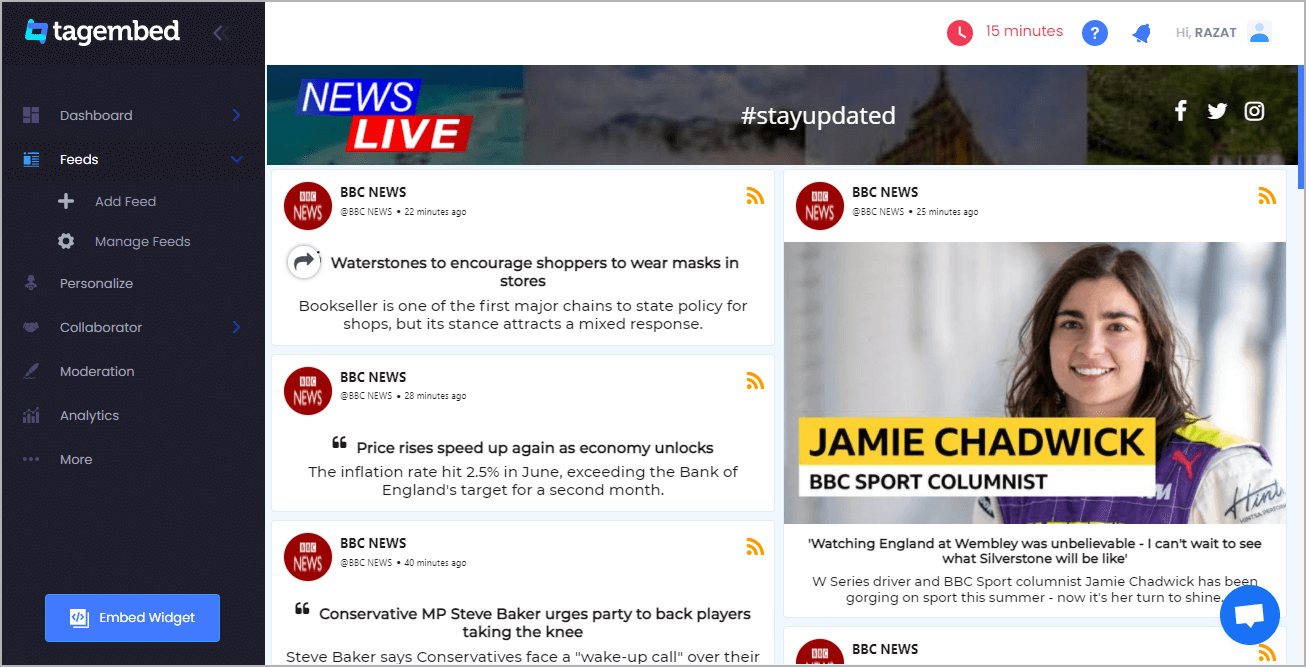
An RSS feed looks like a list of headlines and summaries. Each item links to the full post on your site. The feed updates automatically when you add new content. It is simple but very useful.
Credit: tagembed.com
Benefits Of Adding Rss To WordPress
Adding an RSS feed to a WordPress site brings many benefits. It helps keep your visitors updated with fresh content. It also improves your site’s reach and user engagement. Using RSS feeds can save time and effort in sharing updates. Here are some key benefits of adding RSS to WordPress.
Improves Content Distribution
RSS feeds allow your content to reach more people. Subscribers get your posts directly in their feed readers. This helps spread your articles beyond just your website visitors. More eyes on your content means more chances to grow your audience.
Keeps Visitors Updated Automatically
RSS feeds send new content automatically to followers. Visitors do not have to check your site often. They receive updates without extra effort. This keeps your audience engaged and informed at all times.
Boosts Website Traffic
More exposure from RSS feeds can increase your site visits. When users read your posts in feed readers, they may click to visit your site. Regular traffic growth helps improve your search engine rankings.
Enhances User Experience
RSS feeds provide a simple way to follow your content. Users get news in one place without searching. This convenience makes your site more user-friendly. Happy visitors are likely to stay longer and return.
Supports Content Syndication
RSS enables easy sharing of your content with other sites. Syndicating your posts can build partnerships and gain new readers. It also helps establish your site as a reliable source of information.
Locate Your Rss Feed Url
Finding your RSS feed URL is the first step to adding it to your WordPress site. This URL links your site’s content to other platforms or apps. Knowing this URL helps you share updates automatically. It also helps visitors subscribe to your posts easily.
WordPress creates RSS feeds automatically. But you need to locate the exact URL. This section shows simple ways to find it quickly. Follow the steps below to get your RSS feed URL.
Check The Default WordPress Rss Feed Url
Your WordPress site has a standard feed URL. It usually looks like this: yourwebsite.com/feed/. Just add /feed/ after your site’s main URL. This URL shows your latest posts in RSS format. Try typing it in your browser to see your feed.
Find Rss Feed Url For Categories Or Tags
You can get RSS feeds for specific categories or tags too. For categories, add /category/categoryname/feed/ to your site URL. Replace categoryname with your category’s name. For tags, use /tag/tagname/feed/. This helps share focused content with your readers.
Use Browser Tools To Locate Rss Feed
Most browsers detect RSS feeds automatically. Look for the RSS icon in your browser’s address bar. Clicking it shows the feed URL. This method works well if you are unsure about feed locations. It’s a quick way to confirm your feed’s address.
Check WordPress Widgets For Rss Feed Links
WordPress widgets sometimes display RSS feed links. Go to your site’s sidebar or footer area. Look for any RSS feed widgets or links. These often contain the feed URL you can copy. This method helps find feeds added by themes or plugins.
Add Rss Feed Using WordPress Widgets
Adding an RSS feed to your WordPress site helps visitors see fresh content quickly. Using WordPress widgets is a simple way to show feeds in sidebars or footers. This method does not need coding knowledge and works well for most themes.
The RSS widget pulls content from any feed URL and displays it on your site. It is easy to set up and customize. Follow these steps to add an RSS feed using WordPress widgets.
Access The Widgets Area
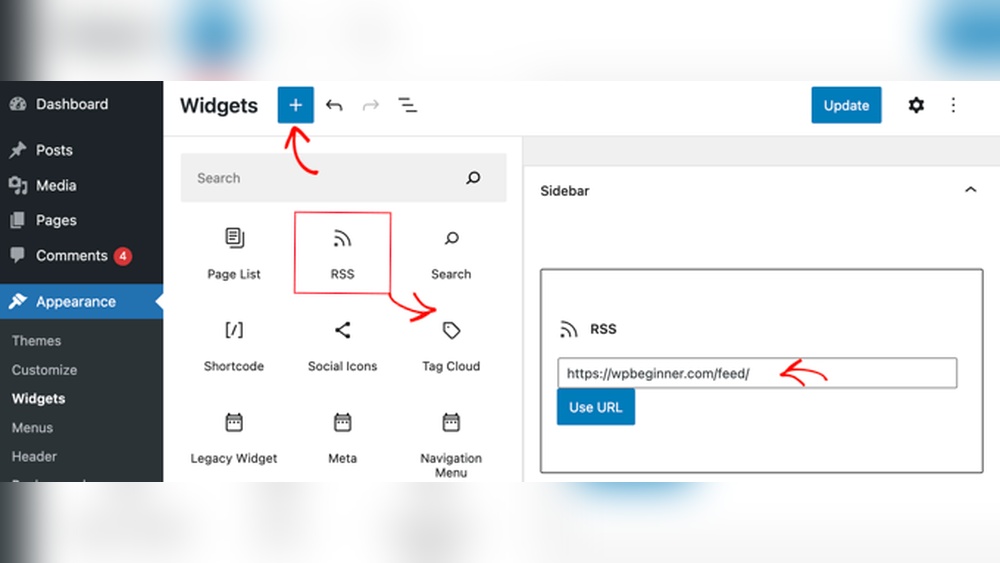
Log in to your WordPress dashboard. From the left menu, go to Appearance and select Widgets. This opens the Widgets page where you can add or remove widgets on your site. The available widget areas depend on your theme. Choose the area where you want to place the RSS feed, like Sidebar or Footer.
Add The Rss Widget
Look for the RSS widget in the list of available widgets. Click on it or drag it to your chosen widget area. This adds the RSS widget block to your sidebar or footer. You can move it later if you want a different spot.
Configure The Rss Feed Settings
Paste the RSS feed URL into the URL field. Set a title for the feed that visitors will see. Choose how many items to show, usually between 5 and 10 works well. You can also show the item’s date and content if you want. After setting these options, click Save. Your RSS feed will now display on your site’s widget area.
Embed Rss Feed With Plugins
Embedding an RSS feed using plugins is one of the easiest ways to display fresh content on your WordPress site. Plugins handle most of the technical work. You can show updates from other blogs, news sites, or your own feed.
Plugins offer options to control how the feed looks and behaves. This method saves time and avoids manual coding. Below are the steps to embed RSS feeds using plugins.
Choose The Right Plugin
Select a plugin that suits your needs. Popular options include WP RSS Aggregator, Feedzy RSS Feeds, and RSSImport. Check user ratings and recent updates. Pick a plugin that supports customization and is easy to use.
Install And Activate The Plugin
Go to your WordPress dashboard. Navigate to Plugins > Add New. Search for your chosen plugin. Click Install Now and then Activate. The plugin will add new tools to your dashboard for RSS feed management.
Customize Feed Display
Open the plugin settings to customize the feed. Set the feed URL you want to display. Choose how many items to show and the layout style. Adjust fonts, colors, and spacing to match your site design. Preview the changes before saving.

Credit: www.wprssaggregator.com
Use Shortcodes To Display Rss Feeds
Shortcodes offer a simple way to show RSS feeds on your WordPress site. They let you add dynamic content without coding. Using shortcodes keeps your posts and pages clean and easy to manage. It also helps you display fresh content from other sites automatically.
Shortcodes are small pieces of code wrapped in square brackets. WordPress processes them to show content like RSS feeds. You can customize shortcodes to fit your site’s style and needs. This method saves time and keeps your site updated.
Generate Rss Shortcode
To generate an RSS shortcode, use a plugin or custom code. Many RSS plugins provide shortcode options with simple settings. Enter the feed URL you want to display. Choose how many items to show and other display options.
The plugin then creates a shortcode for you. It looks like this: [rss feed="https://example.com/feed" items="5"]. You can copy this shortcode to use anywhere on your site. Some plugins also let you style the feed output with extra parameters.
Place Shortcode In Posts Or Pages
Paste the generated shortcode directly into the post or page editor. WordPress will replace it with the live RSS feed content. You can put shortcodes in any text block or widget area that supports shortcodes.
This method keeps your content flexible. You can move or edit the shortcode easily without touching the code. Visitors see the latest updates from the RSS source automatically. This keeps your site fresh and engaging.
Troubleshoot Common Rss Feed Issues
Troubleshooting RSS feed issues helps keep your WordPress site running smoothly. RSS feeds connect your site content to readers and other platforms. Problems can cause feeds to stop working or show errors.
Fixing common issues fast improves user experience. It also helps search engines find your latest posts easily. Below are two common problems and how to solve them.
Fixing Invalid Feed Urls
Invalid feed URLs often cause RSS errors. Check that the feed link uses the correct format. It should look like https://yoursite.com/feed/. Typos or missing parts break the feed.
Confirm your site’s address matches the feed URL. Use the WordPress settings to find the right feed link. Update any incorrect URLs on your site or in plugins.
Test the feed URL in a browser. If it does not show XML or an error appears, fix the URL. Sometimes, resetting permalink settings helps regenerate the correct feed link.
Resolving Display Problems
Feeds may load but show messy or broken content. This happens when there is invalid code in your posts. HTML errors or unsupported tags cause feed display problems.
Check your posts for unusual formatting or special characters. Clean up any broken HTML or remove unsupported elements. Use simple text and basic formatting in your posts.
Plugins can also interfere with feed display. Disable plugins one by one to find the cause. Clear your cache after changes to see updates properly.
Credit: www.youtube.com
Frequently Asked Questions
What Is An Rss Feed And Why Add It To WordPress?
An RSS feed delivers updated content automatically to subscribers. Adding it to WordPress improves user engagement and content reach. It helps visitors stay updated with your latest posts without manual checking. This boosts site traffic and enhances reader experience.
How Do I Find The Rss Feed Url For WordPress?
WordPress RSS feed URLs usually end with /feed/ after your site’s domain. For example, yoursite. com/feed/ shows the main feed. You can also get category-specific feeds by adding /category/categoryname/feed/. This URL is essential for adding feeds to your site or other platforms.
Can I Display External Rss Feeds On My WordPress Site?
Yes, you can show external RSS feeds using plugins like WP RSS Aggregator. This lets you aggregate and display other sites’ content. It boosts your site’s value by offering diverse information. Always ensure you have permission to display external feeds.
What Plugins Help Add Rss Feeds To WordPress Easily?
Popular plugins include WP RSS Aggregator, Feedzy, and RSSImport. These plugins simplify feed integration and customization. They offer features like feed filtering, caching, and styling options. Using plugins saves time and enhances your site’s functionality.
Conclusion
Adding an RSS feed to your WordPress site keeps content fresh and easy to share. It helps visitors stay updated without extra effort. The process is simple and quick. Use plugins or built-in tools to add feeds smoothly. Regular updates attract more readers and boost site activity.
Start adding RSS feeds today to improve your site’s user experience. Small steps lead to better engagement and growth. Try it out and watch your content reach more people.


