
Imagine transforming your WordPress site into a captivating visual experience that grabs your visitors’ attention from the moment they land on your page. You want to make an unforgettable first impression, right?
That’s where the Revolution Slider comes in. This powerful tool lets you add stunning sliders and animations that can elevate your website’s design effortlessly. But how do you integrate this dynamic feature into your WordPress theme without getting tangled in technical jargon?
The process might seem daunting, but it’s actually simpler than you think. In this guide, you’ll discover step-by-step how to seamlessly add the Revolution Slider to your WordPress theme. Whether you’re a beginner or a seasoned WordPress user, unlocking this secret weapon will give your site the visual edge it deserves. Ready to take your website’s aesthetic to the next level? Let’s dive in!
Credit: visualmodo.com
Installing Revolution Slider
First, buy the Revolution Slider from a trusted source. Follow the steps to download the plugin file. Save it on your computer. Ensure you have a stable internet connection during this process. The file is often in a zip format. Keep it ready for the next steps.
Log in to your WordPress dashboard. Go to Plugins. Click on Add New. Then, select Upload Plugin. Click on Choose File and find the saved zip file. Click Install Now. Wait for the upload to finish. This might take a few seconds.
After installation, click on Activate Plugin. You can find it in the Installed Plugins list. Now, the Revolution Slider is ready to use. Check the settings to customize. Explore various options. You can now create stunning sliders.
Setting Up Revolution Slider
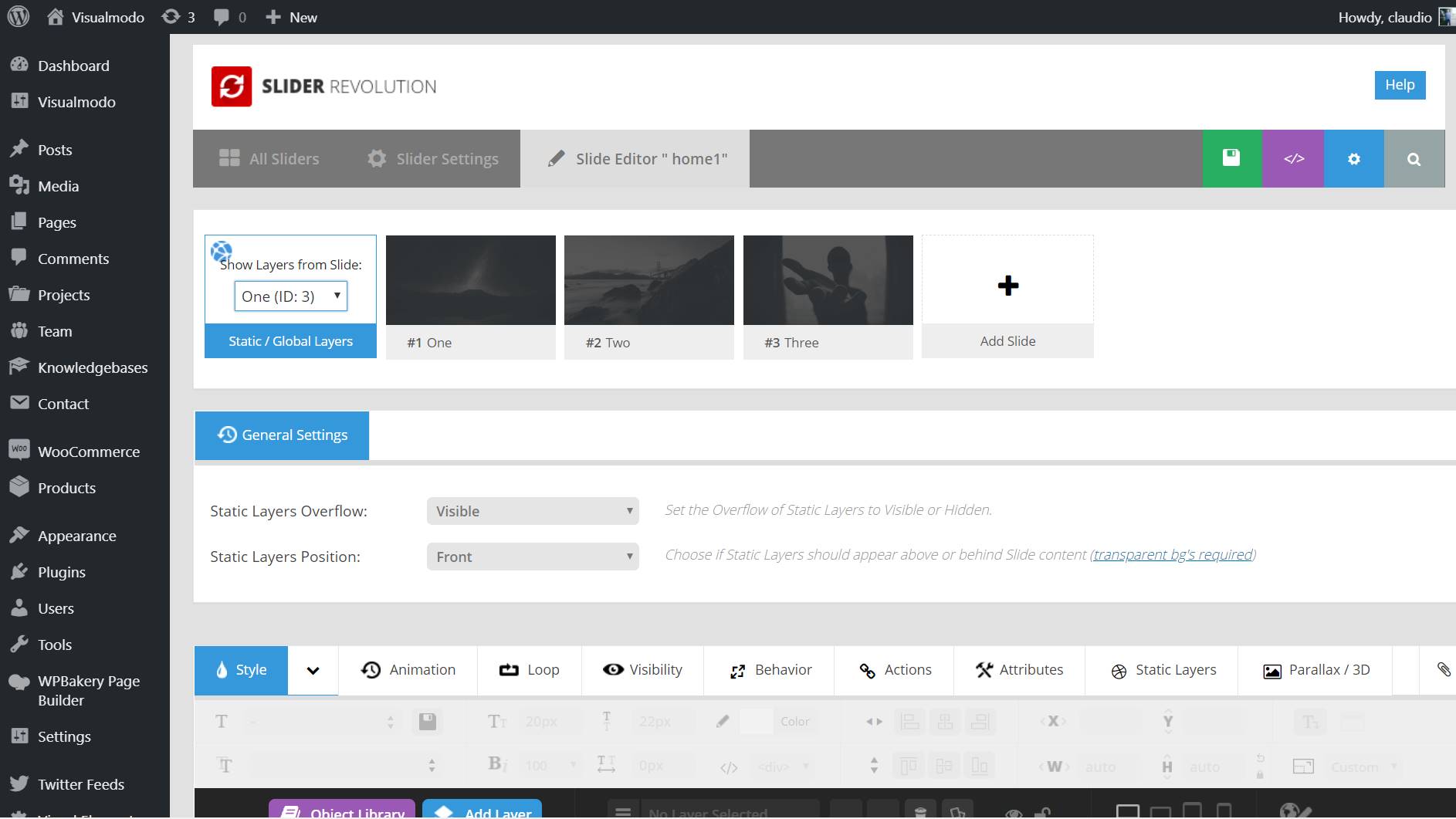
First, go to the dashboard. Find the Revolution Slider option. Click on ‘Create New Slider’. Name your slider. Choose the type. Full width or boxed. Select a template if needed. Save and continue.
Settings help to make your slider unique. Choose the slider size. Set width and height. Pick a transition style. You can choose fade, slide, or zoom. Adjust the speed. Slow or fast. Save changes.
Slides give life to your slider. Click ‘Add Slide’. Choose an image. You can upload or pick from the library. Add text to your slide. Use simple fonts. You can also add links. Save your slides. Repeat for more slides.
Integrating Slider Into WordPress Theme
Shortcodes make adding sliders easy. First, find the shortcode in the slider settings. Copy it. Next, paste it into your WordPress post or page. The slider will appear there. It’s simple and quick.
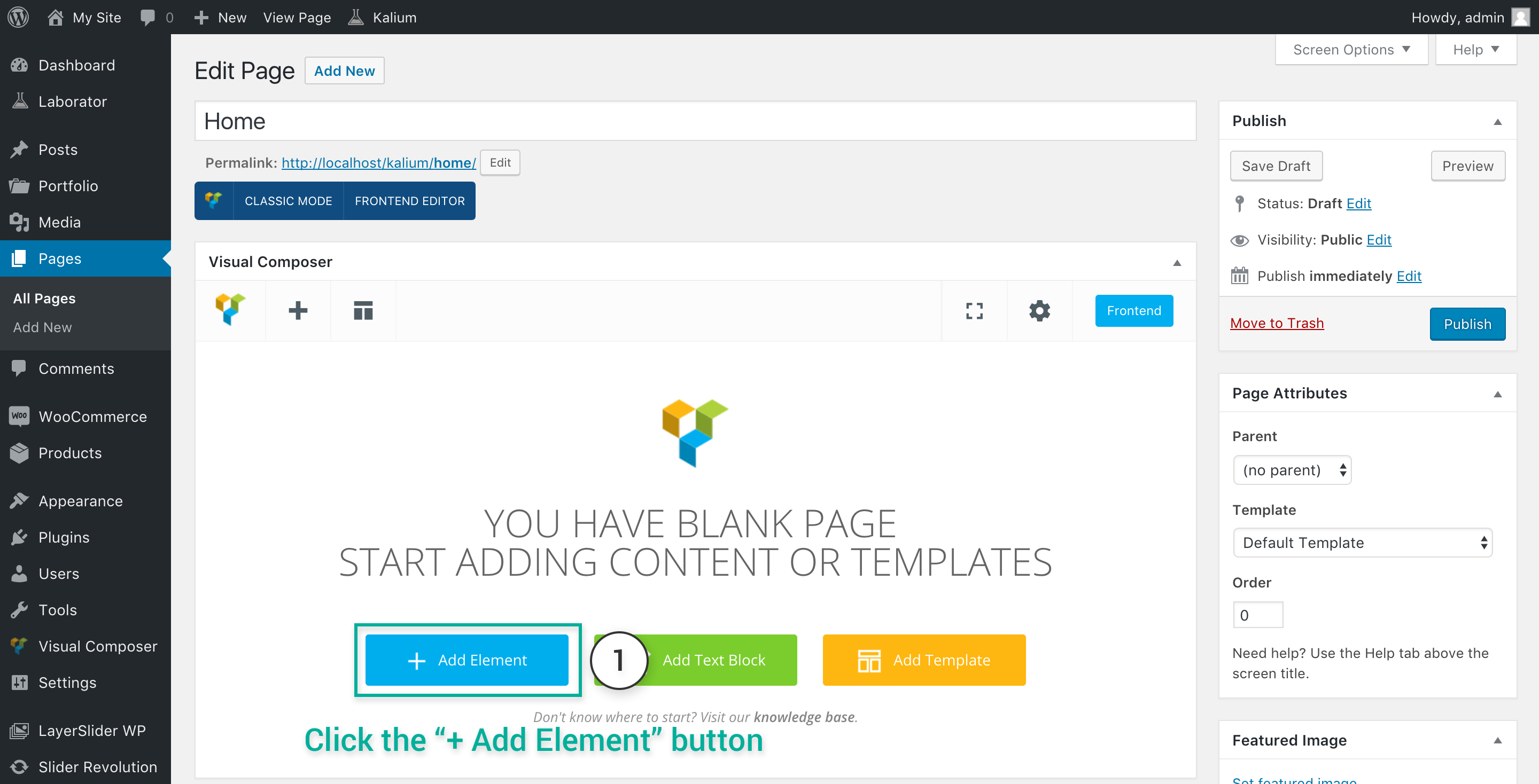
Page builders like Elementor help place sliders. Drag and drop the slider widget into your page. Customize the slider settings. Save and see your slider in action. Easy steps for beautiful pages.
PHP code helps to add sliders manually. Go to your theme’s header.php file. Add the slider PHP code where you want it. Save the file. The slider shows up on your site. A bit tricky but useful.
Credit: documentation.laborator.co
Customizing Slider Appearance
Selecting a template is fun. Templates change how your slider looks. Some are simple. Others have many features. Pick one that matches your site. You can change it later too. Templates help your slider look professional.
Slides can move in different ways. They can slide, fade, or flip. Choose a transition that is smooth. Transitions can make slides more interesting. Too many can be distracting. Keep it simple for the best effect.
Custom CSS lets you style your slider. You can change colors and fonts. Make sure it matches your site’s theme. CSS can make your slider unique. It’s like adding your own touch.
Optimizing Slider Performance
Integrating Revolution Slider into a WordPress theme enhances visual appeal. First, install the plugin from the WordPress dashboard. Next, create engaging slides using the intuitive interface. Finally, embed the slider into your theme using the provided shortcode, ensuring smooth performance and an attractive user experience.
Image Optimization
Reduce the file size of images. This helps the slider load faster. Use formats like JPEG or PNG for better quality. Keep image sizes under 100KB if possible. Use free tools online to compress images. This makes them smaller without losing quality. Smaller images mean faster loading times.
Lazy Loading Slides
Load only the first slide initially. Others load as needed. This speeds up the initial page load time. Users see the first slide faster. This improves the user experience. The slider won’t slow down your site. Use plugins that support lazy loading. This is crucial for better performance.
Minimizing Javascript And Css
Too much code can slow down your site. Minify JavaScript and CSS files. This removes unnecessary spaces and comments. It makes files smaller. Smaller files load faster. Use tools or plugins to minify code. This improves slider performance. A faster slider means happier visitors.
Credit: qodeinteractive.com
Troubleshooting Common Issues
Easily add Revolution Slider to your WordPress theme by installing and activating the plugin. Ensure compatibility with your theme and troubleshoot common issues like slider display errors by checking plugin settings. Adjust shortcode placement if the slider doesn’t appear on desired pages.
Slider Not Displaying
Sometimes, the slider may not show up. Ensure the shortcode is correct. Check if the slider ID matches the one in your theme. Also, verify if your theme supports the slider. Sometimes, a theme update can cause issues. Try using a different theme to test.
Resolving Javascript Conflicts
JavaScript conflicts can block the slider. Disable other plugins one by one to find the culprit. Clear your browser cache after disabling each plugin. Always keep WordPress and plugins updated. This often solves many conflicts. If the problem persists, check the browser console for errors. These errors can guide you to the issue.
Updating The Plugin Safely
Always backup your site before updates. This ensures you won’t lose data. Use a staging site to test updates first. This keeps your live site safe. Update plugins regularly for security and performance. After updating, check if the slider works. If not, consider rolling back to a previous version.
Frequently Asked Questions
What Is Revolution Slider In WordPress?
Revolution Slider is a popular WordPress plugin for creating responsive, visually appealing sliders. It offers a drag-and-drop interface, multiple transition effects, and customization options. Suitable for beginners and experts, it enhances website aesthetics and functionality. It’s a go-to choice for dynamic content presentation on WordPress sites.
How To Install Revolution Slider?
To install Revolution Slider, log into your WordPress dashboard. Navigate to Plugins > Add New. Search for “Revolution Slider,” then click Install Now. After installation, activate the plugin. Alternatively, upload the plugin’s ZIP file via the Upload Plugin option, then install and activate it.
Can I Customize Revolution Slider?
Yes, you can customize Revolution Slider extensively. It offers a user-friendly interface for adjusting slide layouts, animations, and timings. Add layers, such as text, images, and videos, to enhance your slider. Utilize pre-built templates or design from scratch for a tailored look that matches your theme.
Is Revolution Slider Mobile-friendly?
Revolution Slider is mobile-friendly. It automatically adjusts to different screen sizes, ensuring a seamless viewing experience. You can customize settings for mobile displays, such as font size and layer visibility. This ensures your sliders look great on all devices, enhancing user engagement and satisfaction.
Conclusion
Adding Revolution Slider to your WordPress theme enhances visual appeal. Simple steps make the process easy for everyone. First, install the plugin, then configure settings as needed. Customize slides with images and text. Engage visitors with captivating visuals. Regular updates keep your slider fresh.
Explore different styles and transitions. Experiment to find what works best for your site. Keep content relevant and engaging. Revolution Slider offers flexibility without complexity. You can elevate your website’s look effortlessly. Enjoy creating dynamic presentations that impress your audience.
Feel free to share your creations and inspire others in your online community.


