
Are you looking to enhance your WordPress website with a sleek, modern design element that captivates your audience? Adding a responsive slider could be the perfect solution for you.
Not only does it instantly elevate the aesthetic appeal of your site, but it also engages visitors by displaying multiple images or content snippets in a dynamic fashion. Imagine the possibilities: showcasing your top products, highlighting key blog posts, or simply creating an eye-catching visual experience that keeps your visitors scrolling for more.
In this guide, you’ll discover how easy it is to incorporate a responsive slider into your WordPress theme, regardless of your technical expertise. Dive in, and let’s transform your website into a visual masterpiece that resonates with your audience and boosts your engagement.
Credit: codecanyon.net
Choosing The Right Slider Plugin
Slider Revolution offers many design options. It is easy to use. Smart Slider 3 is another great choice. It has a drag-and-drop feature. This makes it simple to create slides. MetaSlider is known for its speed. It works well with any theme. Soliloquy is lightweight and fast. It is a perfect fit for beginners. These plugins are popular for a reason. Each has unique features.
Choose a plugin with responsive design. It should work on all devices. Look for easy customization options. This helps make the slider unique. Check for SEO-friendly features. These help improve your site’s visibility. Speed is important too. A fast slider keeps visitors happy. Pick a plugin that is compatible with your theme. This ensures smooth integration.
Credit: catchthemes.com
Installing The Slider Plugin
Integrate a responsive slider into your WordPress theme by installing the Slider Plugin. This tool offers easy customization, ensuring smooth transitions and mobile-friendly designs. Enhance your site’s visual appeal with dynamic slides, showcasing images or content effortlessly.
Using The WordPress Plugin Directory
First, log into your WordPress dashboard. Find the menu on the left side. Click on “Plugins”. Then, select “Add New”. A search bar will appear. Type “Slider Plugin” there. Browse through the options. Choose one with good reviews. Click “Install Now”. Wait a few seconds. Then, click “Activate”. Your plugin is ready to use. It’s very easy!
Manual Upload And Installation
Download the slider plugin from a trusted site. Save it to your computer. Go back to your WordPress dashboard. Click on “Plugins”. Then, click “Add New”. You will see the “Upload Plugin” option. Click it. Choose the plugin file from your computer. Click “Install Now”. Then, activate it. Your slider is ready. Follow the plugin setup instructions. Enjoy your new slider!
Configuring Slider Settings
First, go to the slider settings panel. Here, you can set the slider width and height. Choose numbers that fit your website layout. Next, set the slider speed. This decides how fast slides change. You can also choose autoplay. If you want, enable it for automatic slide changes. Finally, select how many slides to show at once. One slide looks clean, but more can show extra info.
Visit the design options tab. Here, you can choose colors for arrows and dots. Pick colors that match your theme. Next, choose a background color or image for the slider. This adds a special touch. You can also add captions. Text on slides helps explain images. Lastly, adjust the font size and style. Make sure it’s easy to read.
Adding Slider To Your Theme
Shortcodes make adding sliders easy. First, find a slider plugin you like. Install it on your WordPress site. Each plugin has its own shortcode. Copy the shortcode from the plugin’s settings. Go to the page or post you want the slider. Paste the shortcode where you want the slider to show. Save your changes. Check your page to see the responsive slider in action.
Page builders help create beautiful layouts. Many of them support sliders. Open your page builder. Drag and drop the slider element into your design. Some builders have built-in slider options. Choose settings you like. Preview your page to see how it looks. Adjust if needed to fit your theme.
Enhancing Slider Responsiveness
Setting breakpoints helps your slider fit any screen size. Breakpoints guide how the slider adjusts on different devices. Start by setting breakpoints for common screen sizes. Use 320px for phones, 768px for tablets, and 1024px for desktops. This ensures a smooth look across all devices. Make sure the images are flexible. This allows them to resize correctly. Use percentages instead of pixels for widths. This keeps them adaptable.
Test the slider across different devices. Check how it looks on phones, tablets, and computers. Make sure text is readable and buttons are clickable. Adjust styles if needed. Try using a tool like Chrome DevTools. This helps you see how the slider behaves on different screens. Testing ensures users have a good experience. Happy users stay longer on your site.
Credit: www.wonderplugin.com
Optimizing Slider Performance
Enhance your WordPress theme by adding a responsive slider to improve user experience. Choose plugins like MetaSlider or Smart Slider 3 for seamless integration. Ensure images and texts adjust automatically across devices, boosting engagement.
Reducing Image Sizes
Large images can slow down your slider. Use smaller images for better speed. Compress images without losing quality. Tools like TinyPNG can help. Smaller images load faster. This makes your slider smooth and quick. Avoid using very high-resolution images. Choose the right size for your slider. This keeps your site fast and responsive.
Utilizing Lazy Loading
Lazy loading helps improve performance. It loads images only when needed. This saves bandwidth and speeds up the page. Use plugins that support lazy loading. It helps keep your slider fast. Visitors see images as they scroll. This makes the site faster and more efficient. Lazy loading is easy to set up. It enhances user experience by reducing wait times.
Troubleshooting Common Issues
Easily add a responsive slider to your WordPress theme with clear instructions. Troubleshoot common issues like plugin conflicts or slider settings. Enhance your website’s visual appeal with smooth, mobile-friendly sliders.
Slider Not Displaying
Sometimes, the slider may not show on the page. Check if the slider plugin is installed correctly. Ensure all shortcodes are placed accurately. Look at the settings and confirm they are set to show the slider. Verify if the WordPress theme supports sliders. Some themes might not have this feature. Update all plugins and themes to their latest versions. This helps fix bugs. Clear the cache after making changes. This ensures new settings are active.
Responsive Issues
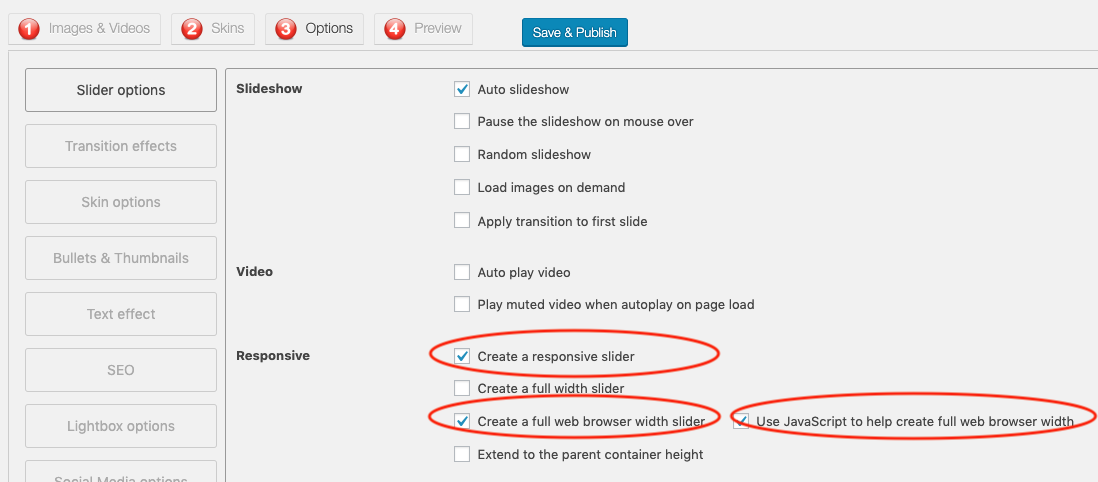
The slider might not adjust on different devices. Use a responsive slider plugin. These plugins adjust automatically. Check the slider settings for responsive options. Ensure they are enabled. Test the slider on various screen sizes. This checks if it works well everywhere. Sometimes, custom CSS is needed. Add CSS to adjust the slider. This helps it fit all screens.
Best Practices For Sliders
Creating a responsive slider in a WordPress theme enhances user engagement. Choose a slider plugin that supports responsiveness. Install and activate it in your theme, then customize settings for mobile-friendly display.
Balancing Design And Functionality
A slider should look nice but also work well. Use clear images that fit the theme. Make sure each slide has easy navigation. Keep the slider lightweight to load fast. Use simple animations. Too many animations can confuse users. Check how the slider looks on phones and computers. The design should not overpower the content.
Ensuring Accessibility
Everyone should be able to use the slider. Add alt text for images. Screen readers need this text. Make sure buttons are big and easy to click. Use colors that contrast well. This helps people with weak eyesight. Test the slider with a keyboard. Some users cannot use a mouse. Check if each slide works with a tab key. Accessibility boosts user experience for all.
Frequently Asked Questions
How Do I Add A Slider In WordPress?
To add a slider, install a slider plugin from the WordPress repository. Customize your slider by choosing images and settings. Then, insert the slider shortcode into your theme’s page or post where you want the slider to appear.
What Is A Responsive Slider?
A responsive slider automatically adjusts its size and layout based on the screen size. This ensures optimal viewing across devices, including desktops, tablets, and smartphones. It enhances user experience by displaying images properly without distortion.
Why Use A Slider In WordPress?
Sliders enhance visual appeal and improve user engagement. They allow for showcasing multiple images or content in an interactive manner. Sliders can highlight featured posts, display testimonials, or offer promotions effectively, contributing to an attractive site design.
Can I Customize Slider Design?
Yes, you can customize the slider design using plugin settings. Options typically include size, transition effects, navigation buttons, and image captions. Some plugins offer advanced customization through CSS for more detailed adjustments to match your theme.
Conclusion
Adding a responsive slider to your WordPress theme enhances user experience. It makes your website look modern and professional. Sliders display content in an engaging way. They capture attention with ease. Follow the steps outlined to integrate the slider seamlessly.
Test on various devices to ensure responsiveness. Keep the design clean and simple for best results. A well-implemented slider can boost visitor interaction. Don’t forget to update the slider regularly. This keeps your content fresh and relevant. Enjoy the benefits of a dynamic website.
Happy blogging!


