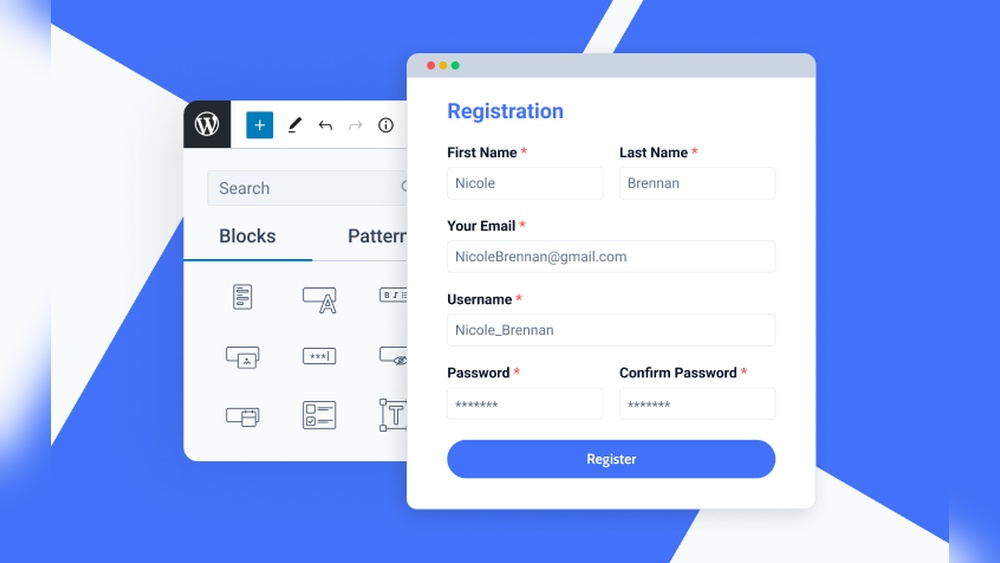
Are you looking to add a registration form to your WordPress site but don’t know where to start? You’re in the right place.
A simple, user-friendly registration form can boost your site’s engagement and help you connect directly with your visitors. You’ll learn exactly how to create and add a registration form step-by-step—no tech jargon, no confusing steps. By the end, you’ll have a smooth, professional form that works perfectly for your needs.
Ready to make your site more interactive and grow your community? Let’s dive in.
Credit: wpforms.com
Choose The Right Plugin
Choosing the right plugin makes adding a registration form easy. It affects how your users sign up and interact with your site. Picking the best tool saves time and avoids future problems.
Many plugins offer different features. Some fit simple needs, others suit complex sites. Knowing what to check helps find a plugin that works well for you.
Popular Registration Plugins
WPForms is a popular choice. It has a drag-and-drop form builder. Users create forms fast without coding.
Another good option is User Registration. It focuses only on registration forms. It keeps things simple and clean.
Ultimate Member is great for community sites. It offers profile and member directory features.
Each plugin has its own strengths. Choose one that fits your site’s style and needs.
Plugin Features To Consider
Look for easy installation and setup. A plugin should work well with your WordPress version.
Check if the plugin supports custom fields. This lets you collect the exact information you want.
Security features matter a lot. The plugin should protect user data and stop spam registrations.
Good plugins offer email notifications. They keep you and users informed about signups.
Compatibility with other plugins and themes is important. It ensures smooth site performance.
Credit: wpforms.com
Install And Activate Plugin
Installing and activating a plugin is the first step to add a registration form on WordPress. Plugins help you add new features without coding. This process is simple and quick. Once you activate the right plugin, you can create registration forms easily.
Finding Plugins In WordPress
Go to your WordPress dashboard. Look for the “Plugins” menu on the left side. Click on “Add New.” Use the search bar to type keywords like “registration form.” WordPress will show a list of related plugins. Check ratings and reviews to find a trusted option.
Steps To Install And Activate
After choosing a plugin, click the “Install Now” button. Wait a few seconds for the installation. Once installed, the button changes to “Activate.” Click “Activate” to enable the plugin on your site. The plugin is ready to use for building your registration form.
Create A New Registration Form
Creating a new registration form is the first step to let users sign up on your WordPress site. This form collects important information like names, emails, and passwords. Setting up the form correctly makes user registration simple and smooth.
Follow these steps to build a form that fits your needs. Customize it by adding fields that matter to your site. A well-designed form improves user experience and helps you manage registrations better.
Accessing The Plugin Dashboard
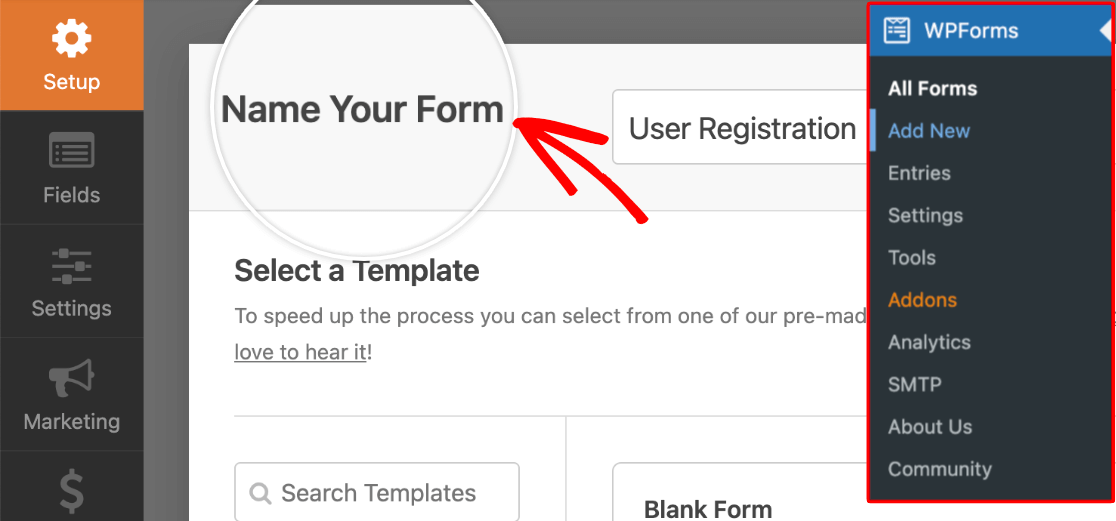
First, log in to your WordPress admin panel. Find the registration form plugin in the sidebar menu. Click on the plugin name to open its dashboard. Here, you see all form options and settings.
Look for a button or link that says “Add New” or “Create Form.” Click it to start a new registration form. The dashboard is easy to use and guides you through the process.
Adding Fields To Your Form
Next, add the fields you want users to fill out. The plugin shows a list of common fields like name, email, and password. Click on each field to add it to your form.
You can drag and drop fields to change their order. Some plugins let you create custom fields too. Make sure to include all the information you need from users.
Keep the form simple. Too many fields can confuse or discourage users. Save your form once you finish adding all fields.
Customize Form Settings
Customizing form settings is key to managing how users interact with your registration form. It controls what happens after users sign up and how their data is handled. Tailoring these options makes the form work smoothly for your website’s needs.
Setting User Roles
User roles decide what new members can do on your site. Assigning the correct role helps keep your site safe and organized. WordPress has default roles like Subscriber, Contributor, and Editor. Choose the role that fits your site’s goals. For example, most registration forms set new users as Subscribers. This role allows them to read content but not edit it. You can change this setting in the form’s user role option. Make sure to review your roles to avoid giving too many permissions.
Enabling Email Notifications
Email notifications keep you updated on new registrations. Turning this feature on sends alerts to your admin email. You can also send confirmation emails to users after they register. This builds trust and informs users their registration was successful. Configure the email subject and message for clarity. Test the notifications to ensure they reach the right inbox. This step prevents missed registrations and helps you respond quickly.
Embed The Form On Your Site
Embedding a registration form on your WordPress site lets visitors sign up easily. It places the form where users can see and use it quickly. You can embed the form using simple tools available in WordPress. Two common ways are using shortcodes or placing the form in pages or widgets.
Using Shortcodes
Shortcodes are small code snippets that add content to your site. Most form plugins create a shortcode for your registration form. Copy this shortcode from the plugin settings. Paste it into the WordPress editor where you want the form to appear. This method works well for posts and pages. It is quick and does not require any coding knowledge.
Adding To Pages Or Widgets
Adding your form to a page is simple. Open the page editor in WordPress. Insert a block called “Shortcode” or “Custom HTML.” Paste your form shortcode there. Publish or update the page. The form appears on the site immediately.
You can also add the form to a widget area. Go to Appearance > Widgets in your dashboard. Drag a “Text” or “Custom HTML” widget to your chosen area. Paste the shortcode inside the widget. Save the widget settings. Your form now shows in the sidebar or footer.
Test The Registration Form
Testing the registration form is an important step after creating it. It ensures the form works correctly for visitors. This process helps find errors before users see the form. It also confirms that all fields capture data properly.
Testing lets you check the user experience. You see if the form is easy to fill out. You verify if the form sends confirmation emails. Testing saves time by fixing problems early.
Submitting A Test Registration
Start by filling out the form with sample information. Use a valid email address to receive notifications. Complete all required fields to simulate a real user. Click the submit button to send the data.
Check if the form shows a success message after submission. Verify if you receive any confirmation email. Look in the WordPress dashboard to see if the user is added. This confirms the form works as expected.
Troubleshooting Common Issues
Sometimes, the form may not submit correctly. Check for missing required fields first. Make sure email notifications are set up in the plugin settings. Clear your browser cache and try again.
If users do not appear in the dashboard, check user roles and permissions. Review any error messages shown on the screen. Disable other plugins temporarily to find conflicts. Fixing these issues improves form reliability.
Enhance Form Security
Enhancing the security of your WordPress registration form protects your website from spam and attacks. Strong security helps keep user data safe. It also reduces fake sign-ups that can slow your site.
Simple steps can improve form security without making it hard for real users. Use tools that stop bots and control how many registrations happen. This keeps your site healthy and your users happy.
Adding Captcha
CAPTCHA is a test that checks if a user is human. It blocks bots from submitting forms. Many WordPress plugins offer easy CAPTCHA integration. This step stops automatic spam registrations quickly.
Choose simple CAPTCHA types like image or math questions. These are easy for users but hard for bots. Adding CAPTCHA improves form trust and reduces fake accounts.
Limiting Registrations
Limit how many times a user can register in a set time. This stops spammers from creating many accounts fast. Use plugins that track IP addresses to enforce limits.
Set a reasonable number of registrations per day. This keeps your form open but controlled. Limiting registrations protects your server from overload and abuse.

Credit: formidableforms.com
Frequently Asked Questions
How Do I Add A Registration Form In WordPress?
To add a registration form, use plugins like WPForms or User Registration. Install, activate, then customize the form. Embed it on any page using a shortcode or block editor.
Which Plugin Is Best For WordPress Registration Forms?
WPForms, User Registration, and Ultimate Member are top choices. They offer easy drag-and-drop form builders and user management features. Choose based on your site’s needs and budget.
Can I Customize My WordPress Registration Form Fields?
Yes, most plugins let you add or remove fields easily. Customize field types, labels, and validation rules to fit your registration requirements. This improves user experience and data collection.
Is It Possible To Restrict Content To Registered Users Only?
Yes, many plugins include content restriction options. You can limit pages or posts only to registered members. This helps create exclusive content and improves site security.
Conclusion
Adding a registration form in WordPress is simple and useful. It helps you collect user information easily. Choose a plugin that fits your needs. Customize the form fields to gather the right data. Test the form to make sure it works well.
Keep the process clear for your visitors. This way, you can build a better website and connect with your audience. Start adding your form today and see the difference it makes.