
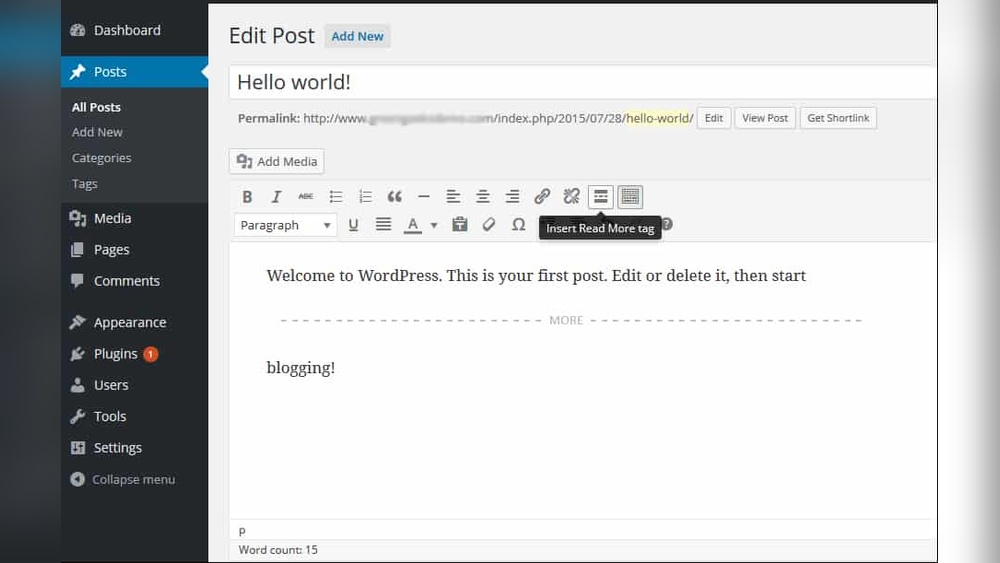
Are you struggling to keep your readers engaged on your WordPress site? Adding a “Read More” button can be a game-changer.
It helps you show just a snippet of your content, inviting visitors to click and explore further. This simple feature not only makes your posts look cleaner but also boosts your site’s user experience. You’ll learn exactly how to add a “Read More” button in WordPress—step by step and without any hassle.
Ready to make your blog posts more attractive and easy to navigate? Let’s dive in!
Why Use Read More In WordPress
Using the Read More feature in WordPress helps keep your website clean and organized. It shows only a part of a post on the main page. Visitors can click to see the full content if they want. This makes your site easier to browse and more user-friendly.
Boosting User Engagement
Showing a preview grabs the reader’s attention. Visitors see a short snippet and get curious. They are more likely to click and read the full post. This increases the time users spend on your site. It also lowers the chance they leave quickly.
Improving Page Load Speed
Loading only part of each post means pages load faster. Visitors don’t have to wait for long articles to appear all at once. Faster pages keep users happy and reduce bounce rates. Search engines also prefer sites that load quickly.
Enhancing Site Navigation
Read More helps organize content neatly on the homepage or blog page. Visitors see many posts without scrolling endlessly. It becomes easy to find interesting topics and click through. This smooth navigation improves the overall user experience.
Credit: www.greengeeks.com
Methods To Add Read More
Adding a “Read More” link helps keep your posts neat and easy to scan. It lets visitors see a preview and click to read the full article. WordPress offers several ways to add this feature. Each method fits different editing styles and skill levels. Choose the one that works best for your setup.
Using The Classic Editor
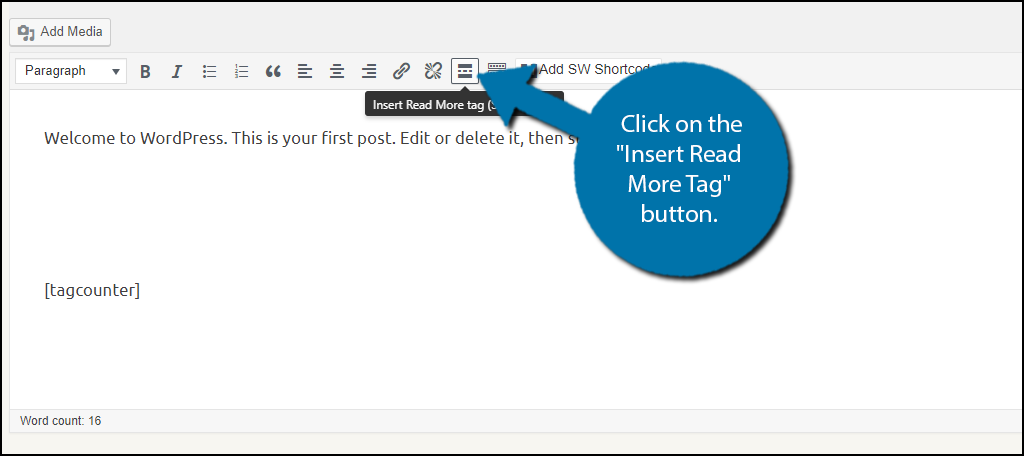
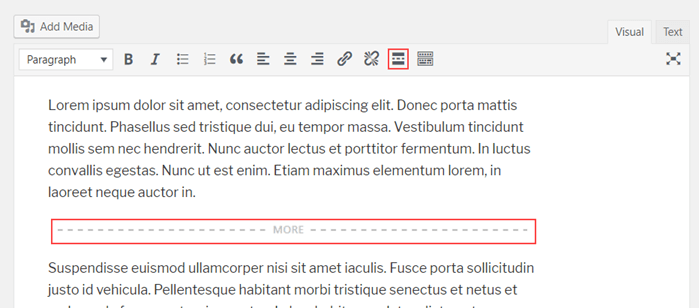
The Classic Editor is simple and familiar for many users. Place your cursor where you want the break in your post. Click the “Insert Read More tag” button in the toolbar. WordPress adds a line that splits your content. Visitors will see everything before this break and a “Read More” link below it.
This method requires no extra plugins or coding. It works well for basic blog posts and quick edits. You can always move or remove the tag as needed.
Adding Read More In Gutenberg
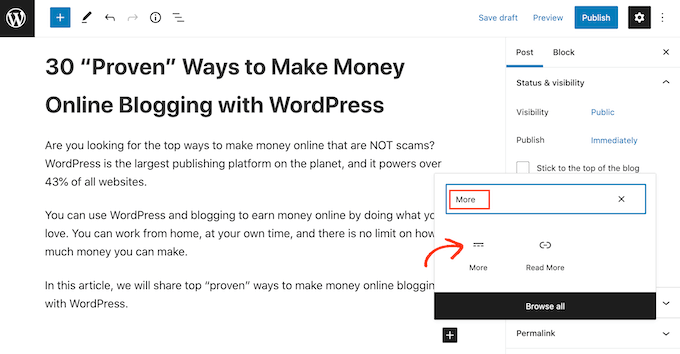
Gutenberg uses blocks to build content. To add a “Read More” link, insert the “More” block. Find it by clicking the plus (+) icon and searching for “More.” Place this block where you want the preview to end.
This block creates a clean separation in your post. The preview shows content above the block with a clickable link. Gutenberg makes it easy to drag and drop this block to adjust its position anytime.
Employing Plugins For Read More
Plugins offer extra control over “Read More” links. Some let you customize the text or style. Others add animations or load content without reloading the page. Search the WordPress plugin directory for “Read More” options.
Install and activate your chosen plugin. Follow its settings to customize how the “Read More” link looks and behaves. Plugins can help if you want advanced features without coding.
Customizing The Read More Link
Customizing the Read More link helps make your blog posts more attractive and clear. It guides readers to continue reading in a way that fits your website style. Simple changes can improve user experience and keep visitors engaged longer.
Small tweaks to the Read More link give your site a unique look. You can change its text, style, or add effects. These changes do not need coding skills. WordPress offers easy methods to personalize the link.
Changing Link Text
Changing the Read More text lets you match your blog’s tone. Instead of the default “Read More,” try phrases like “Continue Reading” or “See Full Article.” Use words that invite readers to click. This small change can make your content more inviting and clear.
Styling The Button Or Link
Styling the Read More button or link helps it stand out. Use colors that fit your website’s design. Adjust the font size and padding for better visibility. Add borders or background colors to create a button effect. Simple CSS can make the link look professional and clickable.
Adding Animations Or Effects
Adding animations makes the Read More link more dynamic. Hover effects like color changes or underlines catch the eye. Smooth transitions create a polished look. Use subtle animations to avoid distractions. These effects improve user interaction and encourage clicks.
Credit: www.hostpapa.com
Troubleshooting Common Issues
Troubleshooting common issues helps keep your WordPress site running smoothly. Problems with the Read More feature can confuse visitors and affect site usability. Understanding these issues saves time and improves user experience.
Read More Not Showing
Sometimes, the Read More tag does not appear on your posts. This happens if you use the wrong editor or place the tag incorrectly. Ensure you insert the Read More tag in the visual or text editor at the desired point in your content.
Check if your theme supports the Read More tag. Some themes hide it by default or style it differently. Try switching to a default theme like Twenty Twenty-One to test if the tag shows up properly.
Link Redirect Problems
Clicking the Read More link might not take users to the full post. This often happens due to incorrect permalink settings. Go to Settings > Permalinks and save your settings again to refresh links.
Another cause is plugins that interfere with URL redirects. Deactivate plugins one by one to find the culprit. Clear your site cache after changes to see immediate effects.
Compatibility With Themes
The Read More feature depends on your theme’s code. Some themes customize or remove this feature. Check the theme’s documentation for Read More support or updates.
You can also edit your theme’s template files to add Read More support. Use a child theme to avoid losing changes after updates. Testing on a staging site prevents live site issues.
Tips For Engaging Posts
Creating engaging posts keeps readers interested and coming back. Using the “Read More” feature wisely helps present content clearly and cleanly. It allows visitors to see a short preview and decide to read further. This section shares key tips to make your posts more engaging and effective.
Crafting Compelling Excerpts
Write excerpts that grab attention quickly. Use simple sentences that introduce the main idea. Avoid revealing everything in the preview. Keep it short but interesting enough to spark curiosity. Clear and direct excerpts help readers decide to continue reading.
Balancing Content Teasers
Show just enough content before the “Read More” break. Too little can confuse readers. Too much can reduce the need to click. Find the right balance to tease the main content. This encourages clicks and keeps the page tidy.
Using Multimedia Elements
Adding images or videos before the “Read More” tag boosts engagement. Visuals attract attention and support the text. Use relevant and high-quality media to complement your excerpt. Multimedia helps explain ideas quickly and makes posts more appealing.
Credit: docs.desertthemes.com
Frequently Asked Questions
How Do I Add A Read More Button In WordPress?
To add a Read More button, use the WordPress editor’s “Insert Read More tag” option. It splits content on the homepage or archives, showing a clickable link.
Can I Customize The Read More Text In WordPress?
Yes, you can customize the Read More text by editing your theme’s code or using plugins that allow text changes easily without coding.
Does The Read More Tag Improve Website Loading Speed?
Yes, the Read More tag helps load pages faster by showing only excerpts initially, reducing content load on homepage and archive pages.
Is The Read More Feature Compatible With WordPress Block Editor?
Yes, the Read More block is built into the WordPress block editor for easy insertion and customization without any coding knowledge.
Conclusion
Adding a “Read More” link makes your posts neat and easy to scan. It helps visitors find interesting content quickly. You control what readers see first, keeping your page tidy. This small step improves user experience and keeps visitors longer.
Try it today to make your WordPress blog better. Simple, quick, and effective.


