
Are you looking to enhance your WordPress website with a sleek and organized appearance? Adding a “Read More” button to your theme might just be the answer.
This simple yet powerful feature can transform your blog’s layout, making it more engaging and user-friendly. Imagine your readers effortlessly navigating through your content, intrigued by snippets and eager to dive into the full story. By mastering this technique, you not only captivate your audience but also improve your site’s overall functionality.
Ready to learn how to seamlessly integrate this feature into your WordPress theme? Let’s dive in and make your blog posts more inviting and interactive.
Credit: helpcenter.qodeinteractive.com
Benefits Of Adding A Read More Button
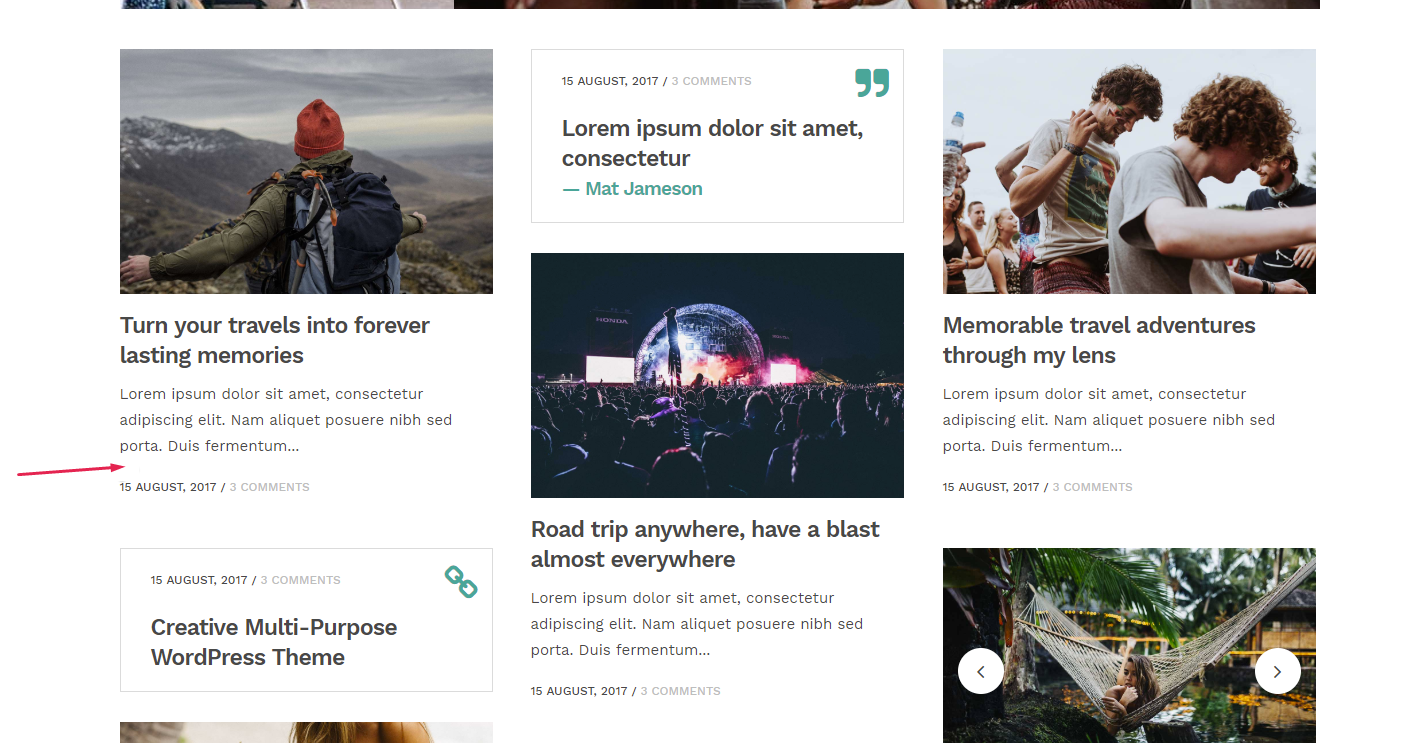
A Read More button helps keep your page neat. It makes the page look clean. With this button, users see only a part of the text. They can click to read more if they wish. This keeps your homepage tidy and not too long. It also helps with page loading. A shorter page loads faster. Faster pages make users happy. Happy users stay longer on your site.
Another benefit is better organization. It helps group similar content. It makes navigation easy. Readers find what they need quickly. It also makes your site look professional. A well-organized site builds trust. Trust makes people come back again. People like sites that are easy to use.
Choosing The Right Theme
Select a WordPress theme that supports customization. Many themes offer flexible options. Simple themes are easier to handle. Check if the theme allows adding buttons. Not all themes have this feature. Visit the theme’s documentation. It often has useful information. Some themes may require plugin support. Plugins enhance functionality.
Make sure the theme is responsive. Responsive themes work well on all devices. Test the theme on mobile and desktop. Good themes load quickly. Slow themes can affect user experience.
Look for themes with active support. Active support means frequent updates. Updated themes fix bugs. They also add new features. Choose themes with positive reviews. Reviews help in decision-making.
Customizing The Excerpt Length
Changing the excerpt length in WordPress is simple. First, go to your WordPress dashboard. Look for the functions.php file in your theme editor. This file helps customize your theme. Open the functions.php file. Next, add a small piece of code to change the excerpt length. Use this code:
function my_custom_excerpt_length($length) { return 20; } add_filter('excerpt_length', 'my_custom_excerpt_length');
Here, the number 20 represents the number of words you want in your excerpt. You can change it to any number you like. Be careful while editing the functions.php file. Errors can break your site. After adding the code, save the file. Check your site to see the changes. Now, your excerpt length is customized.
Using WordPress Editor
Adding a “Read More” button in WordPress enhances content navigation. Go to the WordPress Editor, select your text, and click on the “Read More” tag icon. This feature helps keep your page organized and encourages visitors to explore your content further.
Steps To Insert Read More Tag
Open your post in the WordPress editor. Find where you want to split the text. Place your cursor at that spot. Look for the “Insert Read More tag” option in the toolbar. Click on it. A dashed line will appear. This line shows where the text will break. Save your changes. Preview the post to check the break.
Adjusting The Read More Text
Go to your WordPress dashboard. Click on Appearance, then Customize. Find the section for Blog or Posts. Look for the “Read More” text option. Change it to whatever you like. It could say “Continue Reading” or “Learn More.” Save the changes. Check your site to see the new text. It should show up under posts.
Modifying Theme Files
Easily enhance your WordPress site by adding a “Read More” button. Modify theme files to improve user experience. Customize your blog’s appearance, guiding visitors through your content seamlessly.
Editing Index.php Or Archive.php
To add a Read More button, you first need to find your theme files. Use FTP or your hosting file manager. Open the index.php or archive.php file. Look for the loop where posts are displayed. Inside the loop, locate the the_content() function. This function shows the full content of posts.
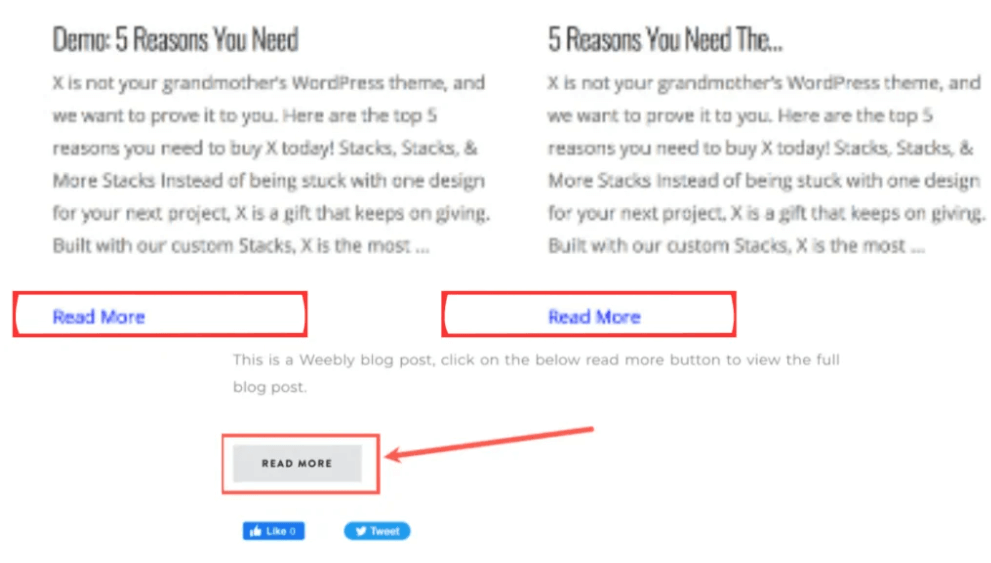
Replace the_content() with the_excerpt(). This shows a short summary instead. Now, add a PHP code for the button. Use Read More. This creates a clickable link. Save changes and check your site. Now, your posts have a Read More button on them. This helps users to click and read the full post.
Credit: gigapress.net
Utilizing Plugins
Plugins make adding a Read More button easy. They offer customization options. This way, you can match it with your theme. Using plugins saves time. No coding skills are needed. Just follow simple steps. Your blog posts will look cleaner. Readers will find it helpful. They can choose what to read more. This keeps your blog organized.
Top Plugins For Read More Button
Many plugins are available for this purpose. Read More WordPress Plugin is popular. It is simple to use. WP Show Posts is another choice. It provides extra features. Read More by Edmon offers easy setup. These plugins are reliable. They have good reviews. Pick one that fits your needs. They enhance user experience. Blog visitors enjoy clearer navigation.
Plugin Installation And Setup
Start by installing the plugin. Go to your WordPress dashboard. Click on Plugins. Select Add New. Search for the desired plugin. Click Install Now. Wait a few seconds. Once installed, click Activate. Follow the setup instructions. Customize the button style. Preview changes before publishing. Ensure it matches your theme. It is that simple.
Enhancing Button Appearance
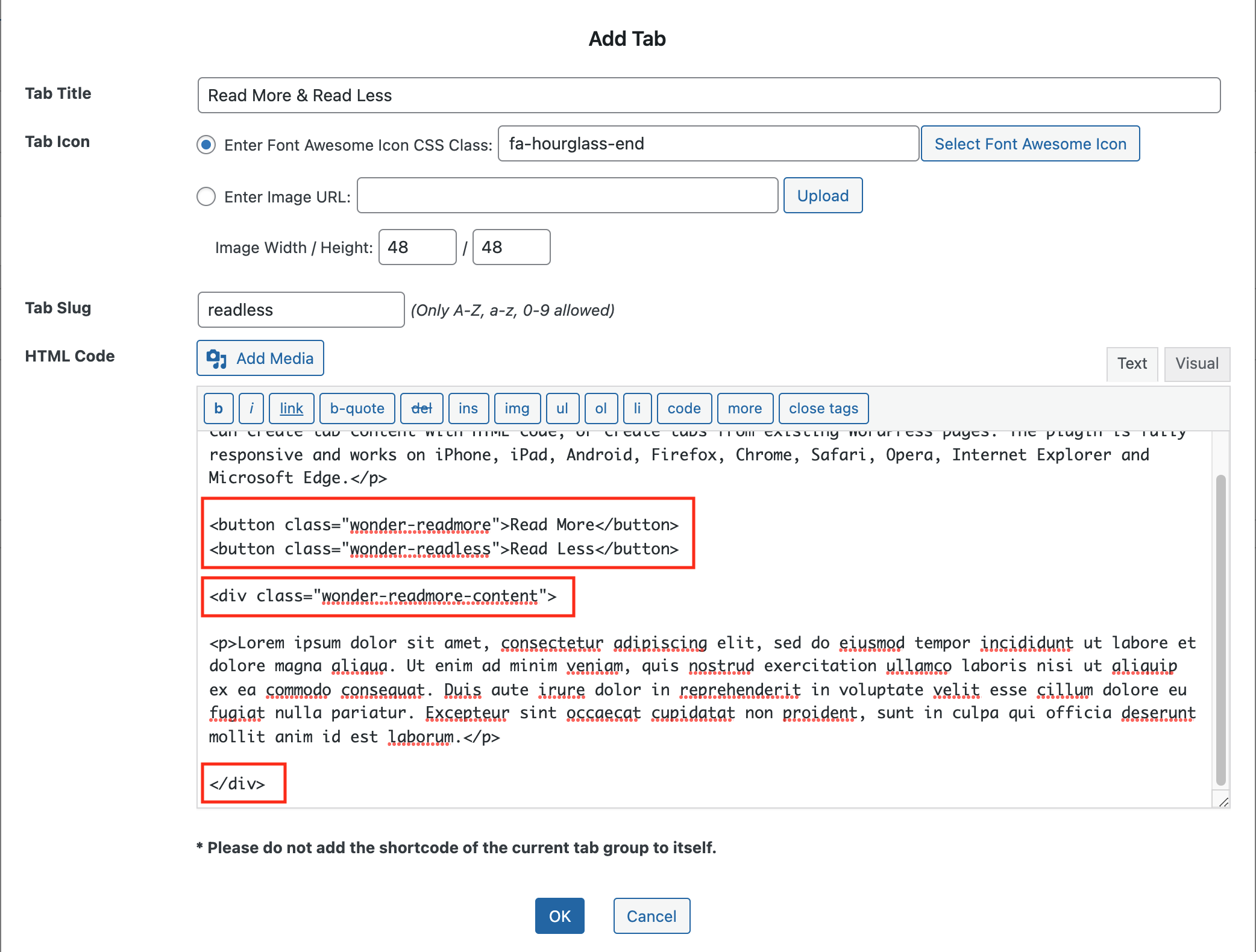
Make buttons look better with simple CSS changes. Use background-color to change colors. Try colors that match your theme. Use border-radius to give buttons rounded edges. Rounded edges make buttons look smooth. Change padding to make buttons bigger or smaller. Bigger buttons are easier to click.
Use font-size to change text size. Bigger text is easier to read. Pick fonts that are easy to read. Use transition to add effects. Effects make buttons fun to click. Try a hover effect. Hover effects change buttons when you point at them.
Make sure buttons work on all devices. Use media queries to adjust button size. Adjust size for phones and tablets. Test buttons on different screens. Ensure buttons are easy to click. Keep text readable on small screens. Use flex to center buttons. Centered buttons look neat.
Credit: www.wonderplugin.com
Testing And Troubleshooting
Learn how to add a “Read More” button to your WordPress theme. Enhance your blog by guiding readers to full articles. Troubleshoot common issues easily with step-by-step instructions.
Verifying Functionality
Check if the Read More button works. Click the button. See if it opens the full post. Refresh the page. Try again to make sure. Ask a friend to test it too. Different devices may show different results. Ensure it works on phones and computers.
Common Issues And Fixes
Sometimes, the button does not show. Check the theme settings. Some themes hide it by default. Look for a setting to enable it. Other times, the button shows but does not work. Ensure the code is correct. A small mistake can cause problems. Check if any plugins interfere. Disable them one by one. See if the button works after each. This helps find the problem.
Frequently Asked Questions
How Do I Add A Read More Button In WordPress?
To add a Read More button, edit your post and insert the ‘Read More’ tag where you want. Alternatively, customize the theme’s code to display the button. Some plugins also offer easy insertion of Read More buttons, enhancing user navigation on your WordPress site.
Can I Customize The Read More Button?
Yes, you can customize the Read More button by editing the theme’s CSS or using plugins. Change its color, size, or text to match your site’s style. Ensure it blends well with your theme for a seamless user experience.
Why Use A Read More Button In WordPress?
A Read More button helps keep your homepage or blog pages organized and concise. It improves site navigation by preventing content overload. Users can click to read full posts, enhancing engagement and keeping your site visually appealing.
Do Plugins Help Add Read More Buttons Easily?
Yes, plugins simplify adding Read More buttons without coding. They offer customization options and are user-friendly. Popular plugins include WP Show Posts and Read More Without Refresh, which streamline the process for WordPress users.
Conclusion
Adding a “Read More” button enhances your WordPress theme’s usability. It keeps the homepage clean and organized. Visitors find it easier to navigate. They can quickly access full articles. This simple feature improves user experience significantly. It’s crucial for engaging readers effectively.
Implementing it requires minimal effort. Yet, the benefits are substantial. Start by customizing your theme settings. Follow a few straightforward steps. Your site will look professional and inviting. Ensure your content remains accessible. Keep your audience engaged and interested. Remember, small changes can make a big difference.


