

Are you ready to start selling online but not sure how to add your products in WooCommerce on WordPress? You’re in the right place.
Adding products might sound tricky, but it’s actually simple once you know the steps. By the end of this guide, you’ll have your products listed and ready to attract customers. Keep reading, and you’ll discover easy tips that save you time and help your store look professional from the start.
Let’s dive in and get your online store growing!
Setting Up Woocommerce
Setting up WooCommerce is the first step to selling products on your WordPress site. This process prepares your store for smooth operation. It involves installing the plugin and adjusting basic settings to match your needs.
Installing The Plugin
Start by logging into your WordPress dashboard. Navigate to the Plugins section and click on Add New. Type “WooCommerce” in the search bar. Find the WooCommerce plugin and click Install Now. After installation, click Activate to enable the plugin. WooCommerce will now appear in your WordPress menu.
Configuring Basic Settings
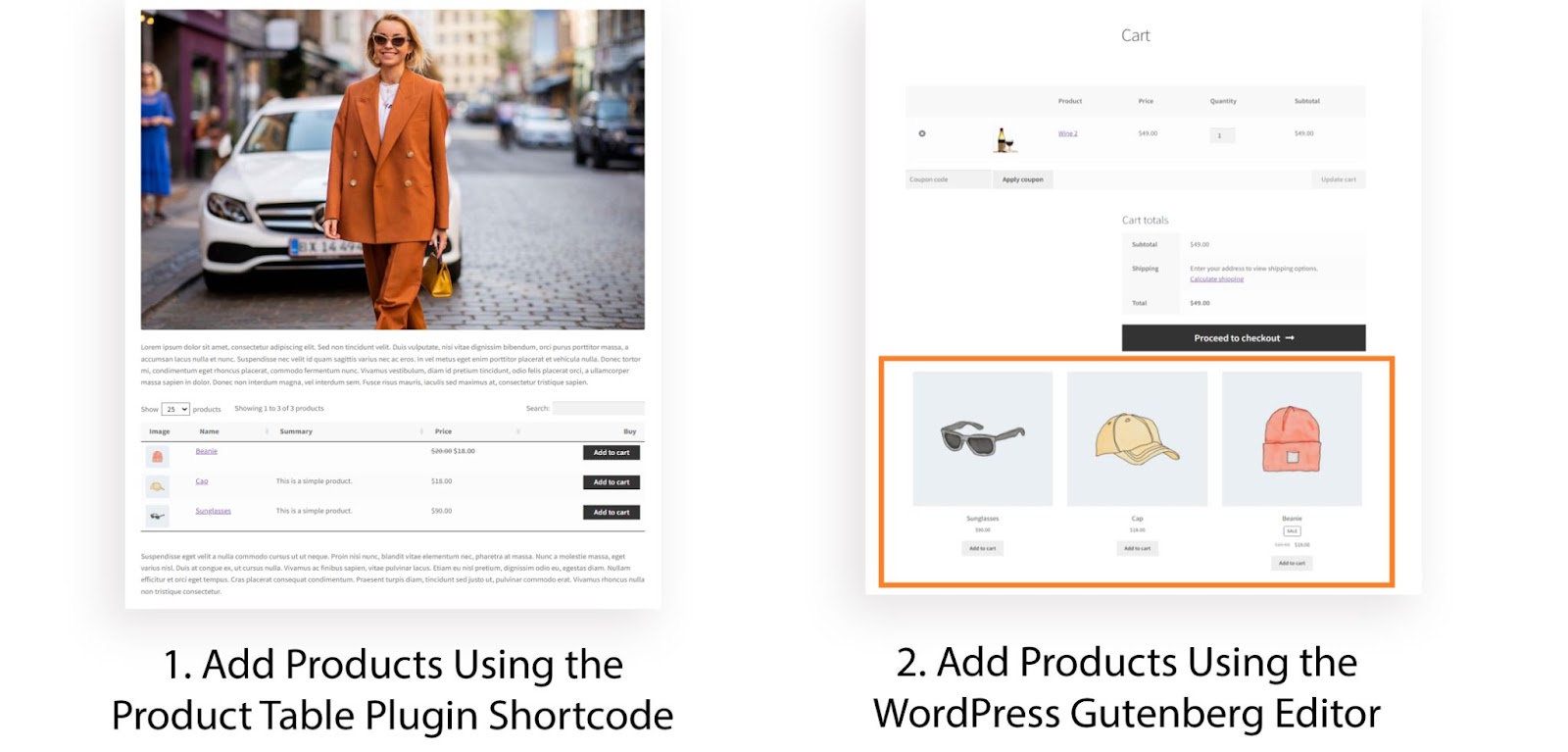
Once WooCommerce is active, a setup wizard will guide you through the basics. Enter your store address and choose the currency. Select the type of products you plan to sell. Set up payment options like PayPal or Stripe. Configure shipping settings based on your delivery methods. Review all details and save your settings. Your store is now ready for product additions.
Credit: aovup.com
Preparing For Product Addition
Preparing to add products in WooCommerce sets the stage for smooth setup. Planning saves time and avoids confusion. It helps create clear, complete product listings. Follow simple steps before you start adding products.
Choosing Product Types
Select the right product type first. WooCommerce offers several options: simple, grouped, external/affiliate, and variable products. Simple products are basic items without variations. Grouped products combine related products. External products link to other websites. Variable products allow different sizes or colors. Pick the type that fits your item best.
Gathering Product Information
Collect all product details before adding them. Important info includes the product name, description, price, and images. Prepare SKU codes to track inventory. Note product weight and dimensions for shipping. Write clear, short descriptions that explain the product well. Good photos help buyers see what you sell.
Adding A New Product
Adding a new product to your WooCommerce store is a simple step. It helps you show your items to customers and start selling quickly.
Follow a clear process to create each product with the right details. This makes your store look professional and easy to use.
Navigating To Product Section
First, log in to your WordPress dashboard. On the left menu, find and click “Products”.
This opens the product management area. Here, you can see all your products and options.
Click the “Add New” button at the top. This takes you to the product creation page.
Filling In Product Title And Description
Start by entering the product title at the top. Use clear and simple words for the name.
Next, add a detailed description in the large box below the title. Explain what the product is and its benefits.
Keep sentences short and easy to read. This helps customers understand your product quickly.
Credit: www.inmotionhosting.com
Setting Product Data
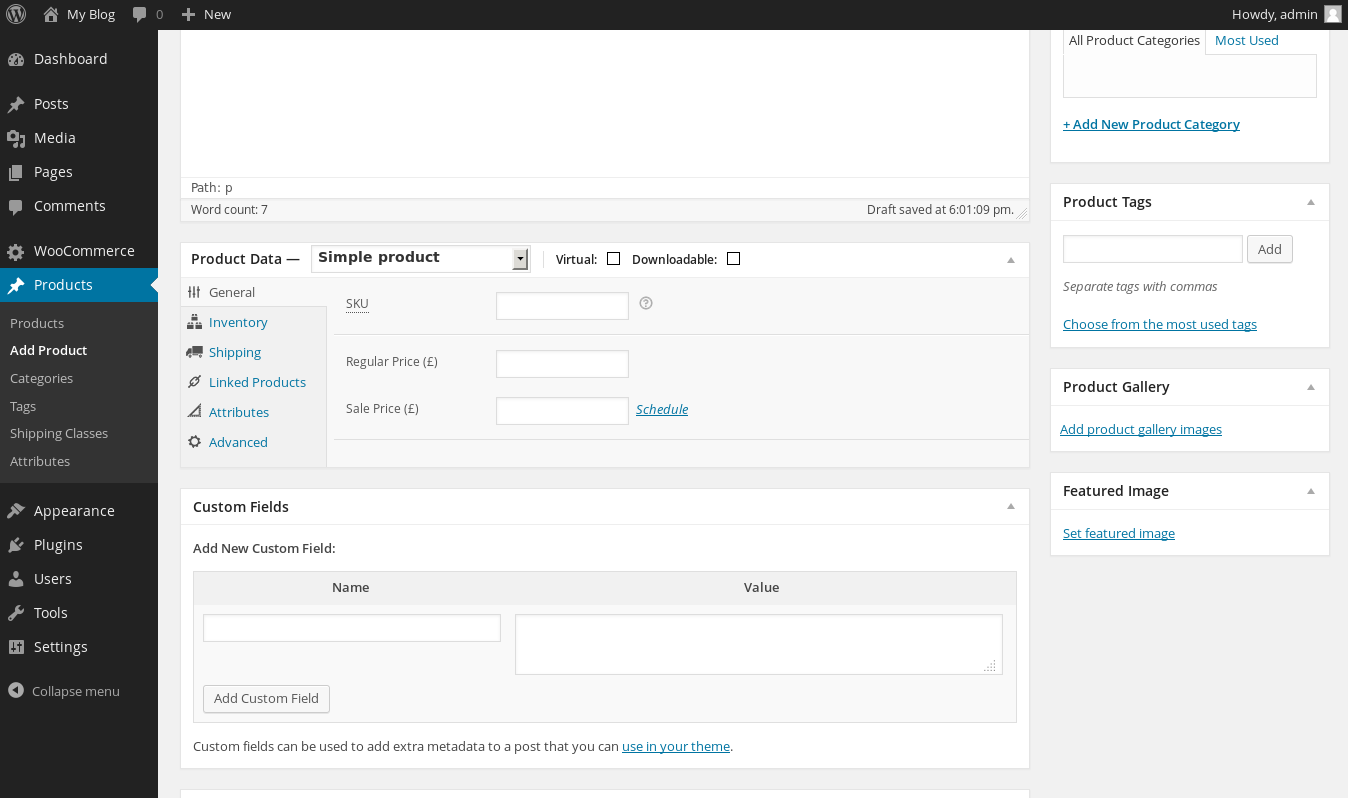
Setting product data in WooCommerce is key to making your products clear and easy to find. This section lets you control all details about each product.
It helps you organize your store and manage your sales better. Let’s look at the main parts of setting product data.
Configuring General Settings
Start by entering the product price. You can set a regular price and a sale price.
Choose the product type: simple, grouped, or variable. This tells WooCommerce how to handle your product.
Set the product SKU, a unique code for tracking. This helps with inventory and orders.
Managing Inventory
Control stock levels here. Enable stock management to track products automatically.
Set the stock quantity to show how many items are available. You can also allow backorders.
Mark the product as in stock or out of stock. This status shows to customers on your site.
Shipping Details
Fill in the product weight, length, width, and height. This info helps calculate shipping costs.
Choose the shipping class. It groups products with similar shipping rates.
Clear shipping details make sure customers see accurate shipping prices at checkout.
Linked Products And Upsells
Link products to suggest related items to customers. This can boost sales.
Add upsells to promote higher-end products or add-ons. Show these on the product page.
Use cross-sells to suggest products during checkout. This encourages customers to buy more.
Adding Product Images
Adding product images is important for any WooCommerce store. Clear images help customers see what they buy. Good pictures build trust and increase sales. WooCommerce lets you add one main image and several gallery images for each product.
Setting Featured Image
The featured image is the main picture of your product. It shows on the product page and in shop listings. To set it, click the “Set product image” link in the product editor. Choose an image from your media library or upload a new one. Make sure the image is clear and shows the product well. After selecting, click “Set featured image.” The image will appear on your product page.
Adding Product Gallery
The product gallery shows more pictures of your product. It gives customers different views or colors. Click “Add product gallery images” in the product editor. Select multiple images from your media library or upload new ones. After choosing, click “Add to gallery.” You can reorder images by dragging them. The gallery appears below the featured image on the product page. Use good quality images to help customers make decisions.
Assigning Product Categories And Tags
Assigning product categories and tags helps organize your WooCommerce store. Categories group similar products together. Tags describe product details and features. This makes browsing easier for customers. It also improves search engine rankings by structuring your content well.
Setting clear categories and tags helps customers find products faster. It reduces confusion and increases sales chances. Proper categorization improves your website’s navigation and user experience.
Creating Product Categories
Start by naming your product categories. Choose names that clearly describe the products. For example, “T-Shirts” or “Coffee Mugs.” Categories should be broad enough to include many products.
Add a description to explain each category. This description appears on the category page. It helps customers understand what products they will find.
You can create parent and child categories. For example, “Clothing” as a parent and “T-Shirts” as a child. This builds a clear product hierarchy.
Assigning Categories To Products
While adding a product, find the “Product Categories” box. Check the box next to the correct category or categories. You can assign multiple categories if needed.
If the right category does not exist, create it from this screen. Click “+ Add new category” and type the name. Assign it immediately without leaving the page.
Using Product Tags Effectively
Tags are keywords that describe product features. Add tags like “cotton,” “eco-friendly,” or “handmade.” These help customers filter and search products.
Keep tags specific but not too many. Using too many tags can confuse search engines. Use tags that best describe your product’s details.
Tags appear on product pages and archives. They create additional links between related products.
Publishing And Managing Products
Publishing and managing products in WooCommerce is key to running an online store. It helps you control what customers see and how your products appear. This section guides you through previewing, publishing, and editing products effectively.
Previewing Products
Before publishing, preview your product to check its appearance. Click the “Preview” button on the product page. This shows how customers will view the product. Look for errors in images, descriptions, and prices. Fix any issues to ensure a professional look.
Publishing Options
WooCommerce lets you control when and how products go live. Choose “Publish” to make the product visible immediately. Or set a future date to schedule product launch. You can also save products as drafts. This allows more time to prepare details before showing them.
Editing Existing Products
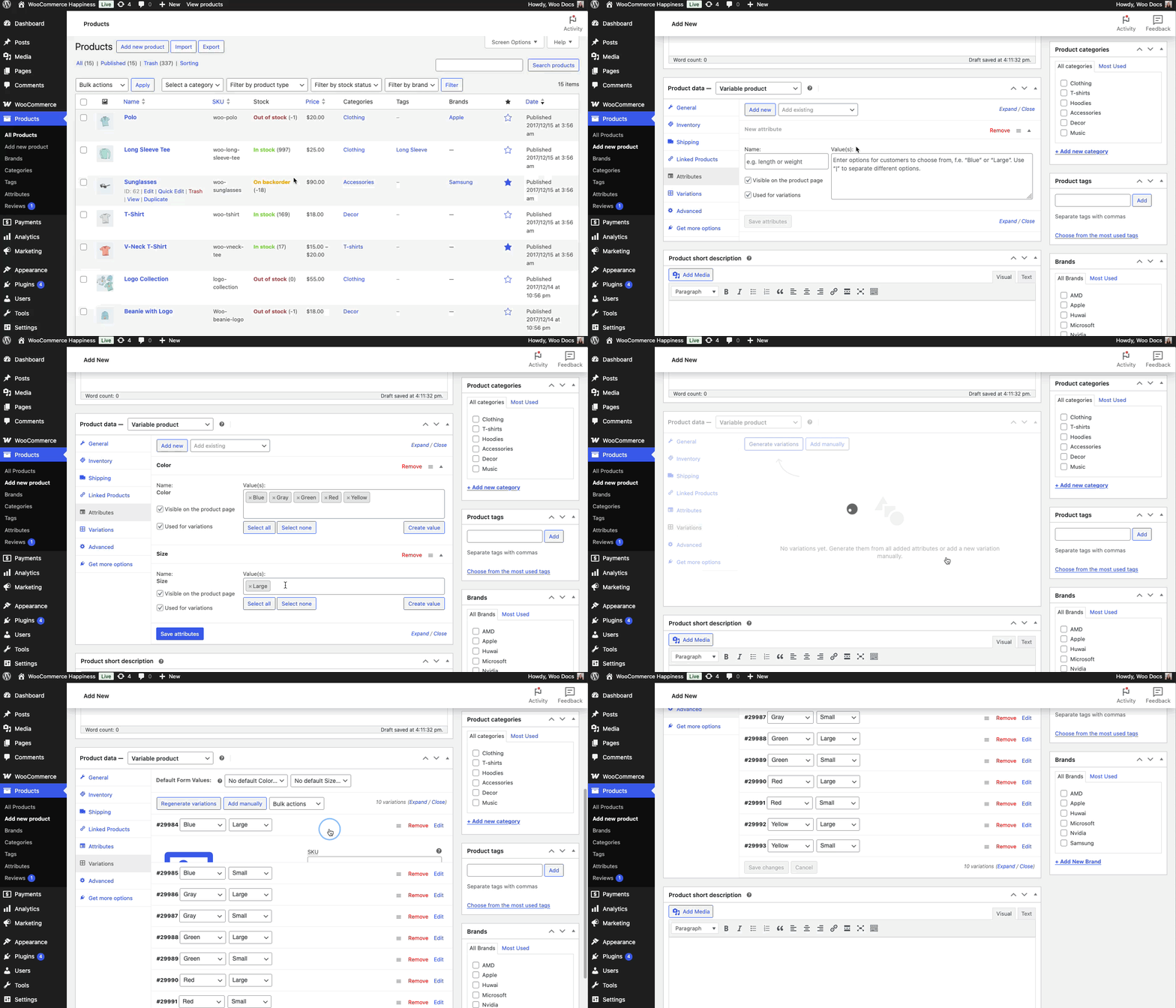
To update product details, go to the Products list in your dashboard. Find the product and click “Edit.” Change images, descriptions, prices, or stock status. Save changes by clicking the “Update” button. Regular updates keep your store fresh and accurate.
Credit: woocommerce.com
Tips For Product Optimization
Optimizing your products in WooCommerce helps attract more customers and improves sales. Proper optimization makes your products easy to find and understand. This boosts your store’s visibility on search engines and enhances user experience. Follow these simple tips to make your products stand out.
Seo Best Practices
Use clear, relevant keywords in product titles and descriptions. Keep titles short and descriptive. Write unique descriptions for each product. Avoid copying text from other websites. Use alt text for product images to improve search rankings. Add product categories and tags to organize items. This helps search engines and customers find your products faster.
Enhancing Product Descriptions
Write simple and clear descriptions. Explain the product’s features and benefits. Use bullet points to highlight key details. Answer common questions customers may have. Avoid long paragraphs to keep readers engaged. Use active voice to make descriptions lively. Include size, color, and material information if needed.
Using High-quality Images
Use clear, sharp images to show products well. Take pictures from different angles. Use a plain background to avoid distractions. Ensure images load quickly by compressing them. Add zoom features if possible to show details. Good images build trust and help customers decide.
Frequently Asked Questions
How Do I Add A New Product In Woocommerce?
To add a new product, go to WooCommerce > Products > Add New. Enter product details like name, description, price, and images. Set product type and inventory. Finally, click Publish to make it live on your store.
Can I Add Different Product Types In Woocommerce?
Yes, WooCommerce supports simple, variable, grouped, and external products. Choose the product type from the dropdown while adding a product. Configure attributes and variations for variable products to offer multiple options to customers.
How To Optimize Product Listings For Seo In Woocommerce?
Use clear product titles and detailed descriptions with keywords. Add high-quality images with alt text. Set SEO-friendly URLs and meta descriptions. Properly categorize products and use tags for better search visibility.
What Are Product Categories And How To Use Them?
Product categories organize your store and improve navigation. Create categories in WooCommerce > Products > Categories. Assign products to relevant categories to help customers find items easily and boost SEO.
Conclusion
Adding products to WooCommerce is simple and fast. Just follow the steps carefully. Enter product details clearly for better customer understanding. Use good images to attract buyers. Keep your product list organized and updated. This helps your online store run smoothly.
Start adding products today and see the difference. Your shop will grow with the right effort. Keep learning and improving your site over time. Success comes with patience and good work.


