

Are you tired of your website visitors staring at a blank screen while your pages load? Adding a preloader can keep your audience engaged and make your site look more professional.
But what if you don’t want to slow down your site with extra plugins? You’re in the right place. You’ll learn exactly how to add a sleek, fast preloader to your WordPress site—without using any plugins. Follow these simple steps, and you’ll improve your visitors’ experience and keep them hooked from the moment they arrive.
Let’s get started!

Credit: www.youtube.com
What Is A Preloader
A preloader shows a small animation while a website loads. It helps keep visitors patient and improves user experience. Adding one in WordPress without a plugin is simple and saves site speed.
What Is A Preloader?
A preloader is a simple animation or image shown before a website fully loads. It appears while the page content is still loading in the background. This gives visitors something to see instead of a blank screen.
Preloaders improve user experience by reducing perceived wait time. Visitors know the site is working and won’t leave out of frustration. It also adds a professional touch to your website.
Why Use A Preloader?
Preloaders keep visitors engaged during loading delays. They prevent users from clicking away too soon. A smooth loading process can increase visitor retention and reduce bounce rates.
Common Types Of Preloaders
Preloaders come in many styles. Popular types include spinning wheels, progress bars, and simple logos. Each type signals that content is on its way.
How Preloaders Work On Websites
Preloaders run using HTML, CSS, and JavaScript. They display immediately and hide once the page finishes loading. This seamless transition improves site performance and appearance.

Credit: www.youtube.com
Benefits Of Using A Preloader
Using a preloader on your WordPress site can improve user experience in many ways. It shows visitors that your site is loading, so they stay patient. This small feature helps keep visitors engaged until the full page appears. Here are some key benefits of using a preloader.
Improves User Experience
Preloaders inform users that content is loading. This reduces frustration and confusion. Visitors won’t see a blank screen. Instead, they get a clear signal that the site is working.
Reduces Bounce Rate
Visitors often leave if a page loads slowly. A preloader keeps them on the site longer. This decreases the chance they will leave early. More time on site means better engagement.
Enhances Perceived Speed
Even if the page takes time to load, preloaders create a feeling of faster loading. Users feel the site is responsive. This improves their overall impression of your website.
Keeps Branding Visible
You can customize preloaders with your logo or colors. This keeps your brand visible during loading. It adds a professional touch to the user’s experience.
Works Without Plugins
Adding a preloader manually keeps your site lightweight. No extra plugins means faster backend performance. This helps maintain good site speed and security.
Preparing Your WordPress Site
Preparing your WordPress site is the first step to adding a preloader without a plugin. This step helps keep your site safe and ready for changes. It also stops any problems that might happen during editing.
Follow simple preparation steps. These make your work easier and protect your site data. Two important actions are backing up your site and choosing a child theme.
Backup Your Site
Backing up your site saves a copy of your files and database. It keeps your content safe from loss or mistakes. Use your hosting provider’s backup tool or a manual method. Save the backup on your computer or cloud storage. This way, you can restore your site if needed.
Choose A Child Theme
A child theme lets you change your site without losing custom work. It keeps the original theme safe. Create a child theme folder and add style and functions files. Activate the child theme in WordPress. Now, you can add your preloader code safely. Your main theme will stay unchanged after updates.
Creating The Preloader Html
Creating the preloader HTML is the first step to show a loading animation on your site. This small code block appears while your website content loads. It improves user experience by informing visitors that the page is loading.
Keep the HTML simple and clean. A basic preloader uses a container with a spinner or a loading text inside. This structure makes it easy to style with CSS later.
Creating The Preloader Container
Start by adding a div element with a unique ID or class. This container wraps the entire preloader content. It helps control the preloader’s visibility with CSS and JavaScript.
Adding A Spinner Or Loading Text
Inside the container, add a simple spinner or text like “Loading…”. A spinner can be created using a small animated element or an SVG. Text works well for basic loaders and is easy to customize.
Example Of Basic Preloader Html
This example shows a preloader container with a spinner inside. The spinner style will be added in CSS to create the animation effect.
Adding Css For Preloader Styles
Adding CSS for preloader styles creates the visual look of the loader. It controls size, color, and animation. This step is key to making the preloader stand out on your site.
The CSS code goes inside your theme’s style.css file or a custom CSS section. The styles keep the preloader visible until the page fully loads. Simple CSS animations work well for this.
Creating The Preloader Container
Start by making a full-screen container for the preloader. Use position: fixed; to keep it on top. Set background color to white or any brand color. Align content center with flexbox for neat appearance.
Designing The Loader Animation
Use CSS keyframes to create smooth animations. Common options are spinning circles or fading dots. Choose a simple shape with clear motion to catch attention. Adjust speed and easing for a natural feel.
Hiding The Preloader After Page Load
Initially, show the preloader with display: flex;. Use JavaScript to remove or hide it after loading. CSS should include a hidden state with display: none; or opacity: 0;. This ensures the preloader disappears cleanly.
Inserting Javascript To Hide Preloader
Testing your preloader is a key step after adding it to your WordPress site. It helps confirm that the preloader works smoothly and does not slow down the user experience. A well-tested preloader shows only while the page loads and disappears right after.
Check the preloader on different devices and browsers. Each environment may show the preloader in a slightly different way. Testing ensures consistent performance everywhere.
Check Preloader On Desktop And Mobile
View your website on a desktop computer and on a mobile phone. Notice if the preloader loads fast and clears quickly. Make sure it fits well on small and large screens.
Test Loading Speed
Reload your page several times. Observe the time the preloader stays visible. It should vanish as soon as the content is ready. A slow preloader can frustrate visitors.
Clear Browser Cache Before Testing
Clear your browser cache to see the preloader properly. Cached pages may skip the preloader. This step shows the true loading experience for new visitors.
Use Different Browsers
Open your website in Chrome, Firefox, Safari, and Edge. Test the preloader in each browser. This helps catch any browser-specific issues early.
Test After Making Changes
After editing the preloader code, test it again. Small code tweaks can affect how it works. Frequent testing avoids surprises later.
Placing Code In WordPress Theme Files
Troubleshooting common issues helps keep your WordPress preloader working smoothly. Problems can happen during setup or after changes. Knowing how to fix these issues saves time and stress.
This section covers frequent problems and simple fixes. Follow the tips to make your preloader display correctly without plugins.
Check For Javascript Errors
JavaScript controls the preloader’s behavior. Errors can stop it from showing. Open your browser’s console to see if any errors appear. Fixing these errors helps the preloader work properly.
Clear Browser And Site Cache
Caches can show old versions of your site. This stops the preloader from updating. Clear your browser cache first. Then clear any caching plugins or server cache. Refresh your site to see changes.
Verify Css And Html Code
Incorrect CSS or HTML can hide the preloader. Check your code for typos or missing tags. Make sure the preloader’s CSS is not overridden by other styles. Valid code ensures the preloader appears as expected.
Confirm Script Placement
Scripts must be in the right place for the preloader to work. Usually, JavaScript goes before the closing tag. Placing scripts too early or too late can cause errors. Double-check the location in your theme files.
Disable Conflicting Scripts
Other scripts may conflict with your preloader code. Try disabling extra JavaScript or CSS temporarily. See if the preloader starts working. If yes, find and fix the conflict for smooth operation.
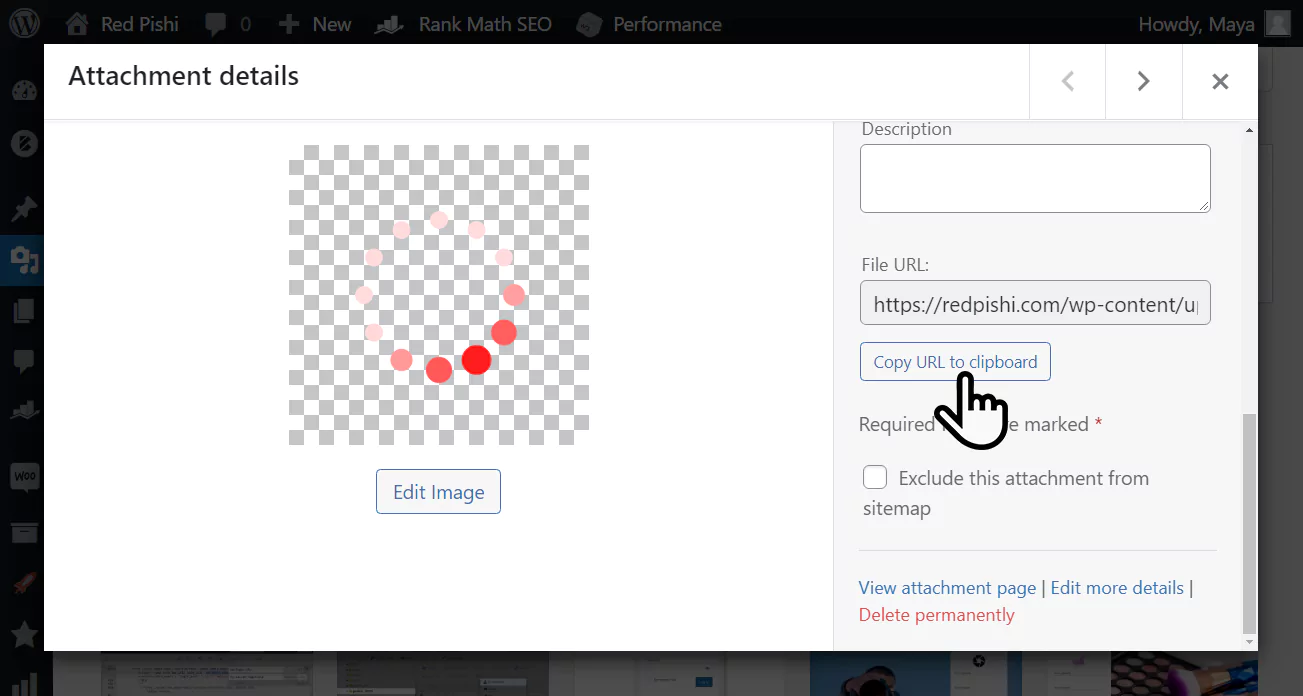
Credit: redpishi.com
Frequently Asked Questions
How Do I Add A Preloader In WordPress Without A Plugin?
You can add a preloader by inserting custom HTML, CSS, and JavaScript directly into your theme’s files. This avoids plugin use and keeps your site lightweight. Use the header. php file for HTML and CSS, and enqueue JavaScript for smooth loading effects.
What Code Is Needed For A WordPress Preloader?
A simple preloader requires HTML for the loader structure, CSS for styling and animation, and JavaScript to hide the loader after page load. Combine these codes in your theme’s header and footer files to ensure the preloader works seamlessly without plugins.
Can I Customize Preloader Appearance In WordPress Manually?
Yes, you can fully customize the preloader’s colors, size, and animation by editing the CSS styles. This allows you to match your site’s branding without relying on plugin settings. Adjust CSS keyframes for unique animation effects.
Will Adding A Manual Preloader Affect Website Speed?
Adding a lightweight preloader with minimal code has little impact on load speed. In fact, it improves user experience by showing a loading animation while content loads. Avoid heavy scripts to maintain optimal performance.
Conclusion
Adding a preloader without a plugin keeps your site light and fast. It gives visitors a smooth experience while your pages load. The method is simple and works well for beginners. You only need a bit of code and patience.
Try it on your WordPress site to see the difference. A clean, quick loading site helps keep visitors engaged. Start now and improve your website’s look and feel.


