
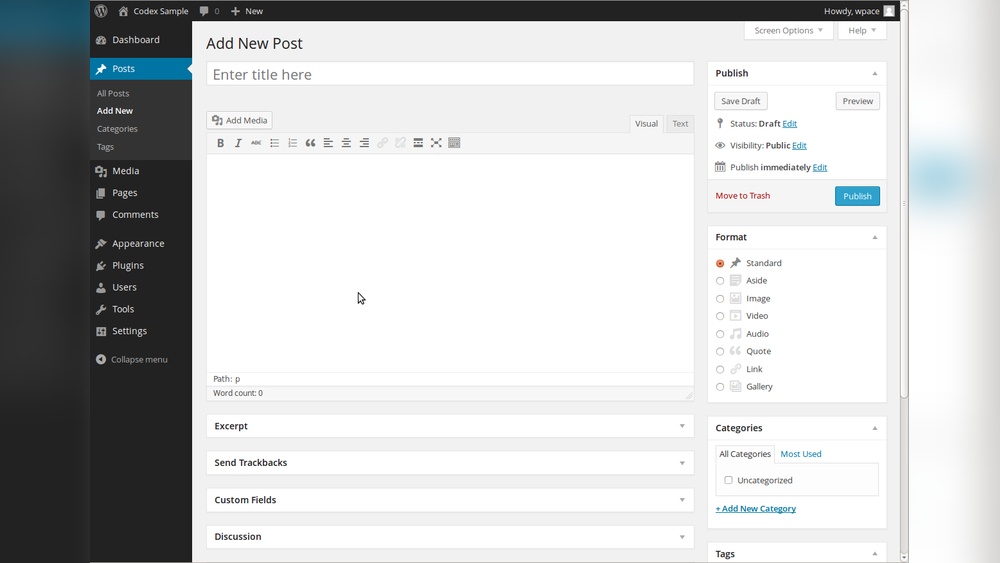
Are you struggling to show your latest blog posts directly on your WordPress pages? You’re not alone.
Many WordPress users want to combine the dynamic feel of posts with the structured look of pages, but don’t know where to start. Imagine having your freshest content appear exactly where your visitors expect it—right on your pages—without complicated coding or plugins.
In this guide, you’ll discover simple, effective ways to add posts to your WordPress pages, boosting engagement and keeping your site looking professional. Keep reading, and you’ll learn easy steps that anyone can follow to make your site more dynamic and user-friendly.
Credit: www.youtube.com
WordPress Pages Vs Posts
Understanding the difference between WordPress Pages and Posts is important for managing your website well. Both serve unique roles and have distinct features. This knowledge helps you organize content clearly and effectively.
Key Differences
Pages are static and show content that rarely changes. They include about us, contact, and privacy policy sections. Posts are dynamic and list content by date. They work well for blogs, news, and updates.
Pages do not have categories or tags. Posts use categories and tags to group content. Posts allow readers to leave comments. Pages usually do not have comment sections.
Pages appear in menus or navigation areas. Posts show up in blog feeds or archives. Search engines treat Pages and Posts differently. Posts get indexed faster due to fresh content.
When To Use Each
Use Pages for core information that stays the same. Examples are your homepage, services, or team pages. Use Posts for timely content like announcements or articles.
Choose Pages to create a clean, organized website structure. Choose Posts to engage readers regularly with new content. Posts encourage interaction through comments and social sharing.
Mix Pages and Posts to build a balanced website. Pages provide stability, while Posts keep content fresh and active.
Why Add Posts To Pages
Adding posts to pages in WordPress helps create a better user experience. It connects dynamic content with static pages. This method keeps your site fresh and interesting. Visitors find new information without searching too hard. It also helps your site look more organized.
Benefits For Engagement
Showing posts on pages keeps visitors interested longer. They see recent updates and stories without extra clicks. This keeps people exploring your site. More time on your site means better engagement. Visitors may share your content, increasing your reach.
Improving Site Navigation
Posts on pages make it easier to find content. Visitors can see related posts directly on a page. This reduces confusion and frustration. Clear paths help people find what they want fast. Better navigation leads to happier visitors and more visits.
Methods To Add Posts On Pages
Adding posts to pages in WordPress helps display your blog content on different parts of your site. It improves user experience and keeps visitors engaged. Various methods exist to insert posts into pages. Choose one based on your skill level and site needs.
Using Shortcodes
Shortcodes are small pieces of code that show posts on any page. They are easy to use and require no coding knowledge. Just paste the shortcode where you want the posts to appear.
Example shortcode: [recent-posts]. It shows the latest posts automatically. You can customize it to show posts by category, number, or order.
Adding Blocks With Gutenberg
The Gutenberg editor uses blocks to build content. It has a block called “Latest Posts” that displays recent posts inside a page. You can add this block from the block menu.
This method lets you change how posts look. Adjust the layout, number of posts, and other settings easily. It works well for simple post displays without coding.
Custom Page Templates
Custom page templates give full control over how posts appear on pages. You need basic knowledge of PHP and WordPress theme files. Create a template that queries and shows posts as you want.
This method is best for unique designs. It allows adding filters, custom fields, or special layouts. Upload the template to your theme and assign it to a page in the dashboard.
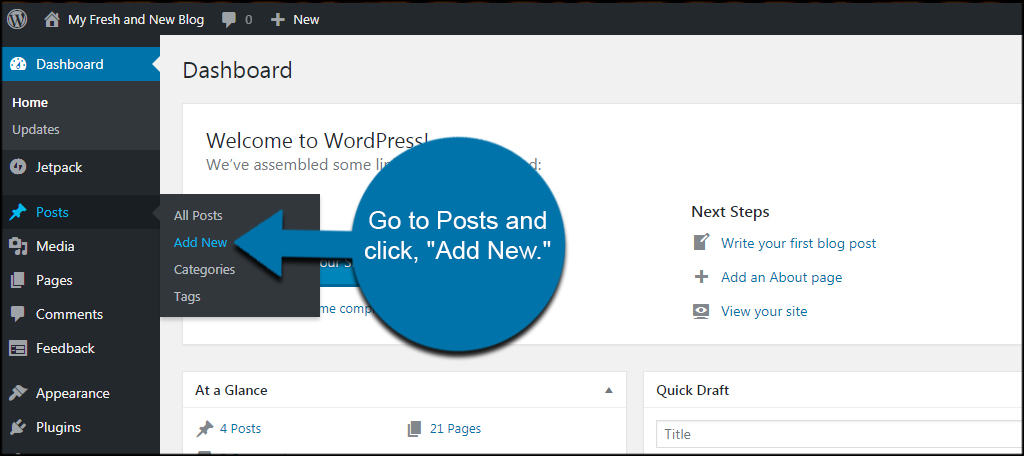
Credit: www.greengeeks.com
Step-by-step Guide With Shortcodes
Adding posts to pages on WordPress is simple with shortcodes. This method lets you show your latest posts or specific posts inside any page. No coding skills needed. Follow this step-by-step guide to place posts exactly where you want.
Finding The Right Shortcode
WordPress uses shortcodes to add dynamic content. To display posts, find the shortcode that fits your needs. Common shortcodes include [recent-posts] or [posts]. Themes and plugins might offer custom shortcodes too. Check your theme documentation or plugin settings for available options.
Shortcodes often accept parameters. For example, [recent-posts number="5"] shows five latest posts. Parameters control post count, categories, order, and more. Choose the shortcode that matches what you want to display.
Inserting Shortcode In Page Editor
Open the WordPress page editor where you want to add posts. Use the block editor or classic editor depending on your setup. In the block editor, add a “Shortcode” block. Paste the shortcode into this block.
In the classic editor, paste the shortcode directly into the content area. Save or update the page after insertion. Preview the page to see posts appear where you placed the shortcode. Adjust parameters as needed for best results.
Using Gutenberg Blocks To Display Posts
Using Gutenberg blocks to display posts on your WordPress pages is simple and effective. This method lets you show your latest articles without coding. You get control over how posts appear on any page. The block editor offers flexibility and easy customization. You can create a dynamic page that updates automatically as you publish new posts.
Selecting The Latest Posts Block
Start by opening the page where you want to add posts. Click the plus (+) icon to add a new block. Search for “Latest Posts” in the block library. Select the Latest Posts block to insert it into your page. This block automatically pulls in your most recent articles. You can add it anywhere on the page, above or below other content.
Customizing Post Display
Once the block is added, use the block settings to customize it. Choose how many posts to show at once. Pick whether to display post dates or excerpts. You can show post thumbnails to make the list more visual. Adjust the layout between list or grid styles. These options help match your site’s look and feel. The block updates instantly as you change settings.

Credit: www.youtube.com
Creating Custom Page Templates
Creating custom page templates in WordPress lets you control how posts appear on your pages. This method helps you show posts in a unique style. You design the layout and decide which posts to display. Custom templates give your site a professional look. It also improves user experience by organizing content clearly.
Editing Theme Files
Start by accessing your theme folder. Use a code editor or the WordPress theme editor. Create a new file for your custom template. Name it clearly, like page-posts.php. Add a comment at the top to define it as a template:
php / Template Name: Posts Page / ? Save the file. This step makes WordPress recognize your template. You can now assign it to any page in the admin panel. Editing theme files needs care. Always back up your site before making changes.
Adding Query To Fetch Posts
Use the WordPress Loop to fetch posts. Insert a query inside your custom template file. Here is a simple example:
php $args = array( 'post_type' = 'post', 'posts_per_page' => 5 ); $query = new WP_Query( $args ); if ( $query->have_posts() ) { while ( $query->have_posts() ) { $query->the_post(); the_title('', '
'); the_excerpt(); } } else { echo 'No posts found.
'; } wp_reset_postdata(); ?> This code shows the latest five posts with titles and excerpts. Change posts_per_page to show more or fewer posts. This method lets you customize what content appears on your page.
Tips For Managing Posts On Pages
Managing posts on pages helps keep your WordPress site clean and easy to use. It improves user experience and makes content easier to find. Organizing posts well also helps search engines understand your site better. Below are practical tips to manage posts on your pages effectively.
Organizing Posts By Category
Categories group related posts together. Use clear, simple category names that match your content themes. Assign each post to one or more categories. This helps visitors find similar content quickly. You can display posts from a specific category on any page using WordPress blocks or plugins. Categories also improve your site’s SEO by creating topic clusters.
Controlling Post Excerpts
Post excerpts are short summaries shown on pages instead of full posts. Use excerpts to give readers a quick idea about the post. Write clear and engaging excerpts for each post. Keep excerpts under 40 words for better readability. Excerpts keep pages tidy and encourage visitors to click to read more. WordPress allows manual excerpt editing or automatic trimming of the first few words.
Setting Post Display Order
Post order affects how users see your content. By default, posts show newest first. Change the order to highlight important or popular posts. Use plugins or custom queries to sort posts by date, title, or custom fields. You can also pin posts to the top. A well-thought order guides visitors and increases engagement on your pages.
Common Issues And Fixes
Adding posts to pages in WordPress can sometimes cause issues. These problems may stop your posts from showing correctly or affect how they look. Understanding common issues helps you fix them fast. Here are typical problems and simple solutions to keep your site running smoothly.
Posts Not Showing
Posts may not appear due to incorrect settings. Check if the page uses the right template. Some themes need a specific template for posts. Also, confirm that posts are published and not set to draft or private. Clear your site cache and browser cache. Sometimes old data blocks new posts from showing.
Formatting Problems
Text and images might look strange on your page. This often happens because of theme style conflicts. Use the WordPress editor to fix basic formatting. Remove extra spaces or unwanted HTML tags. Try switching to the default theme to see if the problem stops. This helps find if your theme causes the issue.
Plugin Conflicts
Plugins can clash and stop posts from displaying right. Disable all plugins and check your posts. If posts show up, activate plugins one by one. This finds the plugin causing the problem. Update all plugins to their latest versions. Outdated plugins often cause conflicts and errors.
Frequently Asked Questions
How Can I Display Posts On A WordPress Page?
You can show posts by using a block like “Latest Posts” or a plugin. Insert it into your page editor, then publish or update your page.
Can I Add Specific Category Posts To A WordPress Page?
Yes, use the “Latest Posts” block and filter by category. This way, only posts from that category will appear on your page.
Is It Possible To Show Blog Posts On A Static WordPress Page?
Absolutely. By adding post blocks or shortcodes, you can display dynamic posts on any static page easily.
Do I Need Plugins To Add Posts To WordPress Pages?
Not necessarily. WordPress offers built-in blocks for post display, but plugins can add more customization and features.
Conclusion
Adding posts to pages on WordPress helps organize your site better. You can show your latest news or updates clearly. This makes your website easier to use for visitors. Follow the steps carefully to avoid mistakes. Try different layouts to find what works best.
Keep your content fresh and interesting. This way, people will return to your site often. Simple changes can improve your site a lot. Start adding posts to pages and see the difference today.


