
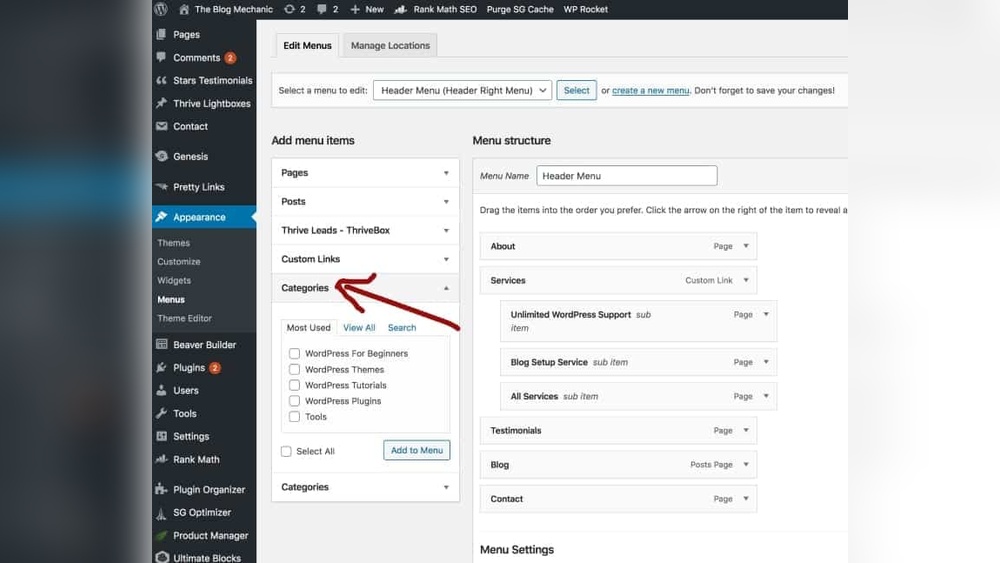
Are you struggling to organize your WordPress site the way you want? Imagine having the power to display your posts exactly where they make the most impact.
Adding posts to different pages can boost your site’s flow, keep visitors engaged, and help you stand out. In this guide, you’ll learn simple, step-by-step methods to put your posts on the right pages without any hassle. Ready to take control of your WordPress content and make your site work smarter for you?
Let’s dive in and unlock these easy tricks together.

Credit: www.bluehost.com
Choosing Pages For Your Posts
Choosing the right pages for your posts helps organize your WordPress site. It makes your content easy to find. Visitors like clear navigation. You can show posts on the blog page or other custom pages. Each option serves a different purpose for your site’s layout and style.
Default Post Placement
WordPress shows posts on the blog page by default. This page lists posts in order, with the newest first. It updates automatically as you add new content. No extra setup is needed to display posts here. The blog page works well for sites focused on news or articles.
Custom Pages Vs Blog Page
Custom pages let you place posts in specific areas. You can create a page for certain topics or categories. This helps target different groups of readers. Custom pages do not update automatically. You must add posts manually or use plugins to display posts.
The blog page keeps all posts in one place. Custom pages help organize posts by theme or interest. You can use both methods together. This gives visitors many ways to explore your content.
Using Categories To Organize Posts
Using categories helps keep your WordPress posts neat and easy to find. Categories group related posts together. This makes your website more organized. Visitors can quickly find posts on topics they want. It also helps search engines understand your site better. Let’s explore how to create categories and show posts by category on different pages.
Creating And Assigning Categories
Start by going to your WordPress dashboard. Click on “Posts” and then “Categories.” Here, you can create new categories. Give each category a clear, simple name. Use words your visitors would search for. Add a short description if you want. After creating categories, assign them to your posts. Edit a post, find the “Categories” box, and check the right category. Save or update the post. This links the post to that category.
Displaying Category-specific Posts
To show posts from a category on a page, use WordPress tools. You can add a “Category” block in the block editor. Select the category you want to display. This block will list recent posts from that category. Another way is to use a shortcode or widget. Choose the category and set how many posts to show. Some themes offer category pages automatically. These pages list all posts in one category. Visitors can browse posts easily by topic.
Adding Posts With Page Builders
Adding posts with page builders lets you control where and how your posts appear. You can place posts on any page, not just blog pages. Page builders help you design pages with drag-and-drop tools. This makes it easy to show posts in different styles and layouts.
Using page builders, you can create unique pages that fit your site’s look. You can insert posts as lists, grids, or sliders. This helps visitors find your content quickly and enjoy browsing your site.
Popular Page Builders Overview
Several page builders work well with WordPress posts. Elementor is one of the most popular. It offers many widgets to display posts with custom designs. Beaver Builder is another choice, known for its simple interface and flexibility. Divi Builder also lets you add posts with many layout options. These builders support drag-and-drop editing, so no coding is needed.
Each builder has tools to filter posts by category, date, or tags. You can control how many posts show and their order. This makes your pages more relevant and organized for visitors.
Inserting Posts Using Widgets Or Blocks
Most page builders include widgets or blocks to insert posts easily. For example, Elementor has a “Posts” widget. You drag it onto your page and select which posts to show. You can customize the layout, colors, and fonts.
Gutenberg, WordPress’s block editor, works with many page builders too. You can use the “Latest Posts” block to add recent posts to any page. Customize the block to change the number of posts and style.
Using these tools means you do not need to write code. Just select the posts and choose how they look. This saves time and helps keep your site neat and attractive.
Employing Plugins For Post Management
Managing posts on different pages can be tricky without the right tools. Plugins help simplify this task. They let you display posts exactly where you want on your WordPress site. These tools save time and give you control over your content layout.
Using plugins, you can organize posts by category, date, or tags. Some plugins offer customizable layouts to fit your site’s style. They also support filtering options for better user experience. This method avoids manual coding and helps keep your site neat.
Top Plugins To Display Posts On Pages
Several plugins work well for showing posts on specific pages. “Display Posts” is popular for its simplicity and flexibility. It uses shortcodes to place posts anywhere on your site. “Content Views” offers grid and list layouts with easy filters. “WP Show Posts” lets you list posts with custom styles and pagination. Each plugin supports different features, so choose based on your needs.
Configuring Plugin Settings
After installing a plugin, set it up to fit your page. Start by selecting the post type and categories to display. Adjust the number of posts shown per page or section. Customize the layout style like grid, list, or masonry. Enable filters or sorting options if needed. Preview changes before saving to ensure the look matches your site. Regularly update settings to keep your content fresh and relevant.
Manual Methods With Custom Queries
Manual methods with custom queries give you full control over which posts appear on different pages. You can decide exactly what content to show and where. This approach requires editing your theme files and writing some code. It is a great way to customize your site beyond what plugins offer.
Using custom queries, you can filter posts by category, tag, date, or any other criteria. This method works well for blogs, portfolios, or news sites. It helps you create unique page layouts with specific posts tailored to your needs.
Using Wp_query In Templates
WP_Query is a powerful WordPress class for custom post queries. It lets you fetch posts based on many parameters. You can use it inside template files to show posts on different pages.
Start by creating a new WP_Query object. Pass an array with your query details. For example, to show posts from a category:
$query = new WP_Query(array( 'category_name' => 'news', 'posts_per_page' => 5 ));Then, use a loop to display the posts:
if ($query->have_posts()) { while ($query->have_posts()) { $query->the_post(); the_title(); the_excerpt(); } wp_reset_postdata(); }This method places the posts exactly where you add the code. You can customize it further with different parameters.
Editing Theme Files Safely
Editing theme files directly can break your site if done incorrectly. Always back up your site before making changes. Use a child theme to keep your edits safe from theme updates.
Access theme files via the WordPress dashboard or FTP. Locate the template file for the page you want to edit. Insert your WP_Query code where you want the posts to appear.
Test your changes on a staging site first. This avoids live site errors. Use proper coding standards and indentation. Keep your code clean and well-commented for future reference.

Credit: wordpress.com
Tips To Enhance Post Display
Improving how your posts look and perform on different pages can boost visitor engagement. Simple changes in style and speed make reading easier. Visitors stay longer when posts look good and load fast. Follow these tips to enhance your post display on WordPress pages.
Styling Posts For Better Appearance
Choose clear fonts that are easy to read on any device. Use consistent colors that match your site’s theme. Add spacing between paragraphs to avoid clutter. Use headings and subheadings to organize content. Include images to break up text and add interest. Make sure images are sized correctly and load quickly. Use bullet points for lists to improve readability. Avoid too many fonts or colors that distract readers.
Improving Load Time And Performance
Optimize images by compressing them before uploading. Use caching plugins to speed up page loading. Limit the number of plugins to reduce server load. Choose a fast and reliable hosting provider. Keep your WordPress and plugins updated for best performance. Minimize the use of heavy scripts and animations. Test page speed regularly using free online tools. A fast site improves user experience and search rankings.
Credit: www.youtube.com
Frequently Asked Questions
How Can I Display Posts On Different WordPress Pages?
You can use custom queries or plugins like Elementor to display specific posts on various pages. Assign categories or tags, then filter posts accordingly. This method keeps your site organized and enhances user experience by showing relevant content on each page.
What Is The Easiest Way To Add Posts To WordPress Pages?
Using WordPress block editor’s “Query Loop” block is the easiest way. It allows you to select categories or tags and display posts dynamically. No coding is needed, and you can customize the layout to fit your site’s design and style.
Can I Show Posts From Multiple Categories On One Page?
Yes, WordPress lets you display posts from multiple categories using custom queries or plugins. This helps feature diverse content on a single page, improving engagement and SEO by targeting broader audience interests effectively.
Do I Need Plugins To Add Posts To Specific Pages?
Plugins simplify the process but are not mandatory. You can use WordPress’s built-in features like category archives or custom page templates. Plugins offer more flexibility and design options, making content management easier for non-technical users.
Conclusion
Adding posts to different WordPress pages can improve your site’s organization. It helps visitors find content quickly and easily. You control what appears on each page. This makes your site look neat and professional. Keep practicing these steps to get better.
Soon, managing your WordPress pages will feel simple. Your website will grow and attract more readers. Stay consistent and enjoy the process.


