

Are you ready to supercharge your WordPress website? Adding plugins is the easiest way to unlock new features, improve functionality, and customize your site exactly how you want it.
But if you’re unsure where to start or worried about making mistakes, don’t worry—this guide will walk you through every step clearly and simply. By the end, you’ll know exactly how to find, install, and activate plugins to make your website stand out and work smarter.
Let’s dive in and transform your WordPress site together!
Credit: accessibility-helper.co.il
Plugin Installation Methods
Plugins enhance WordPress by adding new features and functions. Installing plugins is simple and offers two main methods. Choose the method that fits your needs and skills. Both methods let you expand your site’s capabilities quickly.
Automatic Installation From Repository
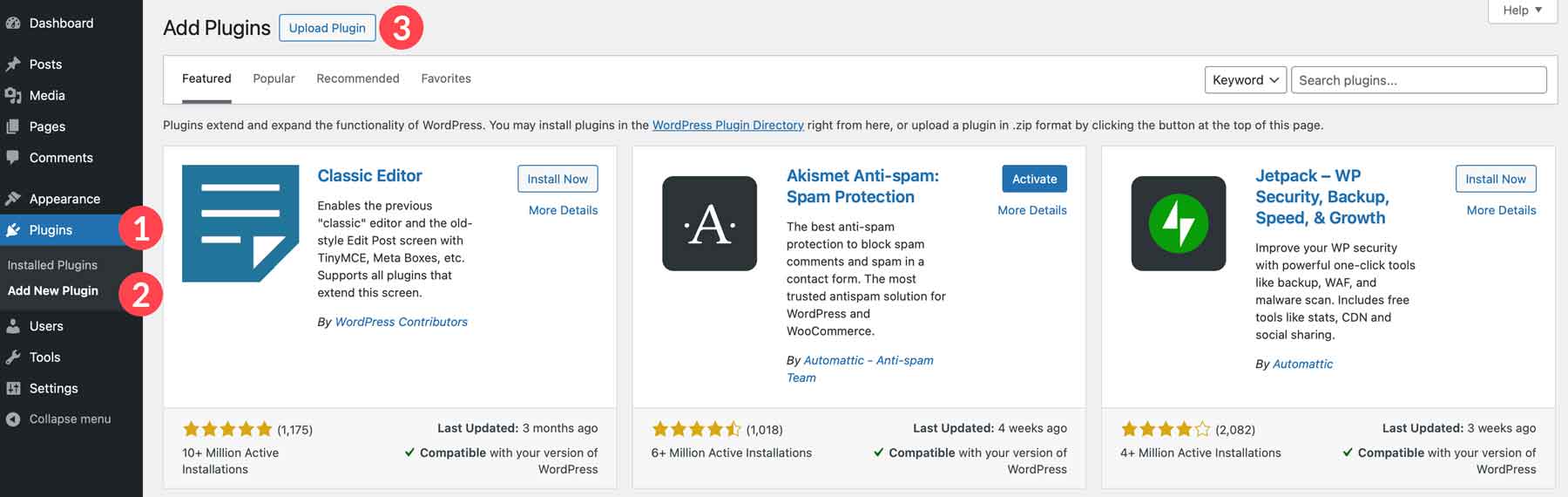
WordPress has a built-in plugin repository. You can search and install plugins directly from your dashboard. Go to Plugins > Add New and enter a plugin name or keyword. Click “Install Now” on the plugin you want. After installation, click “Activate” to start using it. This method is fast and safe, as plugins come from the official WordPress directory.
Manual Installation Using Zip File
Some plugins are not in the repository or come from third parties. Download the plugin as a .zip file to your computer. In your dashboard, go to Plugins > Add New and click “Upload Plugin.” Choose the .zip file and click “Install Now.” After installation, activate the plugin. This method requires a bit more care but allows you to use any plugin you want.
Navigating The WordPress Dashboard
Navigating the WordPress dashboard is the first step to customizing your website. The dashboard is your control center. It lets you manage all parts of your site. Plugins add new features to your site. Finding and installing them is easy once you know where to go. This section explains how to find the plugins area and search for the right tools.
Accessing The Plugins Section
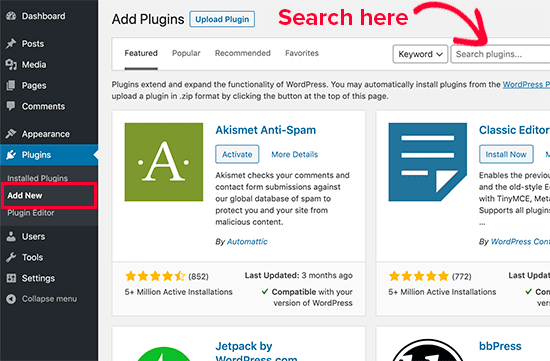
Start by logging into your WordPress dashboard. Look at the menu on the left side. Find the Plugins option. Click on it to open the plugins page. This page shows all installed plugins. To add new ones, click on Add New at the top. Now, you are ready to explore available plugins.
Searching For Plugins
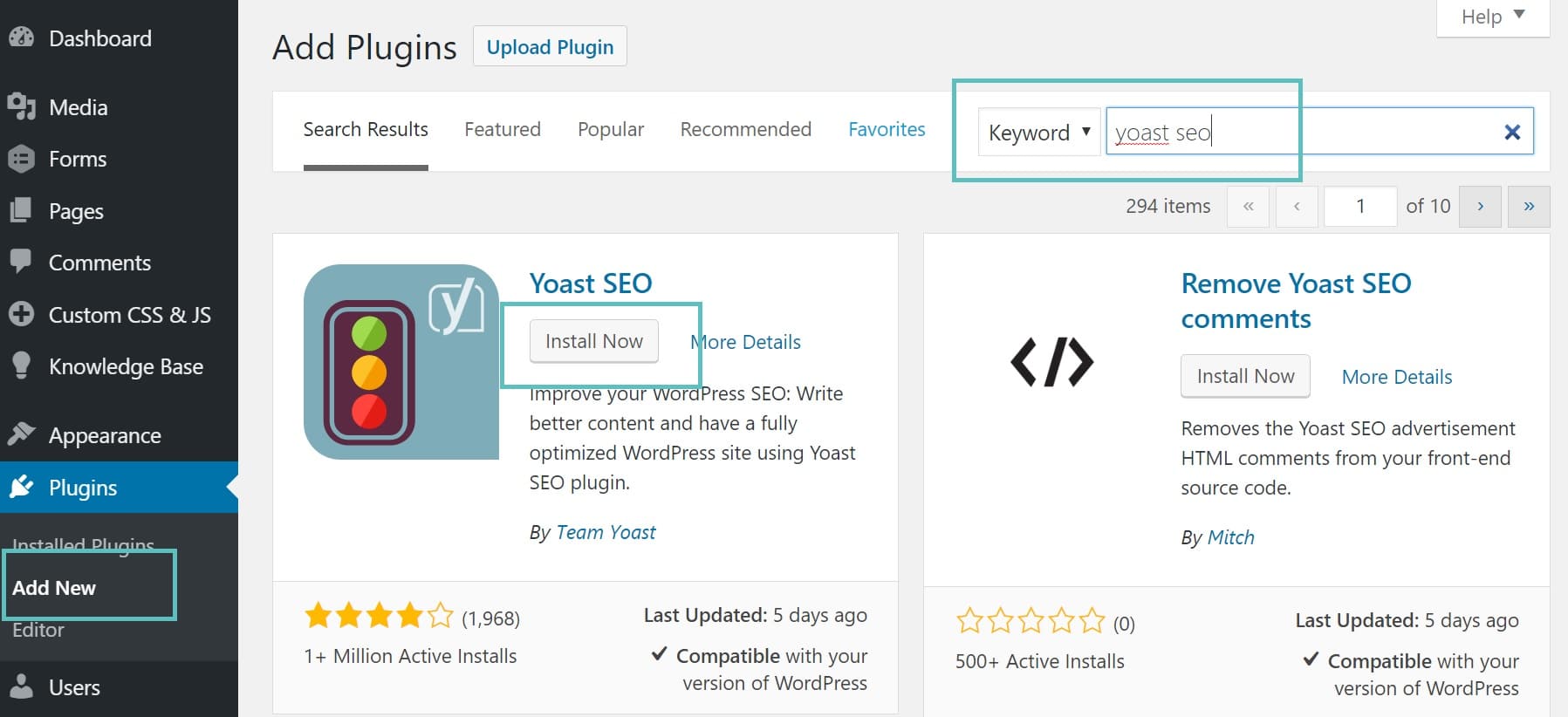
On the Add Plugins page, you will see a search bar. Type the name or function of the plugin you want. WordPress will display matching plugins below. Each plugin has a short description and ratings. Read these to find the best choice. Click Install Now to add the plugin. After installing, click Activate to start using it on your site.
Installing Plugins Automatically
Installing plugins automatically in WordPress is a simple and quick process. It lets you extend your website’s features without touching any code. The WordPress dashboard provides a built-in tool to find, install, and activate plugins easily. This method saves time and avoids the hassle of manual uploads.
Using The Search Bar
Start by logging into your WordPress dashboard. On the left menu, click on Plugins and then select Add New. You will see a search bar at the top right corner. Type the name or keyword of the plugin you want.
WordPress will show a list of plugins matching your search. You can read short descriptions and check ratings to choose the best one. This search feature connects you directly to the official WordPress plugin repository.
Installing And Activating Plugins
Once you find the plugin, click the Install Now button next to it. WordPress will download and install the plugin automatically. This process usually takes a few seconds.
After installation, the button changes to Activate. Click it to enable the plugin on your website. Activation applies the plugin’s functions immediately. You can now configure the plugin settings if needed from the dashboard.
Credit: www.elegantthemes.com
Uploading Plugins Manually
Uploading plugins manually to WordPress lets you install plugins not found in the official repository. This method is useful for premium or custom plugins. It requires a plugin file in .zip format ready on your computer. The process is simple and does not need FTP access.
Locating The Upload Button
First, log in to your WordPress dashboard. On the left menu, click on Plugins. Then select Add New at the top of the page. Near the top, you will see an Upload Plugin button. Click this button to open the upload form.
Choosing And Uploading Zip Files
Click the Choose File button in the upload form. A file dialog will open. Find the plugin’s .zip file on your computer and select it. After choosing the file, click the Install Now button. WordPress will upload and unzip the plugin files automatically.
Activating Uploaded Plugins
Once installation finishes, WordPress shows an activation link. Click Activate Plugin to enable the plugin on your site. The plugin is now ready for use. You can manage its settings from the Plugins menu or the plugin’s own settings page.
Troubleshooting Plugin Issues
Plugin issues can disrupt your WordPress site’s functionality. Troubleshooting these problems quickly restores smooth operation. Identifying the cause helps fix errors effectively. Try simple steps first for the best results. Common issues often come from browser cache, plugin conflicts, or user permissions. Follow these tips to resolve typical plugin problems.
Clearing Browser Cache
Browser cache stores old versions of your site pages. This may cause plugins to appear broken or not update. Clear your browser cache to see recent changes. Use your browser settings or press Ctrl + Shift + R to refresh. This ensures you view the latest plugin effects. Clearing cache often solves display or loading problems.
Disabling Conflicting Plugins
Plugins sometimes clash with each other. This leads to errors or site crashes. Disable all plugins except the one causing trouble. Check if the issue persists. If it stops, enable plugins one by one. This helps find which plugin causes conflict. After identifying, look for alternatives or updates for the conflicting plugin.
Checking User Permissions
User roles control plugin access and functions. Inadequate permissions block plugin installation or activation. Verify your WordPress user role has admin rights. Admins can install, activate, and manage plugins freely. Change user roles under Users > All Users if needed. Proper permissions prevent unauthorized plugin issues and improve site security.
Best Practices For Plugin Management
Managing plugins effectively keeps your WordPress site fast and secure. Plugins enhance site features, but poor management causes problems. Follow these best practices for smooth plugin operation and better site health.
Keeping Plugins Updated
Always update plugins to the latest version. Updates fix bugs and close security gaps. Use automatic updates or check regularly in your dashboard. Outdated plugins risk site crashes and attacks.
Evaluating Plugin Security
Choose plugins from trusted sources only. Read reviews and check ratings before installing. Avoid plugins that have not been updated recently. Remove plugins that pose security risks or are no longer supported.
Avoiding Plugin Overload
Install only necessary plugins to keep your site light. Too many plugins slow down your site and cause conflicts. Delete inactive or unused plugins to reduce clutter. Test new plugins in a staging environment first.
Credit: kinsta.com
Frequently Asked Questions
How To Install Plugins Manually In WordPress?
Log into WordPress dashboard. Go to Plugins > Add New. Click Upload Plugin, choose the plugin. zip file, and click Install Now. After installation, click Activate Plugin.
Why Can’t I Add A New Plugin In WordPress?
You can’t add a new plugin if your WordPress plan restricts plugin installations. Also, lack of admin rights or server issues can block adding plugins. Clear your browser cache or disable conflicting plugins to fix this. Check your hosting settings and user permissions for plugin access.
Why Are People Moving Away From WordPress?
People move away from WordPress due to security risks, frequent updates, complex customization, slow performance, and better alternatives.
How Do I Activate A Plugin In WordPress?
Log into your WordPress dashboard. Go to Plugins > Installed Plugins. Find the plugin and click Activate to enable it.
Conclusion
Adding plugins to WordPress is simple and helps improve your site. Start by accessing your dashboard and choosing Plugins > Add New. Use the search or upload option to find the plugin you want. Installing and activating plugins takes just a few clicks.
Always pick plugins from trusted sources to keep your site safe. Regular updates keep plugins working well and avoid issues. With these steps, you can easily add new features to your WordPress site. Keep exploring to make your site better every day.


