
Are you looking to supercharge your WordPress site with added features and functionalities? Adding plugins to your WordPress theme can open up a world of possibilities, transforming a basic site into a robust, dynamic platform.
But where do you start, and how can you ensure you’re doing it right? Imagine effortlessly enhancing your site’s performance, boosting its appeal, and elevating your user experience—all with just a few clicks. You’re about to discover the secret sauce to making your WordPress site not just better, but the best it can be.
Dive into this guide, and let’s unlock the full potential of your website together. Your online presence deserves nothing less!
Credit: www.greengeeks.com
Choosing The Right Plugin
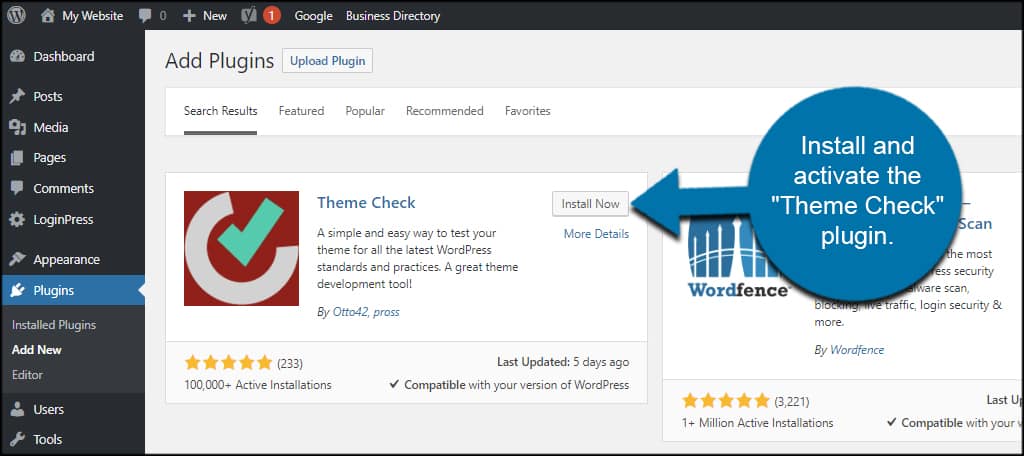
First, know what your website needs. List the features you want. Maybe it’s a contact form or a photo gallery. Each feature needs a different plugin. This step is important. It helps you avoid unnecessary plugins. Too many plugins slow down your site.
Once you know your needs, search for plugins. Use WordPress Plugin Directory. It’s a good place to start. Look for plugins that match your needs. Read descriptions carefully. Make sure they do what you want. Look for plugins with good support and updates.
Before installing, read user reviews. They tell you if the plugin works well. Five-star reviews are great. But read the bad ones too. They show problems you might face. Reviews help find reliable plugins. Choose plugins with more good reviews. It shows the plugin is trusted.
Credit: www.greengeeks.com
Installing Plugins From WordPress Repository
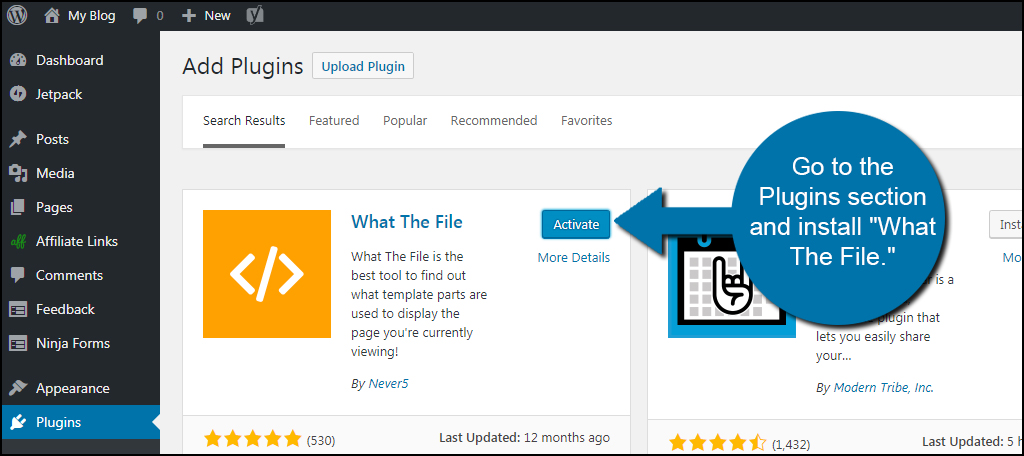
Start by logging into the WordPress dashboard. Find the menu on the left. Click on Plugins. Select Add New. This opens the plugin directory.
Use the search bar at the top. Type the name of the plugin you need. You can also search by features. The directory will show many plugins. Each has a description. Read these to learn what they do.
Once you find the right plugin, click Install Now. Wait for the installation to complete. After installation, click Activate. This makes the plugin work on your site. Always check for updates. Updated plugins work better and are safer.
Uploading Plugins Manually
First, visit the WordPress Plugin Directory. Find the plugin you want. Click on the Download button. The plugin file will be in a .zip format. Save it on your computer. Remember the location where you saved it.
Open your WordPress dashboard. Look for the Plugins menu. Click on Add New. Find the Upload Plugin button at the top. Click it. A new screen will appear. Choose the zip file you downloaded earlier. Click Install Now. Wait for the installation to finish.
After installation, you need to activate the plugin. Look for the Activate Plugin link. Click on it. Your plugin is now ready to use. Check the plugins list for confirmation. Make sure it is activated.
Credit: www.geeksforgeeks.org
Configuring Plugin Settings
Navigating to the plugin settings is simple. First, log in to your WordPress dashboard. Click on the “Plugins” tab in the left menu. A list of installed plugins will appear. Select the plugin you want to configure. Click on the “Settings” link under the plugin name. This will take you to the configuration page.
Adjusting basic settings is crucial. You might see options like enable/disable features. Change these based on your needs. Save changes after adjusting. It ensures your settings are applied.
Exploring advanced options can be interesting. Some plugins offer extra settings. These might include custom styling or advanced features. Be careful while changing these. Understand what each option does. This helps avoid unwanted changes.
Troubleshooting Common Issues
Installing plugins on a WordPress theme can sometimes be challenging. Common issues include compatibility problems, failed installations, or missing plugin options. Simple steps and clear guidance can help solve these issues efficiently.
Resolving Plugin Conflicts
Plugin conflicts often happen when two plugins try to do the same thing. Deactivate all plugins first. Reactivate them one by one. This helps find which plugin is causing the issue. Always update your plugins. Updated plugins are less likely to clash.
Dealing With Compatibility Issues
Compatibility issues arise with old themes. Update your theme regularly. Check plugin details for theme compatibility. Some plugins may need a specific PHP version. Always check before installing.
Using Support Forums
Support forums are helpful. Many users share their solutions. Search your issue in forums. Post a question if needed. Experts and other users often reply quickly. Follow their advice to fix your problem.
Maintaining And Updating Plugins
Adding plugins to a WordPress theme enhances functionality and customization options. Regular updates and maintenance ensure optimal performance and security. Keep your site running smoothly by checking for updates and resolving any compatibility issues promptly.
Checking For Updates
Plugins need regular updates. These updates fix bugs and add features. Always check the WordPress dashboard for updates. An outdated plugin can cause problems. Keep plugins updated for best performance.
Ensuring Plugin Compatibility
Not all plugins work well together. Before adding a new plugin, check if it’s compatible. Read reviews and comments. They often give hints about compatibility issues. A compatible plugin keeps your site running smoothly.
Regular Backup Practices
Always back up your site. This is very important. If something goes wrong, you can restore it. Use a reliable backup tool. Save backups in a safe place. Regular backups protect your site’s data.
Recommended Plugins For WordPress
Use plugins like Yoast SEO or All in One SEO. They help your site rank better on search engines. For analytics, install Google Analytics Dashboard. It shows how many people visit your site. These tools make your site strong and visible.
Protect your site using Wordfence or Sucuri Security. They guard against hackers. These plugins scan for threats. They also keep your site safe. Always update them for best results.
Improve speed with WP Super Cache or W3 Total Cache. They make your site load fast. Fast sites keep visitors happy. Another tool is Smush. It reduces image size without loss. This makes your site run smoothly.
Frequently Asked Questions
How Do I Install WordPress Plugins?
To install plugins, navigate to the WordPress dashboard. Click on “Plugins,” then “Add New. ” Search for the desired plugin, click “Install Now,” and activate it. Alternatively, upload a. zip file using “Upload Plugin. ” This process enhances your site’s functionality without altering the theme directly.
Can Plugins Affect My WordPress Theme?
Yes, plugins can affect your theme’s appearance and functionality. Some plugins add new features or alter existing ones. Ensure compatibility by checking plugin reviews and documentation. Regularly update both plugins and themes to prevent conflicts and maintain your website’s performance.
Are Plugins Safe For WordPress Themes?
Most plugins are safe when downloaded from reputable sources like the WordPress repository. Always check reviews, ratings, and update history. Keeping plugins updated reduces security risks. Backup your site regularly to ensure data safety in case of plugin-related issues.
How Many Plugins Can I Add?
There’s no fixed limit, but adding too many can slow down your site. Choose plugins wisely, focusing on necessity and quality. Regularly review installed plugins for performance and compatibility. Deactivate and delete unused plugins to optimize website speed and efficiency.
Conclusion
Adding plugins to your WordPress theme is easy. Follow the steps outlined above. It makes your site more functional. Plugins can help with SEO, security, and design. Always choose reliable plugins. Check reviews and ratings before installing. Keep plugins updated for best performance.
Avoid adding too many plugins. They can slow down your site. Test plugins to ensure they work well together. A well-managed site attracts more visitors. Make your website the best it can be. Start enhancing your WordPress theme today. Enjoy the benefits of improved functionality and user experience.


