
Are you looking to boost your website’s performance and gain deeper insights into your audience’s behavior? Adding a pixel to your WordPress theme is a powerful step towards achieving these goals.
Whether you’re aiming to optimize your marketing strategies, track conversions, or enhance user experiences, integrating a pixel can provide you with the valuable data you need. But how do you do it without getting lost in technical jargon or complicated steps?
You’re in the right place. In this guide, we’ll walk you through the straightforward process of adding a pixel to your WordPress theme, ensuring you can do it effortlessly and effectively. Get ready to unlock new opportunities for growth and engagement with your audience.

Credit: 10web.io
What Is A Pixel?
A pixel is a small piece of code. It is placed on a website. This code helps track user actions. Actions like clicks, views, and sales. Pixels are very important for businesses. They help in understanding user behavior. Better understanding leads to better marketing. Pixels are used by platforms like Facebook and Google. They collect data for advertising. Using pixels is essential for online success.
Pixels are like tiny cameras. They see what users do. They help improve user experience. Businesses can make smart decisions. Decisions based on data from pixels. Adding a pixel is easy. It just takes a few steps. Many websites use pixels today. They are a key tool in digital marketing.
Benefits Of Adding Pixel To WordPress
Pixels help track user activity on your site. They gather important data. You can see what users like most. This helps improve your site’s content.
Advertising gets better with pixel data. It shows which ads work well. You can spend your money wisely. Pixels help make ads more effective.
With pixel data, you can target the right people. It shows user behavior patterns. You can tailor your content to their needs.
Pixels boost site performance. They track what works best. You can adjust your site for better results. This means more visitors and engagement.
Adding pixels is easy. It needs just a small code. This code helps gather valuable data. Your site’s growth depends on it.
Setting Up A Facebook Pixel
Start by logging into your Facebook Ads Manager. Click on the menu and select Pixels. A new screen will appear. Click the Create a Pixel button. Name your pixel. Choose a name that describes your business. Click Create to finish the setup. Your pixel is now ready!
Your Pixel ID is important. It helps track your ads. To find it, go to the Pixels tab in Ads Manager. Look for your pixel name. Click on it. You will see the Pixel ID at the top. Copy this ID. You will need it for the next steps. Keep it safe!
Accessing WordPress Theme Files
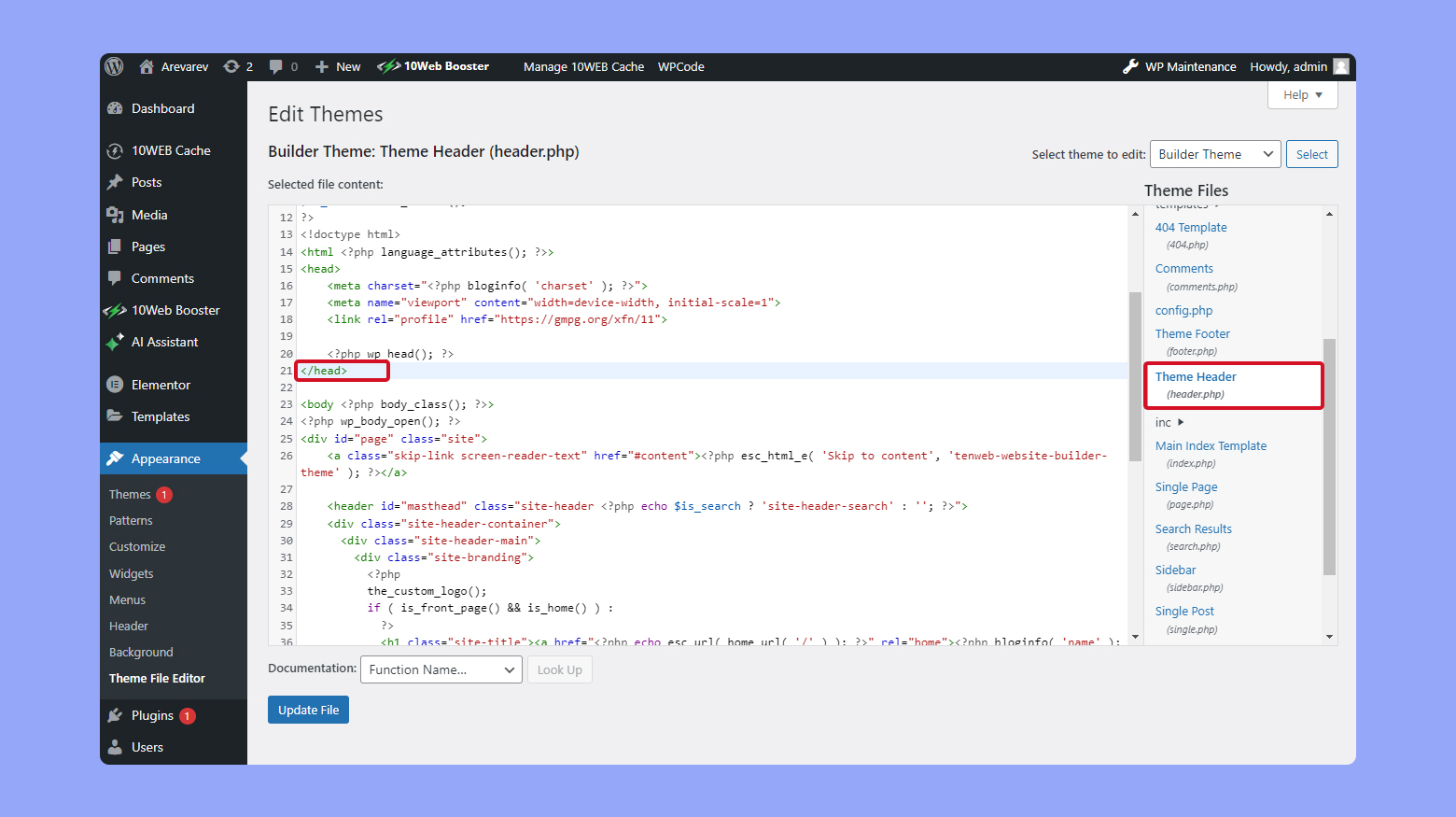
First, log into your WordPress admin dashboard. Look for the Appearance menu on the left. Click on it and then select Theme Editor. A list of theme files will appear on the right. Choose the file where you want to add the pixel. Usually, you add it to the header.php file. Be careful while editing. A mistake can break your site. Always save changes before exiting.
Use an FTP client like FileZilla for this method. First, connect to your server using your FTP details. Then, navigate to the wp-content/themes folder. Open your theme folder. Locate the file to edit, often the header.php. Download it to your computer. Make changes and then upload it back. This method is safer for big edits.
Adding Pixel Code To Header
Integrating pixel code into a WordPress theme enhances tracking and data collection. Access the theme editor, then locate the header file. Paste the pixel code before the closing head tag to ensure it functions correctly. This simple step boosts website analytics and insights.
Editing The Header.php File
Find the header.php file in your theme folder. Open it with a text editor. Paste your pixel code before the closing tag. Save the changes. Refresh your website to check if the pixel is active.
Using A WordPress Plugin
Install a WordPress plugin for pixel code. Plugins like “Insert Headers and Footers” are popular. Activate the plugin after installation. Go to the plugin settings. Paste the pixel code in the header section. Save the settings. Visit your site to confirm the pixel is working.
Credit: 10web.io
Verifying Pixel Installation
Facebook Pixel Helper is a simple tool. It checks if your Pixel works. First, install the helper in your browser. Open your WordPress site. Click the helper icon. It shows if your Pixel is active. Look for a green check mark. This means your Pixel works fine. Errors or warnings need fixing. The helper gives tips.
Events Manager is on Facebook. It tracks your Pixel data. Go to your Facebook account. Find the Events Manager. Check for your Pixel ID. Look at the event status. Active status is good. Red marks mean problems. Fix them for accurate tracking. Always keep an eye on this tool. It helps keep your Pixel in check.
Troubleshooting Common Issues
Adding a pixel to your WordPress theme can be tricky. Check your theme’s header file and insert the pixel code. Ensure proper placement to avoid loading issues.
Pixel Not Firing
A pixel may not fire due to incorrect installation. Ensure the pixel code is placed correctly in the theme. Check that the pixel is active in your account. Verify that JavaScript is enabled on your browser. Disable any ad blockers that might interfere. Sometimes, caching can cause issues; clear your browser’s cache. Inspect your browser’s console for errors. These steps can solve most problems.
Duplicate Pixel Events
Duplicate events can cause confusion. They occur if the pixel code is added multiple times. Check your theme’s header and footer files. Ensure the pixel code is only added once. Use a plugin to manage pixels and prevent duplicates. Review your website for multiple plugins that track pixels. Disable extra plugins that may cause overlapping. Regular checks help keep the site clean.

Credit: wptavern.com
Best Practices For Pixel Implementation
Privacy laws are very important. They protect user information. GDPR and CCPA are two major laws. Websites must follow these laws. User consent is key. Always ask for it before tracking. Use a cookie consent banner. This shows respect for privacy. Keep your privacy policy updated. Make it easy to understand. Be clear on how data is used.
Test your pixel often. This ensures it works well. Use tools like Facebook Pixel Helper. They show if the pixel is active. Check for errors in the pixel code. Fix them quickly. Test on different devices. This ensures it tracks everywhere. Keep the pixel updated. New features improve tracking. Regular checks keep data correct.
Frequently Asked Questions
How Do I Install A Pixel On WordPress?
To install a Pixel on WordPress, first access your theme editor. Navigate to Appearance > Theme Editor. Locate the header.php file. Paste your Pixel code before the closing tag. Save changes. Clear your cache and verify the installation through the Pixel platform.
Can I Add Pixel Without A Plugin?
Yes, you can add Pixel without a plugin. Use the theme editor to paste the Pixel code manually. Navigate to Appearance > Theme Editor. Edit the header.php file. Place the Pixel code before . Save changes and ensure the Pixel is active.
What Is The Purpose Of Adding Pixel?
Adding Pixel helps track user interactions and conversions. It provides insights into visitor behavior and assists in targeting advertisements. By analyzing Pixel data, you can optimize marketing strategies and improve user engagement on your WordPress site.
Is It Possible To Add Multiple Pixels?
Yes, adding multiple Pixels is possible. Ensure each Pixel code is placed correctly within the header. php file. Each Pixel must have its unique identifier. Verify all Pixels are functioning properly through their respective platforms after installation.
Conclusion
Adding Pixel to your WordPress theme boosts your website’s performance. It’s straightforward. Start by accessing your theme’s header file. Insert the Pixel code there. Save changes to activate tracking. Monitor visitor activity easily. This helps improve engagement. Analyze user behavior effectively.
Optimize your site’s content based on insights. Keep your Pixel updated. Regular updates ensure accurate data collection. Enhances user experience. Drives better marketing strategies. Remember, accurate tracking is key. Simple steps yield great results. Your site benefits from better data.
Implementing Pixel is easy and rewarding. Stay informed about visitor actions. Elevate your WordPress site today.


