
Adding a PHP page to your WordPress theme can seem daunting, especially if you’re not a coding expert. Yet, imagine the possibilities: customizing your site, enhancing its functionality, and giving it a unique touch that truly represents your brand.
Does that sound like something you want? You’re not alone. Many WordPress users crave that extra bit of personalization, but the fear of breaking their site holds them back. The good news? It’s easier than you think, and you’re about to discover how.
In this guide, you’ll learn step-by-step how to seamlessly integrate a PHP page into your WordPress theme. This isn’t just about adding a page; it’s about unlocking your site’s potential. So, are you ready to take control and transform your website into something extraordinary? Let’s dive in and get started!
Credit: www.pair.com
Prerequisites
Understanding basic PHP is important. You should know how to write simple PHP scripts. Knowing how variables and functions work helps a lot. It’s good to know how to use PHP tags. This will make your work easier. If you can read and change PHP code, that’s great!
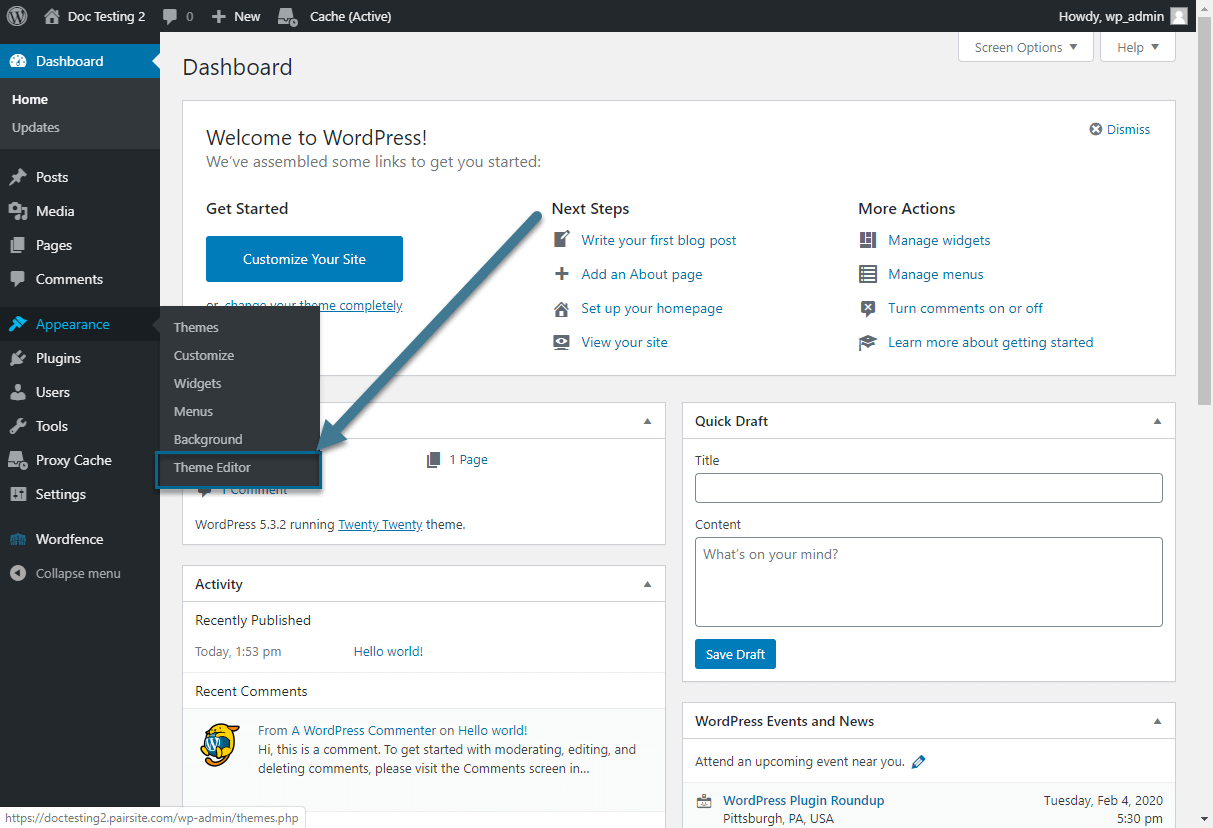
You need a running WordPress site. Make sure it’s properly installed. A local server like XAMPP or WAMP can be useful. Always have a backup of your WordPress site. This keeps your work safe. Ensure your WordPress theme is ready to edit. It’s best to use a child theme for changes. This way, updates won’t erase your work.
Understanding WordPress Theme Structure
Each WordPress theme has many files. These files control how your site looks. The style.css file manages your site’s design. It sets colors and fonts. The functions.php file adds special features. It can add new options to your site. The index.php file is important. It shows your content on the screen. Many themes have a header.php and footer.php. These files show the top and bottom of each page. Each file has a job. They work together to build your site.
WordPress uses a template hierarchy. It chooses files in a certain order. The index.php file is the default. If no other file is found, WordPress uses it. Other files can replace it. For example, single.php shows a single post. The page.php file shows a page. Files with specific names can show special content. This order helps WordPress decide what file to use. The hierarchy makes your site flexible and customizable.
Creating A Custom Php Page
Integrating a custom PHP page into a WordPress theme enhances site functionality. Begin by creating a new PHP file in the theme directory. Then, modify the theme’s functions. php file to include the new page, ensuring seamless integration with your WordPress site.
Setting Up The Php File
First, open your WordPress theme folder. It is in the wp-content/themes directory. Create a new file. Name it with a .php extension. For example, custom-page.php. Use a text editor like Notepad. Or another editor you like. This file will hold your PHP code. Make sure the file is saved in the right place.
Adding Html And Php Code
Add basic HTML structure in the PHP file. Start with html and tags.
Next, add a section. Include the
Integrating Php Page Into WordPress Theme
First, create a new PHP file. Name the file with a clear name. Save it on your computer. Next, open your WordPress theme folder. This folder is inside the wp-content/themes directory. Choose your active theme folder. Upload the PHP file here. This makes it a part of your theme. Ensure the file has the .php extension. This helps WordPress recognize it as a PHP file.
To use the PHP file, edit the functions.php file. This file is in your theme folder. Open it with a text editor. Add code to include your PHP file. Use the include or require function. Write the path to your PHP file. Place this code at the bottom of functions.php. Save the changes. This links your PHP file to the theme. Now, it can run with your WordPress site.
Registering The Custom Page Template
Every custom template needs a special name. This name tells WordPress about the template. At the top of your PHP file, write the Template Name. Use this format: php / Template Name: YourCustomName / ?. Replace “YourCustomName” with your own name. This helps WordPress find your template. It’s easy to forget. But very important.
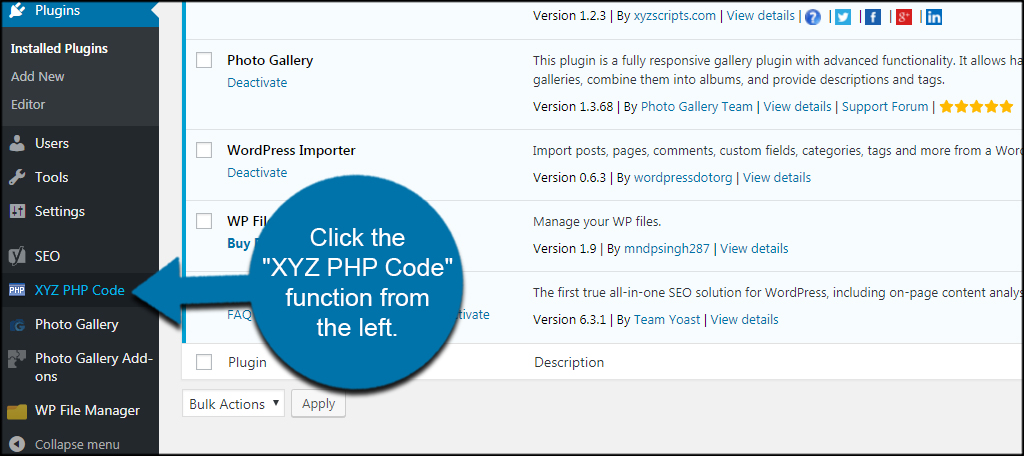
Open your WordPress dashboard. Click on Pages. Choose the page you want. Look for the Template dropdown. Select your custom template name. Save changes. Now, your page uses the new template. You can see the changes on your website. Simple and quick.
Credit: www.greengeeks.com
Incorporating WordPress Functions
Use WordPress functions to get data. Functions like get_header() and get_footer() help. They pull parts of your theme.
Need post info? Use get_post(). It fetches post details.
Use get_option() for site settings. This function retrieves settings stored in the database.
Hooks let you add custom code. Use add_action() to run functions. You can attach functions to specific actions.
Modify output with apply_filters(). This lets you change data before it shows. Hooks make your site more dynamic.
Testing And Troubleshooting
Adding a PHP page to a WordPress theme involves updating the theme’s directory with your custom PHP file. Ensure the file has necessary WordPress functions to interact seamlessly with the site’s structure. Troubleshoot common errors by checking file paths and permissions for smooth integration.
Verifying Page Appearance
Check if the page looks good. Open your browser and view it. Does it match the design? Ensure images and text are clear. If something seems off, adjust the code. Small changes can make a big difference.
Common Errors And Fixes
Sometimes errors happen. Check for missing semicolons in your code. They can cause problems. If the page doesn’t load, make sure the file path is correct. Wrong paths can break links. Always back up your work. This helps if you need to start over.
Credit: m.youtube.com
Enhancing The Custom Page
To make a PHP pagewp_enqueue_style() for styles. Use wp_enqueue_script() for scripts. These functions help add CSS and JavaScript files easily. Add these in the theme’s functions.php file. This keeps everything organized. Make sure paths to files are correct. This avoids errors.
Think about SEO when adding styles and scripts. Fast loading pages rank better. Use minified files. They load faster. Avoid using too many scripts. They slow down the page. Use async or defer attributes. They make scripts load better. These steps help keep the page fast. A fast page is a good page.
Frequently Asked Questions
How Do I Add A Php File To WordPress?
To add a PHP file to a WordPress theme, use FTP or the WordPress File Manager. Navigate to the theme’s folder in `/wp-content/themes/`. Upload your PHP file there. Ensure your theme’s functions. php or other files call this PHP file to execute its code.
Can I Use Php In WordPress Themes?
Yes, PHP can be used in WordPress themes. WordPress is built on PHP, allowing developers to create dynamic, interactive elements. Use PHP to enhance functionality, modify templates, or interact with databases. Ensure your PHP code is secure and tested before deploying to prevent errors or vulnerabilities.
Is It Safe To Add Php To WordPress?
Adding PHP to WordPress is safe if done carefully. Ensure the code is clean, well-tested, and free of vulnerabilities. Improper PHP can lead to security risks. Always backup your site before making changes. Use trusted plugins or developer practices when incorporating new PHP code.
How Do I Call Php Functions In WordPress?
Call PHP functions in WordPress by including them in your theme’s files. Use `include` or `require` statements to add PHP files. In your templates, call functions directly. Ensure functions are defined globally or within scope to avoid errors. Test your functions thoroughly before deployment.
Conclusion
Adding a PHP page to your WordPress theme is simple. Follow the steps carefully. Start by creating your PHP file. Place it in your theme folder. Next, update your theme’s functions. php file. Use the correct WordPress hooks. This ensures smooth integration.
Test your changes to avoid errors. Check your website for functionality. Make sure everything works as expected. This process enhances your site’s features. Allows for more customization. Remember to back up your files before starting. It keeps your data safe.
Now, enjoy your customized WordPress theme.


