

Are you looking to add PHP to your WordPress site but don’t know where to start? You’re not alone.
Many WordPress users want to customize their sites beyond the usual options but feel stuck when it comes to working with PHP. The good news is, adding PHP to your WordPress site is easier than you think. You’ll discover simple, step-by-step methods to safely insert PHP code and make your site truly yours.
Keep reading, and by the end, you’ll have the confidence to take your WordPress skills to the next level.

Credit: www.youtube.com
Why Add Php To WordPress
Adding PHP to WordPress lets you control your website better. PHP is the language WordPress uses to build pages and features. Knowing how to add PHP helps you create unique functions and designs. It makes your site stand out and work just as you want.
Using PHP is not just for developers. Even simple changes can improve your site’s look and speed. It helps you fix problems and add tools that are not available by default. PHP lets you shape your website without limits.
Enhancing Site Functionality
PHP allows you to add new features to your WordPress site. You can create custom forms, buttons, or interactive tools. These improve how visitors use your site. It makes your website more useful and engaging. Adding PHP helps you meet specific needs without extra plugins.
Customizing Themes And Plugins
PHP lets you change how themes and plugins work. You can adjust colors, layouts, or behaviors. This makes your site unique and better aligned with your brand. It helps avoid generic looks and limits set by themes. With PHP, you control every detail of your site’s design.
Improving Performance
Using PHP smartly can speed up your site. You can remove unnecessary code or combine tasks. This reduces load times and server work. Fast sites keep visitors happy and improve search rankings. PHP gives you tools to optimize your website’s performance easily.
Preparing Your WordPress Site
Before adding PHP to your WordPress site, preparation is key. This helps keep your site safe and makes the process smoother. Taking time to prepare reduces risks of errors and data loss. Follow these steps to get ready.
Backing Up Your Site
Backing up your site protects your data. It creates a copy of your files and database. Use a reliable backup plugin or your hosting provider’s tools. Store backups in a safe place. This step ensures you can restore your site if something goes wrong.
Setting Up A Child Theme
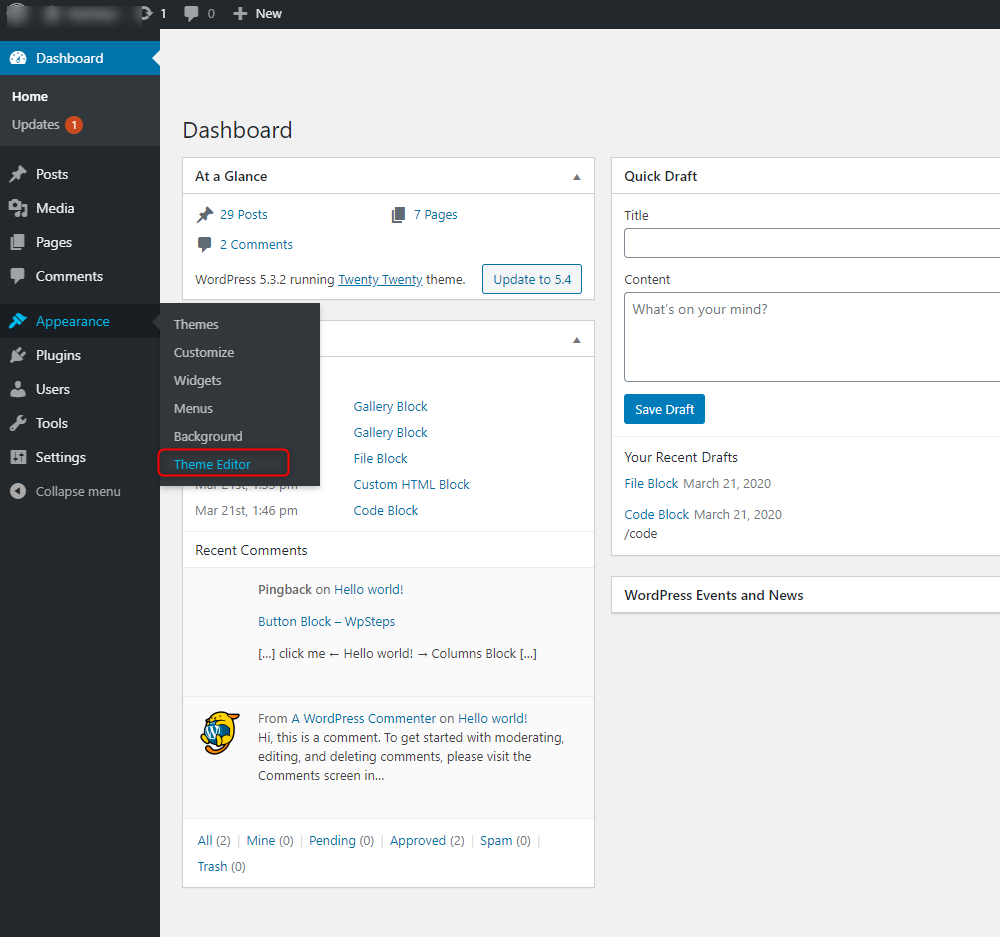
A child theme lets you add PHP safely. It keeps the original theme unchanged. Changes in a child theme stay even after updates. Create a child theme folder and add a style.css and functions.php file. Activate the child theme before adding PHP code.
Using A Code Editor
A good code editor makes writing PHP easier. It highlights syntax and finds mistakes quickly. Use editors like Visual Studio Code or Sublime Text. Avoid editing code directly in WordPress editors. Working in an editor helps prevent errors and saves time.
Adding Php In Theme Files
Embedding PHP in WordPress posts and pages lets you add dynamic features. PHP runs server-side, so you can create interactive content. WordPress does not allow PHP code directly in the editor for security reasons. There are safer ways to include PHP without breaking your site.
Limitations Of Direct Php In Content
WordPress strips out PHP code from post and page content. This prevents running PHP directly inside the editor. It protects the site from harmful scripts and errors. Editing core files or using plugins is required to add PHP safely. Direct PHP in content is not supported by default.
Using Shortcodes For Php
Shortcodes are small snippets you add to posts or pages. They let WordPress run PHP code indirectly. You create a shortcode that contains the PHP function. Then, insert the shortcode tag in your content. WordPress runs the PHP and shows the output where you place the shortcode.
Creating Custom Shortcodes
To create a custom shortcode, add code to your theme’s functions.php file. Write a PHP function with the desired output or action. Use add_shortcode() to register your shortcode name and function. Insert the shortcode in posts using square brackets. This method is safe and keeps your PHP organized.
Credit: www.greengeeks.com
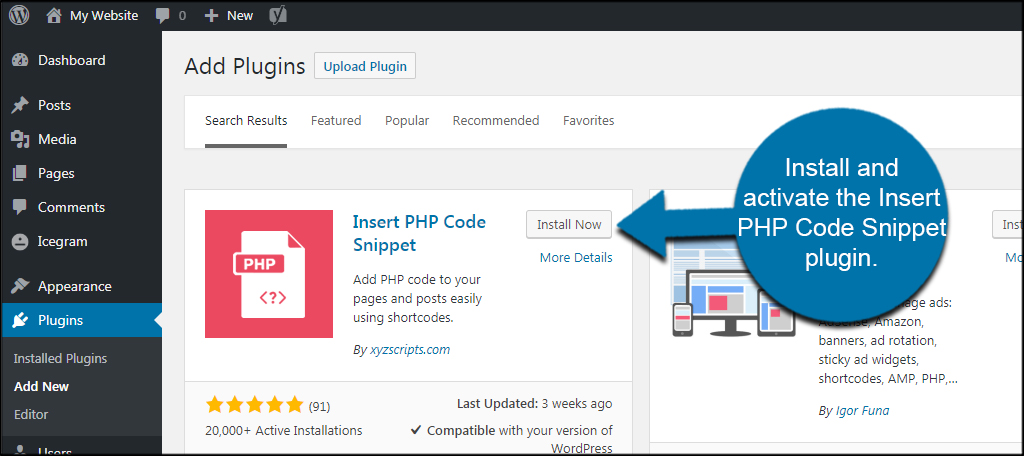
Using Plugins To Add Php
Adding PHP to WordPress can sometimes cause issues. These problems can stop your site from working correctly. Troubleshooting helps find and fix these errors quickly. This section covers common problems and easy solutions. Follow these tips to keep your site running smoothly.
Fixing Syntax Errors
Syntax errors happen when PHP code has mistakes. Missing semicolons or wrong brackets cause these errors. WordPress will show an error message if syntax is wrong. Check the line number in the error message. Open your PHP file and fix the mistake on that line. Use a code editor to spot errors faster. Saving your file after fixing the error usually solves the problem.
Handling White Screen Of Death
The White Screen of Death means your site shows a blank page. This happens when PHP code crashes without showing errors. Turn on WordPress debugging by editing the wp-config.php file. Add define('WP_DEBUG', true); to see error messages. Find the error causing the blank screen. Fix the code or deactivate the faulty plugin or theme. Clear your browser cache before checking the site again.
Debugging Php Code
Debugging helps find hidden PHP problems. Use error logs to see what went wrong. Enable error logging in wp-config.php with define('WP_DEBUG_LOG', true);. Check the debug.log file in the wp-content folder for errors. Use simple echo statements in your PHP code to track variable values. Test small parts of code separately. This method helps find bugs step-by-step and keeps your site stable.
Embedding Php In WordPress Posts And Pages
Adding PHP to WordPress can enhance your website’s functionality. Secure coding is key to protect your site from threats. Follow these tips to keep your PHP code safe and reliable.
Sanitizing User Input
Always clean data received from users. Remove unwanted characters and code before processing. Use built-in WordPress functions like sanitize_text_field() and esc_html(). This practice stops harmful scripts from running.
Avoiding Vulnerabilities
Write code that prevents common security flaws. Avoid using eval() and other risky functions. Check user permissions before running sensitive actions. Use prepared statements to secure database queries.
Regularly Updating Code
Keep your PHP code up to date with the latest WordPress standards. Review and update code often to fix bugs and patch security holes. Use the newest PHP version supported by WordPress for better performance and safety.
Credit: wpfactory.com
Frequently Asked Questions
How Can I Safely Add Php Code To WordPress?
Use a child theme or custom plugin to add PHP safely. Avoid editing core files directly. Always back up your site before changes.
Where Do I Insert Php Code In WordPress?
Add PHP code in your theme’s functions. php file or a custom plugin. Avoid placing PHP in WordPress posts or pages directly.
Can I Run Php Inside WordPress Posts Or Pages?
WordPress does not support PHP in posts natively. Use plugins like “Insert PHP” to safely execute PHP within content.
What Are The Risks Of Adding Php To WordPress?
Incorrect PHP code can break your site or cause security issues. Always test code on a staging site before live deployment.
Conclusion
Adding PHP to WordPress can improve your website’s features. Use the right methods to keep your site safe and fast. Always test your code before making it live. Small changes can make a big difference. Keep learning and practicing to get better.
Your website will grow with your skills. Simple steps lead to great results. Start adding PHP carefully and watch your site improve.


