
Have you ever wanted to customize your WordPress theme but felt unsure about where to start? Adding a PHP file to your theme can seem daunting, but it’s actually a straightforward process that can transform your website.
Imagine having the power to enhance functionality, improve site performance, and create a unique user experience—all by inserting a simple PHP file. This guide is crafted to help you do just that, without the technical overwhelm. By the end of this article, you’ll not only know how to add a PHP file to your WordPress theme, but you’ll also feel empowered to take your website to the next level.
Dive in and discover how a few simple steps can open the door to a world of customization possibilities. Your WordPress theme will thank you!
Credit: www.hostinger.com
Prerequisites
First, ensure you have a WordPress site. It must be installed and active. You can use a local server or a live server. This will help you add files to your theme.
Having some basic PHP knowledge is helpful. You don’t need to be an expert. Just know simple PHP syntax and functions. This will make the process easier.
You need access to theme files. You can use FTP or cPanel. This allows you to add or edit files. Be careful with changes. Always back up your files first.
Locating Theme Files
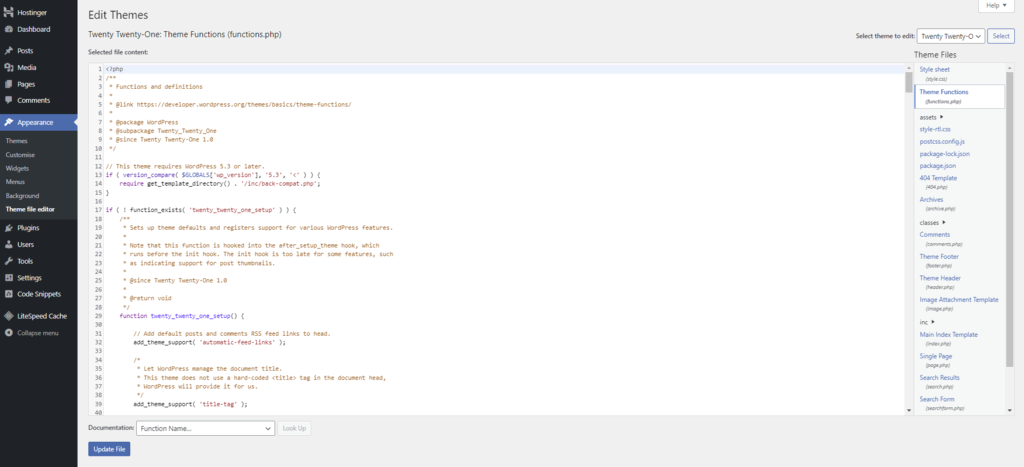
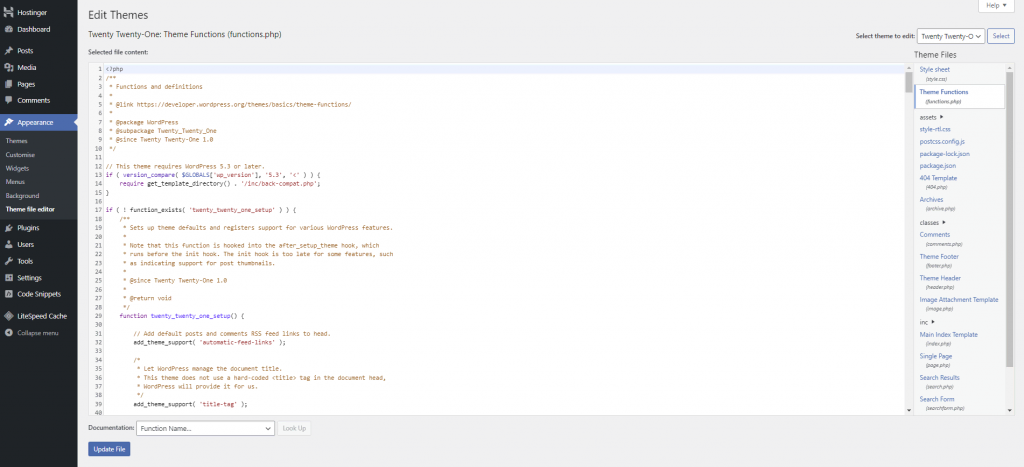
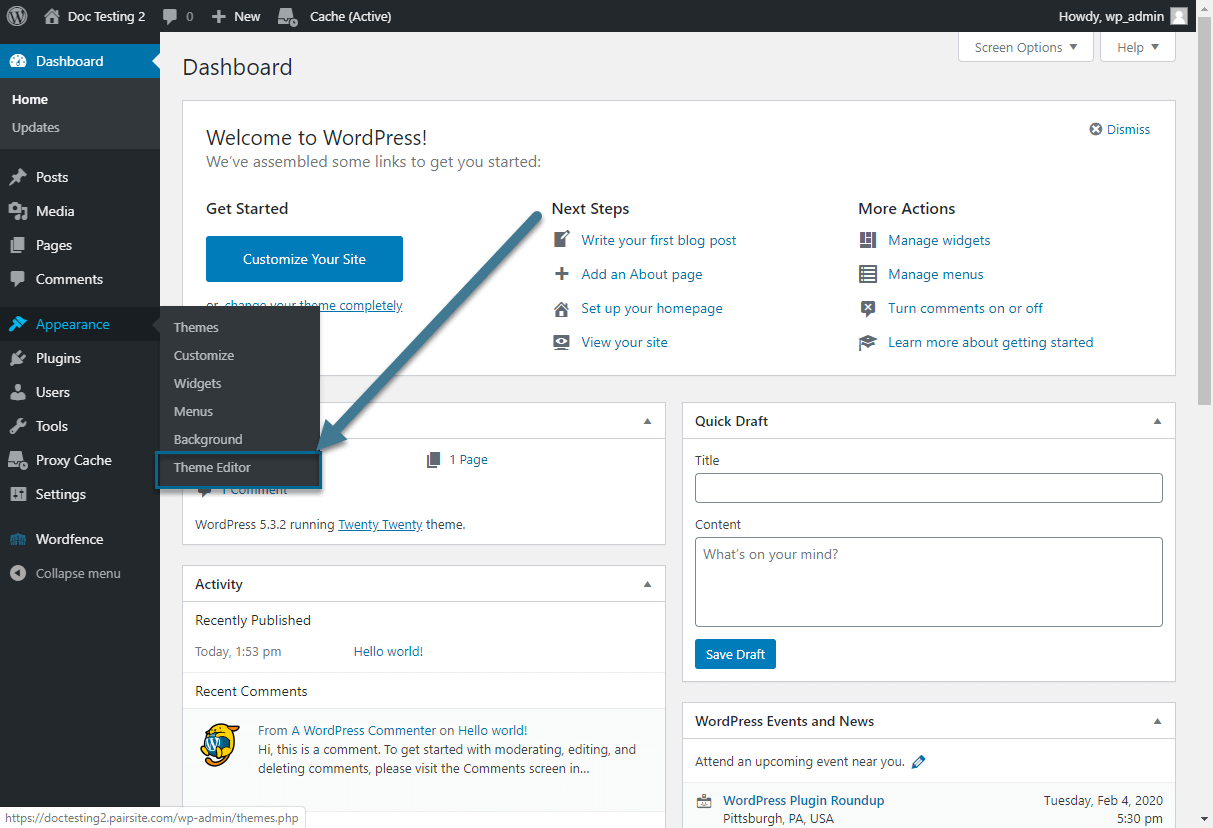
Find the appearance section in your dashboard. Click on it. Now, select Theme Editor. You will see theme files on the right. Choose the file you want. Make changes carefully. Save changes with the Update File button. Check your site for errors. If errors appear, undo changes quickly. Always backup files before editing.
Use an FTP client to access your site files. Connect using your site credentials. Navigate to the wp-content/themes folder. Locate your theme folder there. Find the file you need. Edit the file and save it. For File Manager, use your hosting control panel. Navigate to the same folder. Edit files directly. Ensure to save all changes. Always backup before any edit. This prevents data loss.
Creating A New Php File
A good name for your file is important. It helps you find it later. Use lowercase letters and underscores. Avoid spaces and special characters. This keeps your file name clean and readable.
Start by opening a text editor. Write your PHP code between <?php and ?> tags. This tells the server to run the code. Use basic PHP functions to test. Try echo to print text on the screen. Save your file with a .php extension. Place it in your theme folder to use.
Adding Php File To Theme
To add a PHP file, first locate your theme’s folder. This is in the wp-content/themes directory. Inside your theme folder, place the new PHP file. Ensure the file has a proper name. It should not conflict with existing files.
After placing the file, it’s time to include it. Open the functions.php file in the theme. This file helps in loading the new PHP file. Use the require_once function. Write this function at the start of the file.
The code should look like this: require_once(get_template_directory() . '/your-file.php');. Remember to replace your-file.php with your file’s name. Save the changes. Your PHP file is now part of the theme.
Registering Php Functions
WordPress themes use functions.php to add custom PHP code. This file helps extend theme capabilities. Developers include new functions easily. These functions can modify features or add new ones. Always backup the file before changes. If errors occur, the site may break. Testing changes on a local site is wise. This ensures safety.
Using Functions.php
Adding PHP code is simple. Open the functions.php file. Paste your PHP code at the bottom. Save changes when done. Each function should start with function my_custom_function(). Use unique function names. This prevents conflicts. Use comments for clarity. Comments explain code purpose. They help future developers understand the code.
Avoiding Function Conflicts
Function names must be unique. Conflicts can break your site. Check existing function names first. Use prefixes for custom functions. For example, use mytheme_custom_function. Prefixes prevent name clashes. Avoid using common words in names. This helps keep your code safe.
Testing The New Php File
Errors can break your site. Check your new PHP file for errors. Open your WordPress site. Look for any strange behavior. If the site looks good, your file may be fine. If not, there might be a problem.
Debugging tools help find errors. Use plugins like Query Monitor. This plugin shows what is wrong. It is easy to use. Check your file with it. See if there are any warnings or errors. Fix them if you find any. It makes your site work better.
Best Practices
Keep your code neat and structured. Use comments to explain complex parts. This helps others understand your work. Group similar functions together. Create folders for different kinds of files. This might include templates, styles, and scripts. A well-organized theme is easier to maintain. It also makes it easier to find errors.
Always create a backup before making changes. This protects your work. If something goes wrong, you can restore it. Use plugins that help with backups. Some good options are free. Store your backups in a safe place. You can use cloud storage or external drives. Regular backups save time and stress.
Credit: www.hostinger.com
Credit: www.pair.com
Frequently Asked Questions
How Do I Add Php File To WordPress?
To add a PHP file, first locate your theme’s directory. Use FTP or a file manager to access it. Upload your PHP file to the desired location within the theme directory. Ensure you correctly reference the file in your theme’s functions.
php or templates to execute it properly.
Can Adding Php Affect Site Performance?
Adding PHP can affect site performance if not optimized. Ensure your PHP code is efficient and clean to avoid slowing down your site. Poorly written code can lead to increased server load and longer page load times. Always test your changes on a staging site before deploying.
Is It Safe To Edit WordPress Themes?
Editing WordPress themes is safe if done correctly. Always create a child theme to preserve changes during updates. Backup your site before making modifications. Be cautious with PHP code as errors can cause site issues. Use a staging environment for testing before applying changes live.
Why Use A Child Theme For Php Additions?
A child theme ensures your changes aren’t lost during theme updates. It allows customization without altering the original theme files. This protects your modifications and prevents compatibility issues. Creating a child theme is straightforward and recommended for any theme customization.
Conclusion
Adding a PHP file to your WordPress theme is simple. First, locate your theme’s directory. Next, upload the PHP file to the right folder. Always ensure your code is clean and functional. This helps avoid errors. Testing is crucial after adding files.
Check your website’s functionality. If issues arise, retrace your steps. Make changes carefully. Regular backups are important. They protect your work from loss. With practice, this process becomes easier. Remember, updating your theme can overwrite changes. So, create a child theme if possible.
This keeps your customizations safe. Happy coding!


