
Are you looking to customize your WordPress site beyond the typical themes and plugins? Adding PHP code to your WordPress theme can open up a world of possibilities for unique functionality and design.
But don’t worry if you’re not a seasoned developer—this guide is designed with you in mind, using straightforward language and step-by-step instructions. Imagine the satisfaction of tailoring your site exactly to your vision, enhancing both user experience and site performance.
By the end of this article, you’ll feel confident in your ability to safely and effectively integrate custom PHP code into your WordPress theme. Dive in to unlock the full potential of your website!
Choosing The Right Theme
Not all WordPress themes support PHP code. Check if your theme allows this. Look at the theme’s documentation. See if it mentions PHP code. If not, consider a different theme. You need a theme that is compatible with custom code.
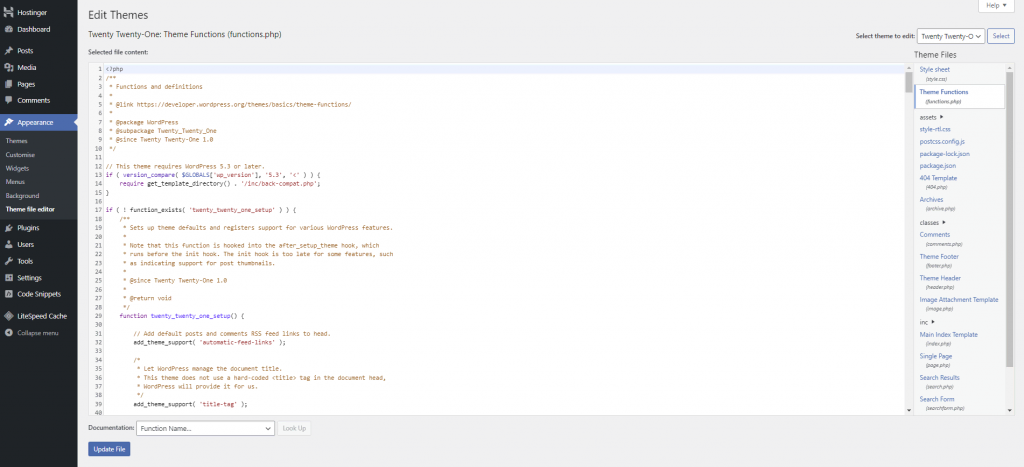
Before you start, make a backup. This keeps your site safe. Use a plugin or manual method. Saving a copy of your theme is important. If something goes wrong, you can restore it. Backups help avoid major issues. You can test code without worry.
Credit: www.hostinger.com
Setting Up A Child Theme
First, make a new folder. Name it after your theme with “-child” at the end. This folder holds all the child theme files. It should be inside your wp-content/themes directory. Add a style.css file in the folder. Include information about the theme at the top. Use comments for this.
To load styles, create a functions.php file in your child theme. Write a function to enqueue the stylesheet. Use wp_enqueue_style for this. The parent theme’s style must load first. Set the parent style as a dependency. This ensures styles apply correctly. Add your function to wp_enqueue_scripts action.
Identifying Areas To Insert Php
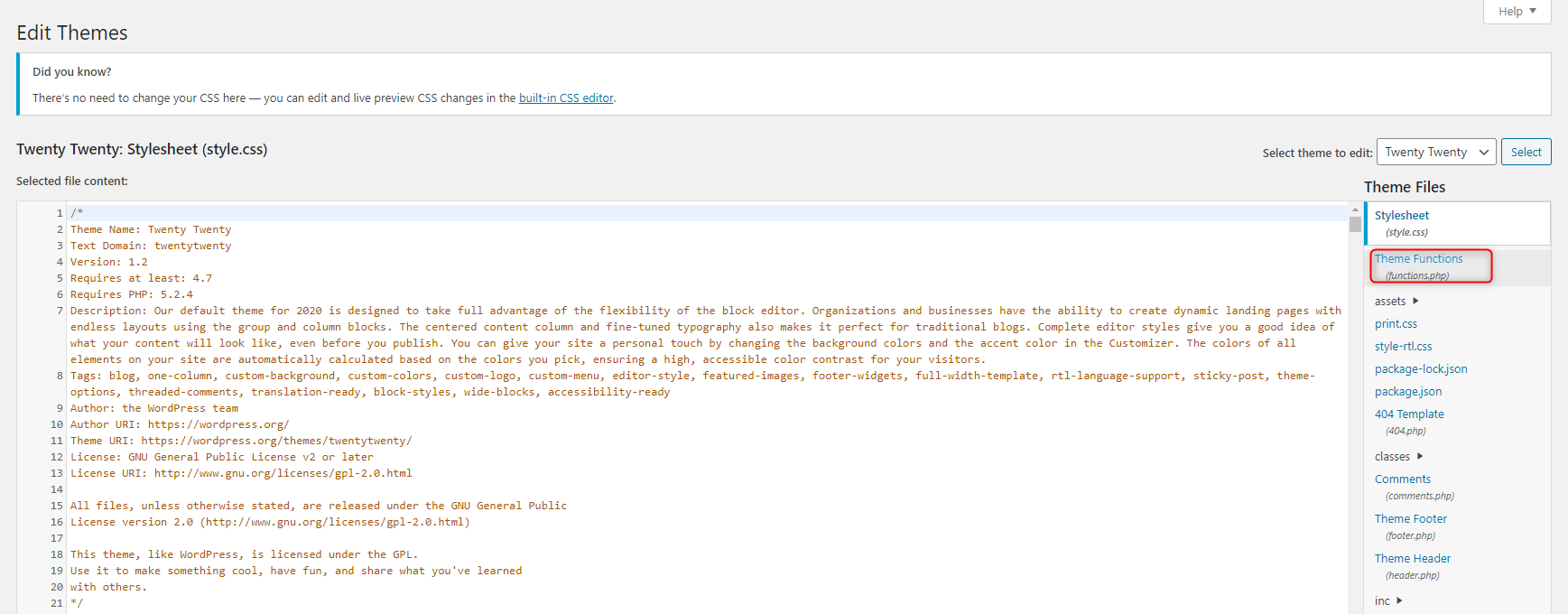
Theme template files hold the design of your site. They are written in PHP. Identifying these files is the first step. Common files include header.php, footer.php, and index.php. Each file has a role. Header is for the top part. Footer is for the bottom. Index is for the main page. Knowing their role helps in making changes.
Choose the right template file. It depends on where you want changes. Select wisely. For example, if adding code to a header, use header.php. If making changes to a blog post page, use single.php. This ensures your changes show up correctly. Always make a backup first. It keeps your site safe from mistakes.
Credit: wpfactory.com
Adding Php Code To Theme Files
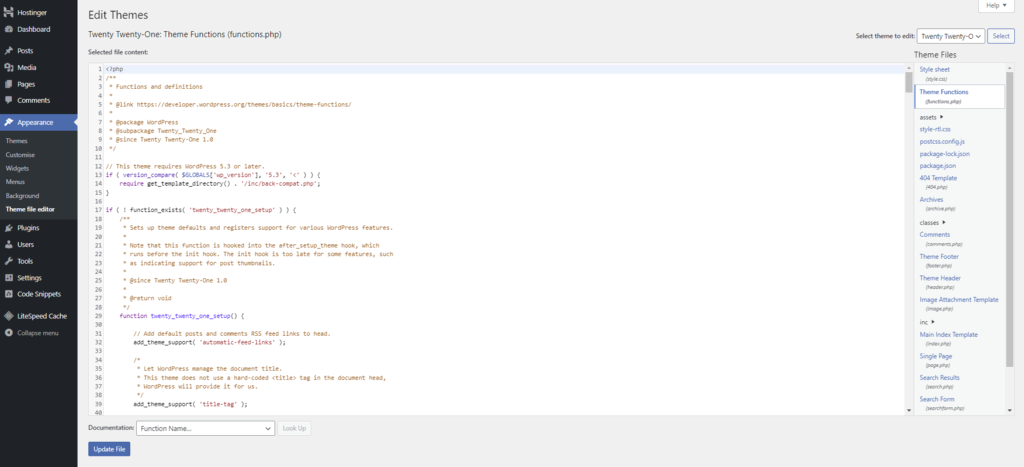
The functions.php file is like a toolbox. It helps your theme do more. Use a text editor to open it. Add your PHP code at the end. Remember to save your changes. Always back up your file first. This keeps your site safe if something goes wrong.
Custom page templates let you add PHP code. Create a new file. Name it with a unique name. Add the special header at the top. This tells WordPress it’s a template. Insert your PHP code below. Save the file in your theme folder. Use it by choosing the template in the page editor.
Testing And Debugging
Integrating PHP code into a WordPress theme can improve functionality. First, locate your theme’s functions. php file. Carefully insert the desired PHP code, ensuring no syntax errors.
Checking For Php Errors
Errors can make your theme break. Use tools to find errors. PHP errors need fixing. Check your logs for error messages. Look for syntax errors. They can stop your code. Fix mistakes quickly. This keeps your theme working.
Testing Theme Functionality
Your theme must work well. Test every part carefully. Check menus and widgets. Make sure they display right. Test links and buttons. They should go where they should. Try your theme on different devices. It must look good everywhere. Good testing helps your theme succeed.
Best Practices And Tips
Always use clear and simple code. This makes it easy to read. Group related code together. It keeps things tidy. Use comments to explain tricky parts. This helps others understand. Use consistent naming for functions and variables. This avoids confusion. Break long code into smaller parts. This makes it easier to manage.
WordPress hooks and filters let you change how themes work. They are like special tools. Use them to add or change features. Action hooks let you add new code. Filter hooks let you change data. This is handy for adding or changing WordPress features. Always check if the hook already exists. This avoids problems.
Safety And Security Measures
Creating backups is a smart choice. Backups protect your work and data. Every week, save a copy of your website. Use tools like UpdraftPlus or BackupBuddy. They make backup easy. Store the backup in a safe place. A USB drive or cloud storage works well. If something breaks, your backup can save the day. It helps fix problems fast. Never forget to backup. It keeps your website safe.
Always use code from trusted places. Reliable sources are key. Look for code from WordPress experts. Official sites are good choices. Avoid unknown websites. They might have bad code. Check reviews before using any code. You want code that works well. Trusted code keeps your site safe. It prevents problems and errors. Choose wisely. Your website depends on it.
Credit: www.hostinger.com
Frequently Asked Questions
How Do I Insert Php Code In WordPress?
To insert PHP code in WordPress, use a child theme. Create a custom function in the functions. php file. Access this file via the WordPress dashboard or FTP. Ensure you test your code in a staging environment to avoid site issues.
Can I Use Php In WordPress Widgets?
Yes, you can use PHP in WordPress widgets. Utilize the ‘PHP Code Widget’ plugin to add PHP code. This plugin allows you to execute PHP within widget areas. Always backup your site before making changes to prevent data loss.
Is Php Safe To Use In WordPress Themes?
Using PHP in WordPress themes is safe if done correctly. Always sanitize and validate user inputs to prevent vulnerabilities. Avoid executing PHP code from untrusted sources. Regularly update WordPress and plugins to maintain security.
What Are The Risks Of Adding Php To WordPress?
Adding PHP to WordPress can pose risks like code errors and security vulnerabilities. Improper coding might break your site. Ensure you follow best practices for coding and security. Test changes in a development environment before deploying.
Conclusion
Adding PHP code to your WordPress theme can enhance its functionality. Ensure you back up files before making changes. Use a child theme to prevent updates from overwriting your code. Remember to test your code in a staging environment first.
This approach helps avoid potential site issues. Seek help from forums if needed. Practice these steps, and you’ll gain confidence. Soon, you’ll be customizing your WordPress theme with ease. Just stay cautious and organized. Happy coding!


