

Are you looking for a simple way to show PDF files directly on your WordPress site? Adding a PDF viewer can make your content more engaging and keep visitors on your page longer.
Imagine your readers flipping through documents without having to download them first. In this post, you’ll discover easy steps to add a PDF viewer to your WordPress site—no tech skills needed. Keep reading, and you’ll have your PDFs displayed smoothly in no time.
Credit: formidableforms.com
Choosing A Pdf Viewer Plugin
Choosing the right PDF viewer plugin is important for a smooth user experience. The plugin should fit your website needs and be easy to use. It must display PDFs clearly and quickly. Some plugins offer many features, while others keep it simple. Think about what features matter to you before deciding.
Free Vs Premium Options
Free PDF viewer plugins are good for basic needs. They usually show PDFs without extra features. Premium plugins cost money but offer more tools. These include zoom, page navigation, and mobile support. Premium versions often get regular updates and better support. Choose free if your needs are simple. Pick premium if you want more control and features.
Key Features To Look For
Look for easy PDF upload and quick loading times. The viewer should let users zoom and scroll smoothly. Search function inside the PDF is helpful. Make sure the plugin supports multiple file formats if needed. Check if it works well on phones and tablets. Customization options help match your site’s style. Security features protect your files from unauthorized access.
Compatibility With WordPress Versions
The plugin must work well with your WordPress version. Some plugins may not support the latest WordPress updates. Check the plugin’s update history and ratings. Read user reviews to find any compatibility problems. A compatible plugin reduces bugs and crashes. Always pick a plugin that is actively maintained.
Credit: www.wpbeginner.com
Installing The Pdf Viewer Plugin
Installing a PDF viewer plugin in WordPress is a simple way to display PDF files directly on your website. This helps visitors view documents without downloading them. The process involves finding, installing, and activating the right plugin. Follow these steps to get started quickly.
Accessing The WordPress Plugin Directory
Log in to your WordPress dashboard first. Look for the “Plugins” option on the left menu. Click “Add New” to open the plugin directory. The directory has thousands of plugins ready to use. Use the search bar to type “PDF viewer.” This will show plugins designed to display PDF files on your site.
Step-by-step Installation Guide
Pick the PDF viewer plugin that fits your needs. Check ratings and reviews for reliability. Click the “Install Now” button next to the plugin. Wait a few moments while WordPress downloads the plugin. After it finishes, the “Install Now” button changes to “Activate.”
Activating The Plugin
Click the “Activate” button to enable the plugin. Activation makes the plugin ready for use on your site. Some plugins add new menu options or settings. Explore these settings to customize how PDFs appear. Now you can embed PDF files into posts or pages easily.
Uploading Pdf Files
Uploading PDF files to your WordPress site is the first step to display them with a PDF viewer. Proper uploading helps your visitors find and read your documents easily. This section explains how to upload PDFs efficiently and organize them for quick access.
Using The Media Library
The Media Library is the easiest place to upload PDF files in WordPress. Go to your dashboard and click on “Media,” then “Add New.” Drag your PDF file or select it from your computer. WordPress will store the file safely.
After uploading, you can copy the file URL. Use this URL to insert the PDF in posts or pages. The Media Library also shows your PDF files alongside images and videos.
Organizing Pdf Files For Easy Access
Organizing PDFs helps you manage many documents without confusion. Create folders or categories outside WordPress to sort your files before uploading. Name files clearly, using simple words and dates if needed.
Inside WordPress, use plugins or custom tools to group PDFs by topics or projects. This makes it easier to find files later and keeps your site tidy. Clear organization benefits both site owners and visitors.
Embedding Pdfs In Pages And Posts
Embedding PDFs in pages and posts lets you share documents directly on your site. Visitors can view files without downloading them. This keeps your site clean and professional. It also improves user experience by saving time and effort. You can easily embed manuals, brochures, or reports using WordPress tools.
Using Shortcodes
Shortcodes are simple codes you insert into posts or pages. They tell WordPress to display a PDF viewer. Many PDF plugins offer their own shortcodes. Copy the shortcode and paste it where you want the PDF to appear. This method works well for classic editors and simple layouts. It keeps the process quick and straightforward.
Block Editor Integration
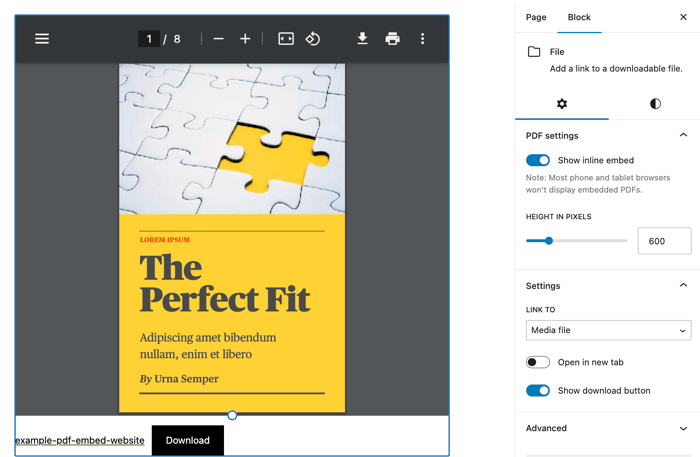
The WordPress block editor supports PDF embedding with blocks. You can add a PDF block directly to your content. Upload your PDF file or select it from the media library. The block automatically displays a viewer for the file. This method fits perfectly with WordPress’s modern editing style. It allows easy adjustments and previewing in real time.
Customizing Viewer Settings
Many PDF viewers let you change how the file appears. You can set the viewer’s width and height to fit your page. Some plugins allow zoom controls or page navigation buttons. Adjust colors or toolbar options to match your site’s style. Custom settings improve readability and user interaction. Tailor the PDF display to suit your audience’s needs.
Optimizing Pdf Viewer Performance
Optimizing your PDF viewer in WordPress improves user experience and site speed. A fast and responsive PDF viewer keeps visitors engaged. Poor performance can cause slow loading and frustrated users. Focus on key areas to enhance how your PDF files display and load.
Improving Load Times
Use lightweight PDF viewer plugins that do not overload your site. Compress PDF files before uploading to reduce file size. Limit the number of PDFs displayed on one page. Enable browser caching so files load faster on repeat visits. Avoid embedding large PDFs directly; use links or thumbnails instead.
Mobile Responsiveness
Choose a PDF viewer that adjusts to different screen sizes automatically. Test the viewer on phones and tablets to ensure readability. Use responsive design settings in your WordPress theme. Avoid fixed width viewers that break layout on small screens. Make navigation easy with zoom and scroll options.
Troubleshooting Common Issues
Clear your browser cache if PDFs do not load properly. Check for plugin conflicts by disabling other plugins temporarily. Update your PDF viewer plugin and WordPress to the latest versions. Verify your PDF files are not corrupted or password protected. Review your hosting limits if loading times remain slow.
Credit: formidableforms.com
Alternative Methods To Display Pdfs
Displaying PDFs on your WordPress site does not always require complex plugins. Several simple methods help you show PDFs clearly and efficiently. These alternative methods work well for different needs and skill levels.
Using options beyond traditional PDF viewers can save time and improve user experience. These choices let visitors view or download files easily. Below are some popular alternatives to embed or link PDFs on your WordPress site.
Using Google Drive Embed
Google Drive lets you host and share PDFs online. Upload your PDF to Google Drive first. Then, open the file and click the “Share” button. Set the sharing to “Anyone with the link.”
Next, click on the “More actions” menu and select “Embed item.” Copy the embed code provided. Paste this code into your WordPress post or page using the HTML editor. The PDF will display inside your page. Visitors can scroll through the document without leaving your site.
Linking Direct Downloads
Direct download links are simple and effective. Upload your PDF file to your WordPress media library. Copy the file URL once uploaded. Insert this URL as a hyperlink in your content.
Visitors click the link to download the PDF directly. This method is fast and needs no special tools. It works well for users who prefer saving files to their devices.
Third-party Pdf Services
Several online services specialize in displaying PDFs. Sites like Scribd or Issuu let you upload and embed documents. Create an account, upload your PDF, and get the embed code.
Paste this code into your WordPress page. These services provide a sleek viewer with navigation tools. They often include options for sharing and tracking views too.
Frequently Asked Questions
How Do I Add A Pdf Viewer To WordPress?
You can add a PDF viewer using plugins like PDF Embedder or Embed Any Document. Install, activate, and upload your PDF to display it directly on your pages or posts.
Which Is The Best Pdf Viewer Plugin For WordPress?
PDF Embedder and Embed Any Document are top choices. They offer easy setup, responsive design, and secure embedding without affecting site speed.
Can I Embed Pdfs Without Plugins In WordPress?
Yes, you can embed PDFs using the Gutenberg block or iframe code. However, plugins provide better display and user experience features.
How To Make Pdf Viewer Responsive In WordPress?
Choose a plugin with responsive design like PDF Embedder. It ensures your PDFs adjust smoothly on all devices and screen sizes.
Conclusion
Adding a PDF viewer to your WordPress site is simple and effective. It helps visitors read documents without extra downloads. Choose a plugin that fits your needs and install it quickly. Customize the viewer to match your website style. Test the PDF display to ensure smooth user experience.
This small step improves your site’s usability and keeps visitors engaged. Start today and make your content easy to access.



