
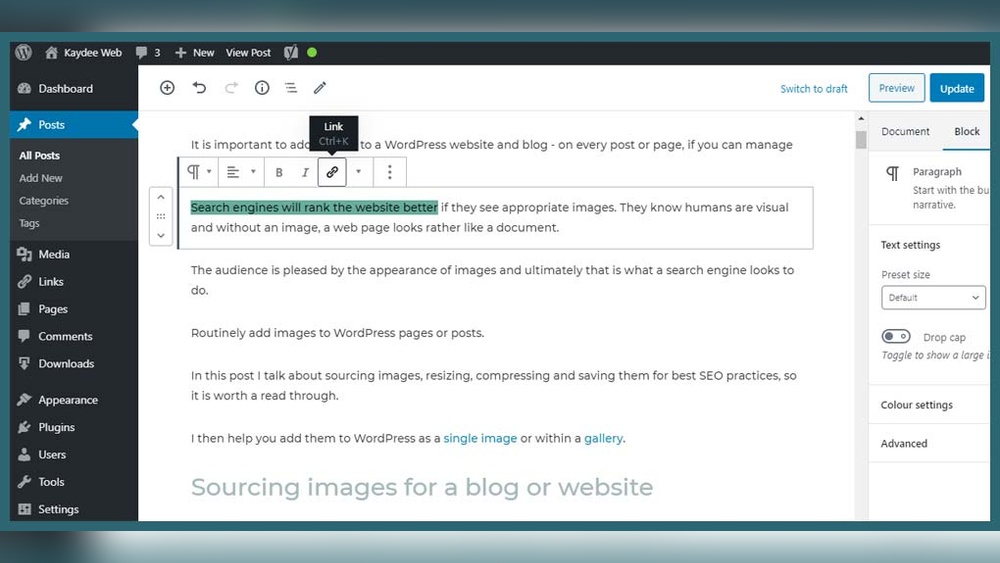
Are you looking to share important documents or guides with your readers right on your WordPress posts? Adding a PDF to your WordPress post can make your content more valuable and easy to access.
But if you’ve never done it before, it might seem tricky. Don’t worry—this guide will walk you through simple steps to add PDFs quickly and smoothly. By the end, you’ll know exactly how to make your posts more engaging and professional.
Ready to boost your content? Let’s get started!
Credit: www.wpbeginner.com
Benefits Of Adding Pdfs To Posts
Adding PDFs to your WordPress posts brings many benefits. PDFs can hold detailed information in a clean, easy-to-read format. They help you share important documents, guides, or brochures without cluttering your post. This feature makes your content richer and more useful for your readers.
Enhanced Content Sharing
PDFs let readers download and share your content easily. They keep the original format, so the design stays intact. Your audience can print or save PDFs for later use. This convenience encourages more sharing outside your website.
Improved User Experience
PDFs provide clear, organized information in one file. Readers can view content offline, which helps with accessibility. Embedding PDFs avoids long, messy posts. Visitors spend less time searching for details, making their visit smoother.
Seo Advantages
Search engines can index PDF text if optimized well. This adds more searchable content to your site. Using keywords inside PDFs helps improve your ranking. PDFs also increase user engagement, which boosts SEO signals.
Credit: kaydee.net
Preparing Your Pdf File
Preparing your PDF file is an important step before adding it to a WordPress post. A well-prepared PDF ensures smooth loading and a good user experience. It also helps your site stay fast and accessible.
Taking time to optimize and check your PDF can save you problems later. Follow these simple tips to get your file ready.
Optimizing File Size
Large PDF files can slow down your website. Reduce the file size without losing quality. Use tools like Adobe Acrobat or free online compressors. Smaller files load faster and use less bandwidth.
Ensuring Compatibility
Make sure your PDF works on all devices and browsers. Test the file on phones, tablets, and computers. Use standard PDF formats to avoid display issues. Compatibility ensures every visitor can open your file.
Naming Your Pdf
Give your PDF a clear, simple name. Use words that describe the content well. Avoid spaces and special characters in the file name. A good name helps with search engines and user understanding.
Uploading Pdfs Via WordPress Editor
Uploading PDFs to your WordPress post helps share documents easily with readers. WordPress provides simple tools to upload and insert PDFs into posts. This section explains how to do it using different editors. Follow these steps to add PDFs quickly.
Using The Block Editor
The Block Editor, also called Gutenberg, makes PDF uploads easy. Click the plus (+) button inside your post. Search for the “File” block and select it. Then click “Upload” to choose your PDF file from the computer. WordPress will upload and insert a download link automatically. You can add a title or description to the link. Preview the post to check the link works well.
Using The Classic Editor
Open the Classic Editor on your WordPress dashboard. Place the cursor where you want the PDF link. Click the “Add Media” button above the editor toolbar. Select “Upload Files” and pick your PDF file. After upload, click “Insert into post.” WordPress adds a clickable link to the PDF. You can edit the link text inside the editor.
Inserting Download Links
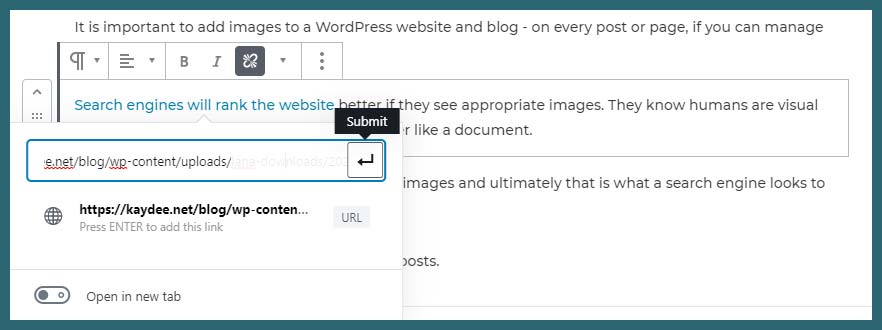
Download links let readers save your PDF files easily. After uploading your PDF, copy its URL from the Media Library. Highlight the text in your post to turn into a link. Click the link icon and paste the PDF URL. Save or update the post. Visitors click the text to download the PDF directly.
Credit: www.wpbeginner.com
Embedding Pdfs With Plugins
Embedding PDFs in WordPress posts improves user experience. Visitors can view documents without extra downloads. Plugins make embedding simple and clean. They offer customization and better display options.
Choosing The Right Plugin
Select a plugin that fits your needs. Popular options include PDF Embedder, Embed Any Document, and Google Doc Embedder. Look for user ratings and recent updates. Check if the plugin supports mobile devices. Choose one that loads PDFs quickly and securely.
Installing And Activating Plugins
Go to your WordPress dashboard. Click on “Plugins” and then “Add New.” Type the plugin name in the search box. Click “Install Now” next to the chosen plugin. After installation, click “Activate” to enable it. The plugin is now ready for use.
Embedding Steps
Upload your PDF file to the Media Library. Copy the file URL or use the plugin’s embed button. Open the post or page editor. Paste the URL or select the file using the plugin options. Adjust the display settings like width or toolbar. Preview the post to check the PDF display. Finally, publish your post with the embedded PDF.
Customizing Pdf Display
Customizing the PDF display in your WordPress post helps improve user experience. It makes your content clear and easy to access. Small changes can make a big difference in how readers interact with your PDF files.
Adjusting Size And Layout
Set the width and height of your PDF to fit your page. Use simple numbers like 600px wide for good readability. Avoid too large or too small sizes. A clean layout keeps your post neat and professional.
Adding Preview Thumbnails
Show a small image preview of your PDF. Thumbnails give readers a quick idea of the content. Use clear and simple images. This helps catch attention and encourages clicks.
Setting Open Behavior
Choose how the PDF opens. It can open in a new tab or inside the post. Opening in a new tab keeps readers on your site. Inside the post allows quick viewing without leaving the page.
Troubleshooting Common Issues
Adding a PDF to a WordPress post can sometimes cause issues. These problems can stop your file from uploading or displaying correctly. Knowing how to fix common troubles helps you keep your site smooth. This section covers simple solutions for usual errors.
File Upload Errors
File upload errors happen when the PDF is too large or the server limits are low. Check your file size. Compress the PDF if it is too big. Increase the maximum upload size in your hosting settings. Clear browser cache and try uploading again. Use a different browser to see if it helps.
Display Problems
Sometimes the PDF link shows but the file won’t open. Check the file URL for typos. Make sure the PDF is fully uploaded. Use a PDF viewer plugin if the default link does not work. Confirm the PDF file permissions allow public access. Test the link on different devices.
Plugin Conflicts
Plugins can block PDF uploads or displays. Deactivate all plugins except the one used for PDFs. Try uploading the file again. If it works, activate plugins one by one to find the conflict. Update all plugins to the latest version. Remove any plugin that causes problems.
Tips For Managing Pdfs On Your Site
Managing PDFs on your WordPress site helps keep files easy to find and use. Good management improves user experience and site performance. Organize, update, and track your PDFs to keep your content fresh and useful.
Organizing Files
Create folders or categories to store your PDFs clearly. Use descriptive file names that explain the content. Avoid long or confusing names. This makes finding files quick and simple.
Keep your files in one place. Upload PDFs to your media library or a dedicated folder. Group similar PDFs together. This helps you and your visitors navigate your site better.
Updating Pdfs
Check your PDFs regularly for outdated information. Replace old files with new versions to keep content accurate. Use the same file name to avoid broken links. This keeps your posts and pages working smoothly.
Notify visitors if important PDFs have changed. Add a note or date on the post. This builds trust and shows your site is active.
Tracking Downloads
Track how often your PDFs are downloaded. Use plugins or analytics tools to gather data. This shows which files your audience finds useful.
Use download tracking to improve your content strategy. Focus on popular PDFs and update less-used ones. This keeps your site relevant and engaging.
Frequently Asked Questions
How Do I Upload A Pdf To A WordPress Post?
To upload a PDF, go to your WordPress dashboard, click “Add Media,” then upload your PDF file. Insert it directly into your post.
Can I Embed A Pdf File In WordPress Posts?
Yes, WordPress allows you to embed PDFs using plugins or the built-in block editor. This helps display PDFs inline for easy viewing.
What Plugins Help Add Pdfs To WordPress Posts?
Popular plugins like PDF Embedder and Embed Any Document make adding PDFs simple and customizable. They enhance user experience and SEO.
Is It Seo-friendly To Add Pdfs In WordPress Posts?
Yes, properly optimized PDFs improve SEO. Use descriptive file names, add titles, and include alt text when embedding PDFs in posts.
Conclusion
Adding a PDF to your WordPress post is simple and quick. You just need to follow a few clear steps. This makes your content more useful for readers. Visitors can easily access important documents without leaving your site. Keep practicing these steps to get comfortable with the process.
Your posts will look more professional and informative. Try adding different PDFs to see what works best. Sharing files directly helps your audience a lot. Make your website more helpful today.


