
Are you looking to share a PDF on your WordPress page but not sure how to do it easily? Adding PDFs can help you provide important documents, guides, or brochures directly to your visitors.
But if you’ve never done it before, it might feel confusing or time-consuming. Don’t worry—this guide will walk you through simple, step-by-step methods to add PDFs to your WordPress page quickly. By the end, you’ll have the confidence to upload and display your files just the way you want.
Ready to make your content more accessible and professional? Let’s dive in!
Credit: kaydee.net
Choose The Right Pdf File
Choosing the right PDF file is important before adding it to your WordPress page. The file should be clear and easy to read. A good PDF helps visitors get the information they want quickly.
Think about the file size. Large files take longer to load and can slow down your website. Small files improve loading speed and keep visitors happy.
Check The Content Quality
Make sure the PDF content is accurate and relevant. Avoid outdated or incorrect information. Clear text and images help users understand your message.
Optimize File Size
Use tools to compress your PDF before uploading. Smaller files use less bandwidth and load faster. Keep the file size under 5 MB for best results.
Ensure Mobile Compatibility
Many visitors use phones or tablets. Your PDF should open and display well on all devices. Test it on different screens to be sure.
Use Descriptive File Names
Name your PDF with clear, simple words. This helps search engines understand your content. It also makes it easy for visitors to find the file.
Credit: wpdatatables.com
Upload Pdf Using WordPress Media Library
Uploading a PDF using the WordPress Media Library is simple and quick. This method lets you keep all files in one place. You can easily manage and insert PDFs on any page or post. Follow these steps to upload your PDF file and get its link for use on your site.
Access Media Library
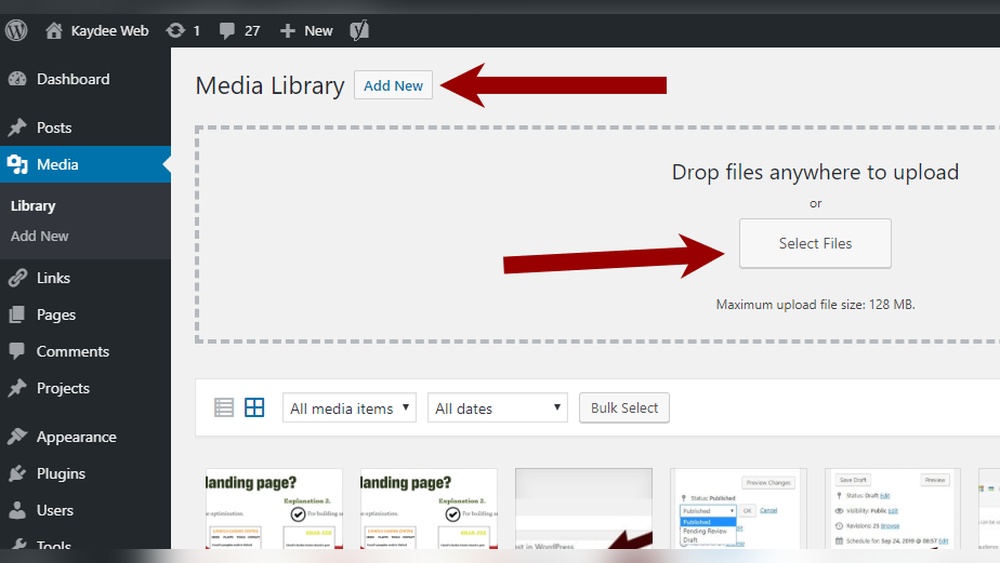
Log into your WordPress dashboard first. Find the “Media” option in the left menu. Click on “Library” to open the Media Library. This area shows all your uploaded images, videos, and files. You can upload new files here or reuse existing ones.
Upload Pdf File
Inside the Media Library, click the “Add New” button. A box will appear allowing you to drag and drop your PDF file. You can also click “Select Files” to browse your computer. Choose the PDF you want to upload. Wait for the upload to finish before moving on.
Copy File Url
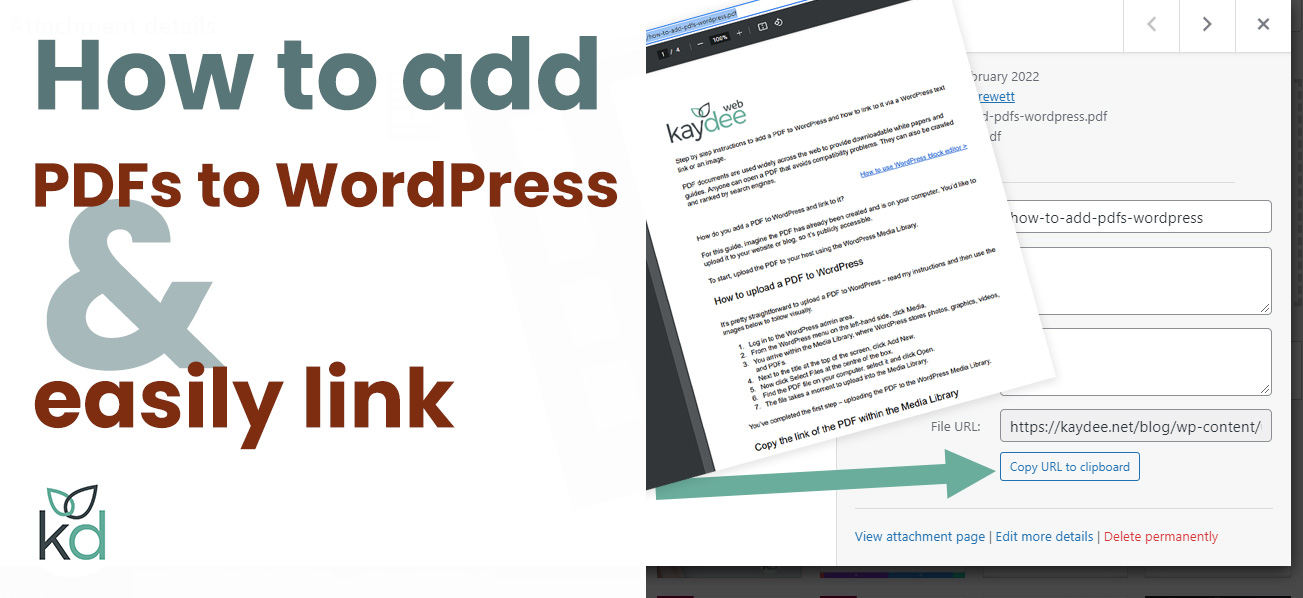
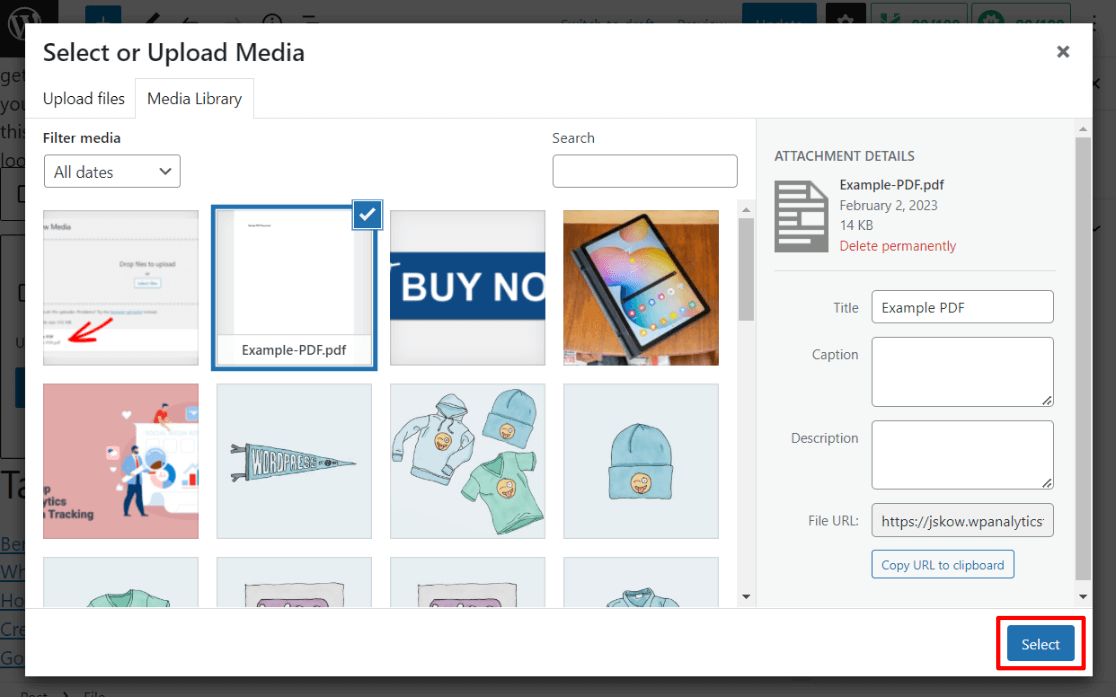
After uploading, click on the PDF file in the Media Library. A window with file details will open. Find the URL field showing your PDF’s link. Highlight and copy this URL. You will use this link to add the PDF to your WordPress page or post.
Insert Pdf Link Into Page
Inserting a PDF link into a WordPress page lets visitors access your documents easily. This method keeps your page clean and organized. Users click the link to open or download the PDF file. Follow these simple steps to add a PDF link to your page.
Edit WordPress Page
Start by opening your WordPress dashboard. Go to Pages and select the page you want to edit. Click the Edit button to open the page editor. This is where you will add your PDF link.
Add Link Block
Inside the editor, click the plus (+) icon to add a new block. Search for the Link block or use the Paragraph block to insert your link. Place the block where you want the PDF link to appear on the page.
Paste Pdf Url
Copy the URL of your PDF file. Paste it directly into the link field in the block. You can also type the link text that users will see. Save or update the page to make the link live.
Embed Pdf Using Plugins
Embedding a PDF on your WordPress page is easy with plugins. Plugins simplify the process and add useful features. You can display PDFs directly on your page without confusing codes. This method works well for documents, brochures, and manuals.
Select Suitable Plugin
Choose a plugin that fits your needs. Look for popular options with good ratings. Check if the plugin supports your WordPress version. Read user reviews to avoid bugs and issues. Pick plugins that offer easy PDF embedding and viewer options.
Install And Activate Plugin
Go to your WordPress dashboard. Click on “Plugins” then “Add New.” Search for the plugin by name. Click “Install Now” and wait for it to complete. Press “Activate” to start using the plugin immediately.
Embed Pdf With Plugin Features
Open the page or post where you want the PDF. Use the plugin’s button or block to insert the PDF. Upload your PDF file or select it from the media library. Adjust settings like size, toolbar, or zoom if available. Save or update the page to show the PDF embedded.
Use Gutenberg Block For Pdfs
Adding PDFs to your WordPress page becomes simple with the Gutenberg block editor. This tool lets you insert PDF files quickly without extra plugins. It gives you control over how the PDF looks on your page. You can upload new files or choose from your media library. This method keeps your page clean and user-friendly.
Add File Block
Start by opening the page or post where you want the PDF. Click the plus (+) icon to add a new block. Search for the “File” block and select it. This block is designed for uploading files like PDFs. It creates a space where users can download or view your file easily.
Upload Or Select Pdf
After adding the File block, choose to upload a new PDF or pick one from the media library. Click “Upload” to add a PDF from your computer. Or click “Media Library” to select an existing PDF file. The chosen file will appear in the block, ready for display.
Customize Display Settings
Use the block’s settings on the right side to change how the PDF shows. You can toggle the download button on or off. Add a caption below the file link for extra details. Adjust the alignment to fit your page design. These settings help make your PDF easy to access and attractive.
Optimize Pdf For Faster Loading
Optimizing PDFs helps your WordPress pages load faster. Large PDF files slow down your site. Visitors may leave if loading takes too long. Fast loading improves user experience and SEO. Simple steps can make your PDFs lighter and quicker.
Compress Pdf Files
Compressing reduces the file size of your PDF. Smaller files load faster on any device. Use free online tools or software to compress PDFs. Check the quality after compression to keep it clear. Aim for balance between size and readability.
Use Caching Plugins
Caching plugins store copies of your PDFs temporarily. This helps serve files faster to visitors. Popular plugins like W3 Total Cache work well with PDFs. Enable browser caching to speed up repeat visits. This reduces server load and improves page speed.
Test Pdf Display On Different Devices
Testing how your PDF looks on different devices is very important. It ensures all users can view your content easily. A PDF that works well on a computer might look odd on a phone. Testing helps you fix any display problems early.
Check Mobile View
Open your WordPress page on a smartphone or tablet. Check if the PDF loads quickly and is easy to read. Zoom in to see if the text stays clear. Make sure the PDF fits the screen without horizontal scrolling. Test on both Android and iOS devices for best results.
Verify Desktop Compatibility
View your WordPress page on different desktop browsers. Use Chrome, Firefox, Safari, and Edge to test the PDF display. Check if the PDF loads fast and looks sharp. Make sure users can scroll through the PDF smoothly. Confirm the PDF does not block other page content.
Credit: www.monsterinsights.com
Frequently Asked Questions
How Can I Upload A Pdf To A WordPress Page?
To upload a PDF, go to your WordPress dashboard. Click on Media > Add New, then upload your file. Copy the URL to insert it on your page.
What Is The Easiest Way To Embed Pdfs In WordPress?
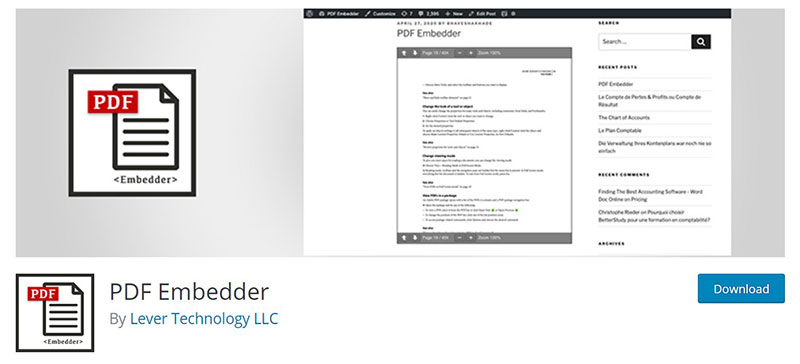
Use the Gutenberg block editor’s “File” or “PDF Embedder” plugin. These tools let you add PDFs directly and display them cleanly on your page.
Can I Link A Pdf For Download On WordPress?
Yes, after uploading your PDF, copy its URL. Highlight text or a button on your page, add the link, and visitors can download the file.
Are There Plugins To Improve Pdf Display On WordPress?
Yes, plugins like “PDF Embedder” and “Embed Any Document” enhance viewing. They allow inline display, zoom, and navigation features for better user experience.
Conclusion
Adding a PDF to your WordPress page is simple and quick. You can share important documents with your visitors easily. Just follow the steps, and your PDF will appear clearly. This helps users find and download files without trouble. Keep your website organized and user-friendly by including PDFs as needed.
Try it today to improve your site’s content and user experience.



