

Are you looking to share important documents with your website visitors? Adding a PDF to your WordPress site for download is one of the easiest ways to provide valuable content.
Whether it’s a brochure, an eBook, or a guide, having a downloadable PDF can boost engagement and keep your audience coming back. In this post, you’ll learn simple, step-by-step methods to upload and link PDFs on your WordPress site—no technical skills needed.
Ready to make your content more accessible and professional? Keep reading, and you’ll have your PDFs available for download in just minutes.
Prepare Your Pdf File
Preparing your PDF file is a key step before uploading it to WordPress. A well-prepared file ensures fast loading and a smooth download for your visitors. It also helps keep your site running efficiently without slowing down.
Check File Size And Format
Make sure your PDF is not too large. Large files take longer to load and can frustrate users. Aim for a size under 10MB for better performance. Also, confirm the file format is .pdf. Other formats will not work for PDF downloads.
Optimize Pdf For Web
Optimize your PDF to reduce its size without losing quality. Use tools like Adobe Acrobat or free online compressors. Remove unnecessary images or fonts inside the PDF. This step helps your file load faster and saves bandwidth.
Credit: elementor.com
Upload Pdf To WordPress
Uploading a PDF to WordPress is simple and quick. It allows visitors to download files easily. WordPress offers different ways to upload PDFs. Choose the method that fits your needs best.
Use Media Library
Go to your WordPress dashboard. Click on “Media” and then “Add New.” Drag your PDF file into the upload area or click “Select Files” to pick it from your computer. After uploading, click the file to see its URL. Use this link to add the PDF to posts or pages for download.
Upload Via Ftp
Connect to your website using an FTP client. Navigate to the “wp-content/uploads” folder. Upload your PDF file into the correct year and month folder. Copy the file URL based on your site address and file path. Paste this URL into WordPress content to let users download the PDF.
Insert Pdf Link In Posts Or Pages
Inserting a PDF link in your WordPress posts or pages lets visitors download files easily. This method keeps your content clean and professional. Readers see a simple clickable link instead of cluttered documents. You can share reports, guides, or brochures this way.
WordPress offers two main editors to add PDF links: the Block Editor and the Classic Editor. Each has a straightforward process to link your PDF files. Both methods help you control how your downloads appear on your site.
Add Link Using Block Editor
First, open the post or page in the Block Editor. Click the spot where the link should appear. Next, add a new block by clicking the plus (+) icon. Select the “File” block from the list. Upload your PDF file or choose one from the media library. WordPress automatically creates a download link. You can change the link text to something clear, like “Download PDF.” Save or update your post to publish the link.
Use Classic Editor Link Option
Open your post or page in the Classic Editor. Highlight the text where the PDF link will go. Click the “Insert/edit link” button in the toolbar. In the popup, paste the PDF file URL. You get this URL from uploading the PDF to the media library first. Click the gear icon to set link options, like opening in a new tab. Press “Add Link” to insert it. Update your post and check the link works.
Use Plugins For Enhanced Pdf Handling
Plugins make handling PDFs in WordPress simple and effective. They offer more features than the basic upload option. You can control how PDFs appear and behave on your site. Using plugins can improve user experience and keep visitors engaged.
Some plugins allow embedding PDFs directly on your pages. Others provide download buttons with tracking options. Many plugins support multiple file formats and mobile-friendly displays. Choosing the right plugin depends on your site’s needs.
Popular Pdf Plugins
Several PDF plugins stand out for ease and features. PDF Embedder lets you show PDFs inline with navigation tools. WP PDF Viewer supports zoom, search, and page thumbnails. PDF.js Viewer is a lightweight option using Mozilla’s PDF engine. These plugins work well without complex setup.
Some plugins add download counters or password protection. Others allow you to customize the look to match your theme. Most are regularly updated and have good support. Explore plugin features and user reviews before choosing one.
Embed Pdf Viewer
Embedding PDFs improves content engagement and reading ease. Visitors can read documents without leaving your site. PDF viewers come with controls like zoom, scroll, and page navigation. They load fast and adapt to different screen sizes.
Embedding also reduces download time by showing only needed pages. Some viewers let users search within the PDF text. This feature helps visitors find information quickly. Embedding PDFs keeps your site professional and user-friendly.
Test Pdf Download Functionality
Testing the PDF download functionality ensures your visitors can access files easily. It confirms the link works and the PDF opens correctly. This step helps avoid broken links and frustrated users.
Check Link Accessibility
First, click the PDF download link on your webpage. Make sure it opens or starts downloading immediately. The link should be visible and easy to find for all users.
Check if the PDF file name is clear and descriptive. This helps users understand what they are downloading. Broken or hidden links can cause visitors to leave your site.
Verify Download On Different Devices
Test the PDF download on various devices like phones, tablets, and computers. Different devices may handle downloads differently. Confirm the PDF opens smoothly on each device.
Try different browsers such as Chrome, Firefox, and Safari. This ensures compatibility across platforms. A working download on all devices improves user experience and trust.

Credit: www.elegantthemes.com
Troubleshoot Common Issues
Adding a PDF to WordPress can sometimes cause problems. These issues might stop visitors from downloading your file. Knowing how to fix common problems helps keep your site working well. Troubleshooting saves time and improves user experience.
Fix Broken Links
Broken links stop visitors from accessing your PDF. Check the URL carefully. Make sure it matches the file location exactly. If you moved or renamed the PDF, update the link.
Clear your browser cache to see recent changes. Use a link checker plugin to find broken links fast. Replace or fix any link that does not work.
Resolve Upload Errors
Upload errors can block your PDF from appearing on WordPress. Check the file size. WordPress limits uploads by default. Increase the limit if your PDF is too large.
Verify your internet connection is stable during upload. Use the WordPress media library to upload PDFs. If errors persist, try uploading via FTP or ask your host for help.
Credit: barn2.com
Frequently Asked Questions
How Do I Upload A Pdf To WordPress For Download?
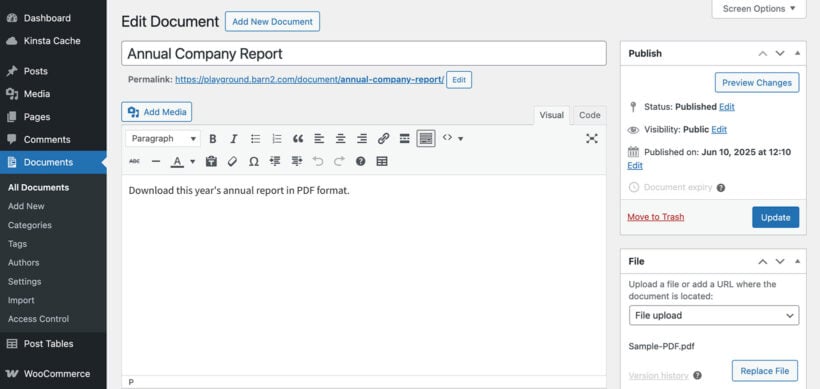
To upload a PDF, go to your WordPress dashboard, click Media > Add New, then upload your file. Copy the file URL to use in posts or pages for download links.
Can I Embed A Pdf Directly Into A WordPress Page?
Yes, WordPress lets you embed PDFs using the block editor’s File block or plugins. This displays the PDF inline and allows visitors to view or download it easily.
What Is The Best Plugin To Add Pdfs In WordPress?
Popular plugins like PDF Embedder and Embed Any Document offer easy PDF upload and embed options. They improve user experience by allowing inline viewing and download capabilities.
How Do I Create A Download Link For A Pdf In WordPress?
After uploading your PDF, copy its URL from the Media Library. Insert a hyperlink in your post or page text pointing to this URL to enable downloads.
Conclusion
Adding a PDF to WordPress is simple and useful. It helps share files with visitors easily. You can upload PDFs directly or use plugins for more options. Make sure your files are named well for better search results. This process improves your site’s value and user experience.
Try adding PDFs to your posts or pages today. It takes just a few steps to help your audience get what they need. Easy to do, and it keeps your site organized.


