Are you looking to add a PDF file to your WordPress site using Elementor but don’t know where to start? You’re in the right place.
Adding a PDF can boost your content by sharing important documents, guides, or brochures directly with your visitors. Imagine making it effortless for your audience to access valuable files without leaving your site. You’ll discover simple, step-by-step methods to upload and display PDF files in Elementor.
By the end, you’ll have a clear, easy-to-follow plan to make your website more engaging and user-friendly. Ready to get started? Let’s dive in!
Credit: elementor.com
Choose The Right Pdf
Choosing the right PDF file is important for a smooth user experience on your WordPress site. The file should load quickly and look clear on all devices. This makes visitors stay longer and interact more with your content.
Take time to select a PDF that balances quality and size. The best choice helps keep your website fast and professional.
Check File Size
Large PDF files slow down your website. Visitors may leave if the file takes too long to load. Aim for a file size under 5MB. Compress the PDF if it is too big. Tools like Smallpdf or Adobe Acrobat can help reduce file size without losing too much quality.
Ensure File Quality
Your PDF must look clear and readable. Low-quality files appear blurry or pixelated. Use high-resolution images and clean fonts in your PDF. Test the file on different devices to confirm it looks good everywhere. A sharp PDF improves your site’s professionalism and user trust.
Prepare Your WordPress Site
Preparing your WordPress site is the first step to add a PDF file using Elementor. This preparation helps ensure a smooth and error-free process. It involves installing the right tools and keeping your site updated. A well-prepared site runs faster and avoids conflicts during PDF upload and display.
Install Elementor Plugin
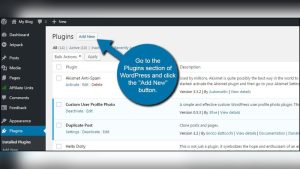
Elementor is a popular page builder plugin for WordPress. It allows you to design pages easily without coding. Start by installing the Elementor plugin. Go to your WordPress dashboard, click on “Plugins,” then “Add New.” Search for “Elementor,” and click “Install Now.” After installation, activate the plugin. This plugin gives you the tools to add and display PDF files effectively.
Update WordPress And Plugins
Keeping WordPress and its plugins updated is crucial. Updates fix bugs and improve security. Outdated software can cause issues when adding files. To update, go to your dashboard and click “Updates.” Update WordPress to the latest version. Also, update all installed plugins, including Elementor. This step keeps your site secure and compatible with new features.
Upload Pdf To Media Library
Uploading a PDF to the Media Library is a key step in adding PDF files to your WordPress site using Elementor. This process stores your file on the website, making it easy to insert into any page or post. It also helps keep your files organized and accessible.
Access Media Section
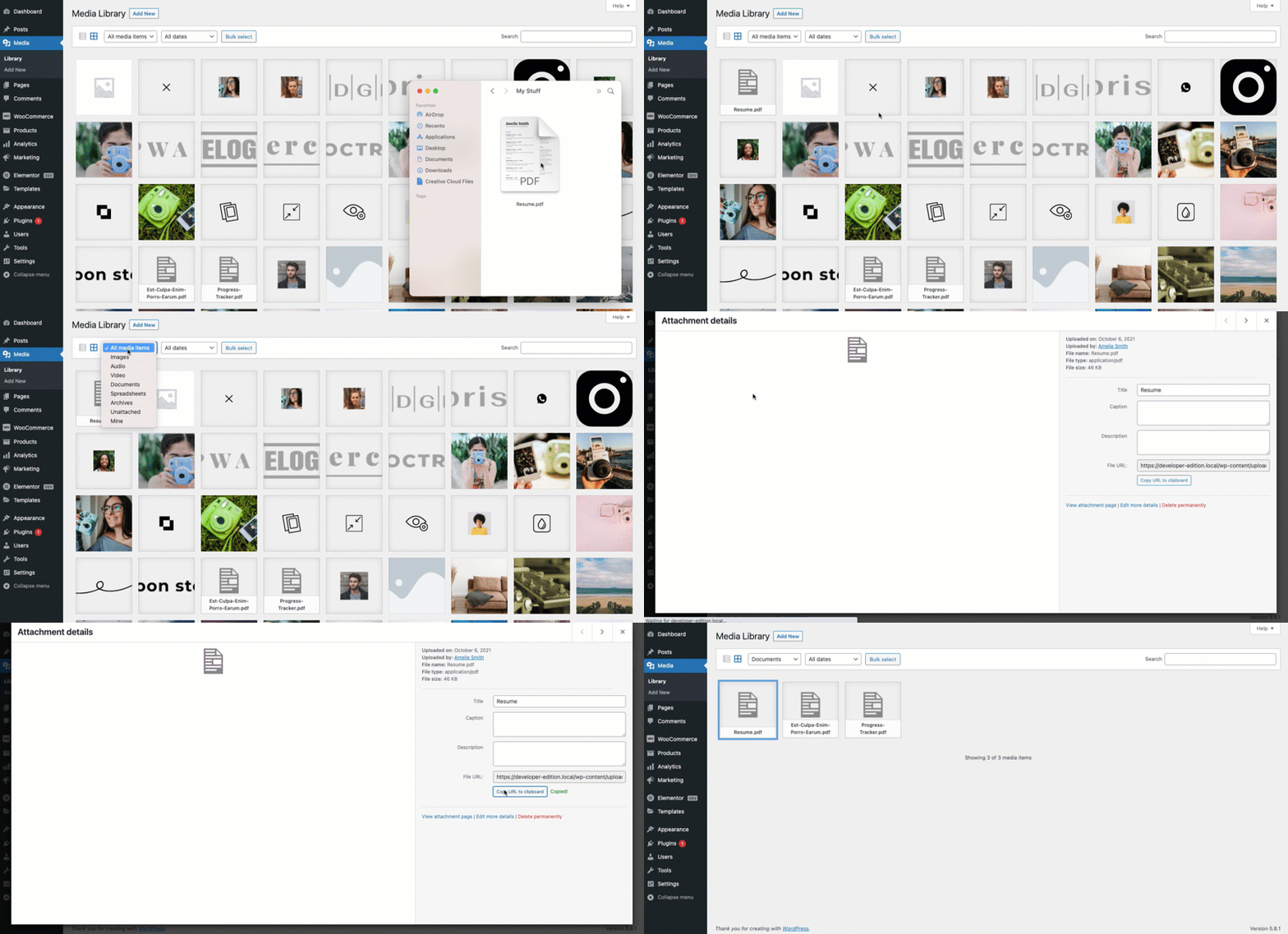
Start by logging into your WordPress dashboard. Look for the “Media” option on the left menu. Click on it to open the Media Library. This is where WordPress stores all your images, videos, and documents, including PDFs.
Upload Pdf File
Inside the Media Library, find the “Add New” button at the top. Click on it to open the upload area. Drag your PDF file into this space or click “Select Files” to choose it from your computer. Wait a few seconds while the file uploads. After upload, your PDF is ready to use in Elementor.
Credit: www.youtube.com
Add Pdf Link Using Elementor
Adding a PDF link to your WordPress site using Elementor is simple. This method lets visitors download or view your PDF files easily. It improves user experience and keeps your content organized.
Elementor offers widgets that help you create buttons. These buttons can link directly to your PDF files. Visitors click the button and open the PDF in a new tab or download it.
Insert Button Widget
First, open the page in Elementor where you want the PDF link. Find the “Button” widget in the Elementor panel. Drag and drop it to the desired spot on your page.
Next, customize the button text. Use clear words like “Download PDF” or “View File.” This helps visitors know what to expect when clicking the button.
Link To Pdf File
Upload your PDF file to the WordPress Media Library. Copy the file URL after uploading. Go back to the button settings in Elementor.
Paste the PDF URL into the button’s link field. Choose to open the link in a new tab. This keeps visitors on your site while they view the PDF.
Save or update the page. Test the button to ensure it opens the PDF correctly. Now, your site visitors can access the PDF with one click.
Embed Pdf Viewer Widget
Embedding a PDF viewer widget in Elementor lets visitors see your PDF files directly on your site. This tool shows PDFs clearly without extra downloads. It helps keep visitors engaged and improves your site’s usability.
The widget fits well on any page or post. You can customize its look and controls easily. This section explains how to find and set up the PDF viewer widget step-by-step.
Find Pdf Viewer Add-ons
Search for PDF viewer add-ons in the WordPress plugin directory. Use keywords like “PDF viewer for Elementor.” Look for plugins with good ratings and recent updates. Popular options offer easy drag-and-drop widgets. Install and activate your chosen plugin in WordPress.
After activation, the new widget appears in Elementor’s panel. It usually shows under “General” or “Pro” widgets. If you don’t see it, refresh the editor or check the plugin settings.
Configure Viewer Settings
Drag the PDF viewer widget onto your page. Upload your PDF file or enter its URL. Adjust settings like width, height, and zoom level. Enable navigation tools if available, such as page scroll or thumbnails.
Set the viewer’s style to match your site’s design. Choose colors and toolbar options for a clean look. Preview the page to ensure the PDF loads correctly. Save your changes and publish the page.
Optimize Pdf Display
Optimizing the PDF display on your WordPress site is important. It helps visitors view your documents clearly and easily. Poor display can make reading hard and frustrate users. Simple changes improve how the PDF looks and works on different devices.
Adjust Size And Layout
Set the PDF size to fit your page well. Avoid very large or very small displays. Use Elementor’s settings to change width and height. Keep margins balanced so the PDF does not crowd other content. Choose a layout that matches your page style. A clean, neat layout invites users to engage with your PDF.
Test Responsiveness
Check how the PDF looks on phones and tablets. Elementor offers preview modes for different screen sizes. Make sure the PDF resizes correctly on all devices. Text and images inside the PDF should remain clear and readable. Test the PDF on real devices if possible. Responsive design keeps your site user-friendly everywhere.
Enhance User Experience
Enhancing user experience is key when adding a PDF file in WordPress Elementor. Visitors should easily find and access your files. A smooth experience keeps them engaged and encourages more downloads. Clear options and simple navigation matter most.
Helping users quickly download or view files improves your website’s usability. Thoughtful design and easy steps reduce frustration. It also builds trust and professionalism.
Add Download Option
Offer a clear download button for the PDF file. Visitors expect a simple way to save files to their devices. Use Elementor’s button widget to create a download link. Make sure the button is easy to spot on the page. Label it clearly, like “Download PDF” or “Get File.”
Check that the link points directly to the PDF file. This avoids extra steps or confusion. A fast, straightforward download option improves user satisfaction.
Use Clear Call-to-action
Guide visitors with a clear call-to-action (CTA) near the PDF link. Tell them what to do in short, direct words. Examples include “Click to download” or “View the PDF.”
Place the CTA close to the button or link for easy recognition. A strong CTA draws attention and encourages clicks. It helps users understand the benefit of the PDF quickly.
Troubleshoot Common Issues
Adding a PDF file in WordPress Elementor usually works well. Sometimes, issues may stop the PDF from showing or opening correctly. Troubleshooting these common problems helps keep your site smooth. Fixing these issues improves user experience and avoids frustration.
Fix Broken Links
Broken links happen when the PDF file URL is wrong or changed. Check the URL in Elementor to ensure it is correct. Upload the PDF again if the file was moved or deleted. Always use the full file path starting with “https://”. Clear the browser cache to see changes.
Resolve Loading Errors
Loading errors occur when the PDF file is too large or the server is slow. Compress the PDF to reduce its size. Use a reliable hosting service with good speed. Disable plugins that might block file loading. Test the PDF link on different browsers to find issues.

Credit: www.youtube.com
Frequently Asked Questions
How Do I Upload A Pdf To WordPress Elementor?
To upload a PDF, go to your WordPress dashboard. Click Media > Add New. Select your PDF file and upload it. Then, copy the file URL for use in Elementor.
Can I Embed A Pdf File Directly In Elementor?
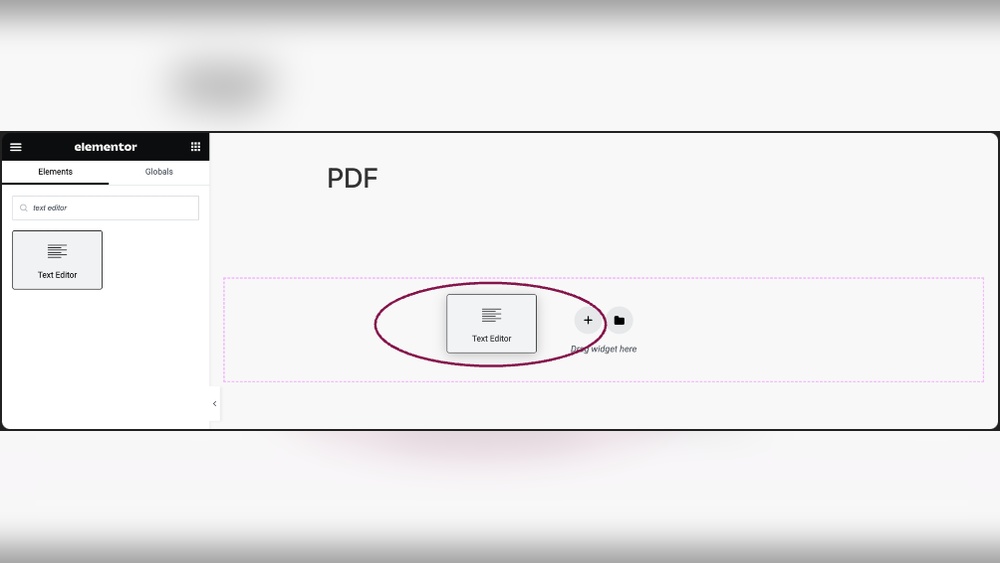
Yes, Elementor allows PDF embedding. Use the “Text Editor” or “HTML” widget. Insert the PDF link or embed code to display the file on your page.
How To Link A Pdf File In Elementor Button?
Select the button widget in Elementor. In the link field, paste your PDF URL. This makes the button clickable and opens the PDF in a new tab.
What Plugins Help Add Pdfs In Elementor Easily?
Plugins like PDF Embedder or Embed Any Document enhance PDF integration. They offer easy embedding options and improve user experience with Elementor pages.
Conclusion
Adding a PDF file in WordPress Elementor is simple and quick. You just need to upload your file and link it properly. This helps visitors access your documents easily. Clear steps make your site more useful and professional. Keep your files organized to avoid confusion.
Try this method to improve your website’s content. It fits well with any page or post. Now, your users can view or download PDFs without trouble. Give it a try today.