
Imagine this: you’ve created a stunning WordPress site, set up your online store, and are ready to make those first sales. But there’s one small detail missing—an easy way for your customers to pay.
If you’ve been scratching your head trying to figure out how to add PayPal to your WordPress theme, you’re in the right place. You know that a seamless payment process can significantly boost your conversions and improve customer satisfaction. The easier it is for someone to click ‘buy now’ and complete their purchase, the more likely they’ll choose you over competitors.
By integrating PayPal, you’re providing a trusted, secure payment option that can enhance your business’s credibility and reliability. This guide will walk you through the simple steps to add PayPal to your WordPress theme. Whether you’re a tech novice or a seasoned pro, these easy-to-follow instructions will have you set up in no time. Ready to simplify your payment process and potentially increase your sales? Let’s get started!
Credit: www.powr.io
Choosing The Right Plugin
Many plugins help add PayPal to WordPress. Some popular ones include PayPal Donations, WooCommerce, and Easy Digital Downloads. These tools make it simple to accept payments. Each has its own features. Some offer more than others. Choosing depends on your needs.
Check if the plugin is easy to use. Ensure it has good support and updates. Look for plugins with many positive reviews. Check if it fits your website style. Make sure it supports your currency. Think about fees too. Compare before deciding. Choose wisely for best results.
Installing The Plugin
First, go to your WordPress dashboard. Click on “Plugins” in the menu. You will see the plugin directory. This directory has many useful tools.
- Click on “Add New” at the top.
- Search for PayPal plugin in the search bar.
- Choose the plugin you want.
- Click on “Install Now”.
- After installation, click “Activate” to use the plugin.
Configuring Paypal Settings
Begin by logging into your WordPress dashboard. Navigate to the plugins section. Search for a Paypal plugin. Install and activate it. Once activated, go to the plugin settings. Look for the connection option. Enter your Paypal email. This connects your account to WordPress. Save your settings to confirm the connection.
Visit the payment options in the plugin settings. Choose the currency you want to use. Select the payment methods you prefer. You can enable credit card or bank transfers. Set up prices for your products or services. Ensure that your checkout page is easy to use. Once done, save all the changes. Now, Paypal is ready for your site.
Customizing Checkout Experience
Adding PayPal to a WordPress theme enhances the checkout experience. Easily integrate this payment option for smoother transactions. Increase customer convenience with a few simple steps.
Design And Layout Adjustments
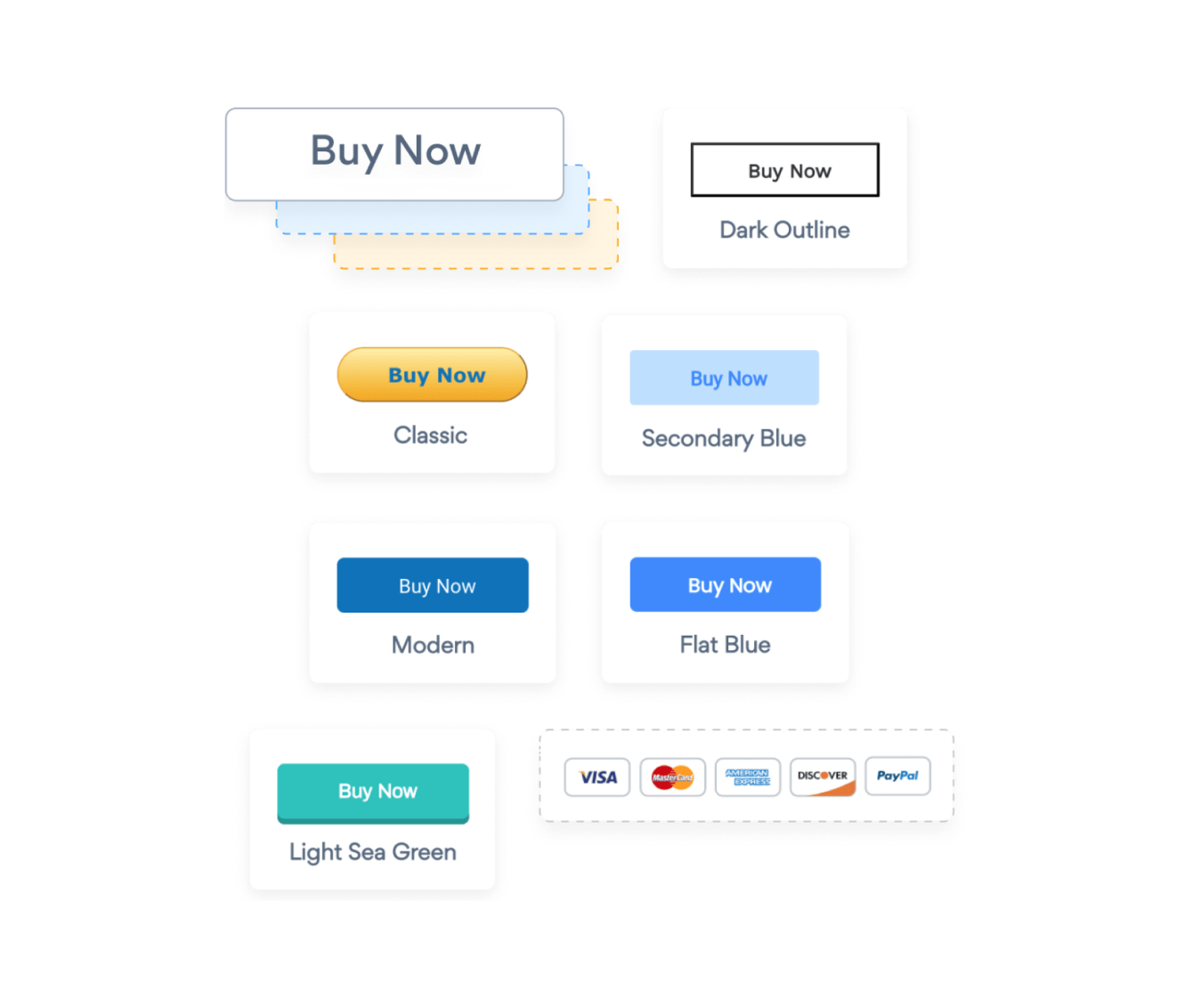
A well-structured checkout page helps in smooth transactions. Simple design is the key. Keep the colors and fonts consistent with the rest of the site. Include a clear call-to-action button. This guides the buyer to complete the purchase. Make sure the Paypal option is visible. A clean layout reduces confusion and builds trust.
User Experience Enhancements
User-friendly features enhance buyer satisfaction. Add clear instructions for using Paypal. This assists those unfamiliar with it. Provide an easy-to-read summary of the order. Include item details, prices, and total cost. Offer support options for any questions. A pleasant experience encourages repeat purchases.
Testing The Integration
Easily add PayPal to your WordPress theme to streamline payments. Integrating PayPal ensures secure transactions for your online store. Testing the integration helps confirm everything is set up correctly.
Conducting Test Transactions
Start by creating a test product in your WordPress store. Use a minimal price for this product. Choose a price like $0.01 to avoid spending much. Next, log into your PayPal sandbox account. This account lets you simulate transactions. Buy the test product using sandbox credentials. This process helps you verify the PayPal integration. Ensure the payment goes through successfully.
Check your store’s order history. Look for the order from the test purchase. Confirm the order status shows as “completed” or “processed”. This indicates the PayPal setup is functioning. Repeat the test if any errors occur. Adjust settings if necessary. Successful tests confirm a working payment system.
Troubleshooting Common Issues
Some errors might arise during testing. Common issues include incorrect API keys or missing credentials. Double-check your PayPal account settings. Ensure your API keys are accurate. Verify your credentials in WordPress. Look for any typos or missing fields. If transactions fail, check the PayPal logs. Logs often reveal error codes or messages. Use these clues to identify problems.
Another frequent issue is currency mismatch. Ensure your store currency matches PayPal settings. Incorrect currency settings can block payments. Adjust settings if needed. If problems persist, seek help from PayPal support. They can guide you through complex issues. A smooth setup enhances customer trust and satisfaction.

Credit: www.bancardsales.com
Ensuring Security Measures
Integrating PayPal with a WordPress theme boosts transaction security. Begin by installing a reliable PayPal plugin. Customize settings to match your theme’s design.
Enabling Ssl Certificates
SSL certificates protect your site. They keep data safe from hackers. When you install an SSL certificate, your site uses HTTPS. This means the site is secure. Visitors can see a lock icon in the browser. This builds trust. Always use strong passwords for extra safety.
Regular Security Audits
Check your site often. Look for security issues. Regular audits help find weak spots. Use security plugins for help. These plugins can scan your site. They find malware and other problems. Fixing issues keeps your site safe and running well.
Monitoring Transactions
Analytics tools help track payment details. They show how many payments succeed or fail. You can see patterns in payments. Understanding these patterns is very important. It helps improve your store. You can make better choices for your business.
Seeing which payments succeed is key. Success rates show how well your system works. They help find issues fast. Fixing problems early keeps customers happy. Happy customers come back. This means more sales for you.
Credit: www.inmotionhosting.com
Frequently Asked Questions
How Do I Integrate Paypal With WordPress?
Integrating PayPal with WordPress is straightforward. Use plugins like WooCommerce or Easy Digital Downloads. Install the plugin, configure your settings, and add PayPal as a payment option. Ensure that you enter your PayPal API credentials correctly to avoid errors during transactions.
Can I Add Paypal Without A Plugin?
Yes, you can add PayPal without a plugin. Use PayPal’s HTML button code to create payment buttons. Copy and paste the code into your WordPress theme or page. This method is simple, but lacks advanced features offered by plugins.
Is Adding Paypal To WordPress Free?
Adding PayPal to WordPress is usually free. Many plugins offer basic integration at no cost. However, PayPal charges transaction fees for processing payments. Check plugin documentation for any premium features that might require payment.
Does Paypal Work With All WordPress Themes?
PayPal works with most WordPress themes. Compatibility depends on the plugin or method you choose. Ensure your theme supports the plugin you plan to use. If using HTML buttons, compatibility issues are rare, but ensure proper placement in your theme.
Conclusion
Adding PayPal to your WordPress theme enhances payment convenience. It’s a straightforward process. First, ensure your plugin is compatible. Then, follow the setup steps carefully. Test transactions to verify everything works. This integration boosts user trust and sales potential. PayPal offers security and ease for both sellers and buyers.
Remember to keep your WordPress updated. This ensures smooth functionality and security. With PayPal integrated, you’re ready to accept payments. This step makes your site more professional. Your visitors will appreciate the added payment option. Now, enjoy the benefits of seamless transactions on your website.


