

Are you ready to start accepting payments directly on your WordPress website? Adding a payment gateway can seem tricky, but it doesn’t have to be.
Imagine your customers checking out smoothly, with no hassle or confusion. That’s exactly what you’ll learn here. In this guide, you’ll discover simple, step-by-step ways to add a payment gateway to your WordPress site—without needing to be a tech expert.
Keep reading, and by the end, you’ll have the confidence to turn your website into a powerful sales tool that works around the clock for you.
Choose The Right Payment Gateway
Choosing the right payment gateway is a key step for your WordPress site. It affects how smoothly customers pay and how safe their information stays. A good payment gateway builds trust and helps your sales grow. Take time to pick the best one for your needs.
Popular Payment Gateways For WordPress
Several payment gateways work well with WordPress. PayPal is common and easy to use. Stripe allows credit card payments directly on your site. Square is good for both online and offline sales. Authorize.Net supports many payment types. Each gateway has unique features and fees.
Factors To Consider When Choosing
Check transaction fees and monthly costs. Look at the payment methods supported. See if the gateway works with your WordPress plugins. Security is a must—choose gateways with strong encryption. Consider customer support and ease of setup. Think about your location and currencies accepted.
Prepare Your WordPress Site
Before adding a payment gateway to your WordPress website, preparing your site is crucial. This step ensures smooth integration and protects your data. A well-prepared site helps avoid errors and downtime during setup.
Preparation includes backing up your website and updating WordPress along with all plugins. These actions keep your site secure and compatible with the payment gateway.
Backup Your Website
Backing up your website saves a copy of all your files and data. This copy helps restore your site if something goes wrong during the payment gateway setup. Use reliable backup plugins or your hosting provider’s backup tool. Always store backups in a safe place outside your website server. Regular backups protect your content and customer information.
Update WordPress And Plugins
Running the latest version of WordPress improves security and functionality. Updates fix bugs and close security gaps. Update all plugins to ensure they work well with the newest WordPress version. Outdated plugins can cause conflicts with the payment gateway. Check updates regularly and apply them before installing new features.
Install Payment Gateway Plugin
Installing a payment gateway plugin is key to accepting payments on your WordPress website. This step connects your site to payment services safely and easily. Plugins handle all technical parts, so you focus on your business. Follow simple steps to find and set up the right plugin for your needs.
Search And Select Plugin
Start by going to your WordPress dashboard. Click on “Plugins” and then “Add New.” Use the search bar to find payment gateway plugins. Enter terms like “payment gateway” or the name of a service you want. Look for plugins with good ratings and many active installs. Read short descriptions to see if it fits your site.
Install And Activate Plugin
After choosing the plugin, click “Install Now.” Wait a few seconds while WordPress downloads it. Then click “Activate” to enable the plugin on your site. Some plugins may ask for extra setup after activation. Follow their instructions to connect your payment account. Your website is now ready to accept payments securely.

Credit: themegrill.com
Configure Payment Gateway Settings
Configuring payment gateway settings is a key step in setting up your WordPress website for online transactions. Proper setup ensures smooth and secure payment processing. This part lets you connect your website with the payment provider. It also lets you choose how customers will pay and in which currency.
Enter Api Credentials
API credentials link your website to the payment gateway service. These usually include a key and a secret. You get these from your payment provider’s dashboard. Enter them carefully in the settings area of your WordPress plugin. This step allows your site to communicate safely with the payment gateway. Double-check the keys to avoid errors during checkout.
Set Currency And Payment Options
Choose the currency your store will accept. This matches your business location and customer preferences. Common currencies like USD, EUR, or GBP are usually available. Also, decide on the payment methods you want to offer. These can include credit cards, debit cards, or digital wallets. Clear payment options help customers complete purchases easily. Adjust these settings according to your target market and business needs.
Integrate Payment Gateway With Woocommerce
Integrating a payment gateway with WooCommerce allows your website to accept online payments securely. This step is essential for any online store. It helps your customers pay easily using various payment options. Setting up the payment gateway correctly ensures smooth transactions and builds trust with your buyers.
WooCommerce supports many payment gateways like PayPal, Stripe, and others. You can choose one that fits your needs. The process involves installing the gateway, enabling it, and testing transactions. Follow these steps carefully to avoid payment issues.
Enable Payment Method
After installing the payment gateway plugin, go to WooCommerce settings. Click on the Payments tab. Find the payment method you want to enable. Toggle the switch to activate it. Enter your account details for the gateway. Save the changes to apply settings. This makes the payment option visible to customers at checkout.
Test Payment Transactions
Testing payments helps verify the gateway works properly. Use the gateway’s sandbox or test mode for safe transactions. Perform a test purchase on your site. Check if the payment goes through without errors. Confirm you receive the payment notification email. Testing avoids real payment problems and ensures smooth customer experience.
Credit: exactly.com
Add Payment Gateway To Website Pages
Adding a payment gateway to your website pages is a key step for online sales. It allows visitors to pay easily and safely. This improves user experience and builds trust. The process can be simple with WordPress tools.
You can place payment options directly on product or checkout pages. This helps customers complete purchases without confusion. A smooth payment process means more sales and happier buyers.
Use Shortcodes Or Blocks
WordPress lets you add payment gateways using shortcodes or blocks. Shortcodes are small codes that insert payment forms on any page. Blocks are visual elements in the WordPress editor. Both methods require little technical skill.
Simply copy the shortcode from your payment plugin. Paste it on the page where you want the payment form. For blocks, select the payment block from the editor menu. Then customize it with your payment settings.
This approach saves time. It keeps your site clean and organized. Visitors see a clear payment option without extra clicks.
Customize Checkout Experience
Customize the checkout page to match your website style. Use colors and fonts that fit your brand. This creates a professional look and feel.
Add fields only for needed information. Too many fields can confuse buyers and cause dropouts. Keep forms simple and easy to fill out.
Show clear payment instructions and confirmation messages. Let customers know their payment is secure. This builds confidence and reduces cart abandonment.
Secure Your Payment Process
Securing your payment process protects your customers and your business. A safe payment system builds trust and prevents fraud. It also ensures smooth transactions and keeps data private. Follow these steps to make your WordPress site payment system secure.
Install Ssl Certificate
SSL encrypts data sent between your website and users. It shows a padlock icon in the browser address bar. This reassures visitors their information is safe. Many hosting providers offer free SSL certificates. Install SSL to protect payment details during checkout. This step is essential for any online payment system.
Implement Fraud Protection Measures
Fraud protection helps detect and stop suspicious transactions. Use tools like CAPTCHA to block bots and fake users. Enable transaction monitoring to flag unusual activity. Set rules for payment limits and location checks. Keep your payment gateway updated to reduce security risks. These measures reduce chargebacks and protect customer data.
Troubleshoot Common Issues
Adding a payment gateway to your WordPress site can sometimes cause issues. These problems may stop payments or break your site’s functions. Knowing how to fix common problems saves time and stress. Below are key steps to troubleshoot usual issues with payment gateways.
Resolve Plugin Conflicts
Plugin conflicts are a common cause of payment problems. Two or more plugins may try to do the same task. This clash can stop the payment gateway from working correctly. To fix this, disable all plugins except the payment gateway plugin. Check if the problem still exists.
Reactivate plugins one by one. After each activation, test the payment process. This helps find which plugin causes the conflict. Once found, look for an alternative plugin or contact the plugin’s support team. Keep your plugins updated to reduce conflicts.
Fix Payment Failures
Payment failures can occur due to many reasons. Incorrect API keys are a common issue. Double-check your API credentials in the payment gateway settings. Match them exactly with what the payment provider gave you.
Another cause is incorrect currency settings. Make sure your site’s currency matches the payment gateway’s supported currencies. Also, check for SSL certificate errors. An active SSL certificate is needed for secure payments.
Test payments in sandbox mode before going live. This helps spot errors without losing money. Contact your payment provider if the issue continues. They can offer detailed help and solutions.
Optimize Payment Experience
Optimizing the payment experience on your WordPress website helps keep customers happy. A smooth payment process reduces abandoned carts and increases sales. Focus on making payments easy and fast. This builds trust and encourages repeat visits.
Enable Multiple Payment Options
Offer several payment methods to suit different users. Include credit cards, debit cards, and digital wallets like PayPal or Apple Pay. Some customers prefer local payment systems or bank transfers. Providing many choices avoids losing buyers due to limited options.
Check that your payment gateway supports popular options. This makes the checkout process convenient. Customers feel more confident when they see familiar payment methods.
Streamline Checkout Flow
Keep the checkout process short and simple. Ask only for essential information. Use a clean design with clear instructions. Avoid unnecessary steps that may confuse buyers.
Auto-fill forms and mobile-friendly layouts speed up payments. Show progress indicators to help users know where they are. A fast checkout leads to more completed sales and fewer dropouts.
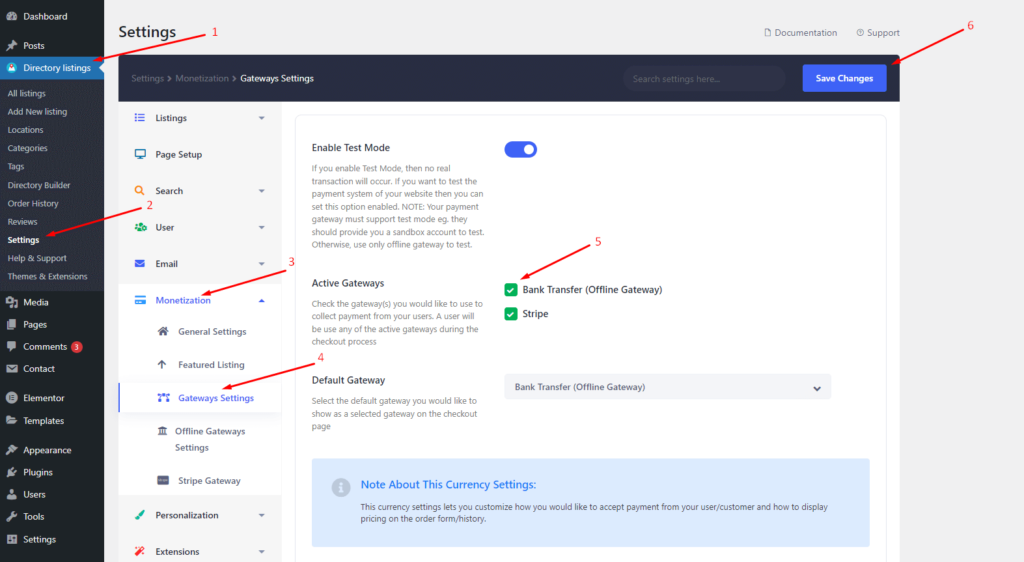
Credit: directorist.com
Frequently Asked Questions
What Is The Best Payment Gateway For WordPress?
The best payment gateway depends on your business needs. Popular options include PayPal, Stripe, and Square. These gateways are secure, easy to integrate, and widely supported by WordPress plugins.
How Do I Add A Payment Gateway To WordPress?
To add a payment gateway, install a compatible plugin like WooCommerce. Then, configure the gateway settings with your account details. This process enables secure payment processing on your WordPress site.
Can I Use Multiple Payment Gateways On One Site?
Yes, WordPress supports multiple payment gateways. Using plugins like WooCommerce, you can enable several gateways simultaneously. This offers customers flexible payment options, increasing conversion rates.
Is Adding A Payment Gateway To WordPress Free?
Many payment gateway plugins are free to install. However, transaction fees usually apply per payment. Some advanced features or premium plugins may require paid subscriptions.
Conclusion
Adding a payment gateway to your WordPress site is simple and useful. It helps customers pay easily and safely. Choose a reliable plugin that fits your needs. Follow the setup steps carefully to avoid errors. Test the payment process before going live.
This makes shopping smooth and builds trust. Keep your site updated for security. A good payment gateway improves user experience and boosts sales. Take your time and set it right. Your online store will be ready to accept payments quickly.


