
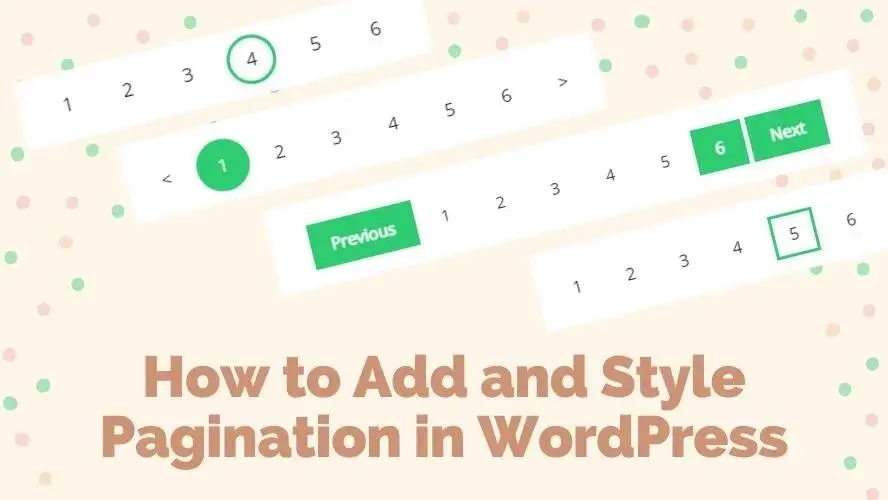
Are you struggling to keep your WordPress site organized and easy to navigate? Adding pagination can be the simple solution you need.
Pagination breaks your content into smaller, manageable chunks, making your site faster and more user-friendly. You’ll learn exactly how to add pagination to your WordPress site step-by-step. By the end, your visitors will enjoy a smoother browsing experience, and you’ll see your site’s performance improve.
Keep reading to discover how easy it is to take your WordPress site to the next level with pagination.
Why Add Pagination
Pagination breaks content into smaller sections across multiple pages. It helps manage long lists or posts on your WordPress site. Adding pagination improves how visitors interact with your site. It also benefits your site’s performance and search rankings.
Improved User Experience
Pagination makes content easier to read and explore. Users do not see a long, endless page. They can find information faster by clicking through pages. This reduces frustration and keeps visitors on your site longer. A clear navigation path helps users understand where they are.
Seo Benefits
Search engines like Google prefer well-structured pages. Pagination helps organize content into logical parts. It allows search engines to index each page separately. This can improve your site’s visibility in search results. Proper pagination prevents duplicate content issues and boosts SEO.
Faster Page Loads
Loading one page with many posts can slow your site. Pagination splits content into smaller chunks. Each page loads faster because it has less data. Faster pages reduce bounce rates and improve user satisfaction. Speed is a key factor for both users and search engines.
Types Of Pagination
Pagination helps organize content into smaller parts. It improves site speed and user experience. Different types of pagination suit different websites. Choose the best type for your WordPress site.
Numbered Pagination
Numbered pagination shows page numbers at the bottom. Users click numbers to move between pages. It helps visitors know how many pages exist. This type works well for blogs and online stores.
Load More Button
The load more button loads extra content on click. It keeps the page clean and simple. Users decide when to see more items. This method fits well with image galleries and portfolios.
Infinite Scroll
Infinite scroll loads content automatically when users reach the page bottom. It creates a smooth browsing experience. No need to click buttons or numbers. This type works great for social media and news sites.
Default WordPress Pagination
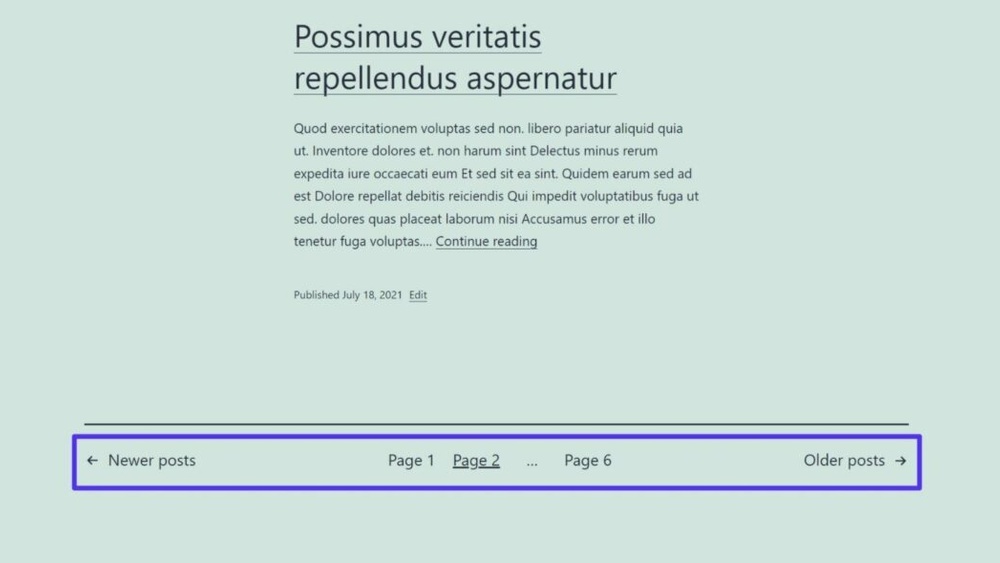
Default WordPress pagination helps split content into multiple pages. This makes long posts or lists easier to read. It shows links to move between pages at the bottom of posts or archives.
Using default pagination keeps your site organized. Visitors find it simple to browse through posts or products. WordPress includes this feature without extra plugins or code.
How It Works
WordPress divides posts into pages based on settings. It uses the paginate_links() function to create page numbers. This function generates links like “1, 2, 3, Next”.
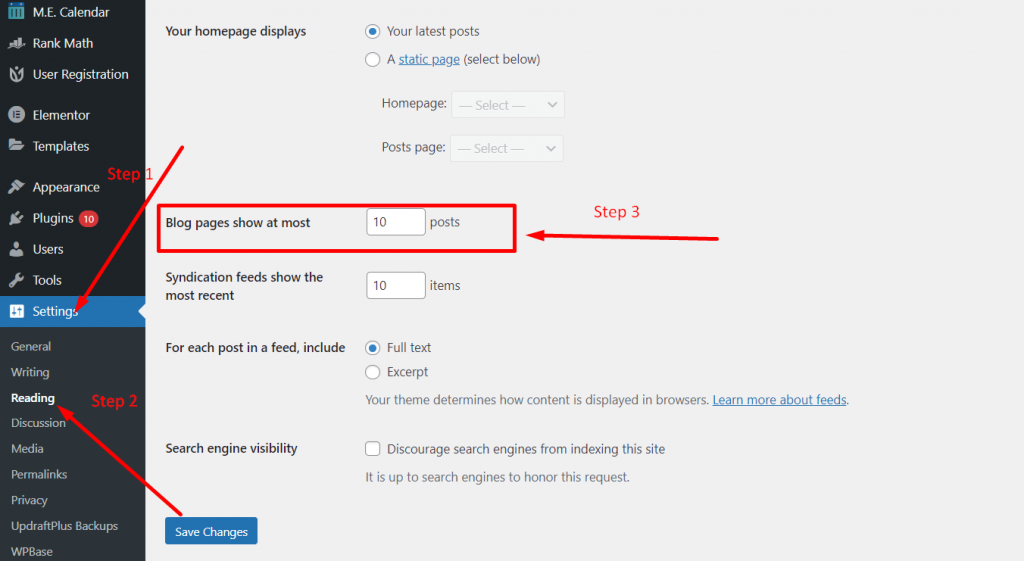
The pagination appears on archive pages, search results, and blog posts. WordPress reads the number of posts per page from settings. Then, it shows the correct number of page links.
The theme must support pagination to display it correctly. Most modern themes include this support by default.
Limitations
Default pagination is basic and lacks advanced options. It shows simple page numbers without custom styles or behavior. No infinite scroll or “load more” button is available.
It depends heavily on the theme design. Some themes may not show pagination well or at all. Customizing pagination often requires editing theme files.
There is no built-in way to add AJAX loading or animation. Users must reload pages to see new content. This might slow down browsing on slow connections.
Credit: verpex.com
Using Plugins For Pagination
Adding pagination to your WordPress site improves navigation and user experience. Plugins make this process simple. They offer ready-to-use solutions without coding knowledge.
Plugins handle page numbers, next and previous links, and style options. They work well with most themes and update automatically. This saves time and effort.
Popular Pagination Plugins
Several plugins stand out for ease and features. WP-PageNavi is widely used for clean page links. Pagination by BestWebSoft adds numbered navigation and arrows. WP-Paginate offers flexible styles and works with custom queries. These plugins suit different needs and skill levels.
Installation And Setup
Install plugins from the WordPress dashboard. Go to Plugins > Add New, then search by name. Click Install and Activate. Each plugin adds a settings page. Adjust basic options like link style and position here. Most plugins add pagination automatically to posts or archives. Some require a shortcode or widget.
Customization Options
Plugins provide options to match your site design. Change colors, fonts, and sizes easily. Choose between numeric or simple next/previous links. Set how many page numbers appear at once. Some plugins allow custom CSS for advanced tweaks. Test different styles to fit your brand.
Adding Pagination Manually
Adding pagination manually in WordPress gives you control over how your content is divided. It helps visitors navigate through posts or pages easily. This method involves editing theme files and using WordPress functions to show page numbers or navigation links.
Manual pagination improves user experience and site structure. It also helps search engines find and index your content better. Let’s explore how to add pagination step-by-step.
Editing Theme Files
Start by accessing your theme files through the WordPress dashboard or an FTP client. Locate the file that controls your blog or archive pages, usually index.php or archive.php. Open this file for editing.
Find the loop section where posts are displayed. Replace or add pagination code after the loop ends. Always create a child theme before editing files to keep changes safe during updates.
Using Pagination Functions
WordPress offers built-in functions like paginate_links() and the_posts_pagination(). These functions generate pagination links automatically.
Insert the_posts_pagination() after your post loop. This function shows numbered pages and next/previous links. Customize its arguments to fit your needs, like changing text or adding classes.
Customizing Appearance
Pagination style depends on your theme’s CSS. Add or modify CSS rules to change colors, spacing, or fonts of pagination links.
Use simple selectors targeting pagination classes like .page-numbers. Keep styles consistent with your site’s design. Testing on different devices ensures good user experience.

Credit: kinsta.com
Troubleshooting Pagination Issues
Pagination is important for user experience and site speed. Sometimes, issues arise that stop it from working right. Troubleshooting these problems helps keep your site smooth and easy to navigate.
Knowing common problems and fixes makes your work easier. Compatibility with themes and plugins also affects pagination. Understanding these points helps you solve issues fast.
Common Problems
Pagination may not show up on some pages. Links can lead to wrong or empty pages. Sometimes, the page numbers repeat or skip. These issues confuse visitors and hurt SEO. Errors in theme code or plugin conflicts often cause this.
Fixing Broken Links
Check your permalink settings first. Go to Settings > Permalinks and save changes to refresh links. Clear your site cache and browser cache to rule out old data. Disable plugins one by one to find conflicts. Switch to a default theme like Twenty Twenty-One to test theme issues. Update WordPress, themes, and plugins to their latest versions.
Compatibility Tips
Use pagination plugins that fit your theme style. Avoid plugins with poor reviews or no updates. Test new plugins on a staging site before live use. Make sure your theme supports WordPress pagination functions. Keep your site’s PHP version current for best results. Regularly check for plugin and theme conflicts after updates.
Best Practices For Pagination
Pagination helps divide content into pages to improve site speed and user experience. Proper pagination makes it easy for visitors to find information. Best practices ensure pagination looks good and works well on all devices.
Consistent Design
Keep pagination style uniform across all pages. Use the same colors, fonts, and button shapes. Consistency builds trust and helps users navigate faster. Avoid changing styles between different sections of your site.
Clear Navigation Labels
Use simple labels like “Next,” “Previous,” or page numbers. Avoid confusing words or symbols. Clear labels guide users smoothly through content. They reduce frustration and improve site usability.
Mobile Optimization
Ensure pagination works well on small screens. Buttons should be easy to tap with a finger. Avoid making pagination too small or crowded. Mobile-friendly pagination keeps users engaged and reduces bounce rates.
Credit: www.wpoven.com
Frequently Asked Questions
What Is Pagination In WordPress And Why Use It?
Pagination divides content into pages, improving site navigation. It enhances user experience and reduces loading times on WordPress sites. Pagination also helps search engines index your content better, boosting SEO.
How To Add Pagination Using WordPress Plugins?
Install a pagination plugin like WP-PageNavi. Activate it, then configure settings under the plugin options. Add the pagination function in your theme files if needed. Plugins simplify adding pagination without coding knowledge.
Can I Add Pagination Manually In WordPress?
Yes, you can add pagination by editing theme files. Use WordPress functions like paginate_links() or the_posts_pagination() inside your loop. Manual pagination offers more control but requires basic PHP and WordPress theme knowledge.
Does Pagination Affect WordPress Seo?
Proper pagination improves SEO by organizing content clearly for search engines. It prevents duplicate content issues and helps distribute page authority. Ensure each paginated page has unique titles and meta descriptions for best SEO results.
Conclusion
Adding pagination to your WordPress site improves user experience. It helps visitors find content quickly and easily. Pagination also makes your site load faster and looks cleaner. You can add pagination with plugins or by editing your theme files. Test your site after adding pagination to ensure it works well.
Keep your navigation simple for better visitor engagement. With these steps, your site becomes more organized and user-friendly. Try it today and see the difference yourself.


