
Want to make your WordPress homepage more powerful and user-friendly? Adding pages directly to your homepage can help visitors find what they need faster and keep them engaged longer.
If you’re wondering how to do this without getting lost in complicated steps, you’re in the right place. This guide will show you simple, clear ways to add pages to your homepage so your site looks professional and works exactly how you want.
Keep reading—you’ll be surprised how easy it is to boost your website’s impact right now.
Choose The Right Homepage Setup
Choosing the right homepage setup is key for your WordPress site. It affects how visitors see your content first. The homepage can either show your latest posts or a static page. Each choice changes the look and feel of your site.
Take time to decide what fits your goals best. The setup should match your site’s purpose. It should also guide visitors clearly to your important pages or articles. A good homepage setup keeps visitors engaged and helps your site grow.
Static Page Vs Latest Posts
A static page shows one fixed page as your homepage. This is good for business sites or portfolios. It gives a clean, consistent look. You control exactly what visitors see first.
Latest posts display your newest blog entries on the homepage. This suits blogs or news sites. It keeps content fresh and encourages visitors to check back often. But it may look busy or less organized.
Think about your content type and visitor needs. Choose static for clear focus. Choose latest posts for dynamic updates.
Selecting A Homepage Template
WordPress themes offer different homepage templates. Some have full-width layouts. Others have sidebars or grids. Pick a template that fits your content and style.
A simple template works well for beginners. It helps visitors find key info fast. Complex templates suit sites with many sections.
Test a few templates before deciding. Make sure the template looks good on phones too. Your homepage must load fast and be easy to use.
Create And Organize Your Pages
Creating and organizing pages in WordPress is key to a clear website. Well-structured pages help visitors find information fast. It also improves how search engines see your site. Start by making new pages. Then, arrange them in a way that makes sense. This setup shapes your homepage and site menu.
Adding New Pages In WordPress
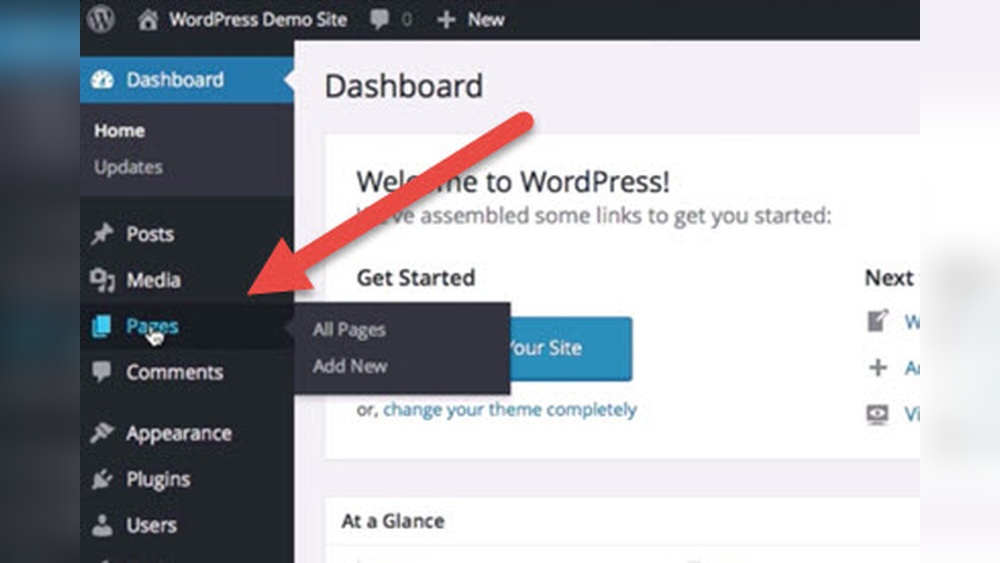
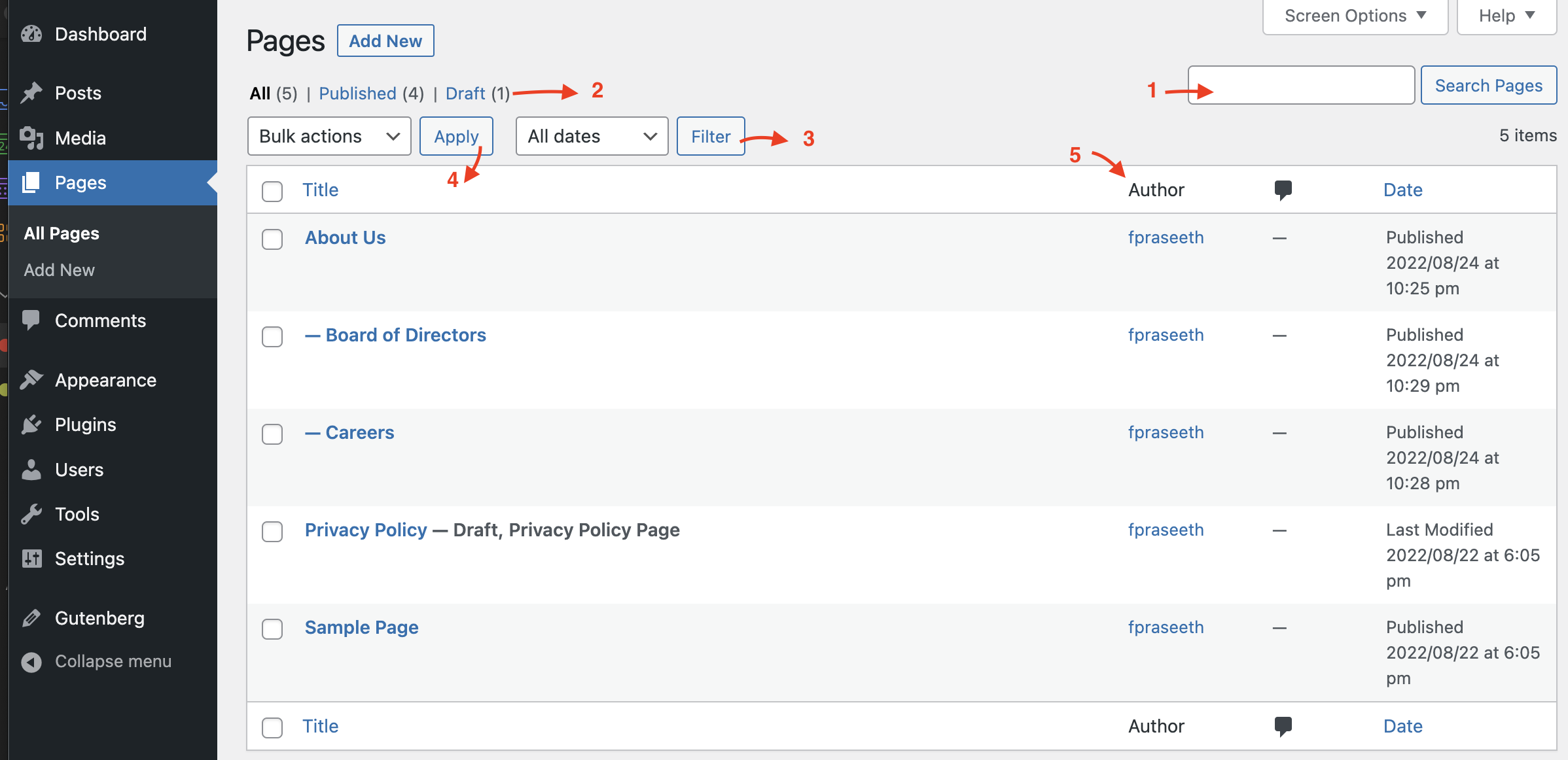
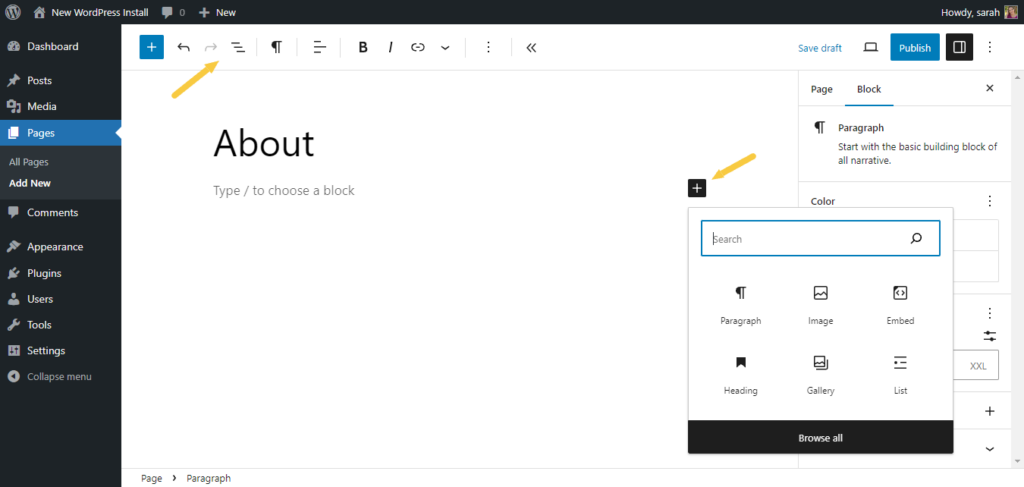
Go to your WordPress dashboard. Click on “Pages” and choose “Add New.” Enter a title for your page. Add content using the block editor. Use headings, images, and text blocks for clarity. When done, click “Publish” to make the page live. Repeat for all pages you want to create.
Setting Parent And Child Pages
Organize pages with parent and child settings. A parent page is a main topic. Child pages are subtopics or related pages. In the page editor, find the “Page Attributes” box. Select a parent page for your child page from the dropdown. This creates a hierarchy. It helps visitors understand your site’s structure.
Add Pages To Your Homepage Menu
Adding pages to your homepage menu helps visitors find important parts of your site quickly. A clear menu guides users and improves site navigation. You can include pages like About, Services, or Contact in your menu. This section shows how to access the menu editor and arrange menu items easily.
Accessing The Menu Editor
Log in to your WordPress dashboard first. On the left side, find the “Appearance” option. Click on “Menus” under this section. This opens the menu editor where you control your homepage menu. Choose the menu you want to edit if multiple menus exist. If no menu exists, create a new one by clicking “create a new menu.”
Adding And Arranging Menu Items
On the left, you see a list of your pages, posts, and other items. Select the pages you want in your menu by checking the boxes. Click “Add to Menu” to include them. Your selected pages appear on the right side as menu items. Drag and drop these items to arrange their order. Place important pages at the top for better visibility. You can also create sub-menus by dragging items slightly to the right. Click “Save Menu” to apply changes to your homepage menu.
Credit: wordpress.org
Use Widgets To Showcase Pages
Widgets offer a simple way to display your pages on the homepage. They let you add content blocks without coding. This helps visitors find important pages quickly. Using widgets keeps your homepage neat and user-friendly.
Adding Pages Widget To Homepage
Go to your WordPress dashboard. Click on Appearance, then Widgets. Find the Pages widget in the list. Drag it to the Homepage widget area. Choose the pages you want to show. Save your changes. Visit your homepage to see the widget live.
Customizing Widget Appearance
Open the widget settings to customize its look. Add a title to explain what the widget shows. Choose to display page hierarchy or not. Set how many pages appear in the list. Some themes allow you to change colors and fonts. Adjust these to match your site style. Preview changes before saving.
Customize Homepage With Page Builders
Customizing your WordPress homepage makes your site unique and user-friendly. Page builders simplify this process by letting you create layouts without coding. These tools give you control over how your homepage looks and works. You can design sections, add images, text, buttons, and more with ease.
Page builders offer flexibility to arrange content exactly how you want. This helps keep visitors engaged and improves your site’s appearance. Let’s explore how to pick the right page builder and use its drag and drop features.
Choosing A Page Builder Plugin
Select a page builder that fits your needs and skill level. Popular choices include Elementor, Beaver Builder, and Divi. Check if the plugin works well with your WordPress theme. Look for features like templates, widgets, and responsive design. Also, ensure it updates regularly for security and new features.
Drag And Drop Page Elements
Drag and drop tools let you move elements easily on your page. You can add text blocks, images, videos, and buttons by dragging them into place. Adjust sizes and positions with simple clicks. This method saves time and avoids coding mistakes. Preview your changes live before publishing. The result is a polished, professional homepage tailored to your style.
Optimize For Mobile And Seo
Optimizing your WordPress homepage pages for mobile and SEO is essential. Mobile users make up most web traffic today. A site that works well on phones keeps visitors longer. SEO helps your site show up in search results. Both improve user experience and site visibility. Follow simple tips to make your pages mobile-friendly and SEO-ready.
Responsive Design Tips
Choose a WordPress theme that adjusts to all screen sizes. Use flexible images that resize with the device. Avoid fixed-width layouts that break on small screens. Test your site on different devices often. Keep navigation simple and easy to tap. Use larger fonts for better readability on mobiles. Minimize pop-ups that block content on phones. Fast loading times are crucial for mobile visitors.
Seo Best Practices For Pages
Use clear, descriptive titles for each page. Include keywords naturally in headings and text. Write short paragraphs to keep readers engaged. Add alt text to all images for search engines. Use internal links to connect related pages. Optimize page URLs to be simple and relevant. Ensure meta descriptions summarize the page content well. Regularly update content to keep it fresh and useful.
Troubleshoot Common Issues
Adding pages to your WordPress homepage can sometimes cause issues. These problems can stop your site from showing the pages correctly. Troubleshooting common issues helps you fix these problems fast. This way, your homepage looks and works as you want.
Menu Items Not Showing
Menu items not showing is a frequent problem. Check if the pages are added to the menu in the WordPress dashboard. Go to Appearance > Menus and ensure your pages are selected. Save the menu after making changes.
Clear your browser cache to see updates. Sometimes, old data blocks new changes. Also, check if your theme supports custom menus. Some themes limit menu options, causing pages to disappear.
Page Layout Problems
Page layout problems happen when pages look broken or out of place. This often results from theme conflicts or plugin issues. Switch to a default theme like Twenty Twenty-One to test. If the problem stops, the theme may be the cause.
Deactivate all plugins and reactivate them one by one. This process helps find any plugin causing layout trouble. Ensure your pages use the right page template from the Page Attributes section. Wrong templates can distort the page layout.
Credit: solidwp.com

Credit: wordpress.org
Frequently Asked Questions
How Do I Add A New Page To My WordPress Homepage?
To add a new page, go to your WordPress dashboard. Navigate to Appearance > Customize > Homepage Settings. Select “A static page” and choose your desired page from the dropdown. Save changes to display the new page on your homepage.
Can I Display Multiple Pages On One WordPress Homepage?
WordPress doesn’t natively support multiple pages on one homepage. Instead, use page builders or custom templates to combine content from various pages. Plugins like Elementor or Beaver Builder can help create a multi-section homepage with content from different pages.
How To Set A Specific Page As The Homepage In WordPress?
From your dashboard, go to Settings > Reading. Under “Your homepage displays,” select “A static page. ” Choose the page you want as your homepage from the dropdown menu. Click “Save Changes” to update your homepage to the selected page.
Is It Possible To Link Pages Directly From The Homepage Menu?
Yes, you can link pages in the homepage menu. Go to Appearance > Menus, select pages to add, and organize them. Save the menu, and it will appear on your homepage navigation bar for easy access.
Conclusion
Adding pages to your WordPress homepage helps organize your site well. It makes visitors find important information fast. Follow simple steps to include pages easily. Keep your homepage neat and user-friendly. Regular updates keep your site fresh and engaging. A clear homepage leads to better visitor experience.
Try adding pages today and see the difference.


