

Want to make your WordPress website easier to navigate? Adding pages to your menu is one of the simplest ways to help your visitors find what they’re looking for quickly.
If you’ve ever wondered how to add a page to your WordPress menu but didn’t know where to start, you’re in the right place. This guide will walk you through the process step-by-step, so you can create a clear, user-friendly menu that keeps people exploring your site longer.
Ready to make your menu work for you? Let’s dive in!
Accessing The WordPress Dashboard
Accessing the WordPress dashboard is the first step to manage your website. It is the control panel where you can add pages, posts, and menus. The dashboard shows all the tools you need for editing your site.
To start, you need to log in to your WordPress site. This gives you access to the dashboard. Once logged in, you can easily navigate to different sections for updates and changes.
Finding The Login Page
Open your web browser. Type your website address followed by /wp-admin. For example, www.yoursite.com/wp-admin. This opens the WordPress login page.
Entering Your Login Details
Enter your username and password. These are set when you install WordPress. Click the “Log In” button to proceed. Keep your details safe and private.
Exploring The Dashboard Interface
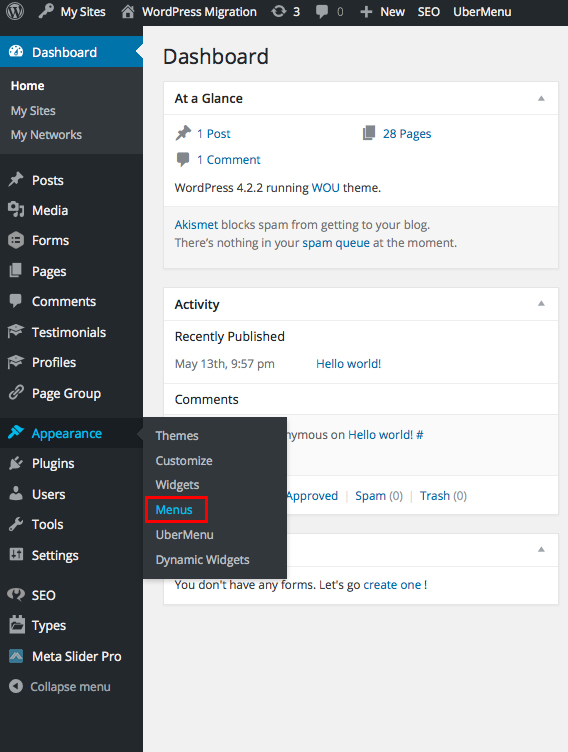
After logging in, you see the dashboard screen. It has a menu on the left side. This menu helps you navigate to pages, posts, and menus. The center shows recent activity and updates.
Credit: wou.edu
Navigating To The Menus Section
Navigating to the Menus section in WordPress is the first step to organize your website’s navigation. It lets you control which pages appear in the menu. Finding this section is simple and quick.
Start by logging into your WordPress dashboard. This is the control center for your website. From here, you can access all settings, including menus.
Accessing The Dashboard
After logging in, you will see the WordPress dashboard. It shows different options on the left side. This panel helps you manage your site’s content and design.
Opening The Appearance Menu
Look for the “Appearance” option in the left sidebar. Click it to expand a list of design-related settings. Menus are found here, among other tools.
Selecting The Menus Option
In the Appearance submenu, click on “Menus.” This opens the page where you create and edit your navigation menus. It is easy to use and clearly laid out.
Selecting The Menu To Edit
Selecting the right menu to edit is the first step in managing your WordPress navigation. Menus organize your site’s pages and help visitors find content easily.
WordPress allows multiple menus for different parts of your site. Choosing the correct one ensures your changes appear where you want.
Follow simple steps to pick the menu that needs editing. This saves time and avoids confusion when adding new pages.
Selecting A Menu In WordPress Dashboard
Go to your WordPress dashboard. Find the “Appearance” section. Click on “Menus” to open the menu editor.
This area shows all menus created on your site. You can select any menu from the dropdown list.
Identifying The Menu Location
Menus usually have specific locations like header, footer, or sidebar. Check the location before editing to ensure accuracy.
Locations control where menus appear on your website pages. Confirm your target menu matches the right place.
Creating A New Menu If Needed
No suitable menu found? Create a new one by clicking “create a new menu.”
Name your menu clearly. This helps keep your navigation organized.
Adding A New Page To The Menu
Adding a new page to your WordPress menu helps visitors find important content. Menus guide people through your site. You can control which pages appear and how they are organized. WordPress makes this process simple. This section shows how to add pages, custom links, and categories to menus.
Choosing The Page
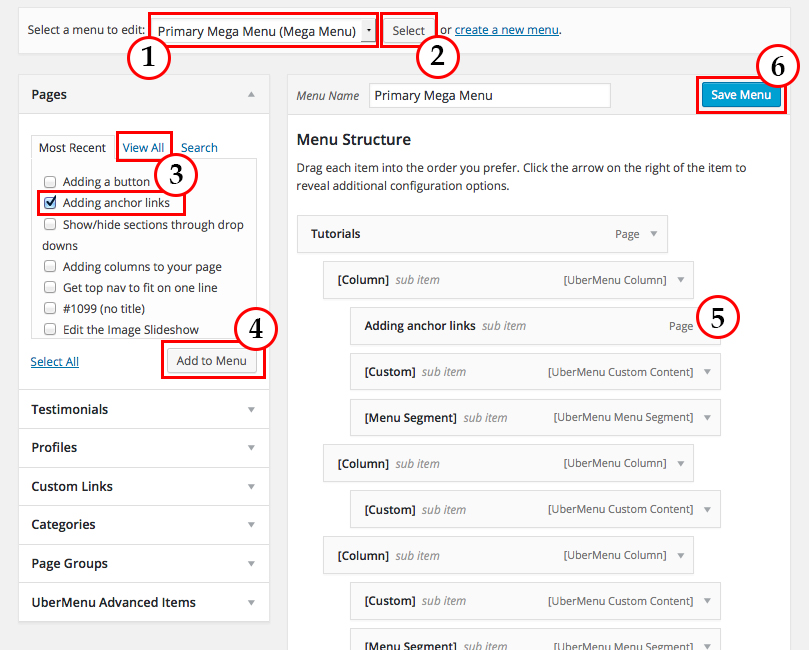
Go to the WordPress dashboard and open the Appearance menu. Click on Menus to start. You will see a list of pages on the left. Check the box next to the page you want to add. Then, click the Add to Menu button. The page will appear in the menu structure on the right. Drag it to reorder. Save the menu to apply changes.
Adding Custom Links
Sometimes, you want to add links that are not pages. For example, an external website or a special section. Use the Custom Links option in the menu editor. Enter the URL in the Link field. Type the name you want to display in the Menu Text box. Click Add to Menu. The link appears in the menu structure. Move it where you want. Don’t forget to save.
Using Categories In Menus
Categories help organize your posts by topic. You can add these categories to menus. In the menu editor, find the Categories box. If you don’t see it, click Screen Options at the top and enable Categories. Select the categories you want. Click Add to Menu. Place them in the menu order. Visitors can click categories to see related posts. Save your menu to finish.
Organizing Menu Items
Organizing menu items helps visitors find pages easily. A clear menu improves user experience and site navigation. WordPress offers simple tools to arrange menu items. These tools allow you to reorder items and create submenus. Proper organization makes your website look neat and professional.
Reordering Menu Items
Reordering menu items is simple in WordPress. Go to the menu editor in your dashboard. Click and hold the menu item you want to move. Drag it up or down to the new position. Drop the item where you want it to appear. This method changes the order visitors see on your site.
Creating Submenus
Submenus group related pages under a main menu item. In the menu editor, drag a menu item slightly to the right. This action makes it a submenu of the item above. Submenus help keep menus clean and organized. They show visitors more options without cluttering the main menu.
Saving And Previewing Changes
Saving and previewing changes is a crucial step when you add a page to a WordPress menu. It ensures your site looks just right before visitors see it. Taking a moment to save your work prevents losing any updates. Previewing lets you check the menu’s look and function on your live site.
WordPress makes this process simple. You can save your menu changes quickly. Then, preview your site to see the new page in action. This two-step approach helps you avoid errors and improve user experience.
Saving Your Menu Changes
After adding a page to the menu, find the Save Menu button. It is usually at the bottom or top of the menu editor. Click it once to save your changes. Avoid closing the editor before saving. This step locks in your updates for the live site.
How To Preview Menu Changes
To see your menu updates, open your website in a new tab. Refresh the page if it is already open. Check the menu bar for the new page link. Click the link to confirm it directs to the correct page. This preview shows exactly how visitors will experience your menu.
Troubleshooting Common Issues
Sometimes, adding a page to a WordPress menu does not work as expected. Troubleshooting helps fix these common problems. This section explains simple steps to solve issues quickly.
Menu Not Showing
The menu may not appear on your site. Check if the correct menu location is set. Go to Appearance > Menus > Manage Locations and assign your menu to a spot, like Primary Menu.
Clear your browser cache. Old data can hide changes. Refresh the page after clearing cache.
Deactivate plugins one by one. Some plugins can block menus from showing. Find the problem plugin and remove it or look for updates.
Changes Not Saving
Saving issues stop your menu updates from appearing. Confirm you clicked the Save Menu button after changes.
Check your user role. Only admins or editors can save menu changes. Ask the site owner for the right permissions.
Increase your PHP memory limit. Low memory can cause saving errors. Contact your web host to raise the limit.
Credit: www.wpbeginner.com
Credit: wou.edu
Frequently Asked Questions
How Do I Add A Page To A WordPress Menu?
To add a page, go to WordPress Dashboard > Appearance > Menus. Select your menu, check the page, and click “Add to Menu. ” Finally, save your menu to apply changes.
Can I Reorder Pages In A WordPress Menu?
Yes, you can easily reorder pages by dragging and dropping them in the menu editor. This adjusts the menu display order instantly.
How To Create A New Menu In WordPress?
Navigate to Appearance > Menus and click “Create a new menu. ” Name your menu, add pages or links, then save it to activate.
Why Isn’t My Page Showing In The WordPress Menu?
Ensure your page is added to the menu and the menu is assigned to a theme location. Also, clear any cache if needed.
Conclusion
Adding a page to your WordPress menu is simple and quick. You only need a few steps to organize your site better. Menus help visitors find information easily. Keep your menu clear and easy to use. Regular updates keep your site fresh and user-friendly.
Try adding new pages as your site grows. This small change can improve your website’s navigation a lot. Now you know how to add pages to your menu with confidence. Your website will be easier to explore for everyone.


