
Have you ever felt limited by the default page layouts in your WordPress theme? You’re not alone.
Many WordPress users crave more flexibility to craft unique pages that truly reflect their brand or personal style. Imagine having the power to customize your website’s appearance without being a coding expert. The good news is, you can easily add a page template to your WordPress theme and unlock a world of design possibilities.
By the end of this guide, you’ll have the confidence and skills to enhance your site’s functionality and aesthetics, making it stand out from the crowd. Let’s dive in and transform your website into something extraordinary!
Understanding WordPress Themes
Adding a page template to a WordPress theme enhances customization. Create a new PHP file in your theme folder. Name it uniquely and include a template name comment at the top. This allows users to select it in the WordPress editor.
Basics Of WordPress Themes
WordPress themes make your site look great. They decide how your site appears. Each theme has its own style. Some themes are simple. Others are more complex. Themes can be free or paid. You can change themes anytime. It is like changing a site’s clothes. Themes help in design and layout. Users can pick any theme they like. This makes WordPress very flexible. Different themes suit different needs. Choose one that fits your site best.
Role Of Page Templates In Themes
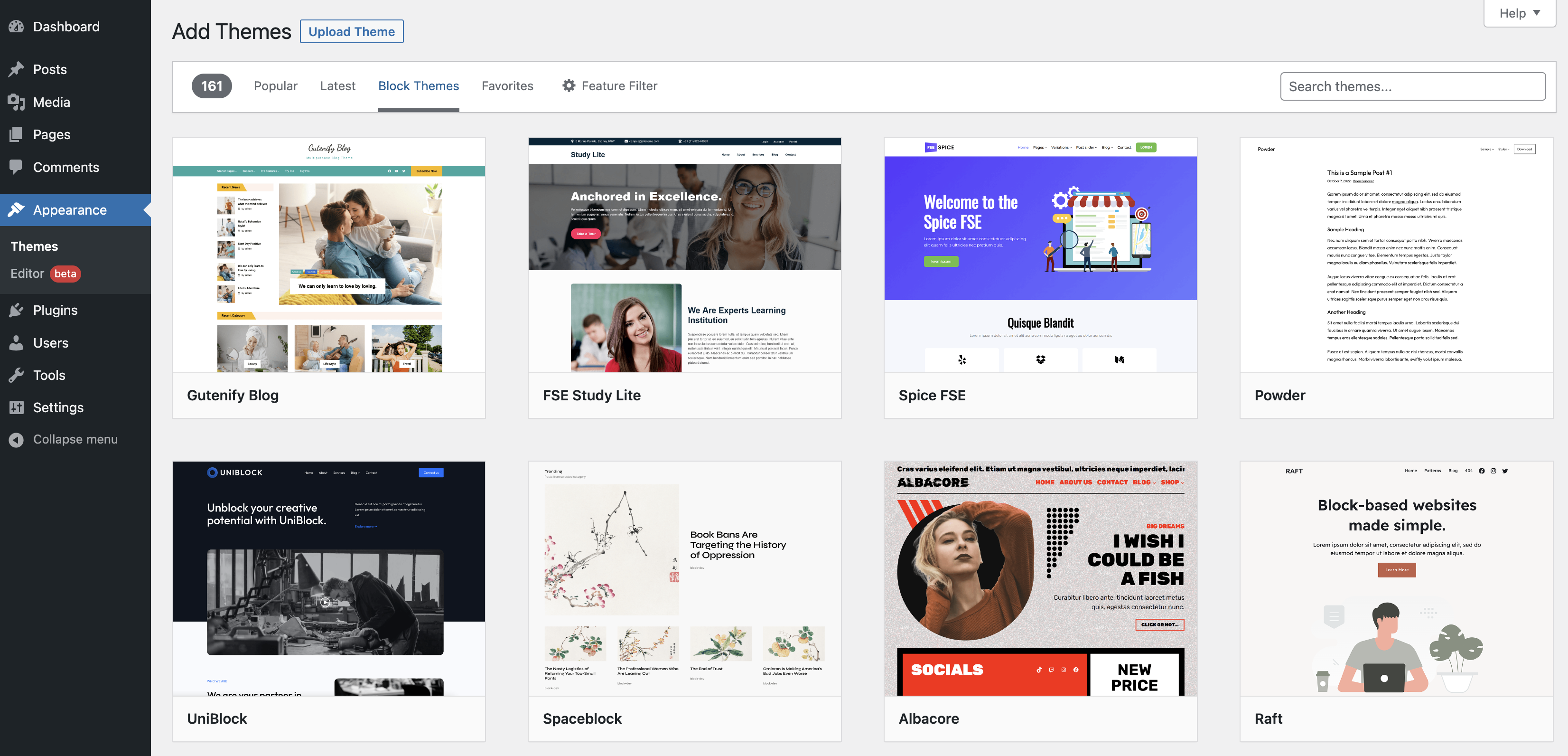
Page templates make a theme special. They give each page a unique look. Not every page needs to look the same. You can have a special page for your blog. Or a different one for your contact info. Page templates help in customizing pages. This makes your site different from others. You can edit templates as you wish. This adds a personal touch to your site. Templates are a big part of themes. They make your site stand out.
Credit: wordpress.org
Setting Up Your Environment
Begin with a text editor. Choose one like Notepad++ or Sublime Text. These help with code editing. A web browser is essential. Google Chrome or Mozilla Firefox are good options. Install WordPress on your local server. Use XAMPP or WAMP to make this easy. FTP software like FileZilla helps upload files. These tools are simple and effective.
Start with the parent theme. Copy its style.css file. Create a new folder for your child theme. Name it wisely. Use functions.php to enqueue styles. Make sure to update the Theme Name in the style file. This links it to the parent. Child themes protect your changes. They keep updates safe. They are easy to create and use.
Creating A Custom Page Template
A custom page template needs a special file. This file lives in your theme folder. Use a clear name for your file. For example, name it my-custom-template.php. Files must end with .php. This helps WordPress recognize the file. Keep the file in the main theme directory.
Use lowercase letters and hyphens in file names. This makes it easy to read. A good structure helps. It keeps things organized. You can find files quickly. A tidy structure is key.
The header is important. It tells WordPress about your template. Add a comment at the top of your file. Use this format:
php
            /
            Template Name: My Custom Template
            /
            ?
The Template Name is what you see in WordPress. It must be unique. This helps you find it easily. Always start with <?php. End with ?>. This ensures the code works.

Credit: wordpress.com
Integrating Html And Php
Start with a basic HTML page. Use , , and tags. These tags form the basic structure. Add your HTML content inside these tags. Make sure to include a DOCTYPE declaration. This helps browsers understand your HTML version. Check your HTML for errors. Use online tools if needed. Clean HTML makes your page load faster.
PHP adds dynamic features to your page. Use php ? tags to insert PHP. Place PHP code inside these tags. PHP can handle logic and data. It talks to databases and processes forms. Keep PHP files in the theme folder. This keeps everything organized. Test your PHP code often. Errors can break your page. Simple PHP can make your site more interesting.
Styling The Page Template
Crafting a WordPress theme involves adding a page template to enhance design flexibility. Include a PHP file in your theme’s directory, then define template details in the file’s header. This allows users to select the template for specific pages, tailoring the layout to their needs.
Using Css For Custom Styling
CSS lets you change how your page looks. You can make it look unique. Adding custom styles can make your page stand out. Use CSS to change colors, fonts, and layout. Every page can have its own look. Write CSS rules to control the page style. Make sure to test your styles. Sometimes, CSS can change more than expected.
Enqueueing Stylesheets
Enqueueing means adding stylesheets properly. WordPress has a function for this. Use wp_enqueue_style to add stylesheets. This keeps things organized. It helps your page load faster. Enqueueing avoids conflicts between stylesheets. It’s important for clean coding. Always enqueue stylesheets in your theme. This makes updating styles easier. Follow WordPress guidelines for enqueueing. It ensures your site works well.
Credit: crocoblock.com
Testing The New Template
Assign the template to a page. Open your WordPress dashboard. Go to Pages. Select the page you want. Find the Template option. It’s on the right side. Choose the new template from the dropdown. Click Save to apply.
Troubleshooting Common Issues
Problems can happen. If the page doesn’t show correctly, check your code. Ensure the template file is in the theme folder. Verify the file name is correct. Update your WordPress version. Clear browser cache. Try another browser if needed. Check theme compatibility. Some themes may not support custom templates. Look for plugins causing issues. Disable them one by one. See if the problem resolves.
Leveraging WordPress Hooks
Action hooks help you add custom functions. They run at specific points in the WordPress flow. For example, you can insert a function during the page load. This allows you to add or modify content. Developers use them for adding custom features. Action hooks make themes more flexible.
Filter hooks let you modify data before it shows on the site. They are useful for changing text or values. For example, you can change the title of a post. Filters are powerful because they can alter data globally. They work by passing data through a custom function. This makes the content different or special.
Best Practices For Page Templates
Adding a page template to your WordPress theme enhances design flexibility. To create one, start by copying the existing page. php file. Rename it, and then modify its code to fit your design needs. This approach allows for tailored page layouts, improving user experience and site aesthetics.
Maintaining Clean Code
Clean code makes your template easy to read. Use clear names for functions and variables. Keep your code organized and avoid clutter. Indent your code properly. It helps others understand your work. Use comments to explain complex parts. It saves time for future edits.
Ensuring Compatibility
Compatibility is key for templates. Test your template with different themes. Check if your code works on all devices. Use standard WordPress functions. This ensures your template works with updates. Avoid using outdated code. It might break your template. Always update your template with new WordPress versions. This keeps it running smoothly.
Frequently Asked Questions
How To Create A Page Template In WordPress?
To create a page template in WordPress, create a new PHP file in your theme’s folder. Use the `Template Name` comment at the top to define your template name. Then, add your custom code or HTML structure. Finally, select your template when editing a page in WordPress.
Can I Add Templates Without Coding?
Yes, you can use plugins to add templates without coding. Some page builder plugins offer ready-made templates. These allow you to customize your page layouts easily. Simply install the plugin, choose a template, and modify it according to your needs.
This is a great option for non-developers.
How Do I Assign A Template To A Page?
To assign a template to a page, go to your WordPress dashboard. Edit the page you want to change. In the Page Attributes section, select your desired template from the dropdown menu. Save your changes to apply the new template to your page.
Are Page Templates Theme-specific?
Yes, page templates are often theme-specific. Templates are designed to match a theme’s design and functionality. Switching themes might require creating new templates or modifying existing ones. Always check compatibility when changing themes to ensure your templates work correctly.
Conclusion
Adding page templates in WordPress enhances customization. You gain control over design. Templates help match your site’s style. Follow the steps to create templates. Use WordPress editor for seamless integration. Check your work for errors. Test your page template on different devices.
Adjust settings for the best look. Keep learning new techniques. Explore WordPress forums for more tips. Remember, practice makes perfect. Enjoy building your unique website. Stay creative and keep experimenting. Your WordPress theme will stand out. Make your site appealing to visitors.
Embrace the power of page templates today.


