
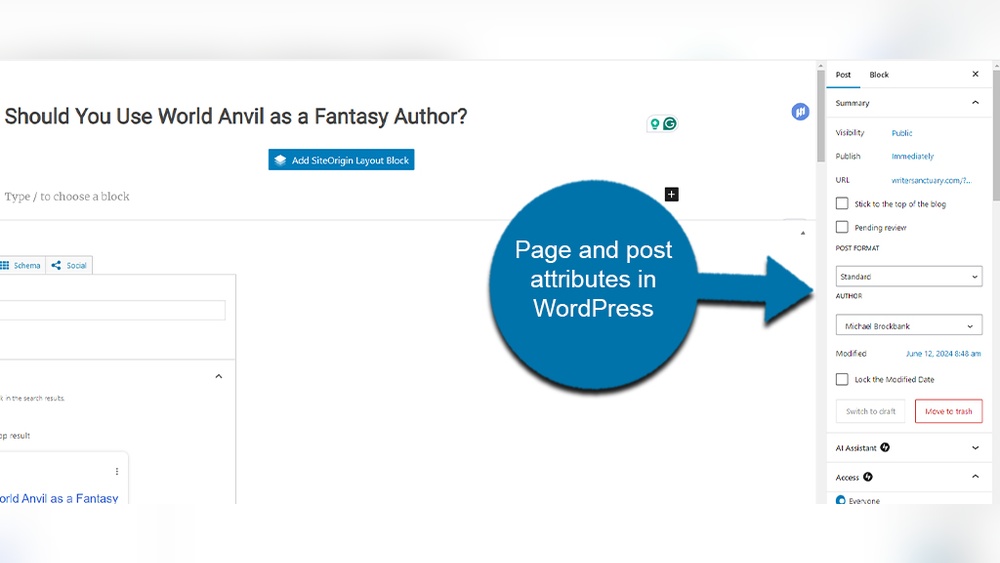
Are you looking to organize your WordPress site better and make your pages stand out? Adding page attributes is a simple way to control how your pages are displayed and arranged.
Whether you want to set a parent page, change the order, or select a custom template, mastering page attributes gives you more control over your site’s structure and appearance. In this guide, you’ll learn exactly how to add page attributes in WordPress, step by step, so you can make your website look professional and easy to navigate.
Keep reading to unlock these powerful tools and take your site to the next level.
Credit: www.hostinger.com
Page Attributes In WordPress
Page Attributes in WordPress help you control how your pages look and behave. They let you organize your content and choose different layouts easily. Understanding page attributes makes managing your site simple and effective.
What Are Page Attributes
Page Attributes are settings found on the page editor screen. They include options like parent page, template, and order. These settings help you arrange pages in a hierarchy. Templates change the design of a page without coding. The order controls the position of pages in lists or menus.
Why Use Page Attributes
Using Page Attributes helps keep your website structured. It improves user navigation by grouping related pages. Templates let you apply unique styles to specific pages. Setting the order controls how pages appear in menus. This feature saves time and avoids complex coding.
Credit: www.smashingmagazine.com
Accessing Page Attributes
Accessing page attributes in WordPress is a simple process. It allows you to control how your pages look and behave. These attributes include templates, parent pages, and order. Finding these settings is the first step to customizing your site.
Navigating To Pages
Log in to your WordPress dashboard. On the left menu, find and click “Pages.” This will open a list of all your pages. You can choose to edit an existing page or create a new one. Either way, the page attributes section is available within the editor.
Locating The Page Attributes Section
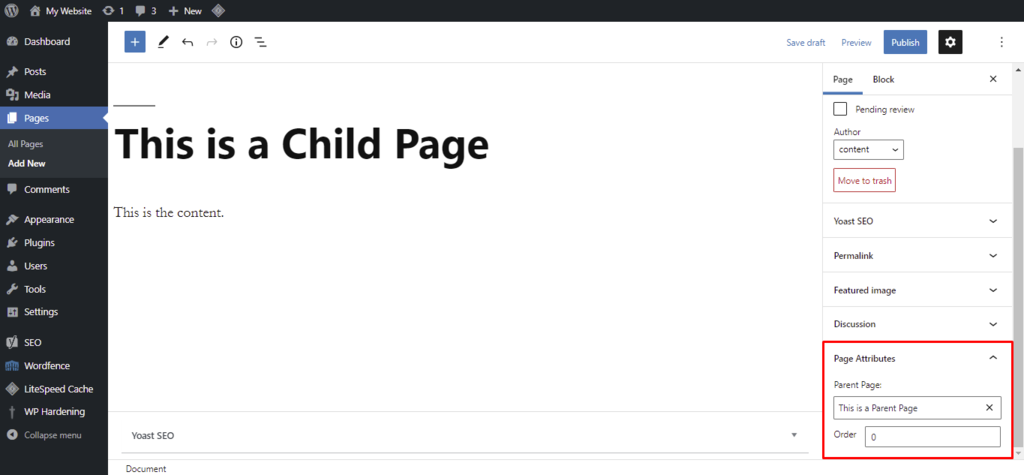
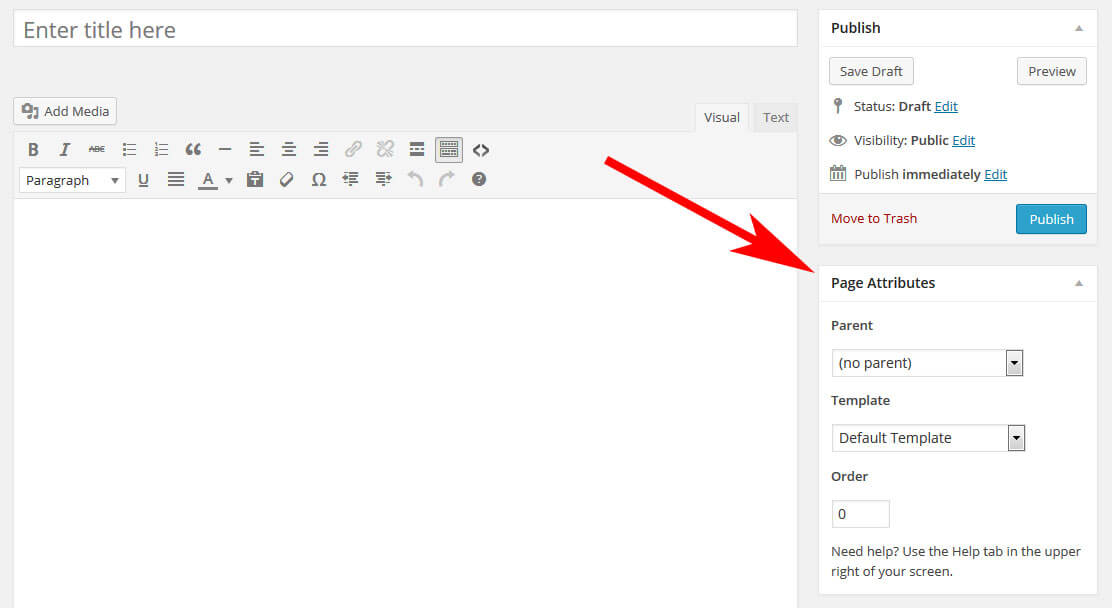
Inside the page editor, look to the right side panel. Scroll down until you see the “Page Attributes” box. Here, you can select a parent page, choose a template, and set the order number. This section may appear under the “Document” tab in some WordPress versions.
Setting Parent Pages
Setting parent pages in WordPress helps you create a clear page structure. It organizes your content in a simple way. This makes navigation easier for visitors. It also improves your site’s SEO by showing relationships between pages. Follow these steps to set parent pages effectively.
Choosing A Parent Page
First, decide which page will be the parent. The parent page is the main topic or category. Child pages will fall under this main topic. For example, a “Services” page can be a parent for different service pages. Pick a parent page that matches your site’s structure. This keeps your site logical and user-friendly.
Organizing Page Hierarchy
Use the page hierarchy to group related pages. Child pages show under their parent in menus and URLs. This hierarchy helps visitors find information quickly. It also helps search engines understand your site better. To organize, go to the page editor and select a parent page. Repeat this for all pages that belong to a group. This creates a neat and clear website layout.
Selecting Templates
Selecting the right template shapes your page’s look and feel. Templates control layout and style. Choosing one changes how your content appears to visitors.
WordPress offers various templates. Each template suits different needs. Some focus on simplicity, others on visuals. Understanding templates helps you pick the best fit.
Available Page Templates
Templates vary by theme. Common options include default, full-width, and blank templates. Default shows sidebar and header. Full-width removes sidebars for wide content. Blank offers a clean slate with no extras.
Some themes add custom templates. These might include portfolio or landing page styles. Check your theme’s documentation to see available templates. This helps you know what choices exist.
Applying A Template
Find the Page Attributes box in the editor. Look for the Template drop-down menu. Click it to see your theme’s templates listed. Select the template you want for your page.
After selection, save or update your page. Preview to see how the template looks with your content. Change templates anytime to adjust your page design. This keeps your site fresh and user-friendly.
Adjusting Page Order
Adjusting the order of pages in WordPress helps control how visitors see your site. It lets you decide which pages show first in menus or lists. Changing page order is simple and can improve your site’s flow and user experience.
By setting the order, you guide visitors to important pages quickly. This small change can make navigation clearer and smoother.
How Page Order Affects Display
Page order affects how pages appear in menus and lists. Pages with lower order numbers show before higher numbers. If you don’t set an order, WordPress shows pages alphabetically.
Ordering pages helps you highlight key content. It also controls the sequence visitors follow. This improves site structure and user interaction.
Changing The Order Number
To change the order number, open the page editor in WordPress. Find the Page Attributes box on the right side. Enter a number in the Order field.
Lower numbers appear first. For example, 1 shows before 2. Save or update the page to apply the change.
Repeat for other pages to set a custom order. This method gives you full control over page display.
Using Page Attributes For Seo
Using page attributes in WordPress helps organize your site. This organization boosts your SEO by making content easier to find. Search engines like Google look for clear structures. Page attributes let you set parent pages and order pages. This creates a logical flow for both users and search engines.
Improving Site Structure
Page attributes help build a clear site hierarchy. Assigning parent pages groups related content together. This setup shows search engines which pages are most important. Better structure leads to better indexing by search engines. A well-structured site ranks higher in search results. It also reduces duplicate content issues.
Enhancing User Navigation
Page attributes improve the menu and breadcrumb navigation. Users find pages faster with clear menus. Breadcrumbs show users where they are on the site. This reduces bounce rates and increases time spent on site. Easy navigation also helps search engines crawl your pages. Both users and search engines benefit from this clarity.
Troubleshooting Common Issues
Troubleshooting common issues with page attributes helps keep your WordPress site running smoothly. Sometimes, settings may not appear or work as expected. Knowing how to fix these problems saves time and frustration.
This section covers two frequent issues: missing page attributes and templates not applying correctly. Each problem has simple steps to solve it.
Page Attributes Not Showing
Page attributes may not show if your theme does not support them. Check if your active theme includes page templates. Switch to a default theme like Twenty Twenty-One to test.
Another cause is user role restrictions. Make sure you have the right permissions to edit page attributes. Admin users usually have full access.
Sometimes, a plugin conflict hides page attributes. Deactivate plugins one by one to find the culprit. Clear your browser cache after changes.
Template Not Applying Correctly
Templates might not apply if the template file has errors. Open the template file and check for PHP mistakes or missing code.
Another issue is incorrect template selection. Confirm you choose the right template from the Page Attributes box before saving.
Cache plugins can show old content. Clear all cache after changing templates to see updates immediately.

Credit: wordpress.stackexchange.com
Frequently Asked Questions
What Are Page Attributes In WordPress?
Page attributes control page hierarchy and template selection. They help organize content and define page appearance. You can set parent pages, order, and templates under page attributes in the editor.
How Do I Add A Parent Page In WordPress?
To add a parent page, open the page editor. Under Page Attributes, select the desired parent from the dropdown. This creates a hierarchy for better site navigation and structure.
Can I Change Page Order Using Attributes?
Yes, you can change page order by setting the Order value. Lower numbers appear first. This controls the sequence pages display in menus or lists.
Where Do I Find Page Templates In WordPress?
Page templates are selectable under Page Attributes in the editor. Templates define the layout and style for specific pages. Choose the template that fits your design needs.
Conclusion
Adding page attributes in WordPress helps organize your site clearly. It guides visitors through your content smoothly. You can set parent pages and order easily. This small step makes your website look professional. Keep practicing to get comfortable with these settings.
Soon, managing pages will feel simple and quick. Your site will stand out with clear navigation. Try adding attributes to see the difference yourself.



