
Are you tired of the same old colors on your WordPress theme? Do you feel like your website needs a fresh, vibrant look to truly capture your brand’s essence?
You’re not alone. Many WordPress users crave a unique aesthetic that sets their site apart. Fortunately, changing or adding new colors to your WordPress theme is simpler than you might think. Imagine the impact a new color scheme could have on your site—enhancing user experience, boosting engagement, and perhaps even increasing conversions.
In this guide, you’ll discover the easy steps to give your WordPress theme a color makeover that matches your vision and captivates your audience. Let’s dive in and transform your website into a visual masterpiece.
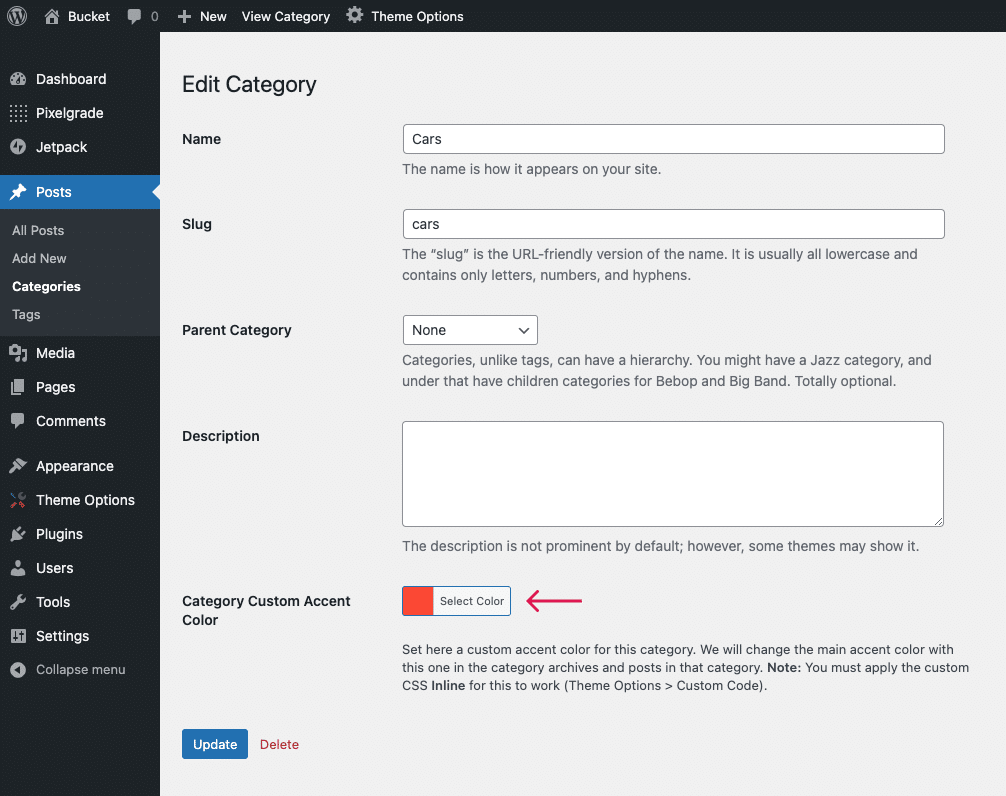
Credit: pixelgrade.com
Choosing The Right Theme
Picking the right theme is important for your site. A good theme makes your site look nice. It should match your brand colors. Many themes let you change colors easily. Some themes have more color options than others.
Always check the theme’s settings before you choose. Look for themes that are easy to use. Themes with a customizer tool are great. This tool lets you see changes as you make them. It saves time and effort.
Remember, the right theme can make your site stand out. It helps your site look professional. Choose wisely and ensure it fits your needs.
Accessing The WordPress Dashboard
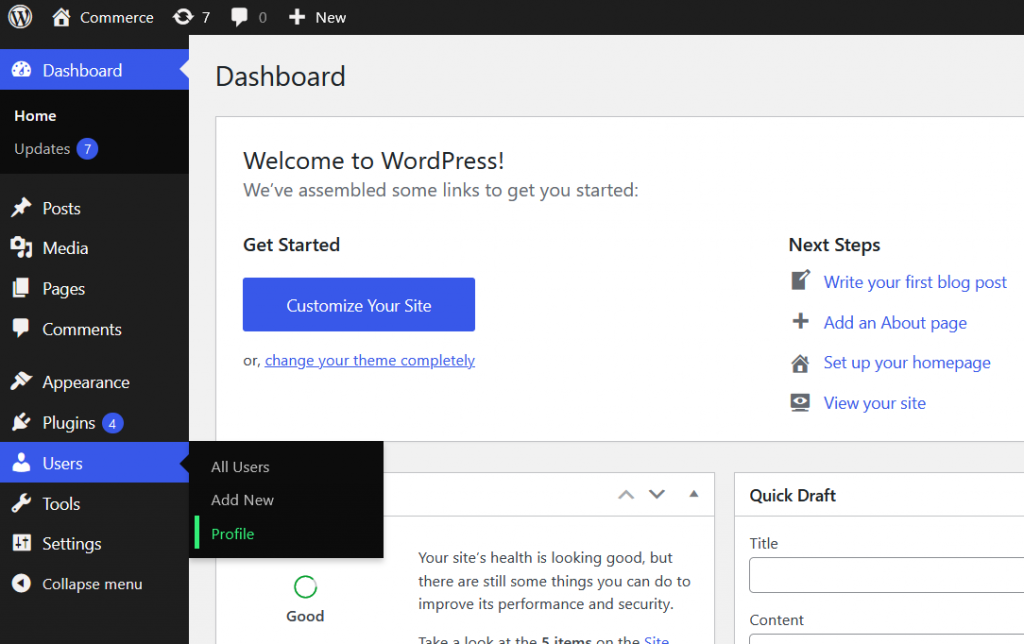
Start by logging into your WordPress account. Find the Dashboard on the left side of the screen. Click on it. You will see many options. Look for Appearance. This is where you can change your theme colors. Click on Appearance. Then, select Customize. This opens the customization panel. Here, you can adjust various settings. Choose the Colors option. Now, pick your favorite colors. Save changes. Your new colors are now active!
Using The Customizer
Open your WordPress dashboard. Find the Appearance tab on the left. Click it. Now, select the Customize option. This takes you to the theme customizer. Here, you can change many settings.
On the left sidebar, look for Colors. Click it. You will see many choices. Each option changes a different part. For example, background or text. Experiment with these settings. Find the colors you like best.
The color settings have sliders. These sliders let you pick shades. Move them left or right. Watch the preview on the right. You can see changes immediately. This helps you decide faster.
If you know a hex code, type it in. This is great for specific colors. Don’t worry about mistakes. Use the Reset button to start over.
Credit: www.a2hosting.com
Editing Css For Custom Colors
First, log in to your WordPress dashboard. Go to the Appearance section. Click on Customize. Find the Additional CSS option. It is on the left side. Click it to open the CSS editor. Now, you can see a blank space. This is where you will add your custom CSS code.
Use CSS to change colors. For example, use body {background-color: #f0f0f0;} to change the background color.
To change text color, use p {color: #333;}. Remember to save your changes.
Click the Publish button at the top. This will make your changes live. Your site now has a new look!
Using A Child Theme
Enhance your WordPress theme’s look by utilizing a child theme for color changes. Child themes allow safe customization without altering original files. Easily tweak styles and preserve updates with this method.
Creating A Child Theme
A child theme is important for changes. It keeps the main theme safe. First, create a new folder. Name it like “yourtheme-child”. Inside, make a style.css file. This file will hold your changes. Add this code to the file:
/
 Theme Name: Your Theme Child
 Template: yourtheme
/
Save it. Now, create a functions.php file. Add this code:
php
function my_theme_enqueue_styles() {
    wp_enqueue_style('parent-style', get_template_directory_uri() . '/style.css');
}
add_action('wp_enqueue_scripts', 'my_theme_enqueue_styles');
?
Activate your child theme. Go to WordPress Dashboard and click on themes. Select your child theme to activate.
Modifying Colors In Style Sheet
Open the style.css in your child theme. Find the color code you want to change. Use the search tool to find it fast. Replace old color with new color code. Save changes. Refresh the website to see new colors. Your new colors are now active. Make sure to check every page.
Utilizing A Page Builder
First, go to the WordPress dashboard. Click on “Plugins“. Select “Add New“. Search for a page builder plugin. Popular options include Elementor and Beaver Builder. Click “Install Now“. Wait for the installation to finish. Then, click “Activate“. The plugin is ready to use.
Open the page builder. Choose a page you want to edit. Look for a “Design” or “Styling” section. Click on it. You will see color options. Choose a color for your text. Pick another for your background. You can preview changes instantly. Try different colors. Make sure they look good together. Save your changes when done.
Employing A Theme-specific Plugin
Identifying plugins is important. Choose plugins that fit your theme. Some plugins match certain themes better. Always check if a plugin is compatible. Read reviews from other users. Reviews help understand plugin quality. Look for plugins with high ratings. High ratings mean users like them. Check the plugin’s update history. Plugins need regular updates. Updates fix bugs and improve features.
After choosing the right plugin, configuring settings is next. Open the plugin settings in your dashboard. Settings let you change color options. Pick colors that match your style. Some plugins offer preset colors. Presets save time and effort. Adjust other settings if needed. Save changes after adjusting settings. Saved settings update your theme instantly. Test changes to ensure they look good.
Testing And Saving Changes
Always test your changes before saving. Use the preview option in WordPress. This helps you see the changes without making them live. Check all pages to ensure the colors look good. Colors should be consistent and pleasing to the eye. If something looks off, tweak it until perfect.
Once satisfied, save the changes. This makes them live on your site. Don’t forget to clear the cache. It ensures visitors see the new colors. Keep a backup of the original settings. This helps if you want to revert back.
Troubleshooting Common Issues
Changing colors on a WordPress theme can fix common issues. Check theme settings or use custom CSS for adjustments. Sometimes, plugin conflicts may affect color changes.
Dealing With Caching Problems
Caching problems can be tricky. You change the color, but see no change. This happens because old data is still loading. First, clear your browser’s cache. Go to settings and find the option. Next, clear your WordPress cache. Use a plugin like WP Super Cache. It will help you delete old cache. Also, check your hosting provider’s cache settings. Some providers have built-in cache systems. You might need to clear these as well. Finally, refresh your page. Now, your changes should show.
Handling Compatibility Issues
Compatibility issues can stop your color changes. Themes and plugins sometimes clash. They may not work well together. First, update everything. Make sure your WordPress, themes, and plugins are up to date. Outdated versions can cause problems. Next, disable your plugins one by one. This helps find which one is causing the issue. After finding the culprit, look for an alternative. Sometimes, a theme update can also help. Check the theme’s official site for updates. Always backup your site before making big changes.

Credit: doc.seatheme.net
Frequently Asked Questions
How Do I Change Theme Color In WordPress?
To change theme color, navigate to Appearance > Customize. Choose ‘Colors’ from the menu to modify your theme’s color palette. This section lets you adjust primary and secondary colors. Save your changes once you’re satisfied. Some themes may require additional color settings found in specific theme options.
Can I Customize WordPress Theme Colors Easily?
Yes, customizing WordPress theme colors is straightforward. Use the Customizer under Appearance > Customize. Select ‘Colors’ to access your theme’s color settings. Adjust colors to fit your desired aesthetic. Always preview changes before saving. Some themes offer more advanced color settings within their specific theme options.
Why Change Colors On A WordPress Theme?
Changing colors enhances your site’s visual appeal and branding. It helps create a unique identity and improves user experience. Consistent color schemes can increase engagement and make your site memorable. Choose colors that align with your brand’s message for maximum impact.
Regular updates keep your site looking fresh.
Do All WordPress Themes Allow Color Changes?
Most WordPress themes allow color customization through the Customizer. However, some themes have limited options. Premium themes usually offer extensive color settings. Always check theme documentation for customization capabilities. If color change options are limited, consider using custom CSS or a child theme for more control.
Conclusion
Changing colors on a WordPress theme is simple. Follow the steps outlined above. Customize your site’s look easily. Colors speak to your audience. Choose them wisely. Reflect your brand’s personality. Keep your theme unique and attractive. A fresh design can enhance user experience.
Regular updates ensure your site stays relevant. Experiment with different shades. Find what works best for you. Happy styling!


