
Are you struggling to keep certain pages on your WordPress site out of search engine results? Adding a noindex tag is the simplest way to control which content gets indexed and which stays hidden.
You’ll learn exactly how to add a noindex tag in WordPress—step by step, with clear instructions anyone can follow. By the end, you’ll have full control over your site’s visibility and can protect your private or low-value pages from showing up in search.
Let’s get started and give your site the SEO boost it deserves!

Credit: wcanvas.com
Why Use Noindex Tags
Using noindex tags helps control which pages search engines show in results. It tells search engines not to list certain pages. This keeps your important content more visible. It also stops duplicate or low-value pages from hurting your SEO. Noindex tags give you more control over your site’s presence online.
Impact On Seo
Noindex tags prevent specific pages from appearing in search results. This helps avoid duplicate content penalties. Search engines focus on pages you want ranked. It improves your site’s overall SEO health. Your main pages gain more authority and traffic. Noindex keeps your website clean in search engines.
When To Apply Noindex
Use noindex on pages with little or no value to users. Examples include login pages, admin pages, or thank you pages. Also add noindex to duplicate content or thin content pages. Avoid noindex on pages that bring organic traffic. Proper use of noindex ensures better site ranking and user experience.
Noindex Tag Basics
The Noindex tag is a simple tool for controlling how search engines see your website. It tells search engines not to show certain pages in their search results. This helps keep private or low-value pages out of search listings. Using the Noindex tag can improve your site’s SEO by focusing on important content.
What Is A Noindex Tag
A Noindex tag is a piece of code added to a webpage. It signals search engines not to include that page in their search results. This tag does not block users from visiting the page. It only affects search engines and how they display your site.
Websites use the Noindex tag to hide pages like admin panels, duplicate content, or thank-you pages. It helps keep your site clean and focused for search engines.
How Noindex Works
Search engines scan web pages to decide what to show in results. When they find a Noindex tag, they skip that page from their listings. The page remains online but stays hidden from search results.
Adding a Noindex tag does not remove the page immediately. It takes time for search engines to update their index. The tag must be placed correctly in the page’s HTML for it to work.
Adding Noindex With Plugins
Adding a noindex tag in WordPress helps control which pages search engines index. Plugins make this task simple and quick. They offer easy settings to apply the noindex tag without coding.
Using plugins saves time and reduces errors. Most SEO plugins include options to add noindex tags to posts, pages, or archives. Below are popular plugins that help add noindex tags easily.
Using Yoast Seo
Yoast SEO is one of the most popular SEO plugins. It allows users to add noindex tags on specific pages or posts. Open the post or page editor, scroll to the Yoast SEO box, then click the “Advanced” tab. Here, select “No” for “Allow search engines to show this Page in search results?” This adds the noindex tag to that page.
You can also set noindex for categories, tags, or archives in the Yoast SEO settings. Navigate to “Search Appearance” and find the section for taxonomies or archives. Choose “No” for “Show [category/tag/archive] in search results?” to apply noindex.
Using All In One Seo
All in One SEO (AIOSEO) also supports noindex tags. Edit any post or page, then find the AIOSEO Settings box. Click on the “Advanced” tab. Toggle the option to “Robots Meta” and select “noindex.” This prevents search engines from indexing that content.
To noindex categories or tags, go to “Search Appearance” in the AIOSEO menu. Under “Taxonomies,” disable indexing by toggling off “Show in search results.” This adds the noindex tag to those archive pages.
Other Popular Plugins
Several other plugins help add noindex tags. Rank Math SEO offers noindex options in its meta box for posts and pages. The plugin’s settings also allow noindex for categories and archives.
Another option is the “WP Robots Txt” plugin. It lets you customize robots meta tags site-wide or on specific pages. This plugin suits users who want more control over indexing without a full SEO suite.

Credit: aioseo.com
Manual Noindex Tag Insertion
Manual noindex tag insertion gives you control over which pages search engines index. It helps keep private or low-value pages out of search results. This method requires editing your WordPress theme files. It suits users comfortable with basic code changes. Always back up your site before editing theme files. This prevents loss if something goes wrong.
Editing Header.php
The header.php file controls the top part of your website’s HTML. Inserting a noindex tag here affects all pages using this header. Open header.php in your theme folder. Add this line inside the section:
Use conditional tags to target specific pages only. Example:
php if (is_page('privacy-policy')) : ? php endif; ? This code tells search engines not to index the privacy policy page.
Using Functions.php
The functions.php file adds custom functions to your theme. Insert a noindex tag dynamically using this file. Add this code snippet to functions.php:
function add_noindex_to_specific_pages() { if (is_page('privacy-policy')) { echo ''; } } add_action('wp_head', 'add_noindex_to_specific_pages'); This method keeps your header.php clean and adds flexibility. Change the page slug to target other pages.
Best Practices
Always test changes on a staging site before live deployment. Use simple conditional tags to avoid errors. Avoid adding noindex tags to important pages accidentally. Keep backups before editing theme files. Update your theme carefully to avoid losing custom code. Consider using child themes for safer edits. Manual insertion is powerful but requires caution.
Noindex For Specific Pages
Adding a noindex tag to specific pages helps control which parts of your site search engines show. This keeps less important pages out of search results. Noindex can improve your SEO by focusing on your best content. It stops duplicate or low-value pages from affecting your rankings.
Posts And Pages
WordPress allows you to noindex individual posts or pages easily. Many SEO plugins offer a checkbox to set noindex on each post or page. Use this for pages like thank you pages or login pages. These pages do not need to appear in search results.
Archives And Categories
Archives and categories often create duplicate content issues. Noindex tags prevent search engines from indexing these pages. Most SEO plugins have settings to noindex category and archive pages site-wide. This helps keep your main content indexed, not the filtered lists.
Custom Post Types
Custom post types show special content like portfolios or products. You can noindex these post types if they are not useful for SEO. SEO plugins or theme settings let you control noindex for each custom post type. This keeps your site clean and focused on important pages.
Testing Noindex Implementation
Testing noindex implementation ensures that your pages are not indexed by search engines. This step helps confirm that your noindex tag works correctly. It avoids unwanted pages appearing in search results. Two simple methods can verify this: Google Search Console and browser inspection tools.
Using Google Search Console
Google Search Console helps check if Google recognizes your noindex tag. Start by opening the URL Inspection tool. Enter the page URL with the noindex tag. The tool will show if the page is indexed or not.
If Google reports the page is not indexed, the noindex tag works. If it still shows as indexed, recheck your tag placement. It may take some time for Google to update the status.
Browser Inspection Tools
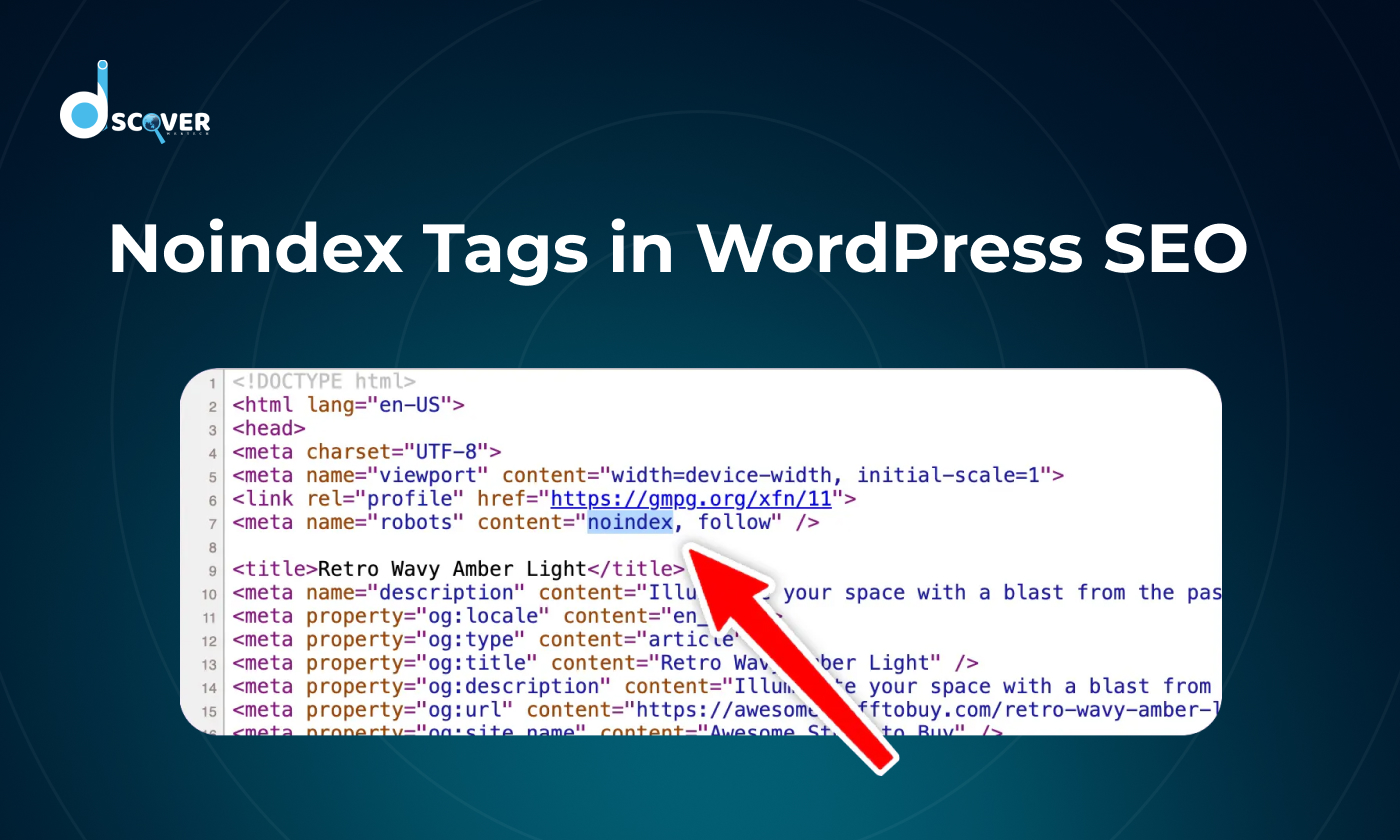
Browser inspection tools let you see the page source directly. Right-click on the page and select “Inspect” or “View Page Source.” Look for the tag in the
section.If you see the noindex tag, the page is set correctly. If missing, the tag was not added properly. This quick check helps confirm the tag is in place before Google crawls the page.
Common Mistakes To Avoid
Adding a noindex tag in WordPress helps control which pages search engines show. Mistakes during this process can cause problems. You might block important pages or face technical conflicts. Avoiding common errors keeps your site healthy and visible.
Blocking Important Pages
Do not add noindex tags to pages that bring traffic. Avoid blocking your homepage, blog posts, or key product pages. These pages need to appear in search results. Double-check before applying noindex tags to avoid losing visitors.
Conflicts With Robots.txt
Robots.txt and noindex tags work differently. Using both incorrectly can confuse search engines. Do not block pages in robots.txt if you want noindex tags to work. Robots.txt stops crawling, so search engines may miss the noindex tag.
Plugin Compatibility Issues
Some SEO plugins add noindex tags automatically. Using multiple plugins can cause conflicts. Check plugin settings carefully to avoid duplicate or missing tags. Always test changes on a staging site before going live.
Credit: discoverwebtech.com
Frequently Asked Questions
What Is The Purpose Of A Noindex Tag In WordPress?
A noindex tag tells search engines not to list a page in search results. It helps control which pages get indexed. This improves SEO by avoiding duplicate or low-value content from appearing in searches.
How Can I Add A Noindex Tag Using A Plugin?
You can add a noindex tag with SEO plugins like Yoast SEO or All in One SEO. These plugins offer simple checkboxes to mark posts or pages as noindex. No coding is needed, making it beginner-friendly.
Can I Add A Noindex Tag Manually In WordPress?
Yes, you can manually add a noindex tag by editing your theme’s header. php file. Insert a meta tag with name=”robots” and content=”noindex”. However, this requires caution to avoid site errors.
Which Pages Should I Set To Noindex In WordPress?
Set noindex on pages like archives, tags, author pages, or duplicate content. This helps prevent thin content from hurting your SEO. Focus on pages that add little value to search rankings.
Conclusion
Adding a noindex tag helps control which pages search engines show. It stops unwanted pages from appearing in search results. You can add it easily using plugins or by editing your theme. This keeps your site clean and focused on important content.
Take time to check which pages need noindex tags. Keep your WordPress site organized and search-friendly. Small steps like these improve your website’s overall quality. Try it today and see the difference in your site’s visibility.


