

Are you looking to grow your audience and keep your visitors coming back? Adding a newsletter to your WordPress site with Elementor is one of the smartest moves you can make.
It’s an easy way to capture emails, share updates, and build a loyal community around your content. If you’re wondering how to do this without any coding headaches, you’re in the right place. This guide will walk you through simple steps to add a newsletter signup form that looks great and works smoothly.
By the end, you’ll have a powerful tool ready to boost your engagement and turn casual visitors into regular readers. Let’s get started!

Credit: www.youtube.com
Choose A Newsletter Plugin
Choosing the right newsletter plugin is crucial for your WordPress site with Elementor. A good plugin helps you collect emails, send newsletters, and manage subscribers easily. It should work smoothly with Elementor to create beautiful signup forms. This choice affects how well you connect with your audience and grow your mailing list.
Popular Plugins Compatible With Elementor
Several plugins work well with Elementor. Elementor Pro has a built-in form widget that connects with many email services. Plugins like Mailchimp for WordPress, Newsletter, and Sendinblue offer easy integration. These tools let you design forms inside Elementor and link them to your newsletter service. They provide templates and customization options for a better user experience.
Free Vs Premium Options
Free plugins give basic features like simple forms and subscriber management. They are good for small websites or beginners. Premium plugins offer advanced features like automation, analytics, and more design options. They also provide better support and regular updates. Choose a premium plugin if you want more control and growth tools for your newsletter.
Credit: bdthemes.com
Install And Activate The Plugin
To add a newsletter in WordPress using Elementor, you first need to install and activate the right plugin. Plugins extend your website’s features and make tasks easier. Without activating the plugin, it will not work on your site.
This section explains how to access your WordPress dashboard and find the plugin to install. Follow these steps carefully to ensure a smooth setup.
Accessing The WordPress Dashboard
Start by logging into your WordPress admin area. Use your username and password to sign in. The dashboard is the control center for your website. Here, you can manage content, themes, and plugins.
Once inside the dashboard, look for the menu on the left side. It contains all the options you need to customize your site.
Searching And Installing Plugins
In the dashboard menu, click on “Plugins.” Then select “Add New.” You will see a search bar on the top right.
Type the name of the newsletter plugin you want. Popular choices include “Mailchimp for WordPress” or “Newsletter.”
Find the plugin in the list and click the “Install Now” button. Wait a few seconds for the installation to complete.
After installing, click “Activate.” The plugin is now ready to use. You can configure it to create your newsletter form inside Elementor.
Create A Newsletter Signup Form
Creating a newsletter signup form is the first step to grow your email list. It lets visitors join your newsletter easily. A well-designed form invites users to subscribe. Using Elementor, you can build and customize this form without coding. This section explains how to create a newsletter signup form in WordPress using Elementor.
Designing Forms With Elementor
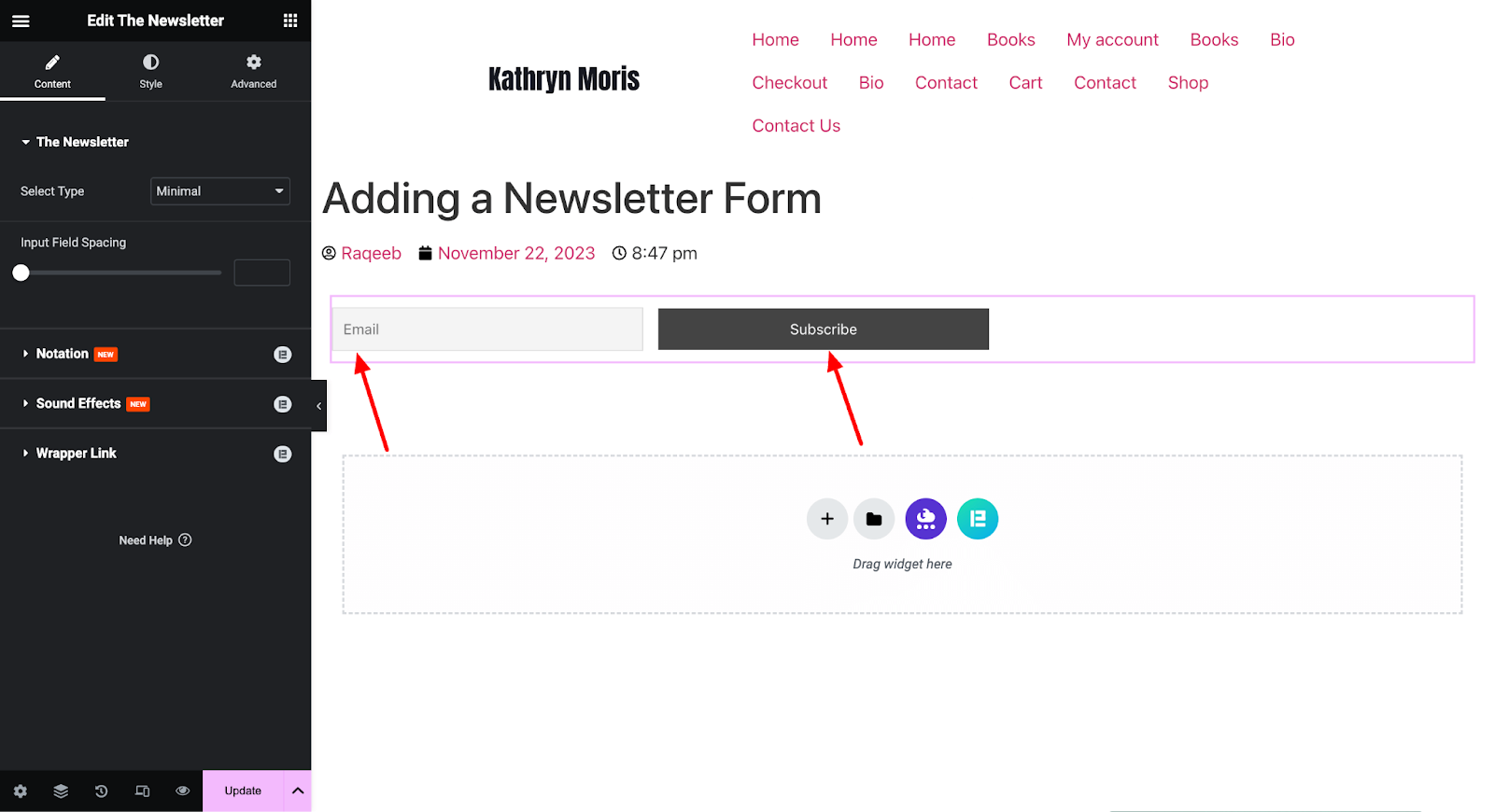
Start by opening the Elementor editor on your page. Drag the “Form” widget to your desired spot. Choose a clean layout that fits your website style. Use simple colors that match your brand. Keep the form compact and neat. Avoid clutter to keep users focused. Add a clear call-to-action button like “Subscribe” or “Join Now.” Make sure the button stands out.
Customizing Form Fields
Next, customize the form fields to collect the right information. Usually, name and email address are enough. Add a label for each field to guide users. Make the email field required to avoid empty entries. Use placeholder text to show example input. Keep the form short to encourage signups. You can add checkboxes for consent or preferences if needed.
Integrate The Form With Email Services
Integrating your newsletter form with an email service helps manage your subscribers easily. It sends collected emails directly to your mailing list. This step saves time and keeps your contacts organized.
Most email services offer tools that connect with WordPress and Elementor. These tools ensure your form works smoothly and your emails do not get lost. You can use popular services like Mailchimp or others that fit your needs.
Connecting To Mailchimp Or Other Providers
Start by choosing an email service provider. Mailchimp is popular, but others like Constant Contact or Sendinblue work too. Each provider has its own way to link with Elementor forms.
Open your email service dashboard. Find the option for API or integrations. Copy the API key provided. This key is important for connecting your form to the service.
In Elementor, open your form widget settings. Look for the “Actions After Submit” section. Add the email service from the list. Paste the API key when asked. Save your changes.
Setting Up Api Keys
API keys act like passwords for apps to talk to each other. They keep your data safe and ensure proper connection. To create an API key, log in to your email service account.
Go to the account settings or developer section. Find “API Keys” or “Integrations.” Click to generate a new key. Copy this key carefully.
Return to Elementor and open the form settings. Paste the key in the API key field. Test the form to see if it sends data to your email service correctly.
Add The Signup Form To Your Page
Adding a signup form to your WordPress page is simple and effective. It lets visitors join your newsletter quickly. This step helps grow your email list and keeps readers connected.
Elementor makes placing the signup form easy. You can add it directly on your page or in other site areas. Choose the best spot to catch visitors’ attention and encourage signups.
Using Elementor Widgets
Elementor offers widgets to add forms without coding. Find the “Form” widget in the Elementor panel. Drag and drop it onto your page where you want the signup form.
Customize fields like name and email. Set button text to invite signups. Style the form to match your site colors and fonts. Save changes and preview to ensure it looks good.
Placing The Form In Sidebars Or Footers
Sidebars and footers are great spots for signup forms. They show up on many pages, increasing visibility. Use Elementor’s widget areas to place the form here.
Go to Appearance > Widgets in your WordPress dashboard. Add a “Text” or “HTML” widget to the sidebar or footer area. Paste the shortcode from your form plugin. Save and check your site to confirm the form appears correctly.
Test The Newsletter Signup Process
Testing the newsletter signup process is important. It ensures users can subscribe without issues. This step helps you find and fix errors early. Testing also confirms that emails reach the subscribers correctly. Follow simple steps to test your newsletter form in Elementor.
Submitting Test Entries
Start by filling out the newsletter form yourself. Use different email addresses to check variety. Submit the form like a real user would. Look for any error messages or problems. Make sure the form sends data correctly to your list.
Try submitting multiple times to confirm consistency. Check if the form resets after submission. This shows it is ready for the next user. Testing this way helps avoid losing potential subscribers.
Verifying Email Confirmations
Check your email inbox for confirmation messages. These emails should arrive quickly and look clear. Open the email and verify any links inside work. Confirm that the unsubscribe option is easy to find.
Test different email providers like Gmail or Yahoo. This ensures emails do not get lost or go to spam. A smooth confirmation process builds trust with your audience. Fix any issues with email delivery before going live.
Optimize Newsletter Performance
Optimizing your newsletter helps improve its success and reach. Small changes can lead to better signup rates and higher engagement. Focus on testing different elements and understanding your readers’ behavior. This approach ensures your newsletter delivers value and grows steadily.
A/b Testing Signup Forms
Test two versions of your signup form to see which performs better. Change the button text, color, or placement. Test different headlines or images. Track which form gets more signups. Use this data to pick the best design. Repeat tests regularly to keep improving.
Analyzing User Engagement
Check how readers interact with your newsletters. Look at open rates and click-through rates. Find out which topics get more attention. Notice the time readers spend on your emails. Use this information to create content your audience likes. Adjust your strategy based on these insights for better results.
Credit: bdthemes.com
Frequently Asked Questions
How Do I Add A Newsletter Form In Elementor?
To add a newsletter form in Elementor, use the Form widget or integrate a plugin like Mailchimp. Customize fields, connect your email service, and place the form on your page to start collecting subscribers easily.
Can I Connect Elementor Newsletter With Mailchimp?
Yes, Elementor supports Mailchimp integration. Simply add the Form widget, set action after submit to Mailchimp, and enter your API key. This connects your newsletter signup directly to your Mailchimp list for efficient email marketing.
Which Plugins Work Best For Newsletters In Elementor?
Popular plugins include Mailchimp for WordPress, Newsletter, and FluentCRM. These plugins integrate smoothly with Elementor and offer easy setup, automation, and subscriber management for effective newsletter campaigns.
How To Customize Newsletter Forms In Elementor?
Use Elementor’s drag-and-drop interface to customize form fields, colors, and styles. You can add custom messages, buttons, and validation to match your website branding and improve user experience.
Conclusion
Adding a newsletter to your WordPress site with Elementor is simple and useful. You can collect emails and stay in touch with visitors. Just follow the steps carefully to create a clean and easy form. Make sure your newsletter fits well with your site design.
Regular updates keep your readers interested and coming back. This small addition can help grow your audience over time. Start adding your newsletter today and connect better with your visitors.


