
Are you looking to give your WordPress site a fresh, new look? Adding a new theme could be just the makeover it needs!
Think of your WordPress theme as the outfit your website wears. It not only defines the style but also impacts how visitors interact with your content. Choosing and installing the perfect theme can seem daunting, especially with countless options available.
But don’t worry! We’re here to guide you through the process step-by-step, ensuring you make the right choice effortlessly. By the end of this article, you’ll feel confident in revamping your site’s appearance without breaking a sweat. Ready to explore how simple it can be to transform your website’s design? Let’s dive in!

Credit: www.greengeeks.com
Choosing The Right Theme
Think about your website’s purpose first. Is it a blog or a shop? Each site needs a different theme. A shop needs a theme for selling. A blog needs a theme for writing and reading. Check if the theme is responsive. This means it looks good on phones and computers. Look for themes with easy settings. This helps you change colors and fonts quickly. Always read reviews before picking a theme. Good reviews mean happy users.
Many places offer WordPress themes. The WordPress Theme Directory is free. It has many themes to choose from. Another place is ThemeForest. Here, you can find both free and paid themes. Paid themes often have more features. Check for support and updates before buying. These ensure the theme stays current. Look at other sites using the theme. This gives you an idea of its style.

Credit: wordpress.stackexchange.com
Installing Themes Via WordPress Dashboard
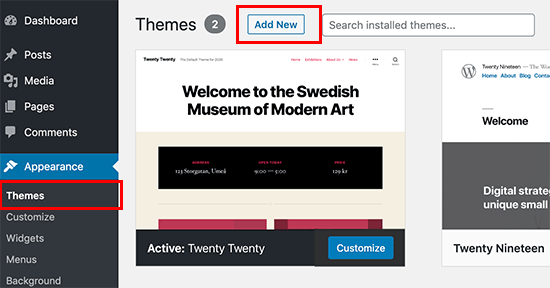
Access the WordPress dashboard by logging in. Find the Appearance option. Click on it. This opens the theme section. Here, you see active and available themes. The dashboard is your tool for theme management.
Click on the Add New button to find themes. A list of featured themes appears. Use the search bar to find specific themes. You can also use filters for popular or latest themes. Explore the Preview option to see themes before choosing.
Choose a theme from the list. Click the Install button. Wait for installation to complete. After installation, click Activate to make the theme live. Your site now uses the new theme. Themes change the look and feel of your site.
Uploading Themes Manually
First, visit a trusted theme website. Find a theme you like. Click the download button. Save the theme file to your computer. Remember the location of the file. This is very important. You will need it soon.
Open your WordPress dashboard. Go to Appearance and click Themes. Find the Upload Theme button. Click it. Choose the theme file from your computer. Click Install Now. Wait for the upload to finish.
Once uploaded, find your new theme in the list. Click the Activate button. Your theme is now active. Check your website to see the changes. Enjoy your new look!
Credit: thimpress.com
Using Ftp For Theme Uploads
First, download and install an FTP client like FileZilla. Open the software and enter your website’s FTP credentials. These include the host, username, and password. You can find them in your hosting account. Connect to your server once you enter the details. Now, you are ready to transfer files.
Download the theme files to your computer. In the FTP client, locate the ‘wp-content/themes’ folder on your server. Drag and drop the theme files from your computer to this folder. Ensure all files upload successfully. This process is simple and quick.
Log in to your WordPress dashboard. Go to the ‘Appearance’ section and click on ‘Themes’. Your new theme should appear here. Click ‘Activate’ to make it live on your site. Check your website to see the new look. If everything seems fine, you have successfully changed your WordPress theme.
Customizing Your New Theme
Explore the ease of adding new themes in WordPress. Find your desired theme in the WordPress dashboard, click “Add New”, and choose from thousands of options. Customize colors, fonts, and layouts to match your style effortlessly. Transform your site’s appearance with just a few clicks, enhancing user experience and engagement.
Accessing Theme Customizer
To begin, find the Appearance tab in your WordPress dashboard. Click on Customize to open the theme customizer. This tool lets you change your theme’s look. Explore various options like colors, fonts, and layouts. Each change shows immediately on the screen.
Modifying Theme Settings
Inside the customizer, settings offer unique options. Adjust header, footer, and sidebar styles. Choose a different font for better readability. Change colors to match your brand. Each setting helps make your site special. Experiment to find what works best.
Previewing And Saving Changes
Before saving, preview your changes. Use the Preview button to see the site live. Check if everything looks right. Make sure all elements are in place. Save changes by clicking Publish. Your new theme is now active. Enjoy your updated site!
Troubleshooting Common Issues
Easily change the look of your WordPress site by adding new themes. Click “Appearance” and then “Themes” in your dashboard. If issues arise, check file permissions or update WordPress to the latest version for smooth installation.
Resolving Installation Errors
Sometimes, installation errors may occur. Check your internet connection first. Make sure you have the correct theme files. Clear your browser cache and try again. If it still doesn’t work, check for any error messages. These messages can guide you to the solution.
Fixing Compatibility Problems
Themes might not be compatible with your WordPress version. Always update WordPress to the latest version. Check if your plugins are causing conflicts. Disable plugins one by one. This helps find the plugin causing the problem.
Seeking Support And Resources
Visit the theme developer’s website for help. Many developers offer support forums. You can ask questions there. Also, check the WordPress support forums. Many users share useful tips and solutions. Sometimes, watching tutorial videos can help you understand better.
Frequently Asked Questions
How Do I Install A New WordPress Theme?
To install a new WordPress theme, navigate to the “Appearance” section in your dashboard. Click “Themes,” then “Add New. ” Browse or search for a theme, and click “Install” followed by “Activate” to apply the theme to your site.
Can I Upload A Custom Theme To WordPress?
Yes, you can upload a custom theme. Go to “Appearance,” then “Themes. ” Click “Add New,” and choose “Upload Theme. ” Select your theme file and click “Install Now,” then “Activate” to use the theme.
Are Free WordPress Themes Reliable?
Free WordPress themes can be reliable if downloaded from reputable sources like the WordPress repository. Check reviews, ratings, and updates to ensure security and functionality. Always test themes on a staging site before using them on your live site.
How Do I Preview Themes Before Activation?
To preview a theme, go to “Appearance,” then “Themes. ” Hover over a theme and click “Live Preview. ” This allows you to see how your site will look before activating the theme.
Conclusion
Adding new themes in WordPress is simple and straightforward. With themes, you can change your site’s look quickly. Explore the theme library for endless options. Each theme offers unique styles and features. Always check theme compatibility before activating. Customizing themes allows a personal touch.
Use the WordPress dashboard for easy theme management. Regular updates keep your themes fresh and secure. Experiment with different themes to find the perfect fit. Remember, the right theme enhances your site’s appeal. Keep your audience in mind when choosing a theme.
Your site’s design reflects your brand and message.


