
Are you looking to give your WordPress website a fresh new look? Adding a new theme can transform your site’s appearance and functionality, making it more engaging for your visitors.
But where do you start, and how can you ensure a smooth transition without losing your existing content or settings? You’ve come to the right place. In this guide, we’ll walk you through the simple steps to add a new theme to your existing WordPress website.
Whether you’re a seasoned WordPress user or just starting, you’ll find our tips easy to follow. By the end of this article, you’ll not only know how to change your theme, but you’ll also understand how to make the most out of your new design. So, are you ready to give your website the makeover it deserves? Let’s dive in and unlock the potential of your WordPress site together.
Preparing For A New Theme
Backing up your website is very important. It keeps your data safe. Use a tool or plugin to save your site. Store it in a secure place. This way, if anything goes wrong, you can restore everything. It is like a safety net for your site.
Before changing, note your current theme details. Write down the name and version. Take screenshots of the settings. This helps if you need to go back. Keep these details safe. They will be helpful later.
Check if your plugins work with the new theme. Some themes do not support all plugins. Make a list of important plugins. Look for compatibility information. This ensures that everything works smoothly after the change.
Choosing A Suitable Theme
Free themes are often simple and easy to use. They can be a great choice for beginners. Premium themes offer more design options. They come with extra features and support. These themes can cost money but offer better customization. Think about your needs before choosing. Free themes can be perfect for a basic site. Premium themes are ideal for more complex websites.
Choose a theme with a design you like. Features are important too. Some themes have sliders, galleries, and contact forms. Others may have simple layouts. Make a list of features you need. Compare different themes to find the best fit. Design and features should match your website’s purpose. A good theme will make your site look professional.
Reviews help in choosing the right theme. Users share their experiences with themes. Ratings show how popular a theme is. A theme with high ratings is often reliable. Read reviews to see if the theme has issues. Check how the theme is updated. A theme with good support is always helpful. Reviews and ratings guide you in making the best choice.
Installing The New Theme
Open your WordPress dashboard. Click on Appearance, then Themes. Choose Add New at the top. A list of themes will appear. Use the search bar to find one you like. Click Install once you find it.
Get a theme zip file on your computer. In WordPress dashboard, go to Appearance and then Themes. Click Add New and then Upload Theme. Choose the zip file and click Install Now.
Installed themes need activation. Go to Appearance and Themes again. Find the new theme in the list. Click Activate under the theme’s name. Your site will now use this theme.

Credit: jetpack.com
Customizing The Theme
Explore the theme options in your WordPress dashboard. Each theme has unique settings. Check for layout options and header styles. Look for background image settings too. Make changes and save your updates.
Widgets are small blocks to show content. Add or remove them in the Widgets section. Organize your menu under Appearance. Drag and drop to change the order. Save your changes to see them live.
Colors and fonts give a unique look. Find the Colors section in theme settings. Choose colors that match your style. Change fonts in the Typography section. Pick fonts that are easy to read. Save to update your website.
Testing The New Theme
Verify Responsiveness: Check how the theme looks on phones and tablets. Make sure every image fits well. Text should be easy to read on all screens. Buttons must be simple to tap. This makes your site friendly for all users.
Check Browser Compatibility: Open your site in different browsers. Try Chrome, Firefox, and Safari. Your site should look the same everywhere. No strange errors or broken parts. This gives a smooth experience to visitors.
Review Site Performance: Measure loading time of the pages. Faster sites keep users happy. Test how quickly images and videos appear. Use tools to check speed. Improve areas that slow down your site. Fast sites attract more visitors.

Credit: studiosimpati.co
Troubleshooting Common Issues
Adding a new theme to your WordPress website can solve design issues. Check theme compatibility and update plugins first. Navigate to the WordPress dashboard, select “Themes,” and click “Add New” to explore options.
Resolve Plugin Conflicts
Plugins can sometimes clash with a new theme. Deactivate all plugins first. Check if the theme works without problems. Turn on plugins one by one. See if any cause issues. If a plugin causes a problem, find an alternative plugin. Or contact the plugin’s support for help.
Fix Layout And Styling Problems
A new theme might change your site’s look. Check your site’s layout after adding a theme. Adjust settings in the theme options. Many themes let you change colors, fonts, and more. If problems continue, use custom CSS. This helps fix specific styling issues.
Address Loading Speed Concerns
A theme can slow down your site. Test your site’s speed after adding a theme. Use tools like Google PageSpeed Insights. If the site is slow, optimize images. Minimize CSS and JavaScript files. Consider using a caching plugin. This can help improve speed.
Optimizing For Seo
SEO plugins make websites better. They help search engines find your site. Yoast SEO is popular. It checks your content. It helps with keywords and readability. All-in-One SEO is another choice. It is easy to use. Both plugins improve your site’s visibility.
A good site structure helps users. It also helps search engines. Use clear menus. Label pages well. Use simple URLs. Make sure all links work. Users and search engines like easy navigation. A well-structured site is easy to explore. It makes users happy.
Images make sites pretty. They should load fast. Use small image files. Compress them if needed. Add alt text to images. This helps search engines. Videos should also load quickly. Optimize them for better performance. Fast loading sites keep users happy. They improve SEO ranking.
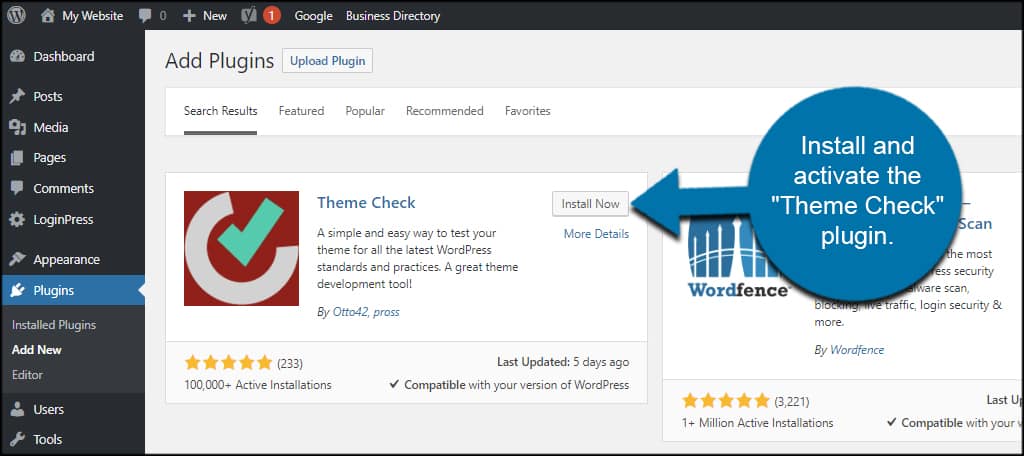
Credit: www.greengeeks.com
Frequently Asked Questions
How Do I Install A New Theme In WordPress?
To install a new theme, go to your WordPress dashboard. Click on “Appearance” then “Themes. ” Choose “Add New” and search for your desired theme. Click “Install” and then “Activate” to make it live. Ensure compatibility with your site by checking theme details.
Can I Switch Themes Without Losing Content?
Yes, switching themes doesn’t affect your content. Your posts, pages, and images remain intact. However, the layout and design might change. It’s wise to preview your theme before activating it. Backing up your site is recommended to prevent any unforeseen issues.
Are Free WordPress Themes Reliable?
Free themes can be reliable if sourced from reputable developers. Check user reviews and ratings for assurance. Free themes might lack premium features but often provide basic functionality. Regular updates and support are essential for security and compatibility.
How Do I Customize A WordPress Theme?
Customize your theme via the WordPress Customizer. Access it by clicking “Appearance” then “Customize. ” Modify settings like colors, fonts, and layout. Some themes offer additional customization options through their own settings panel. Always preview changes before saving them.
Conclusion
Adding a new theme to your WordPress site is simple. Follow the steps, and watch your site transform. Themes change the look and feel of your website. Ensure the theme matches your brand and style. Test the theme thoroughly before going live.
This keeps your site functional and user-friendly. Keep your WordPress updated for better security. Regular updates prevent issues and enhance performance. Choose themes wisely to create a great user experience. Enjoy the new look of your website and engage your audience effectively.
Your site can shine with a fresh theme.


