
Are you ready to give your WordPress site a fresh new look? Adding a new theme can transform your website’s appearance, making it more appealing and engaging for your visitors.
But here’s the kicker: choosing the right theme isn’t just about aesthetics; it’s about enhancing user experience and showcasing your brand’s personality. Imagine the excitement of your readers when they see a beautifully designed site that not only looks great but functions seamlessly! In this guide, you’ll discover simple, step-by-step instructions on how to add a new theme to your WordPress site.
Get ready to captivate your audience and make a lasting impression with your site’s new look!
Choosing The Right Theme
Picking a theme is fun and important. Think about your site’s purpose. A blog needs a simple look. A shop needs a clean, clear design. Speed is important too. Slow themes can make visitors leave. Check for updates. An updated theme is safer and has new features. Also, see if the theme works well on phones.
Free themes cost nothing. They are great for beginners. Many free themes have good designs. But, they may have fewer features. Premium themes cost money. They often have more options and support. This can help if you need extra help. Choose the one that fits your needs best.

Credit: wordpress.stackexchange.com
Accessing The Theme Library
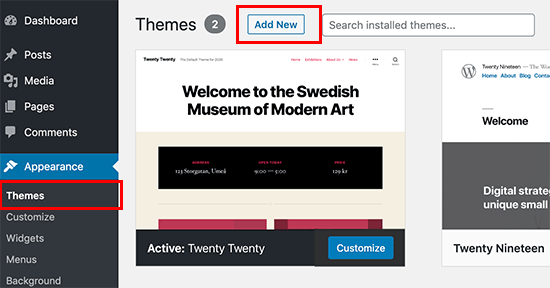
First, log in to the WordPress dashboard. Spot the Appearance section on the left menu. Click it to enter the theme area. This is where themes live. You can change how your site looks from here.
Once inside, find the Add New button at the top. It opens the theme directory. Browse through many themes. Each theme has a preview. You can see how it looks on your site. Choose your favorite one. Click on the Install button to add it. Then, activate it to make it live. Enjoy your new site look!
Installing A Theme
Start by logging into your WordPress dashboard. Click on Appearance, then Themes. Here, you will see the Add New button at the top. Click it. You can now search for a theme using the search bar. Type the theme name or features you want. A list of themes will appear. Browse the themes and click Install on the one you like. After installation, click Activate to use it on your site.
Download the theme zip file from the source. In your WordPress dashboard, go to Appearance, then Themes. Click Add New at the top. Next, click the Upload Theme button. A new window will open. Click Choose File and select your theme’s zip file. Now, click Install Now. Once installed, click Activate to apply the theme to your site.
Activating The Theme
Explore how to add a new theme on WordPress by navigating to the dashboard. Select “Appearance” and then “Themes” to start. Click “Add New” and browse or search for your desired theme. Once found, hit “Install” and then “Activate” to apply the new look.
Previewing The Theme
Click on the theme thumbnail to open the preview. This shows how your site will look. Check if all parts are in place. Make sure the colors and fonts match your style. If something looks strange, choose another theme. You can go back and pick another option. Find the one that fits best.
Activating The Selected Theme
Once you find the right theme, click Activate. This makes it live on your site. Refresh your page to see changes. All your content will stay the same. Only the look will change. If you don’t like it, switch back to the old theme. It’s easy and quick. Your site now has a fresh look!
Customizing The Theme
WordPress Customizer helps you change your theme. It is easy to use. You can adjust layout and colors quickly. Go to the dashboard. Click ‘Customize’. A new page will open. Here, you can change many things. Choose a new layout from the options. Pick colors you like. Bright colors make your site happy. Dark colors make it look cool. You can see changes live. Just click ‘Publish’ to save them. It is fun and simple.
Try different styles. Mix colors to find the best look. You can also change fonts. Make titles big and clear. Keep text easy to read. Adjusting layout and colors can make your site unique. Now your website will look great!
Testing Theme Compatibility
A theme must look good on all devices. Responsive design ensures this. Check how it looks on mobile. Then, check on tablets and desktops. Resize your browser window. The theme should adjust smoothly. Look for any broken images. Text should stay clear and readable.
Some themes might not work with all plugins. Test your plugins with the new theme. First, activate a plugin. Then, see if it functions well. If it crashes, there might be a conflict. Deactivate it and try another. Ensure all your essential plugins work fine.
Backup And Restore Options
Easily add a new theme on WordPress by first creating a backup. This ensures your data is safe. Then, navigate to the ‘Themes’ section, upload your desired theme, and activate it. Restoring your site is simple if anything goes wrong, keeping your content secure and accessible.
Creating A Backup
Backing up your WordPress site is vital. It keeps your data safe. Use plugins like UpdraftPlus or BackupBuddy. They are easy to use. Install the plugin. Click on the backup button. Your site is now safe. Remember to save copies. Keep them in secure places. Cloud storage is a good choice. This way, your data is always protected.
Restoring Previous Themes
Restoring themes is simple. Go to your WordPress dashboard. Find the Appearance section. Click on Themes. Select the theme you want. Click the Activate button. Your old theme returns. All settings will be back. Check your site for changes. Everything should look the same as before.

Credit: www.greengeeks.com
Credit: thimpress.com
Frequently Asked Questions
How Do I Install A New WordPress Theme?
To install a new WordPress theme, go to your dashboard. Click on “Appearance,” then “Themes,” and choose “Add New. ” Browse or search for themes, then click “Install” and “Activate. ” Ensure the theme is compatible with your WordPress version for smooth functionality.
Can I Change My WordPress Theme Anytime?
Yes, you can change your WordPress theme anytime. Simply navigate to “Appearance” in your dashboard, select “Themes,” and activate a new one. Ensure your site content and settings remain compatible with the new theme to avoid any display issues.
Are Free WordPress Themes Reliable?
Free WordPress themes can be reliable if sourced from reputable directories like WordPress. org. They undergo reviews and updates. Always check user ratings and reviews for quality assurance. Avoid downloading from unknown sources to prevent security risks and compatibility issues.
Do New Themes Affect Website Speed?
New themes can affect website speed depending on their design and code efficiency. Opt for lightweight themes with clean coding. Check loading times before activating. Utilize caching plugins and optimize images to maintain or improve speed after changing themes.
Conclusion
Changing your WordPress theme can be simple and fun. Start by exploring different themes. Choose one that fits your style and needs. Install it carefully, following step-by-step instructions. Always preview the theme before activating it. This ensures everything looks right.
Remember, themes can change your site’s appearance and function. Keep your site fresh and engaging with regular updates. Explore new themes to find the perfect match for your brand. Enjoy creating a site that reflects your vision. Happy blogging and designing!


