

Are you ready to give your WordPress website a fresh new look? Changing your theme can completely transform the way your site feels and functions.
But if you’re unsure how to add a new theme, don’t worry—you’re in the right place. This step-by-step guide will walk you through the easiest way to find, install, and activate a new theme on your WordPress site. By the end, you’ll have the confidence to make your website stand out and truly reflect your style.
Keep reading, and let’s get started!
Choosing The Right Theme
Choosing the right theme is a key step in building your WordPress site. It shapes how your site looks and works. The right theme helps your content stand out and keeps visitors interested. It also affects site speed and SEO. Take time to pick a theme that fits your needs and style.
Free Vs Premium Themes
Free themes are great for beginners and small sites. They offer basic features and simple designs. Premium themes cost money but include more options and support. They often have better security and updates. Decide based on your budget and goals.
Responsive Design Importance
Responsive themes adjust to different screen sizes. This means your site looks good on phones, tablets, and desktops. A responsive design improves user experience. It also helps your site rank higher in search results.
Checking Theme Compatibility
Make sure the theme works with your WordPress version. Check if it supports popular plugins you need. Test the theme on different browsers. Compatibility avoids technical problems and keeps your site running smoothly.
Preparing Your WordPress Site
Before adding a new theme to your WordPress site, some important steps must be done. Preparing your site helps avoid problems and keeps your data safe. This process takes just a few minutes but protects your work and improves site performance.
Backing Up Your Website
Backing up your website saves a copy of all content and settings. It protects your site from data loss during the theme change. Use a reliable backup plugin or your hosting provider’s backup service. Store the backup file in a safe place, like your computer or cloud storage.
Updating WordPress Core
Updating the WordPress core ensures your site runs the latest software. New updates fix bugs and improve security. Go to your WordPress dashboard and check for updates. Install any available updates before adding the new theme.
Clearing Cache
Clearing your site’s cache removes old files stored by your browser or plugins. This step ensures that new changes show correctly. Clear cache from your caching plugin or hosting panel. Also, clear your browser cache to see the latest version of your site.
Installing A Theme Via Dashboard
Installing a theme through the WordPress dashboard is quick and simple. This method lets you explore and activate new themes without leaving your site. You can find many free themes directly in the dashboard. It saves time and effort compared to manual uploads.
Accessing The Theme Section
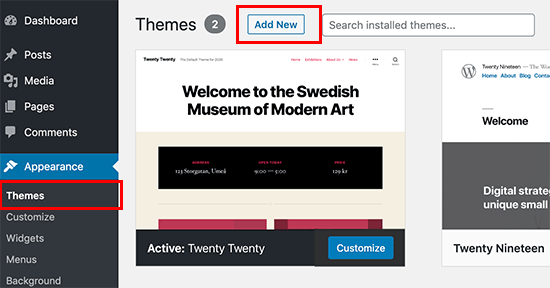
Start by logging into your WordPress admin area. On the left menu, find and click “Appearance.” Then select “Themes” from the submenu. This opens the themes page where you can see all installed themes. It’s your main area for managing website design.
Searching For Themes
Click the “Add New” button at the top of the themes page. Use the search bar to find themes by name or feature. Filters let you narrow results by layout, features, or popularity. Browse through options to find a theme that fits your style and needs.
Previewing Themes Before Activation
Hover over any theme thumbnail and click “Preview.” This opens a live demo of the theme on your website content. It helps you visualize how your site will look before switching. If satisfied, click “Activate” to apply the new theme instantly.
Uploading A Theme Manually
Uploading a theme manually is a simple way to add new designs to your WordPress site. It lets you use themes downloaded from other sites or custom themes made for your needs. This method gives more control and helps install themes not found in the WordPress directory.
Downloading Theme Files
First, get the theme files on your computer. Themes usually come in a .zip format. Save this file where you can easily find it, like your desktop or downloads folder. Do not unzip the file before uploading it to WordPress.
Using The Upload Feature
Go to your WordPress dashboard. Click on “Appearance,” then choose “Themes.” At the top, click the “Add New” button. Next, click “Upload Theme.” Click “Choose File,” and select the .zip file you saved earlier. Press “Install Now” to upload the theme to your site.
Activating The Uploaded Theme
After the upload finishes, WordPress shows a success message. Click the “Activate” button to start using your new theme. Your site will change to the new design immediately. Check your site to see how the theme looks and works.
Customizing Your New Theme
Customizing your new WordPress theme shapes your website’s look and feel. It lets you make the site unique and fit your brand. Small changes can improve user experience and keep visitors engaged. Understanding basic customization tools helps you quickly adjust your site’s design. This section explains how to use the main tools for theme customization.
Using The Customizer Tool
The Customizer tool allows live editing of your site’s appearance. Access it from the WordPress dashboard under Appearance > Customize. This tool shows a preview of your site while you make changes. You can edit site title, tagline, and logo here. Adjust header and footer settings to match your style. Each theme offers different options in the Customizer. Save your changes to see them on the live site immediately.
Adding Widgets And Menus
Widgets add extra features to your website’s sidebar or footer. You can add search bars, recent posts, or social links. Go to Appearance > Widgets to manage them. Menus help visitors navigate your site easily. Create custom menus by going to Appearance > Menus. Add pages, categories, or custom links to the menu. Organize menu items by dragging them into order. Assign the menu location based on your theme options.
Adjusting Colors And Fonts
Colors and fonts impact how visitors feel about your site. Use the Customizer to change these elements. Pick colors that fit your brand and keep text readable. Choose font styles and sizes for headings and body text. Keep font choices simple and consistent for a clean look. Test your changes on different devices to ensure good appearance. These small tweaks enhance your website’s professionalism and appeal.

Credit: wpmarmite.com
Troubleshooting Common Issues
Adding a new theme to WordPress can bring fresh style and features. Sometimes, issues appear after activation. Troubleshooting these problems helps keep your site looking great. This section covers common issues and quick fixes to get your theme working smoothly.
Theme Not Showing Correctly
Sometimes the new theme looks different than expected. Clear your browser cache first. Old files may load instead of new ones. Check if the theme files uploaded completely. Incomplete uploads cause display problems. Activate the theme again from the dashboard. This can refresh the settings and fix errors.
Fixing Broken Layouts
Broken layouts often happen due to missing or outdated CSS files. Make sure your theme is compatible with your WordPress version. Update WordPress to the latest release if needed. Also, check if custom code or widgets interfere with layout. Remove or adjust them to restore proper design.
Resolving Plugin Conflicts
Plugins sometimes clash with themes and cause errors. Deactivate all plugins and see if the problem stops. If yes, reactivate plugins one by one. This method finds the plugin causing conflict. Replace or update the faulty plugin to fix issues. Keep plugins and themes updated to avoid conflicts.
Optimizing Theme Performance
Optimizing theme performance is key to a fast and smooth WordPress site. A well-optimized theme improves user experience and boosts search engine rankings. Small changes can reduce load times and make your site more efficient.
Minimizing Load Times
Choose a lightweight theme with clean code. Avoid themes with too many features you don’t need. Keep your plugins to a minimum to reduce server requests. Enable gzip compression on your server to shrink files before sending them. Use a content delivery network (CDN) to deliver content faster worldwide.
Using Caching Plugins
Caching plugins store copies of your pages for quick loading. They reduce the need to generate pages on every visit. Popular plugins include W3 Total Cache and WP Super Cache. Set up caching to serve static files like HTML, CSS, and JavaScript. Clear cache regularly to show recent changes.
Optimizing Images
Large images slow down your site. Resize images to fit your theme’s layout before uploading. Compress images using tools like TinyPNG or ShortPixel. Use the correct image format: JPEG for photos, PNG for graphics with few colors. Enable lazy loading to load images only when users scroll down.

Credit: wordpress.stackexchange.com
Credit: thimpress.com
Frequently Asked Questions
How Do I Install A New Theme In WordPress?
To install a new theme, go to Appearance > Themes > Add New. Search, preview, and click “Install” then “Activate” to use it.
Can I Upload A Custom WordPress Theme Manually?
Yes, upload your theme’s. zip file via Appearance > Themes > Add New > Upload Theme. Then, install and activate it.
What Are The Best Practices Before Adding A New Theme?
Backup your website, check theme compatibility, and test on a staging site to avoid issues after activation.
How Do I Preview A New Theme Before Activating?
Click “Live Preview” under the theme in Appearance > Themes. This lets you see changes without affecting your live site.
Conclusion
Adding a new theme in WordPress is simple and quick. You can choose from many free and paid themes. Just follow the steps to install and activate your theme. A new theme changes your website’s look and feel easily. Take time to explore different options.
This helps you find the best style for your site. Keep your site fresh and attractive by updating themes often. Enjoy creating a website that fits your needs perfectly.


