
Are you looking to customize your WordPress theme by adding a new PHP file, but unsure where to start? You’re in the right place.
Modifying your theme can seem daunting, especially if you’re not a developer. But don’t worry, this guide will break it down into easy, manageable steps. Imagine having the power to enhance your website’s functionality and design, making it truly yours.
This isn’t just a technical task; it’s an opportunity to tailor your site exactly how you envision it. Stick with us, and by the end of this article, you’ll be ready to confidently add that new PHP file to your WordPress theme, opening up a world of customization possibilities. Let’s dive in and unlock the potential of your site!
Credit: www.pair.com
Prerequisites
Understanding PHP basics is crucial. You will write code in PHP. PHP is a language for web development. Simple tasks include echoing text or variables. Variables store data like numbers or text. Functions help you repeat actions without rewriting code. If-else statements let you make decisions in code. Loops let you repeat actions many times. Arrays store lists of data. PHP files end with .php. Know these basics before you start.
A WordPress installation is needed. You can use a local server. XAMPP or WAMP can help you with this. They create a local environment. You can also use a live server. You will need a domain and hosting. WordPress files must be in your server. Access the files through your control panel. Locate the theme folder. This is where you will add your new PHP file.
Accessing Theme Files
Locate the cPanel in your hosting account. Click on File Manager. Open the public_html folder. Find your WordPress directory. Search for wp-content/themes. Select your active theme’s folder. Click Upload to add new PHP files. Ensure the file has the correct name. Check permissions for security.
Download an FTP client like FileZilla. Enter your FTP credentials. Connect to your server. Navigate to wp-content/themes. Locate your active theme folder. Drag and drop your new PHP file. Ensure the file name is correct. Check permissions after upload. Make sure it works well with the theme.
Creating A New Php File
Choose a simple and clear name for the file. Use lowercase letters and dashes between words. Avoid using spaces or special characters. A good example is custom-page.php. This helps in organizing your files better.
Open a text editor. Write your PHP code between <?php and ?> tags. Start with a simple echo statement like echo ‘Hello, World!’;. Save your file with the .php extension. Check for any syntax errors. Use a PHP checker tool if needed.
Uploading The Php File
First, open your WordPress theme folder. You will see many files and folders. Find the folder named “wp-content”. Click on it. Inside, you will find the “themes” folder. Open your current theme’s folder. This is where you will place your new PHP file. Make sure the file has a .php extension. Copy and paste your PHP file here. Your file is now in the theme directory.
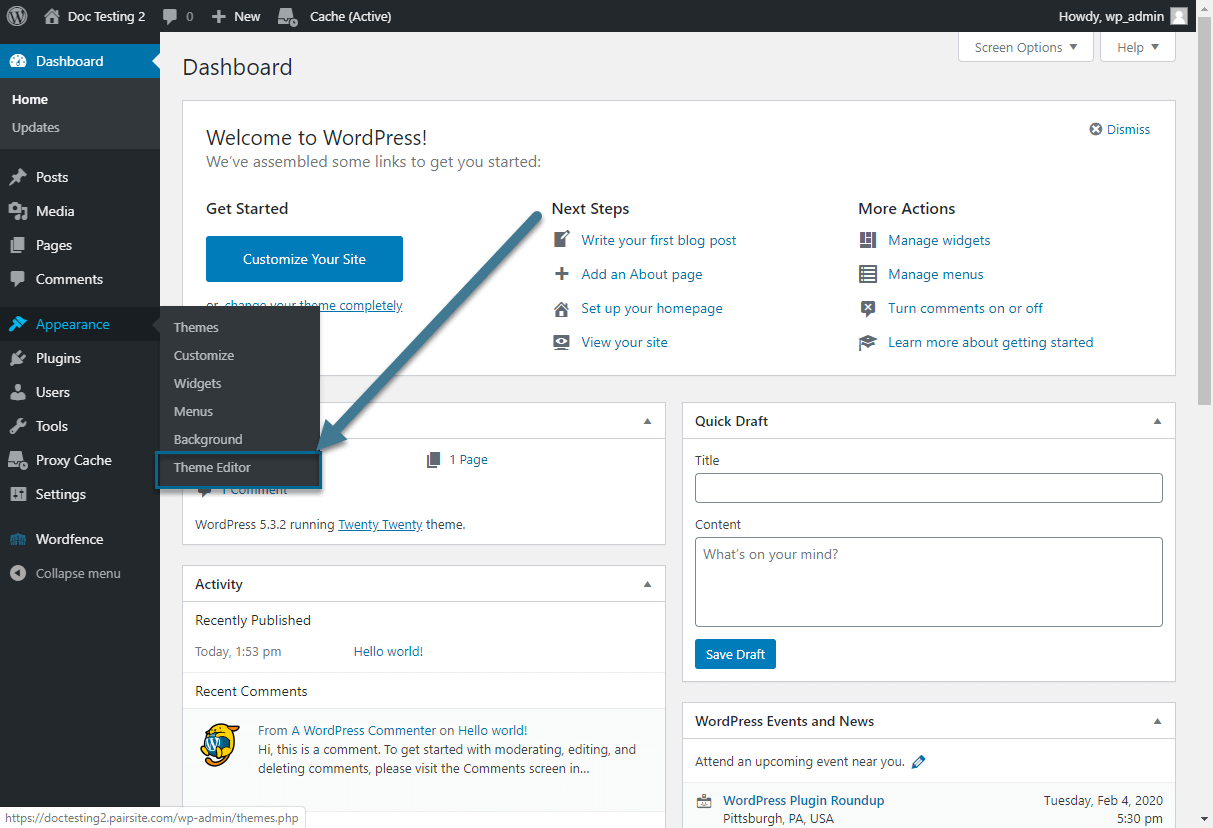
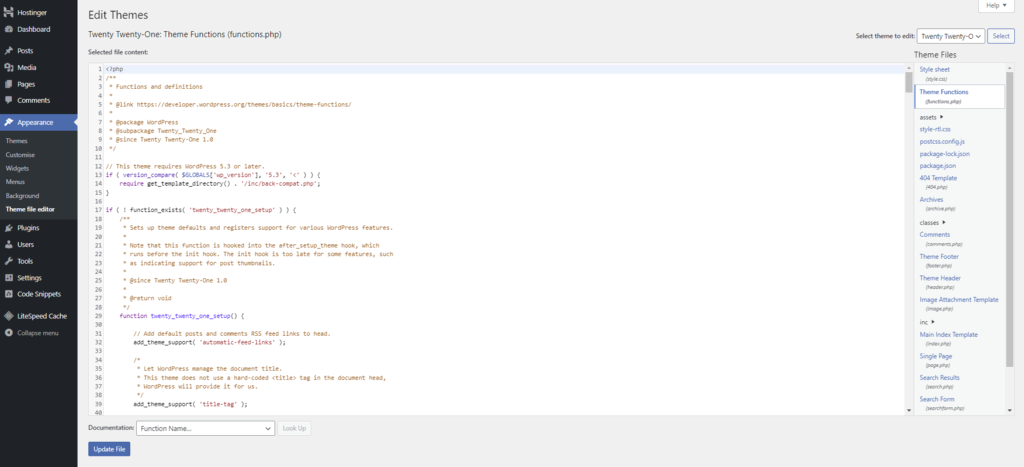
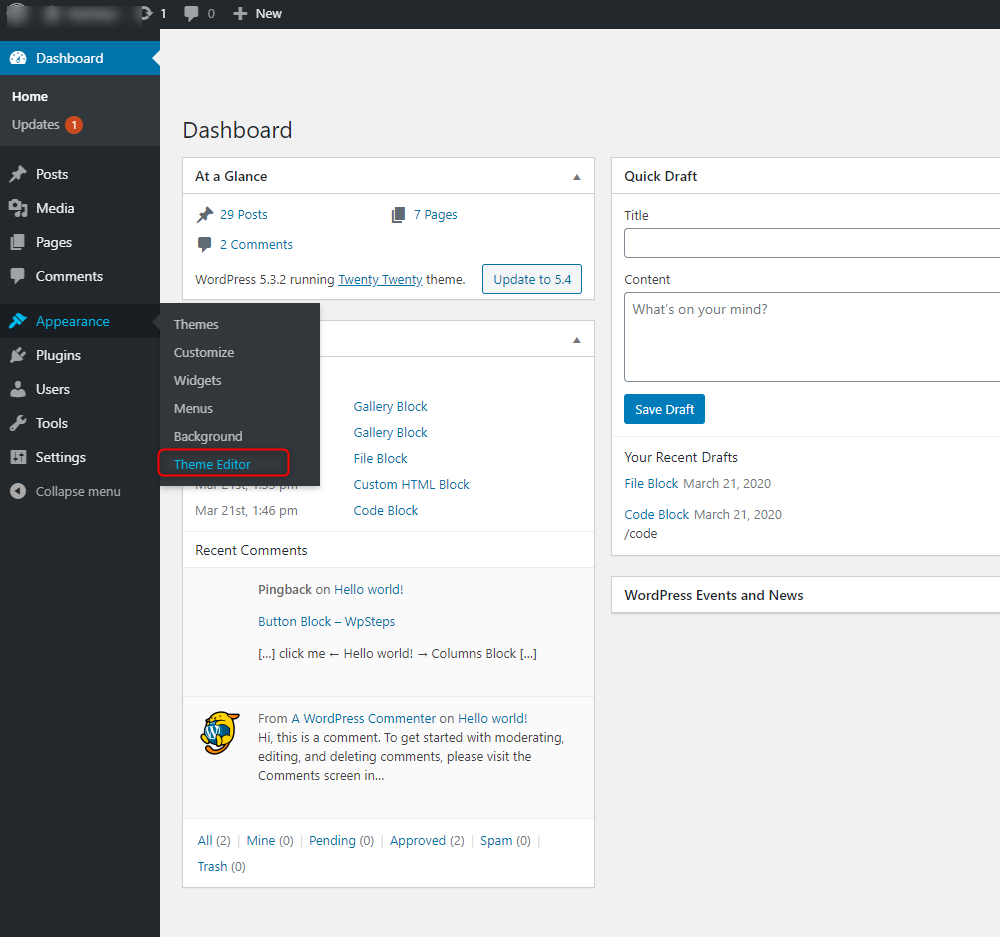
After uploading, go back to your WordPress dashboard. Navigate to the Appearance section. Click on “Theme Editor”. Here, you can see all your theme’s files. Check if your new PHP file is listed. If yes, the upload was successful. If not, check the file name and location again. Ensure there are no typos. Refresh the page to see any changes.
Integrating Php File In Theme
PHP files can be added to WordPress themes easily. Use require or include to add them. Both are simple commands. They help you add code from one file to another. This way, your theme gets new features. The require command stops running if it cannot find the file. The include command keeps running even if the file is missing. Choose wisely. This choice depends on your needs.
Template files make WordPress themes flexible. To add PHP files, find the right spot. Place your require or include command there. This adds new PHP code easily. Always check if the new code works well. Test each change to avoid errors. Your site needs to be smooth. Remember, small mistakes can cause big problems.
Credit: www.hostinger.com
Testing The Php File
Adding a new PHP file to your WordPress theme enhances functionality. Start by accessing your theme directory through FTP. Place the PHP file in the appropriate theme folder, then modify your theme’s functions. php file to include the new file.
This process integrates your PHP file seamlessly into the WordPress ecosystem.
Checking For Errors
Open the WordPress admin panel and go to the theme editor. Look for the new PHP file you added. Click to open it and check for any syntax errors. A red line might appear under the error. Fix the error by checking the code carefully. Save changes after corrections. Refresh the page to see if the error is gone.
Ensuring Functionality
Check if the new PHP file is working. Visit the part of the website where the PHP file should work. Test the features or functions the PHP file adds. Ensure everything works as planned. If something is wrong, go back to the code. Look for mistakes or missing pieces. Fix them and save the file. Test again until everything works well.
Troubleshooting Common Issues
Adding a new PHP file to your WordPress theme can sometimes be tricky. Start by accessing your theme directory via FTP or WordPress dashboard. Ensure the file is correctly linked in functions. php to avoid errors.
Syntax Errors
Syntax errors can stop your site. Double-check your code. Look for missing semicolons or brackets. They can cause problems. Always preview your changes. Make small edits first. Then test them. This helps catch mistakes early. Use a code editor. It can highlight errors. This makes fixing easier.
File Path Problems
File path issues are common. Check the location of your files. Ensure they are in the right folder. Use the correct path in your code. Paths tell the system where to find files. Wrong paths lead to errors. Absolute paths start from the root. Relative paths start from your current folder. Verify your paths in the code. This avoids confusion and errors.
Credit: wpfactory.com
Best Practices
Always keep your code neat and tidy. Use comments to explain what your code does. This helps anyone reading it. Organize your PHP files in folders. Name them clearly. This makes it easy to find things later. Avoid clutter by removing unused files. This keeps your theme clean and fast.
Back up your files often. This is very important. Things can break easily. A backup saves your hard work. You can use plugins to help with backups. They do it automatically. Store backups in a safe place. Cloud storage is a good option. You can access it from anywhere. Always check your backups work. Restore from them to test.
Frequently Asked Questions
How Do I Add A Php File To My Theme?
To add a PHP file, access your WordPress theme folder via FTP or the File Manager. Upload your PHP file to the theme directory. Ensure the file is properly named and coded. Finally, include the file using `include` or `require` in the relevant theme files.
Can I Create A Custom Php File In WordPress?
Yes, you can create custom PHP files. Start by creating a new PHP file in your theme folder. Write your custom code within the file. Use `include` or `require` in your theme’s functions. php to integrate the code.
Where Should Php Files Be Stored In WordPress Themes?
Store PHP files in your theme’s root directory or in a subfolder for better organization. Ensure they’re included in the theme’s functions. php or relevant template files. This keeps your code accessible and maintains organized structure.
What Precautions Should I Take When Adding Php Files?
Ensure your PHP code is secure and error-free. Avoid using complex code unless necessary. Test your code in a staging environment before deploying it live. Regularly update and backup your WordPress site to prevent issues.
Conclusion
Adding a new PHP file to your WordPress theme is simple. Follow the steps carefully to ensure smooth integration. First, create your PHP file with the necessary code. Then, upload it to your theme’s directory via FTP. Don’t forget to include the PHP file in the functions.
php file. This way, WordPress recognizes it. Test your site to make sure everything works. With these steps, you can enhance your theme easily. Enjoy customizing your WordPress site with new features. Remember, practice makes perfect. Keep exploring and learning.
Your site will benefit from each improvement.


