
Are you ready to share your ideas, stories, or expertise with the world? Adding a new blog in WordPress is easier than you might think, even if you’re just starting out.
Imagine having your own space online where your voice reaches thousands, or even millions. This guide will walk you through each step clearly and simply, so you can create your new blog quickly and confidently. By the end, you’ll have everything you need to start attracting readers and building your online presence.
Let’s dive in and get your WordPress blog up and running!
Credit: shortiedesigns.com
Setting Up WordPress
Setting up WordPress is the first step to creating your blog. It involves choosing the right hosting, installing WordPress, and getting access to your dashboard. This process is simple and quick. Follow these steps to start your blog with ease.
Choosing A Hosting Provider
Your hosting provider stores your website files on the internet. Pick a hosting service with good speed and uptime. Look for affordable plans that offer easy WordPress installation. Some popular hosts include Bluehost, SiteGround, and HostGator. A reliable host keeps your blog online and fast for visitors.
Installing WordPress
Most hosting providers offer one-click WordPress installation. Log in to your hosting account and find the WordPress installer. Click the install button and fill in your site name and admin details. The system sets up WordPress automatically in minutes. You do not need technical skills to complete this step.
Accessing The Dashboard
The WordPress dashboard is your blog’s control center. Visit yoursite.com/wp-admin to log in. Use the username and password you created during installation. The dashboard lets you write posts, change themes, and manage settings. Spend some time exploring the dashboard before adding your first blog post.
Credit: zipwp.com
Creating A New Blog Post
Creating a new blog post in WordPress is simple and fast. This process lets you share your ideas with readers easily. You need to know the right steps to start writing and publishing your content. Follow these steps to make your first blog post.
Navigating To Posts Section
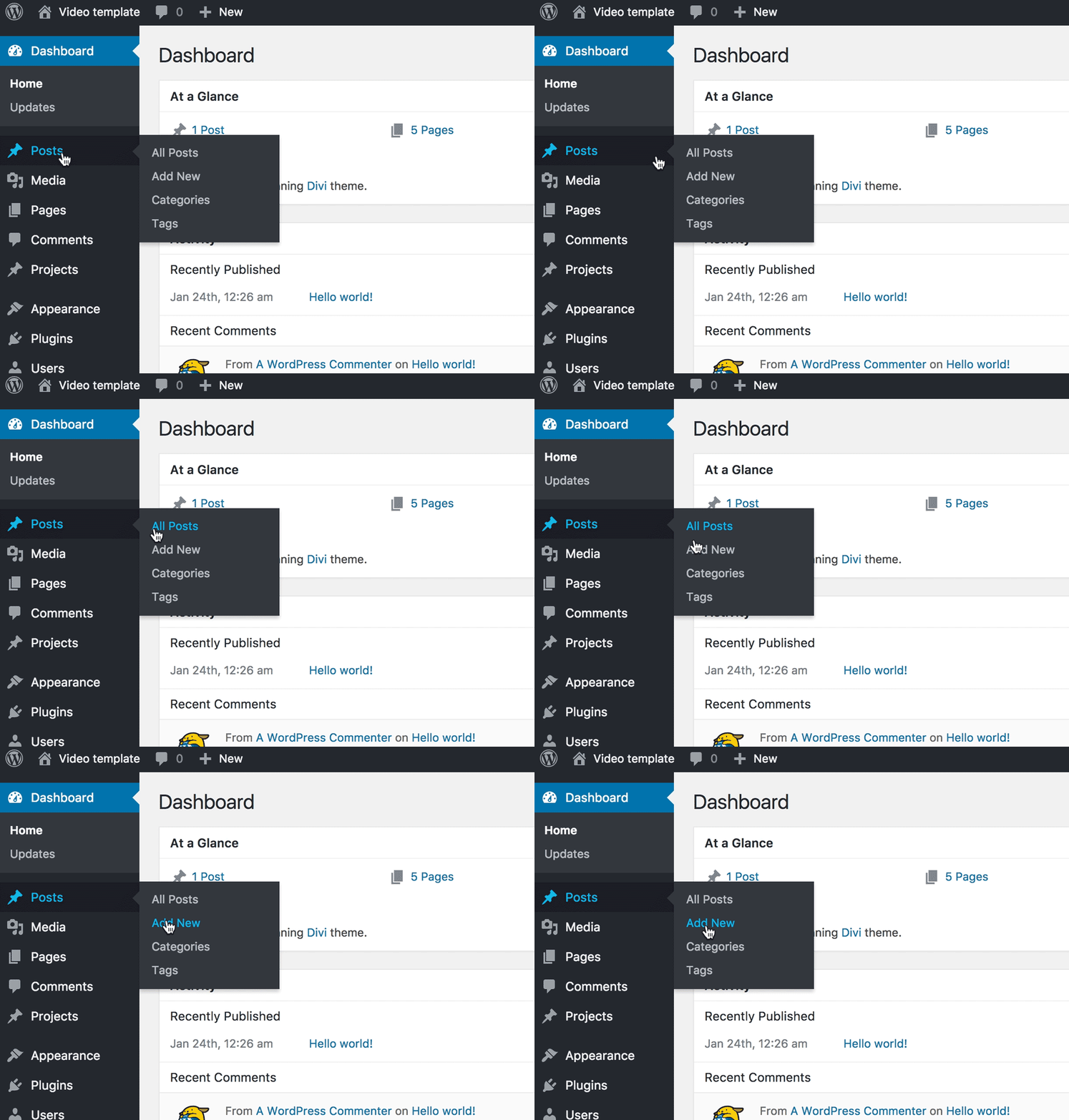
First, log in to your WordPress dashboard. On the left menu, find the “Posts” option. Click on it to see all your blog posts. This section shows a list of your current posts. It also lets you manage and add new posts.
Adding A New Post
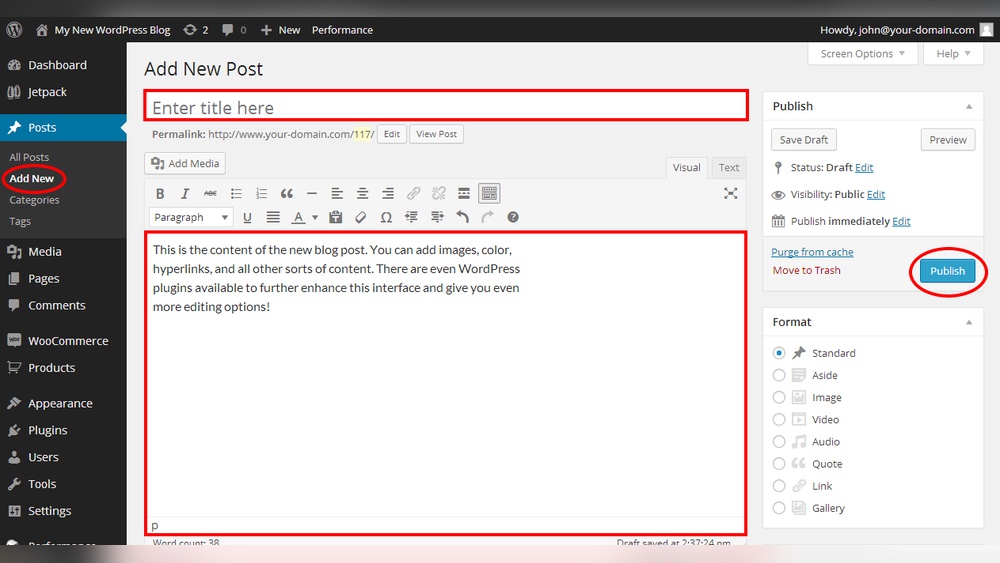
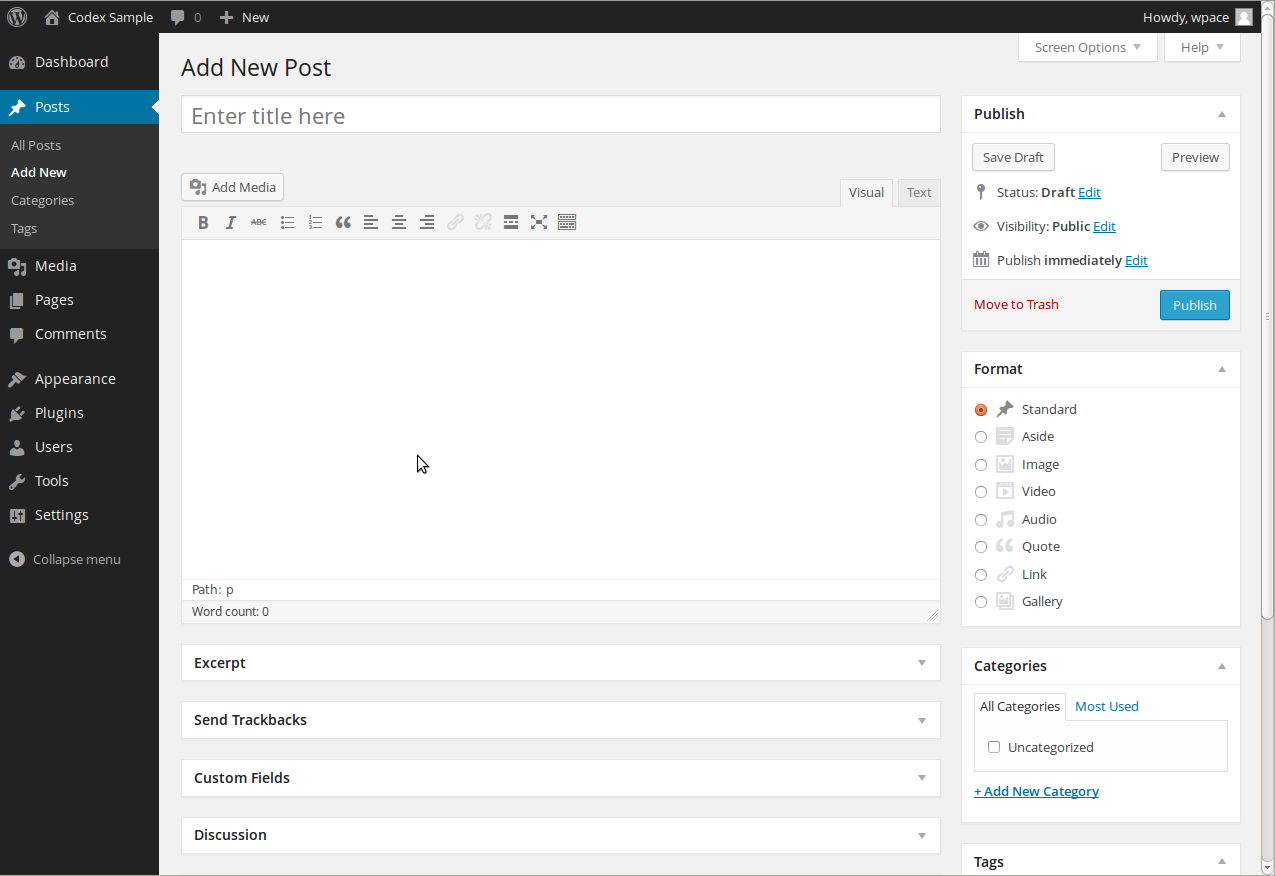
To add a new blog post, click the “Add New” button at the top of the Posts page. This opens a blank post editor. Here, you can start typing your blog title and content. You can save your work anytime as a draft or publish it immediately.
Using The Gutenberg Editor
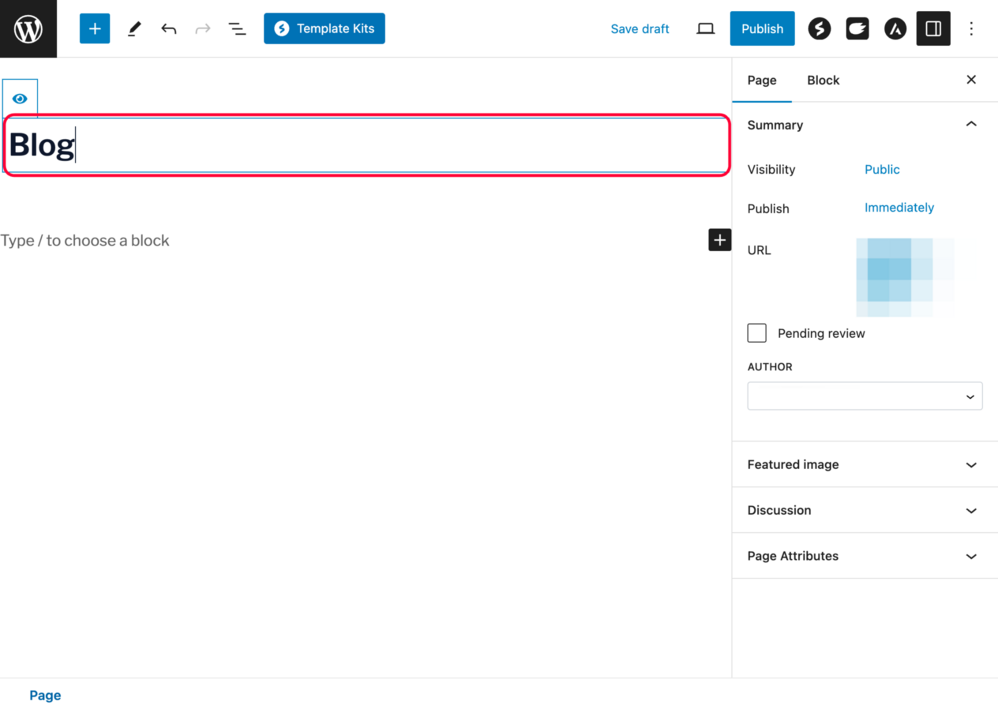
The Gutenberg editor uses blocks to build your post. Each paragraph, image, or heading is a separate block. This makes it easy to move and format content. Click the “+” button to add new blocks like text, images, or videos. Use the toolbar above each block to change font size or style. This editor helps create clean and organized posts without coding.
Writing Your Blog Content
Writing your blog content is a key step in creating a successful WordPress post. Clear and engaging content keeps readers interested. It also helps your blog rank better in search engines. Below are some simple ways to write and organize your blog content effectively.
Adding Text And Images
Start by typing your main text in the WordPress editor. Keep sentences short and clear. Use simple words to explain your ideas. Add images to support your text and make the post attractive. Use the “Add Media” button to upload pictures. Choose images that match your topic. Images break up the text and keep readers focused.
Formatting Your Post
Use headings and subheadings to organize your content. This makes it easier to read and scan. Apply bold or italics to highlight important points. Add bullet points or numbered lists to show steps or ideas clearly. Keep paragraphs short to avoid large blocks of text. Proper formatting improves the reader’s experience and SEO.
Using Categories And Tags
Assign categories to group your posts by topic. Categories help readers find similar content on your blog. Use tags to add specific keywords related to your post. Tags improve search visibility inside your site. Limit categories to a few main topics. Use tags for detailed topics to keep your blog organized.
Credit: wordpress.org
Optimizing Your Blog Post
Optimizing your blog post helps it reach more readers. It improves how your post appears in search engines. A well-optimized post attracts more visitors and keeps them engaged. Simple steps can make a big difference in your blog’s success.
Setting A Featured Image
A featured image represents your blog post visually. It appears on your homepage and social media. Choose a clear, relevant image that matches your topic. Use images with good resolution but keep file size small. This helps your site load faster.
Writing Seo-friendly Titles
The title is the first thing readers see. Make it clear and interesting. Use important keywords near the start of the title. Keep the title under 60 characters for better search results. Avoid using complicated words or long phrases.
Adding Meta Descriptions
Meta descriptions summarize your blog post for search engines. Write a short, clear description under 160 characters. Include main keywords naturally. This description appears under the title in search results. It encourages people to click on your post.
Publishing Your Blog
Publishing your blog is the final step after writing your post. This step shares your content with readers. It lets your audience see your ideas and thoughts. WordPress offers simple tools to publish and control your blog posts. Understanding these options helps you publish confidently.
Previewing The Post
Previewing lets you see how your post looks before publishing. It shows your layout, images, and text as readers will see them. Click the “Preview” button in the editor to open a new tab. Check for any mistakes or formatting problems. Make sure everything looks clear and neat. Preview helps catch errors early.
Scheduling Vs. Immediate Publishing
WordPress lets you publish posts right away or schedule them. Immediate publishing makes your post live instantly. Scheduling sets a future date and time for the post to appear. Scheduling is useful for planning posts ahead. It keeps your blog active without manual work. Choose the option that fits your posting plan.
Managing Post Visibility
You can control who sees your blog post in WordPress. Posts can be public, private, or password-protected. Public posts are visible to everyone. Private posts show only to site admins and editors. Password-protected posts require a password to read. Set visibility in the “Publish” panel before publishing. This keeps your content secure and targeted.
Managing And Updating Blogs
Managing and updating blogs is an important part of maintaining a WordPress site. It helps keep content fresh and relevant for readers. Regular updates improve user experience and boost search engine rankings.
WordPress offers simple tools to edit, delete, and organize posts. These tools help keep your blog tidy and easy to navigate. Proper management saves time and keeps your audience engaged.
Editing Published Posts
Editing published posts is easy in WordPress. Go to the Dashboard and click on “Posts.” Find the post you want to edit and click “Edit.” Change the content as needed. You can update text, images, or links. After editing, click “Update” to save changes. This keeps your blog accurate and up-to-date.
Deleting Or Archiving Posts
Deleting old or unwanted posts helps keep your blog clean. To delete, go to “Posts” and select the post. Click “Trash” to remove it. If you want to keep the post but hide it, use the “Draft” or “Private” option. Archiving posts keeps content accessible but out of the main blog flow. This improves user experience.
Organizing Posts For Better Navigation
Organizing posts makes it easy for readers to find content. Use categories and tags to group similar posts. Assign each post to relevant categories. Add descriptive tags for better searchability. Create menus or widgets to display categories. A well-organized blog helps visitors browse topics quickly. This encourages longer visits and repeat readers.
Frequently Asked Questions
How Do I Create A New Blog Post In WordPress?
To create a new blog post, log in to your WordPress dashboard. Click “Posts” then “Add New. ” Enter your title and content, then click “Publish” to make it live.
Can I Add Images To My WordPress Blog Post?
Yes, you can easily add images by clicking the “Add Media” button while editing your post. Upload or select images from your media library and insert them.
How Do I Optimize Blog Posts For Seo In WordPress?
Use SEO plugins like Yoast. Add focus keywords, meta descriptions, and alt text for images. Write clear, concise content with relevant headings.
What Categories Should I Use For My WordPress Blog?
Choose categories that reflect your blog topics. Use broad, relevant terms to organize posts and help readers find content easily.
Conclusion
Adding a new blog in WordPress is simple and fast. You just create a post, add your content, and publish it. This helps share your ideas with the world easily. Regular blogging also improves your website’s visibility on search engines.
Keep your posts clear and interesting. Try to add images or links to make them better. Practice will make you more confident. Start writing today and watch your blog grow step by step.



