
Are you looking to enhance your WordPress site with a sleek, user-friendly megamenu? Adding a megamenu not only elevates your website’s design but also dramatically improves navigation, ensuring your visitors find what they need quickly and effortlessly.
Imagine guiding your users seamlessly through your content with an intuitive menu that showcases everything your site has to offer. In this guide, we’ll walk you through the simple steps to integrate a megamenu into your WordPress theme. Get ready to transform your site and boost your user engagement.
Let’s dive in and make your website more dynamic and interactive!

Credit: themes.zone
Choosing The Right Megamenu Plugin
Picking the best megamenu plugin is important for your site. Some plugins offer easy drag-and-drop features. This makes them simple to use. Others provide many design options. They help make your menu look nice.
Check if the plugin is compatible with your theme. Compatibility ensures smooth functioning. Look for good reviews and ratings. This means many people trust the plugin.
Consider the plugin’s support and updates. Support helps solve problems. Updates keep it secure and fresh. Choose a plugin with a simple user interface. This will make it easy to set up.
Installing The Megamenu Plugin
First, open your WordPress dashboard. Find the Plugins section. Click on Add New to start. Type “Megamenu” in the search box. Look for the right plugin. Click Install Now next to it. After installation, press Activate. Now, the Megamenu plugin is active.
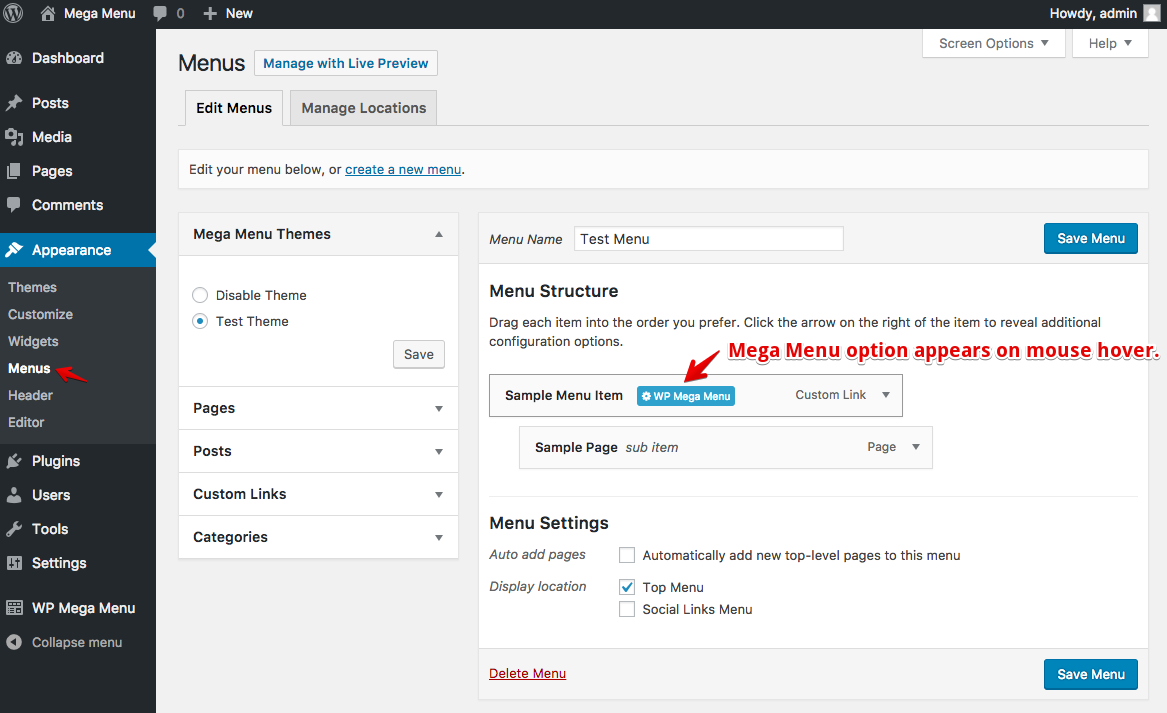
Once active, go to Appearance in the menu. Click on Menus. You will see a new option for Megamenu. Enable it for your menu. Drag and drop items to arrange them. Customize the menu style as needed. Save your changes.
Check your website for changes. The menu should look different now. Make sure everything works. If not, review the settings. Adjust them until satisfied. A well-set menu improves navigation.
Configuring Megamenu Settings
First, log into your WordPress dashboard. On the left side, find Appearance. Click on it. Next, select Menus. Here, look for the Megamenu tab. Click to access its settings. You will see many options. These options help you set up your menu. Choose settings that suit your site. Remember to save changes.
Begin by selecting a menu item. Click on the Megamenu button next to it. A new screen will appear. Here, you can choose the layout style. Options include columns, rows, and grids. Choose what fits best. You can also add images or widgets. Make sure to preview changes. It helps you see how it looks. Always click save when done.
Creating A Megamenu Structure
First, go to your WordPress dashboard. Find the Menu section. Click on it. Now, you can add new items. Choose pages or categories you want. Drag them to the menu. Make sure to save your changes. This adds the items to your menu.
Arrange your menu items in a neat way. Drag items to form a hierarchy. Place main items at the top. Sub-items should be slightly right. This shows they are related. Always click save after organizing. This keeps your changes safe.
Styling The Megamenu
Integrating a megamenu into a WordPress theme enhances navigation. Users can easily access various sections of the site. Styling options allow customization to match your brand’s look and feel.
Choosing Colors And Fonts
Pick colors that match your theme. Make sure they are easy to see. Use bright colors for important links. Choose fonts that are clear and simple. Arial and Verdana are good choices. Avoid fancy fonts that are hard to read. Test colors and fonts on different devices. They should look good everywhere.
Adding Custom Css
Custom CSS makes your megamenu look unique. First, open your theme’s CSS file. Add styles to change colors and fonts. Use CSS to make links bold or italic. You can change the background color too. Make sure your CSS is clean and easy to read. Check changes on your site. Ensure it looks nice and works well. A little CSS can make a big difference.
Integrating Megamenu Into WordPress Theme
Find the menu in your WordPress theme. Go to the dashboard. Click on Appearance and then Menus. There, you see all menu locations. Identify the spot where you want the megamenu. This spot often labeled as primary menu or header menu. Make sure to pick the right one for a better view.
Next, assign the megamenu to the chosen location. In the menu settings, find the option for megamenu. If the option is missing, the theme may not support it. You might need a plugin. Once found, select it. Save changes to see the megamenu in action.
Testing The Megamenu
Discover how to effortlessly add navigation with a megamenu to your WordPress theme. Enhance user experience by organizing content through intuitive dropdowns. Simplify navigation and improve website aesthetics with this practical approach.
Checking Responsiveness
Test the megamenu on different devices. Try it on phones, tablets, and computers. Check if the menu looks good on all screens. Make sure the items are easy to read. Resize your browser window. See if the menu adjusts well. Fix any issues right away. Use tools to test responsiveness. Ensure your menu works perfectly everywhere.
Ensuring Browser Compatibility
Browsers display websites differently. Test your megamenu on Chrome, Firefox, and Safari. Check for any display problems. Make sure buttons and links work. Use browser developer tools. Look for errors in the console. Correct any issues you find. Keep your menu functional. Update any code for better compatibility.
Troubleshooting Common Issues
Easily add navigation with a megamenu to your WordPress theme by troubleshooting common issues. Solve problems like broken links, incorrect menu display, and unresponsive design. Enhance user experience with clear and functional navigation.
Resolving Plugin Conflicts
Plugins can cause conflicts with your megamenu. Disable all plugins first. Turn them on one by one. See which one causes the problem. Once found, replace or update it. Choose plugins that work well together. Always check plugin reviews before installing. This will help avoid conflicts in the future.
Fixing Display Errors
Megamenu may not show correctly. Check your theme’s CSS settings. Sometimes styles clash. Adjust the CSS to fix the look. Test your site on different browsers. Each browser may show it differently. Clear your browser cache often. This can solve many display issues. If problems persist, ask your theme support for help.
Enhancing Megamenu Functionality
Adding navigation with a megamenu to a WordPress theme enhances user experience. Megamenus organize links into columns, making them easy to explore. Customize your site’s menu layout using plugins or theme settings for improved accessibility.
Incorporating Icons And Images
Icons and images make menus pretty. They help users find things fast. Use simple icons that show meaning. Pictures should be clear. Keep them small for speed. Big images slow websites. Think about colors and style. Match them with your theme. Users like clean and neat designs. Adding icons is easy in WordPress. Use plugins like “Menu Image”. Add images by uploading them. Choose the right spot for each icon. This makes the menu nice and useful.
Adding Interactive Elements
Interactive elements make menus fun. Users stay longer on your site. Use hover effects for buttons. It shows more choices. Use dropdowns for extra info. They save space. Make sure they work on phones too. Test them before going live. Use plugins like “WP Responsive Menu”. They help with mobile menus. Add animations for a lively feel. Keep them simple to avoid confusion. Users like menus that work well. Interactive menus improve user experience.
Credit: docs.themeum.com
Credit: wisdmlabs.com
Frequently Asked Questions
What Is A Megamenu In WordPress?
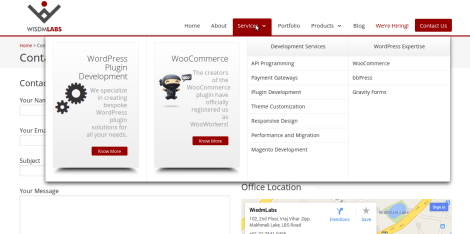
A megamenu is a large dropdown menu that organizes content in columns. It’s used for sites with many pages or categories. Megamenus enhance navigation by displaying more links at once. They improve user experience, making it easier to find content quickly on WordPress websites.
How Do I Add A Megamenu To My Theme?
To add a megamenu, use a WordPress plugin like Max Mega Menu. Install and activate the plugin. Configure the settings to customize the menu layout. Drag and drop items into the menu builder. Save your changes. Your theme now has a fully functional megamenu.
Can A Megamenu Improve Site Navigation?
Yes, a megamenu can significantly improve site navigation. It organizes links into categories, making content easy to find. Users access multiple pages with fewer clicks. This enhances user experience and reduces bounce rates. Megamenus are especially beneficial for sites with extensive content.
Are Megamenus Mobile-friendly?
Modern megamenus are designed to be mobile-friendly. They adapt to different screen sizes, ensuring a seamless user experience. Responsive designs allow easy navigation on smartphones and tablets. Always test your megamenu on various devices to ensure compatibility and functionality.
Conclusion
Adding a megamenu to your WordPress theme boosts user experience. Visitors find what they need quickly. This leads to more engagement on your site. Organize your content well. Make navigation simple and clear. Use tools like plugins to ease the process.
Test your menu regularly. Ensure it works on all devices. A well-structured megamenu improves site performance. It keeps users happy and returning. This enhances your site’s value. Invest time in creating an effective menu. Your effort pays off with a better user experience.


