
Have you ever wished your WordPress site could look just as stylish as the designs you admire? You’re not alone.
Adding a unique font like Myriad Pro can elevate your website’s appearance, making it not only more attractive but also more memorable to your visitors. Fonts are a subtle yet powerful tool in web design that can capture attention and evoke emotions.
If you’re eager to stand out and make a lasting impression, this guide is your ticket to transforming your WordPress theme with the elegance of Myriad Pro. Keep reading to discover how simple tweaks can bring a professional touch to your digital space. Your website deserves to shine—let’s make that happen together!
Choosing Myriad Pro Font
Myriad Pro offers many font variants. These include Regular, Bold, and Italic. Each variant adds a unique touch to your website. Regular is simple and clean. Bold gives emphasis. Italic adds flair and style. Choose based on your design needs. A mix of variants can create visual interest. It’s important to maintain consistency across your site.
Using Myriad Pro requires a proper license. Adobe offers licensing options. Check their terms and conditions. Licensing ensures legal use. It supports font creators too. Always read the license agreement carefully. It helps avoid any issues. You may need to purchase a license. This depends on your website’s use. Commercial websites often require a license.
Preparing Font Files
Easily add Myriad Pro to a WordPress theme by preparing font files first. Convert Myriad Pro to web-friendly formats like WOFF or TTF. Upload these files to your theme’s directory and use CSS to apply the font across your site.
Downloading Myriad Pro
Myriad Pro is a popular font. You can buy it from Adobe or other font sites. After purchasing, download the font files to your computer. You will get files like .ttf or .otf. These files are important for the next steps. Keep them safe and ready to use.
Converting To Web Formats
Fonts need special formats for websites. Common formats are .woff and .woff2. Use tools like Font Squirrel or online converters. Upload your .ttf or .otf files. Choose the web format you need. Download the converted files. Now, your font is ready for your WordPress site. Always check the converted files. Make sure they work well with your theme.
Uploading Font To WordPress
The Theme Editor is a simple tool. It lets you upload fonts directly. First, go to the WordPress dashboard. Click on Appearance, then select Theme Editor. Locate the style.css file. Add the font’s CSS rule here. Make sure to save changes. Myriad Pro will now be a part of your theme.
An FTP Client can help upload fonts. Download and install an FTP Client like FileZilla. Connect to your WordPress site. Go to the wp-content folder. Then, find the themes folder. Inside, look for your theme’s folder. Create a new folder named fonts. Upload the Myriad Pro font files here. This makes the font available for use.
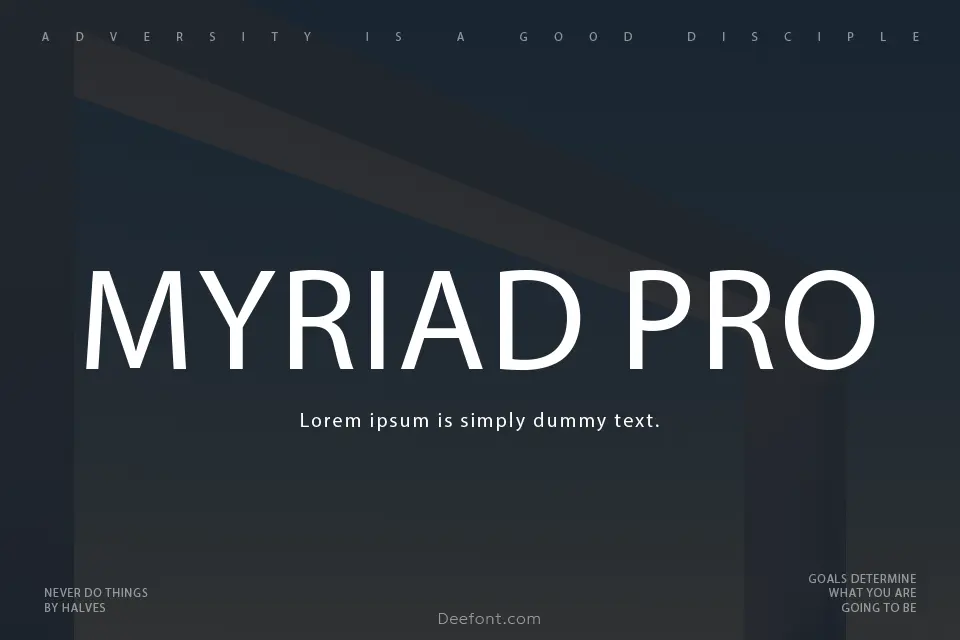
Credit: www.deefont.com
Integrating Font With Css
Adding Myriad Pro to a WordPress theme involves integrating the font via CSS. First, download the font files and upload them to your theme folder. Then, include the font in your CSS file using the @font-face rule to apply Myriad Pro across your site.
Modifying Theme Stylesheet
To add the Myriad Pro font, find the stylesheet file. This file is usually named style.css. Open it with a code editor. Add the font link to the top of the file. You can use a service like Adobe Fonts. Copy the provided link. Paste it before any CSS rules. This makes sure the font is loaded first.
Adding Custom Css
To apply Myriad Pro, write a CSS rule. Target the elements you want. Use a simple rule like font-family: 'Myriad Pro', sans-serif;. This tells the browser to use the new font. Add this rule to your stylesheet. Save the changes. Check your site. The new font should appear.
Applying Font To Elements
Use CSS to target elements for font styling. Add Myriad Pro to headings and paragraphs. Use classes and IDs for exact targeting. Example: h1, p { font-family: 'Myriad Pro', sans-serif; }. Make sure elements are styled separately.
Check font support across browsers. Include a fallback sans-serif font. Example: font-family: 'Myriad Pro', Arial, sans-serif;. Test on Chrome, Firefox, and Safari. Ensure consistent look everywhere. Use tools to test browser compatibility.

Credit: wpmanageninja.com
Testing Font Integration
Check how the Myriad Pro font looks on all devices. Use a computer, tablet, and phone. Make sure the font is clear and easy to read. Fonts may change size on different screens. Adjust the size for each device. Test on both iOS and Android systems. This helps in finding any display issues. Always preview using different web browsers.
Adding new fonts can slow your site. Test the site’s speed after adding Myriad Pro. Use online tools to check loading times. Aim for fast loading pages. Slow pages can upset visitors. Remove unused fonts to boost speed. Keep the site smooth and quick. It’s important for a good user experience.
Troubleshooting Common Issues
Adding Myriad Pro to a WordPress theme can often lead to issues. Ensure font files are uploaded correctly. Verify CSS code for proper font-family declarations.
Resolving Font Loading Errors
Fonts might not load due to different reasons. Check the font path in your theme. It should be correct. Make sure the file permissions allow access. Also, see if caching is causing the issue. Clear the cache and try again. Using a child theme can sometimes help. It ensures your changes are safe during updates. Consider checking the browser console for errors. It often shows what’s wrong. Web fonts might need specific permissions. Double-check your font settings. Ensure that HTTP requests for fonts aren’t blocked. A good check can solve many problems.
Fixing Display Anomalies
Sometimes, fonts look different than expected. CSS conflicts could be the reason. Check if any styles override your font settings. Ensure your font-weight and font-style are correct. Inspect the line-height and letter-spacing in your stylesheet. They affect how text appears. Browsers might render fonts differently. Test your site on multiple browsers. Responsive design settings may also affect display. Make sure your media queries are correct. Adjust them if needed. A small CSS tweak can often fix these anomalies.

Credit: www.malcare.com
Frequently Asked Questions
How Can I Use Myriad Pro In WordPress?
To use Myriad Pro in WordPress, first obtain the font files. Upload them to your theme’s directory or use a plugin. Update the CSS to apply Myriad Pro to desired elements. Ensure browser compatibility by including various font formats like WOFF, TTF, and EOT.
Is Myriad Pro Free For WordPress Themes?
Myriad Pro is a commercial font, requiring a license for use. Adobe Fonts offers it through subscription plans. Alternatively, purchase a license directly from the font provider. Always ensure proper licensing before integrating Myriad Pro into your WordPress theme.
How To Add Custom Fonts In WordPress?
Add custom fonts by uploading font files to your theme directory. Edit the CSS to use the new font. Alternatively, use a plugin like “Use Any Font” for easy integration. Ensure the font formats are compatible with all browsers for optimal display.
Can I Use Adobe Fonts In WordPress?
Yes, Adobe Fonts can be used in WordPress. Subscribe to Adobe Fonts, select desired fonts, and obtain the embed code. Add the code to your theme’s header file or use a plugin for integration. Ensure proper licensing before use.
Conclusion
Adding Myriad Pro to your WordPress theme is simple. Follow the steps carefully. It enhances your site’s look. Users appreciate good design. Fonts play a big role. Myriad Pro is clean and modern. Makes text easy to read. Customizing fonts can improve user experience.
It helps keep visitors engaged. Your website stands out with unique fonts. Visitors notice when sites look great. Every detail matters. Fonts are more important than you think. Invest time in design. Your efforts pay off. Enjoy the improved aesthetics.
Happy designing!


