
Are you ready to make your WordPress website speak to a wider audience? Adding multiple languages to your site can open doors to new visitors, boost your traffic, and grow your business faster than you imagined.
But how do you do it without getting lost in complicated tech jargon? You’ll discover simple, step-by-step ways to add multi-language support to your WordPress site. By the end, you’ll have the tools to connect with people around the world—without any hassle.
Keep reading, because your website’s global audience is waiting!

Credit: www.youtube.com
Choosing The Right Multilingual Plugin
Choosing the right multilingual plugin is key to a smooth website experience. It helps your site show content in many languages clearly. The right plugin fits your needs and technical skills. It also works well with your WordPress setup. This guide covers popular plugins and compares their features. It also explains the difference between free and premium options. This makes your choice easier and smarter.
Popular Plugin Options
Several plugins help add multiple languages to WordPress. WPML is one of the most used. It supports many languages and is user-friendly. Polylang is another popular choice. It offers good features for free users. TranslatePress lets you translate directly from the front end. Weglot is known for fast automatic translations. Each plugin has unique strengths for different needs.
Plugin Features Comparison
Look for ease of use first. Some plugins have a simple setup process. Others need more technical knowledge. Check if the plugin supports SEO for multilingual sites. Good plugins let you translate posts, pages, menus, and widgets. Automatic translation saves time but may need editing. Manual translation offers better accuracy. Make sure the plugin works well with your theme and other plugins.
Free Vs Premium Plugins
Free plugins give basic translation features. They are great for small sites or beginners. Premium plugins offer more tools and support. They include advanced SEO options and compatibility features. Some premium plugins allow unlimited languages. Free versions may limit the number of languages. Choose premium if your site needs professional quality and faster support. Free plugins are perfect for simple language needs and testing.
Preparing Your Website For Multilingual Content
Preparing your website for multilingual content is a key step in reaching a wider audience. It ensures your site works smoothly and users enjoy a good experience. Planning ahead avoids issues later and makes the process easier.
Start with a clean, updated site. Organize content clearly and set language options. These steps build a strong base for adding new languages.
Backup And Update WordPress
Backing up your site protects your data before big changes. Save all files and the database. Use a trusted backup plugin or your hosting provider’s tools.
Update WordPress to the latest version. Updates fix bugs and improve security. Also update themes and plugins to prevent conflicts.
Organizing Existing Content
Sort your current content by categories or topics. Clear structure helps when translating pages later. Remove outdated or unused content to reduce clutter.
Use consistent naming for pages and posts. This makes managing multiple languages easier. Keep media files organized in folders.
Setting Language Preferences
Choose the default language for your site. This is the main language visitors see first. Set language options in WordPress settings or via plugins.
Decide how users switch languages. Add language switchers in menus or sidebars. Make navigation simple and visible for better user experience.
Installing And Configuring The Plugin
Adding multiple languages to your WordPress site helps reach a wider audience. Plugins make this process simple and fast. Installing and configuring the right plugin is the first step to create a multilingual site.
This section guides you through the plugin setup. Follow each step carefully. Your site will be ready to support many languages soon.
Step-by-step Installation Guide
Log in to your WordPress dashboard. Go to the “Plugins” menu on the left side.
Click “Add New” at the top. Type the plugin name in the search bar.
Find the plugin that suits your needs. Click “Install Now.” Wait for the process to finish.
Click “Activate” to start using the plugin on your site.
Initial Plugin Settings
Open the plugin settings from the dashboard menu. Choose the default language of your site.
Select the language switcher style. This lets visitors choose their language easily.
Configure URL format for different languages. Save the changes before moving on.
Adding New Languages
Go to the plugin’s language section. Click “Add New Language.”
Pick the language you want to add. Set its code and flag if available.
Save the new language. It will appear as an option for your visitors.
Translating Website Content
Translating website content helps reach a wider audience and improve user experience. It involves converting your site’s text into different languages. Doing this well makes visitors feel welcome and understood. Choosing the right translation method is key for quality and ease.
Manual Translation Methods
Manual translation means you or a translator rewrite content in another language. It ensures accuracy and keeps the original message clear. This method works best for important pages like product descriptions or legal texts. It takes more time but gives better control over language and tone.
Using Automatic Translation Tools
Automatic tools translate content quickly using software or plugins. They save time and effort by converting many pages fast. These tools work well for blogs or news sites with frequent updates. The quality may vary, so review translations before publishing. Popular plugins often offer easy setup and management.
Managing Translations Efficiently
Organize translations to keep your site easy to update. Use plugins that support multiple languages and store content separately. This helps avoid confusion and broken links. Set clear workflows for translating new content regularly. Tracking changes ensures all pages stay consistent in every language.
Customizing Language Switchers
Customizing language switchers in WordPress makes your site friendly for all visitors. A well-designed switcher helps users find their language quickly. It adds a professional look and improves site navigation. Focus on placement, design, and usability for the best results.
Placement Options
Choose a visible spot for the language switcher. Common places include the top menu, header, or footer. The top right corner often works well. You can also add it to a sidebar or a floating button. Test different locations to see what fits your site best.
Design And Style Tips
Keep the design simple and clear. Use flags, language names, or both for easy recognition. Match the colors with your site’s theme. Make sure the text is readable on all devices. Avoid clutter to keep the switcher clean and attractive.
Improving User Experience
Make switching languages fast and smooth. Use a dropdown or a toggle for easy access. Show the current language clearly. Ensure the switcher works well on mobile and desktop. Fast loading and clear options help visitors stay longer.
Optimizing For Seo In Multiple Languages
Optimizing your WordPress site for SEO in multiple languages helps reach a wider audience. It improves user experience and increases your site’s visibility in search engines worldwide. Each language version must be easy to find and understand by both users and search engines.
Multilingual Seo Best Practices
Create unique content for every language. Avoid direct machine translations without editing. Use keywords that fit each language and culture. Translate metadata like titles and descriptions. Keep navigation simple for all languages. Use language switchers that are clear and easy to use. Check your site speed for all language versions.
Url Structure For Different Languages
Use separate URLs for each language version. Options include subfolders (example.com/en/), subdomains (en.example.com), or different domains (example.fr). Subfolders often work best for SEO and management. Consistent URL structure helps search engines understand your site. Avoid mixing languages in one URL. Make URLs readable and relevant in each language.
Using Hreflang Tags
Hreflang tags tell search engines which language and region a page targets. They prevent duplicate content issues. Add hreflang tags in the head section of your pages. Each tag should point to the correct language version URL. Use the right language and region codes (like en-US, fr-FR). Test hreflang implementation with tools to ensure accuracy.
Handling Multilingual Media And Widgets
Handling multilingual media and widgets is vital for a smooth user experience on a multilingual WordPress site. Media like images and videos often need translation or localization. Widgets must also support multiple languages to keep your site consistent. This section covers key tips for managing these elements effectively.
Translating Images And Videos
Images and videos should match the language of your content. Use translated captions and alt texts for images. This helps search engines understand your media better. For videos, provide subtitles or transcripts in different languages. Use plugins that support media translation to simplify the process.
Widget Compatibility
Not all widgets work well with multilingual plugins. Choose widgets known for multilingual support. Test widgets on each language version of your site. This avoids broken layouts or missing content. Keep widgets simple and focused to reduce compatibility issues.
Language-specific Widgets
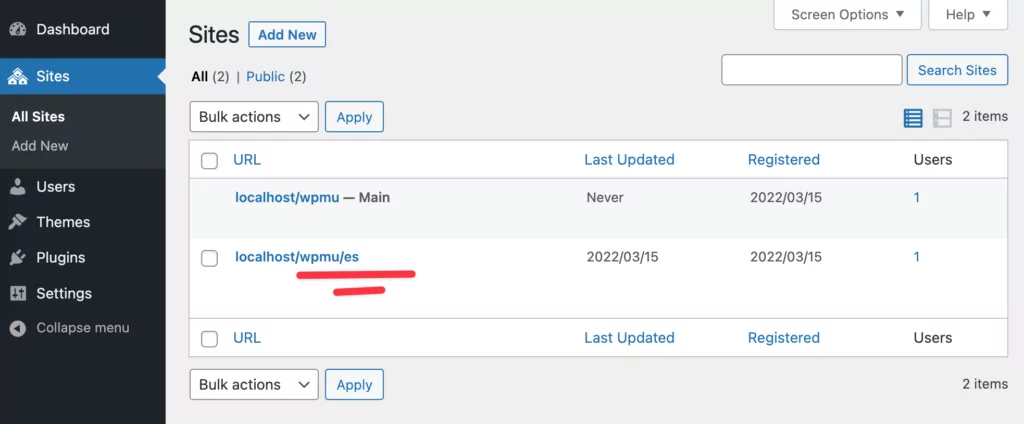
Some widgets display content only in one language. Use language-specific widgets to show relevant information. For example, show local events or contact details by language. Many multilingual plugins allow widget duplication per language. This ensures users see correct content every time.
Credit: translatepress.com
Testing And Troubleshooting
Testing and troubleshooting are crucial steps after adding multiple languages to your WordPress site. They ensure your site works well for all users, regardless of language. Proper testing helps find and fix issues early. This keeps your site professional and user-friendly.
Common Issues And Fixes
Language switchers not working is a frequent problem. Check plugin settings and clear caches. Missing translations often occur. Review your translated content carefully. Sometimes, URL structures cause errors. Make sure your permalink settings support multiple languages. Conflicts between plugins can cause issues. Deactivate other plugins one by one to find the cause.
Cross-browser And Device Testing
Test your site on popular browsers like Chrome, Firefox, and Safari. Each browser may display content differently. Also, check on mobile phones and tablets. Responsive design ensures your site looks good everywhere. Test language switchers on all devices. Confirm that translated content loads correctly on each platform.
Performance Optimization
Adding languages can slow down your website. Optimize images and use caching plugins to improve speed. Limit the number of active plugins to reduce load time. Use a content delivery network (CDN) to serve content faster worldwide. Test your site’s loading speed after changes. Fast websites keep visitors engaged and reduce bounce rates.
Credit: wpzone.co
Frequently Asked Questions
What Is The Easiest Way To Add Multiple Languages In WordPress?
Using plugins like WPML or Polylang is the easiest way. They provide simple interfaces for managing translations. No coding skills are required. These tools help create a multilingual website quickly and efficiently.
Can I Use Free Plugins For WordPress Multilingual Sites?
Yes, free plugins like Polylang and TranslatePress offer solid multilingual support. They allow you to add languages and translate content easily. However, premium versions provide advanced features and better support.
How Do Multilingual Plugins Affect WordPress Seo?
Multilingual plugins create SEO-friendly URLs and metadata for each language. They help search engines index your content correctly. Proper use improves your site’s international search visibility and user experience.
Is Manual Translation Better Than Automatic Translation In WordPress?
Manual translation ensures accuracy and cultural relevance. Automatic translation is faster but less precise. A combination of both can save time while maintaining quality on your multilingual WordPress site.
Conclusion
Adding multiple languages to your WordPress site helps reach more visitors. It makes your content clear and easy for different readers. Choose the right plugin or tool that fits your needs. Keep translations simple and check them often for accuracy.
This small effort can grow your audience and improve user experience. Start today and watch your website connect with people worldwide.


