

Looking to grow your WordPress website but unsure how to add more pages? You’re in the right place.
Adding new pages lets you share more about your business, showcase your work, or provide helpful info to your visitors. It’s simpler than you might think, and once you know the steps, you’ll be able to expand your site exactly how you want.
Keep reading, and you’ll discover easy, clear instructions to add pages that make your site stand out and keep your audience coming back for more.
Setting Up Your WordPress Site
Setting up your WordPress site is the first step to creating a strong online presence. A well-organized site makes it easy for visitors to find what they need. This section covers key steps to prepare your site for adding more pages. Follow these simple tips to get started.
Choosing The Right Theme
Pick a theme that matches your site’s purpose. Themes control the look and feel of your website. Choose one that is clean and easy to navigate. Make sure it works well on phones and tablets. A responsive theme improves user experience and SEO. Avoid themes with too many features that slow down your site.
Configuring Basic Settings
Set up your site title and tagline clearly. These appear in search results and browser tabs. Adjust your site’s URL structure to be simple and readable. This helps search engines understand your pages. Choose the right timezone and language for your audience. Check your site’s visibility settings to allow search engines to find you.
Creating New Pages
Creating new pages on WordPress is simple and essential for building your website. Pages help organize your content and share important information. You can add as many pages as you need to keep your site clear and easy to navigate.
Accessing The Page Editor
Start by logging into your WordPress dashboard. On the left menu, click on “Pages.” Then select “Add New.” This opens the page editor where you will create your new page. The editor has tools to help you write and format content easily.
Adding Titles And Content
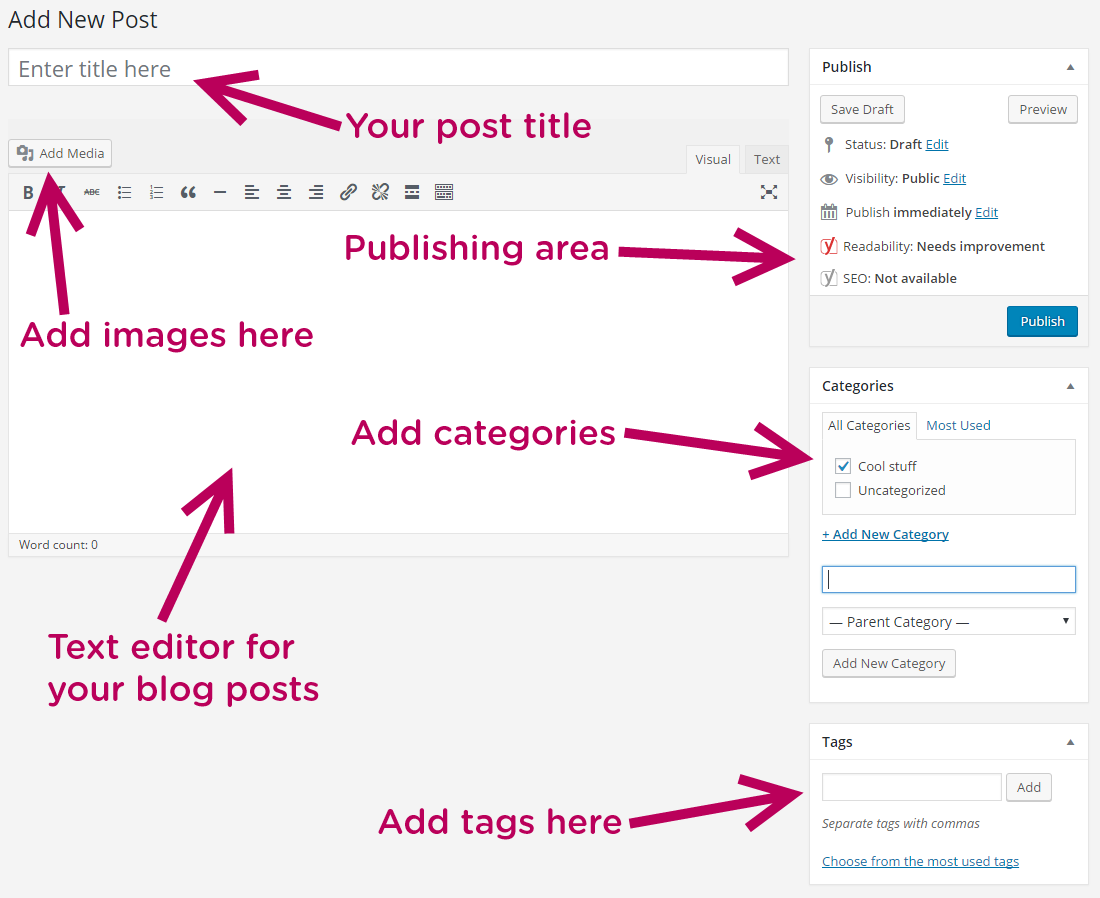
Give your page a clear title. This title shows in menus and search results. Use the large text box below the title to add your content. You can write text, insert images, or embed videos. Use short paragraphs and simple words to keep readers interested.
Using Page Templates
Page templates control how your page looks. Some themes offer different templates like full-width or with sidebars. Choose a template from the “Page Attributes” box on the right side. Picking the right template helps your page match your website style and needs.
Organizing Pages
Organizing pages in WordPress helps visitors find content easily. A well-structured site improves user experience. It also helps search engines understand your site better. Proper page organization keeps your website neat and professional.
Setting Parent And Child Pages
Parent and child pages create a clear hierarchy. Parent pages are main topics. Child pages are subtopics under the parent. This setup groups related content together. It makes navigation simple and logical.
To set a parent page, go to the page editor. Find the “Page Attributes” box on the right. Choose a parent page from the dropdown menu. Save your changes. Your page now belongs under the chosen parent.
Creating Menus For Navigation
Menus guide visitors through your website. They show the structure of your pages. You can create menus in the WordPress dashboard under “Appearance” > “Menus.”
Add pages to the menu by selecting them and clicking “Add to Menu.” Arrange pages by dragging them into order. Place child pages under parents by slightly moving them right. Save the menu and assign it to a location like the header.

Credit: www.youtube.com
Enhancing Page Functionality
Enhancing page functionality makes your WordPress site more useful and attractive. It helps visitors interact better with your content. Adding images, forms, and videos can keep users engaged longer. These elements also improve the overall user experience.
Inserting Images And Media
Adding images brightens your pages and explains ideas quickly. Use the WordPress editor to upload pictures easily. Choose clear, relevant images that match your content. You can also add galleries to show multiple photos.
Other media like audio files can add variety. Upload them the same way as images. Make sure media files load fast to keep visitors happy.
Adding Contact Forms
Contact forms let visitors reach you without leaving the site. Use plugins like Contact Form 7 or WPForms for simple setup. Create fields for name, email, and message. Keep forms short to encourage more submissions.
Forms improve communication and build trust. They also help collect feedback or questions easily.
Embedding Videos And Other Elements
Videos make your pages lively and informative. Embed videos from YouTube or Vimeo using the embed block. Videos can show tutorials, product demos, or stories.
Other elements like maps or social media feeds add value. Use embed codes or plugins to add these features. They make your site interactive and helpful for visitors.
Optimizing Pages For Seo
Optimizing pages for SEO improves your site’s visibility. It helps search engines understand your content clearly. This increases the chances of ranking higher in search results.
Proper optimization draws more visitors to your website. It also enhances the user experience by making pages easier to find and read. Focus on key areas like using SEO plugins, writing meta descriptions, and optimizing URLs.
Using Seo Plugins
SEO plugins simplify the optimization process. They guide you on how to improve your content. Popular plugins include Yoast SEO and All in One SEO. These tools analyze your page and give tips.
They help with keyword placement, readability, and technical settings. Install a plugin to start optimizing your pages right away. It saves time and makes SEO less confusing.
Writing Effective Meta Descriptions
Meta descriptions summarize your page for search engines. They appear under the page title in search results. Write clear and concise descriptions under 160 characters. Include the main keyword naturally.
Good meta descriptions attract users to click your page. Avoid keyword stuffing or vague phrases. Make each description unique to match the page content.
Optimizing Urls
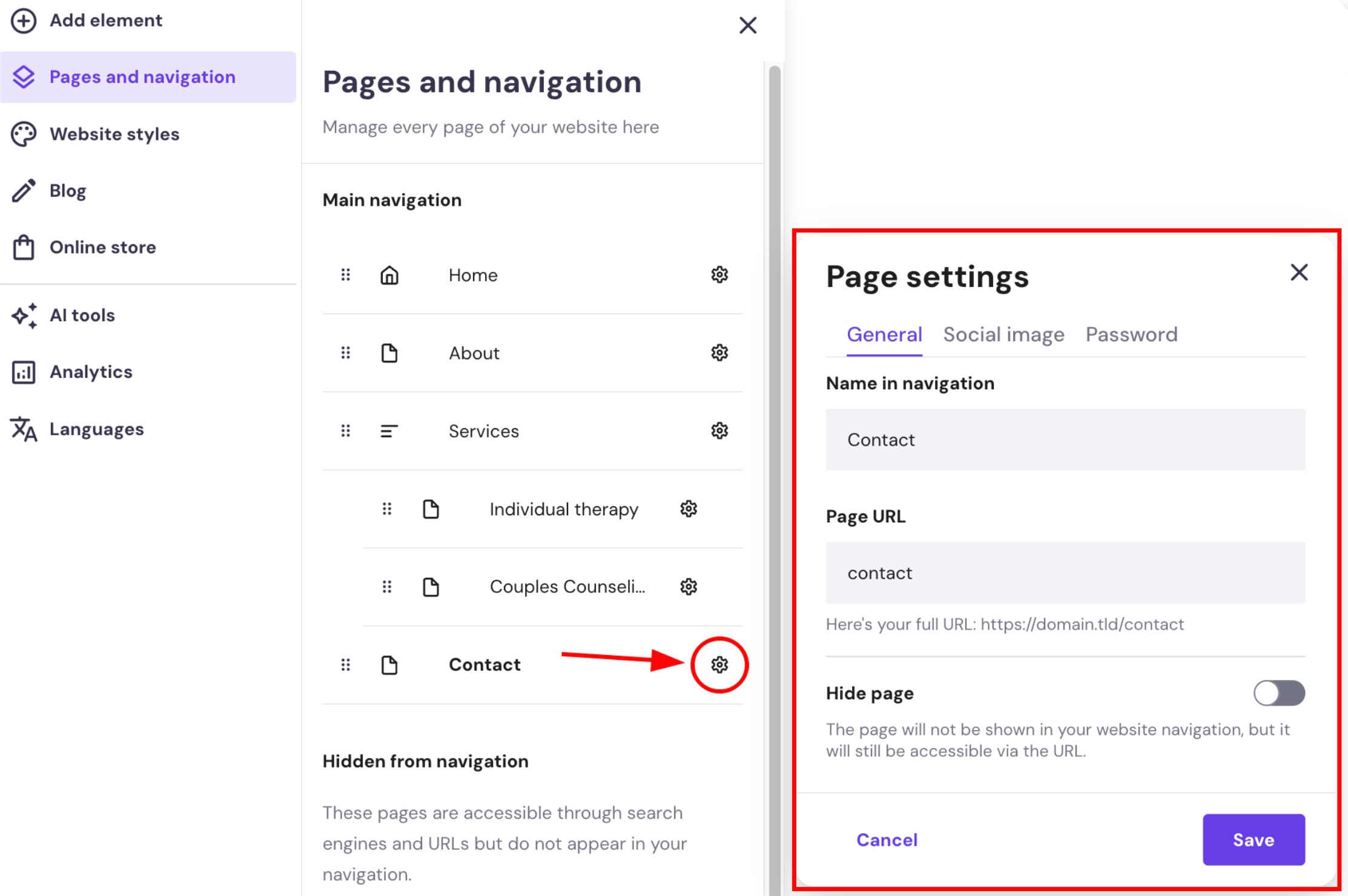
URLs should be simple and easy to read. Use words related to the page topic. Avoid long strings of numbers or random letters. Shorter URLs help users and search engines understand the page.
Use hyphens to separate words in the URL. Keep URLs consistent with your site structure. This improves navigation and SEO performance.
Credit: www.hostinger.com
Managing Page Visibility
Managing page visibility in WordPress helps control who sees your content and when. It allows you to keep pages private, publish them immediately, or schedule them for later. This section explains key ways to manage your page visibility effectively.
Publishing Vs. Draft Mode
Publishing a page makes it visible to everyone on your website. Draft mode keeps the page hidden while you work on it. Use draft mode to save your progress without showing unfinished content. This helps maintain a clean and professional website.
Setting Page Privacy
WordPress offers options to set page privacy. You can make a page public, private, or password-protected. Private pages are visible only to site admins and editors. Password-protected pages require a password for access. These settings help control who can view your pages.
Scheduling Page Releases
Scheduling lets you set a future date and time to publish a page automatically. This feature is useful for planning content ahead. It keeps your site updated without manual work at release time. Scheduling ensures timely content delivery to your audience.
Troubleshooting Common Issues
Adding pages to WordPress usually goes smoothly. Sometimes, small issues can cause problems. These issues stop your new page from showing correctly or at all. Troubleshooting common problems helps you fix these quickly. This section covers three frequent troubles: page not found errors, layout problems, and plugin conflicts.
Fixing Page Not Found Errors
Page not found errors happen when WordPress cannot locate your new page. This often links to incorrect URL settings. Check the permalink settings in your WordPress dashboard. Go to Settings > Permalinks and save the settings again. This refreshes the URL structure.
Clear your browser cache to remove old page data. Sometimes, broken links happen after moving pages or changing slugs. Make sure the page URL matches exactly what you typed. Use a plugin like Redirection to fix broken links.
Resolving Layout Problems
Layout problems occur when the page looks messy or parts overlap. This can happen if your theme does not support the block or page builder you use. Test your page with a default WordPress theme like Twenty Twenty-One. If the layout fixes, your theme may cause the issue.
Clear your site cache and browser cache to see updates. Check if custom CSS or page builder settings are causing trouble. Adjust or disable these until the page looks right. Small changes often fix layout problems fast.
Dealing With Plugin Conflicts
Plugins add features but may clash with each other. A conflict can stop pages from loading or working properly. Deactivate all plugins except the one you need for pages. Check if the page works well now.
Reactivate plugins one by one to find the troublemaker. Once found, look for an alternative plugin or update the faulty one. Keep plugins updated to avoid conflicts. Sometimes, contacting plugin support helps solve tough issues.
Tips For Growing Your Site
Growing your WordPress site takes effort and smart strategies. Adding pages is just the start. To get more visitors and keep them interested, you need to work on your content and promotion. Here are some simple tips to help your site grow steadily.
Regularly Updating Content
Fresh content keeps your site interesting. Update old pages with new facts or images. Add blog posts that answer common questions. Search engines like websites that change often. This helps your site rank higher in search results.
Promoting Pages On Social Media
Share your pages on social media platforms. Use clear and simple messages to explain your content. Invite followers to visit your site. Social media can bring more traffic and help your pages reach a bigger audience.
Monitoring Analytics
Use tools like Google Analytics to track your site’s performance. See which pages get the most visits. Find out where your visitors come from. Use this data to improve your content and promotion strategies. This keeps your site growing in the right direction.
Credit: www.lcn.com
Frequently Asked Questions
How Do I Add A New Page In WordPress?
To add a new page, go to your WordPress dashboard. Click “Pages” then “Add New. ” Enter your page title and content, then click “Publish. “
Can I Create Custom Page Templates In WordPress?
Yes, custom page templates can be created using PHP files. This allows unique layouts and designs for specific pages, enhancing your site’s appearance.
How Do I Organize Multiple Pages In WordPress?
You can organize pages by creating parent and child pages. Assign a parent page when editing a page to build a hierarchical structure.
Is It Possible To Add Seo-friendly Pages In WordPress?
Absolutely. Use SEO plugins like Yoast SEO to optimize page titles, meta descriptions, and keywords to make your pages SEO-friendly.
Conclusion
Adding pages in WordPress is simple and quick. You can create new pages anytime to share information. Organize your site well to help visitors find what they need. Keep your content clear and easy to read. Regularly update your pages to keep your site fresh.
This way, your WordPress site stays useful and attractive. Start adding pages today and watch your website grow step by step.


