
Have you ever felt limited by the layout of your WordPress theme? You’re not alone.
Many website owners wish they could add more columns to their theme for a more dynamic and organized look. Imagine having the power to showcase more content, highlight different sections, and improve navigation without cluttering your pages. Adding extra columns can transform your website’s appearance and functionality, creating a more engaging experience for your visitors.
In this guide, we’ll reveal simple yet effective techniques to add more columns to your WordPress theme. You’ll discover how easy it is to customize your site to better suit your needs and captivate your audience. Whether you’re a seasoned blogger or a business owner, enhancing your layout with additional columns can make a significant difference. Ready to unlock the full potential of your WordPress theme? Let’s dive in and explore how you can achieve this with minimal fuss.
Credit: www.kadencewp.com
Choosing The Right Theme
Picking a WordPress theme with column support is important. Check if the theme can handle extra columns. Some themes limit how many columns you can have. Read reviews to see if others had issues. You want a theme that’s flexible.
Themes with custom options make it easy to add columns. Look for themes with a drag-and-drop builder. These builders let you add columns without coding. Adjust colors and fonts to suit your style. Choose themes with built-in template options. This makes customization simple.
Using WordPress Customizer
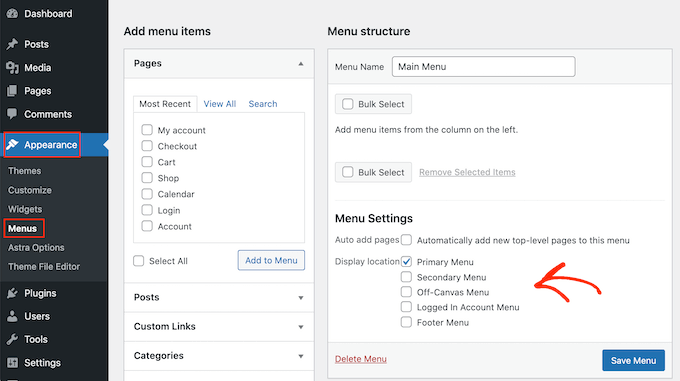
First, login to your WordPress dashboard. Look for the Appearance tab on the sidebar. Click it. Find the Customize option. Click to open the Customizer. It shows your site preview. You can now make changes.
Inside the Customizer, locate the Layout section. It allows you to change how your page looks. Choose the number of columns you want. Save your changes. Your site will update with more columns. If unsure, you can preview before saving. This helps you see the new layout. Some themes may have extra options. Explore them for a better fit.
Modifying Theme Files
CSS helps change your site’s look. Open the style.css file in your theme. Find the part where the columns are defined. Usually, it’s under a class or ID. To add a new column, you might need to adjust the width. Make sure all columns fit within the main container. Save changes and check your site.
HTML changes how content is placed. Open the index.php or other template files. Look for the part with the columns. Add a new tag for a new column. Ensure it matches the existing structure. Test your changes on the site. Adjust if it doesn’t look right.

Credit: www.youtube.com
Utilizing Page Builders
Page builders help in creating flexible layouts. Elementor is a well-known choice. It is user-friendly and offers many features. Divi is another great option. It provides a drag-and-drop interface. Beaver Builder is also popular. It is simple to use and very efficient. These tools make designing easy and fun.
Custom column layouts give you more control. Use Elementor to add columns easily. Choose the number of columns you need. Drag them into place. With Divi, you can do the same. It offers pre-made layouts. Adjust them as you like. Beaver Builder also supports custom columns. Simply select and arrange them. These tools make your site look professional.
Incorporating Widgets
Widgets are useful. They add features to your WordPress site. Sidebars are common widget areas. Adding a widget is easy. Go to the WordPress dashboard. Find the Appearance tab. Select Widgets. Drag your desired widget to the sidebar. Customize it. Save changes. Check your website. See the widget in action. Sidebars can hold many widgets. Choose wisely. Keep your site neat. Widgets make your site better. Users enjoy extra features.
Customize widget areas for a unique look. Use different themes. Theme affects widget design. Some themes offer more widget areas. Check your theme options. Explore widget locations. Footer areas can hold widgets too. Use them to display important info. Choose widgets that match your theme. Change their settings. Make sure they fit your site style. Experiment with placements. Try different widgets. See what works best. Keep your site user-friendly. Widgets enhance user experience.
Credit: www.wpbeginner.com
Leveraging Plugins
Plugins help add more columns to your WordPress theme. Start by searching the WordPress Plugin Directory. Look for popular and well-reviewed plugins. Check user ratings and reviews before downloading. Popular choices often mean reliable use.
Many plugins are free, but some have a cost. Ensure the plugin suits your theme. Some plugins might not be compatible. Compatibility issues can break your site. Always double-check version compatibility.
Once you find a plugin, download it. Next, go to your WordPress dashboard. Click on “Plugins” then “Add New”. Upload the downloaded file. Press “Install Now” to proceed. After installation, click “Activate”.
Activation makes the plugin ready to use. Some plugins need extra settings. Follow the setup instructions if needed. Now, you can add columns to your theme easily. Enjoy the new look of your website.
Testing And Troubleshooting
Need more columns in your WordPress theme? Adjust the theme settings or modify the CSS code. Check the theme documentation for guidance and test changes on a local server. Troubleshooting ensures everything appears correctly on different devices.
Previewing Changes
Always check your changes before saving them. Use the preview option in WordPress. This helps you see how your page will look. Look for any unexpected changes. Make sure everything is in place. If something seems off, don’t worry. You can always edit and fix it. Take your time and get it right.
Resolving Common Issues
Sometimes things don’t work as planned. Check if your theme supports extra columns. Some themes are limited. Look for any plugin conflicts. Deactivate plugins one by one. This helps find the problem. Keep your WordPress updated. Updates fix many issues. If you’re stuck, ask for help. Check forums and guides. Many people are ready to help.
Ensuring Mobile Responsiveness
Responsive design tools are important. They help your website look good on all devices. These tools adjust the layout based on screen size. So, your website works on phones and tablets. One popular tool is Bootstrap. It makes designing easy and smooth. Another tool is Foundation. It offers many features for flexible designs.
With these tools, you can add more columns to your WordPress theme. This will make your site more user-friendly. Visitors will enjoy browsing your site on any device. Always test your site on different screens. This ensures everything is aligned and easy to read.
Every device has a different screen size. It’s vital to adjust your website for each one. Use media queries in your CSS. They allow you to change styles for specific devices. For instance, a large screen can show three columns. A phone might only show one.
Keep text large enough to read. Buttons should be easy to tap. Always check your site on phones and tablets. This ensures everything is working properly. Users should have the same experience on all devices. This makes your site accessible and easy to navigate.
Optimizing Performance
Fast websites keep people happy. Using fewer files helps. Try to use lightweight plugins. They don’t slow your site. Compress images to make them smaller. This saves space and time. Choose a good hosting provider. They should be fast and reliable.
Columns must show up quickly. Use simple CSS for layout. This makes columns render faster. Avoid too many animations. They can slow the page. Use a content delivery network (CDN) to help. This speeds up content delivery.
Frequently Asked Questions
How To Add Columns In WordPress Themes?
To add columns in WordPress themes, you can use page builders like Elementor or Gutenberg. These tools allow you to easily create multi-column layouts. Simply drag and drop the column block into your page, adjust the settings, and customize as needed.
Can I Customize Column Width In WordPress?
Yes, you can customize column width in WordPress using CSS or page builders. Most page builders offer easy-to-use width adjustment options. CSS gives more precise control. You can specify width in pixels or percentages to fit your design requirements.
Are Plugins Available For Adding Columns?
Yes, several plugins are available for adding columns in WordPress. Popular options include Elementor, WPBakery, and Gutenberg. These plugins offer intuitive interfaces and customizable column options. They enhance your design flexibility without requiring extensive coding knowledge.
Do WordPress Themes Support Multi-column Layouts?
Most modern WordPress themes support multi-column layouts. Themes with responsive design adapt columns for various devices. Check your theme’s documentation for specific instructions. Page builders often enhance theme compatibility with multi-column features.
Conclusion
Adding columns in WordPress is straightforward with the right theme tools. You enhance website layout by customizing columns. Visitors enjoy organized content and improved navigation. Experiment with different column numbers. Adjust spacing for aesthetic appeal. Don’t shy away from trying new designs.
Flexibility is key. Keep usability in mind while exploring options. Balanced layout fosters positive user experience. Practice makes perfect. Use tutorials for guidance. Your website will look professional and engaging. Remember, simplicity attracts. Happy designing with WordPress!


