

If you want your WordPress site to stand out in search results, adding meta tags is a simple yet powerful step you can’t afford to skip. Meta tags help search engines understand what your pages are about, improving your chances of attracting the right visitors.
But if you’re not sure how to add these tags correctly, don’t worry—you’re in the right place. In this guide, you’ll discover easy and effective ways to add meta tags to your WordPress site, whether you prefer using plugins or editing your theme’s code.
By the end, you’ll have the tools to boost your site’s visibility and get more people clicking through to your content. Ready to get started? Let’s dive in!
Credit: blog.hubspot.com
Meta Tags And Seo
Meta tags play a vital role in improving your website’s SEO. They help search engines understand your content better. These small snippets of text appear in the HTML code of your page. They do not show up on the page itself but affect how your page ranks in search results.
Adding the right meta tags in WordPress can boost your site’s visibility. It makes your content more appealing to search engines and users. Knowing which meta tags to use is key to effective SEO.
Role Of Meta Tags In Seo
Meta tags provide search engines with important information about your page. They describe the content and purpose of the page. This helps search engines decide how to rank your page in search results.
Meta tags also influence the snippets shown on search engine result pages. A clear meta description can increase the click-through rate. It acts as a mini advertisement for your page.
Properly optimized meta tags make your site more relevant to specific keywords. This improves your chances of ranking higher. Search engines rely heavily on meta tags to understand your page.
Common Meta Tags Explained
The
The tag summarizes the page content. This description appears under the title in search results. Keep it under 160 characters for best results.
The tag lists important keywords for the page. Though less used today, it can still help in some cases. Only include relevant keywords to avoid penalties.
The tag ensures your site looks good on all devices. It helps with mobile responsiveness, which is a ranking factor.
The tag shows the author’s name. It is useful for blogs and articles to add credibility.
Credit: www.termitemound.com
Adding Meta Tags Manually
Adding meta tags manually in WordPress gives you full control over your site’s SEO. This method involves editing your theme’s header file directly. It allows you to insert custom meta tags that improve how search engines read your content. Manual addition is useful for unique tags or when plugins don’t fit your needs.
Locating The Head Section
Access your WordPress dashboard and go to Appearance > Theme Editor. Find the header.php file in the list of theme files on the right. Open header.php to view the code. Look for the section. It usually appears near the top of the file, before the tag.
Inserting Meta Tags In Html
Place your meta tags between the and tags. Example tags include:
Make sure the content matches your page information. Use clear, concise descriptions and relevant keywords.
Saving And Uploading Changes
After adding your meta tags, save the header.php file. Use the “Update File” button in the Theme Editor. If you edit files locally, upload the updated header.php to your server via FTP. Clear your website cache to see the changes. Check your site source code to confirm the meta tags appear correctly.
Using WordPress Plugins
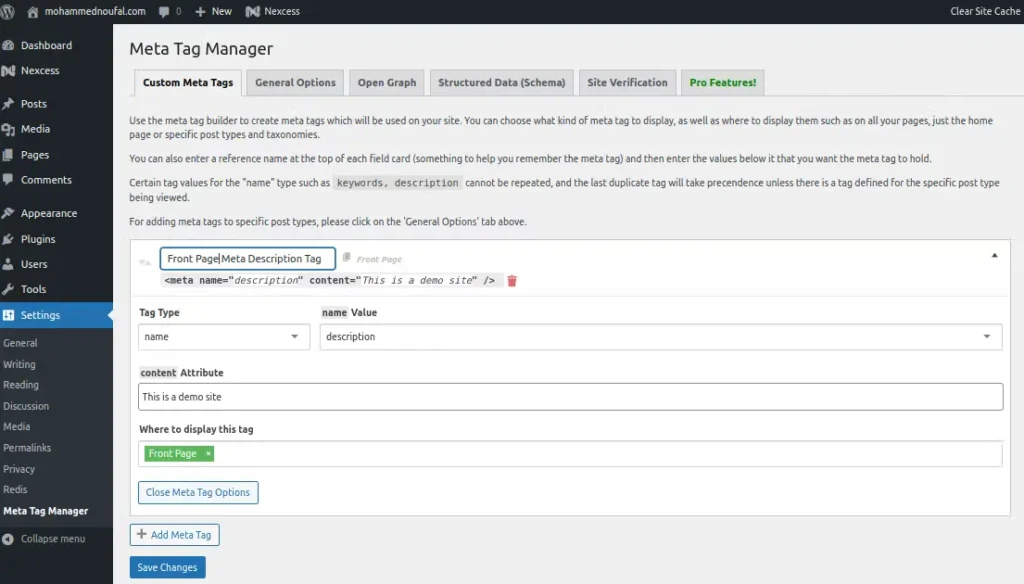
Using WordPress plugins is an easy way to add meta tags to your website. Plugins handle the technical parts for you. They offer simple interfaces to enter meta titles, descriptions, and keywords. This method works well for beginners and saves time. Plugins also help keep your SEO consistent across all pages.
Popular Seo Plugins For Meta Tags
Several plugins are popular for managing meta tags. Yoast SEO is widely used and user-friendly. All in One SEO Pack offers robust features for meta management. Rank Math is a newer plugin gaining attention for its detailed controls. Each plugin supports adding meta titles and descriptions easily.
Step-by-step Plugin Setup
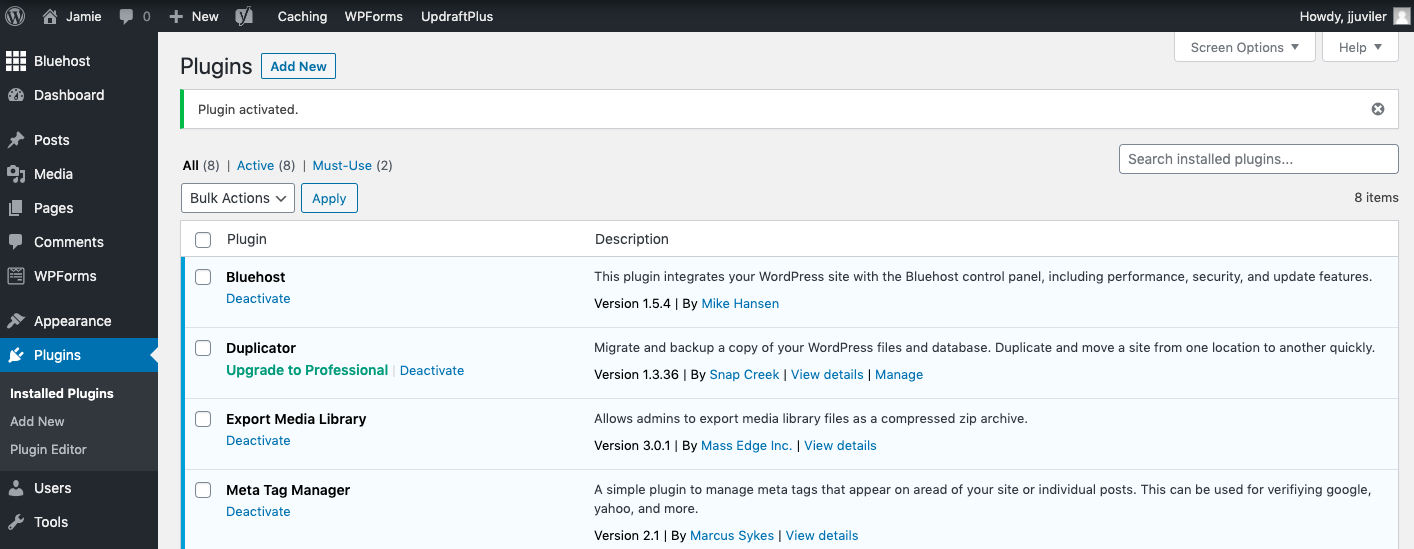
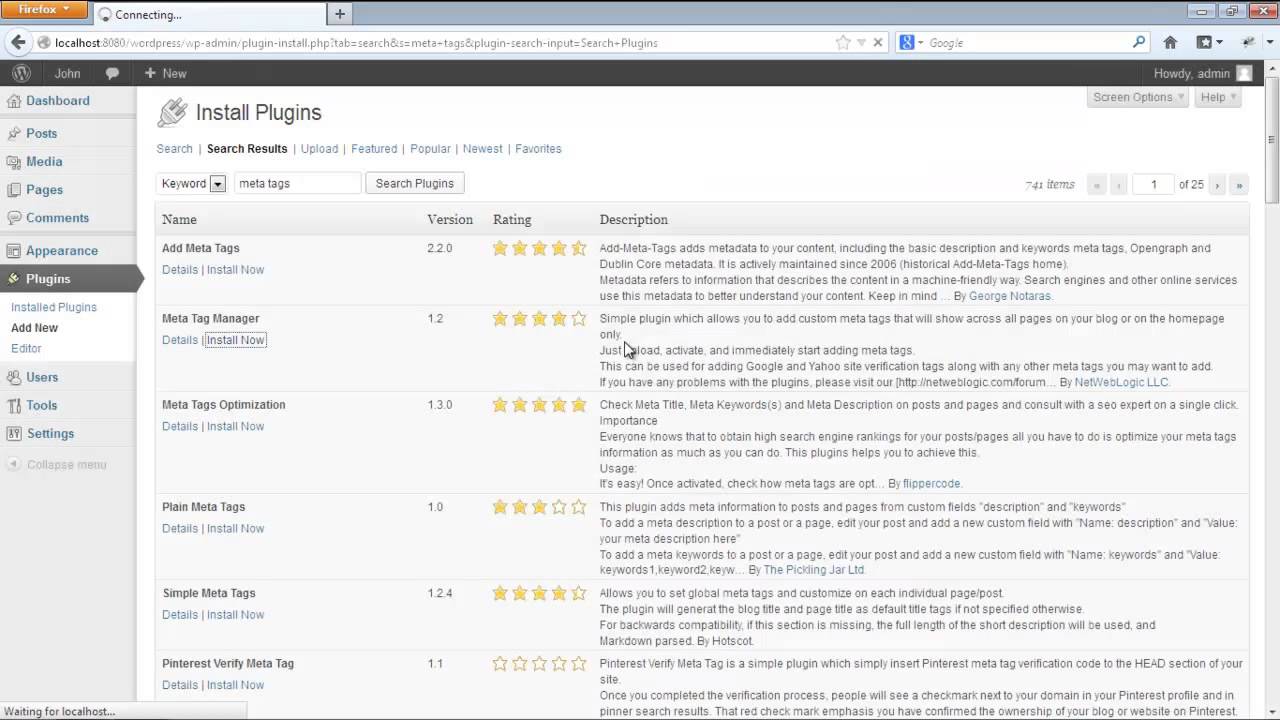
First, go to your WordPress dashboard. Click on “Plugins” and then “Add New.” Search for your chosen SEO plugin, like Yoast SEO. Click “Install Now” and then “Activate.” After activation, find the plugin’s settings in the dashboard menu. Follow the setup wizard to configure basic SEO options.
Next, open the editor for any post or page. Scroll down to the plugin’s meta box area. Enter your meta title and description here. Save or update the post to apply changes. The plugin will automatically add these meta tags to your site’s code.
Managing Meta Tags With Plugins
Plugins let you update meta tags anytime from the editor screen. You can set templates to auto-generate meta tags for all posts. This keeps your site’s SEO uniform and saves effort. Most plugins also analyze your content. They give tips to improve your meta titles and descriptions.
Some plugins provide bulk editing tools. These help edit meta tags for many pages quickly. Regularly review your meta tags to keep them relevant. Plugins simplify this process and improve your site’s search presence.
Optimizing Meta Tags
Optimizing meta tags is essential for improving your WordPress site’s search engine visibility. Meta tags help search engines understand your page content. They also influence how your pages appear in search results. Proper optimization drives more targeted traffic to your site.
Focus on crafting clear and relevant meta tags. This makes your pages more attractive in search listings. Well-optimized meta tags can increase click-through rates and improve user experience. Below are key areas to optimize.
Crafting Effective Meta Descriptions
Meta descriptions summarize your page content briefly. Keep them under 160 characters for best results. Use simple language and include your main keyword naturally. Write descriptions that encourage users to click your link. Avoid duplicate descriptions on different pages. Each page needs a unique, clear summary.
Choosing Relevant Keywords
Select keywords that match your page’s topic closely. Use tools like Google Keyword Planner to find popular terms. Include these keywords naturally in your meta tags. Avoid keyword stuffing, which can hurt your SEO. Focus on a few important keywords per page. This helps search engines rank your content better.
Mobile-friendly Viewport Tags
The viewport meta tag ensures your site looks good on all devices. It controls the page’s width and scaling on mobile screens. Add this tag inside the
section of your WordPress theme. Example: . This tag improves usability and search rankings for mobile users.Verifying Meta Tags
Verifying meta tags is a key step after adding them to your WordPress site. It ensures search engines read your tags correctly. Proper verification helps improve your site’s visibility and ranking. This section explains simple ways to check your meta tags.
Using Browser Tools
Browser tools let you view meta tags directly on your site. Open your webpage in any modern browser. Right-click on the page and select “View Page Source” or “Inspect”.
Look for the section in the source code. You will see your meta tags inside this part. Check if the description, keywords, and other tags are present and accurate.
Browser tools provide a quick way to confirm if meta tags appear correctly. This method needs no extra software or accounts.
Google Search Console Verification
Google Search Console helps you verify and monitor your meta tags. Add your website to Search Console and verify ownership. Use the URL Inspection tool to check individual pages.
Enter the page URL and click “Test Live URL”. Search Console shows if Google can read your meta tags. It also reports errors or missing tags.
This tool offers detailed feedback to improve your meta tags. It helps ensure your site meets Google’s standards for SEO.
Troubleshooting Meta Tag Issues
Meta tags help search engines understand your WordPress site. Sometimes, meta tags do not work as expected. Troubleshooting these issues improves your site’s visibility. This section covers common mistakes and ways to fix meta tag problems.
Common Mistakes To Avoid
Skipping the section is a frequent error. Meta tags must be placed inside this section. Using incorrect tag names causes issues too. For example, misspelling description or keywords stops tags from working.
Adding duplicate meta tags on the same page confuses search engines. Keep your tags unique and relevant to the content. Another mistake is using outdated plugins that do not support meta tags well. Always update or choose reliable plugins.
Debugging Meta Tag Problems
Start by viewing your page source in a browser. Confirm meta tags appear inside the section. Use tools like Google Search Console to spot issues. It shows errors related to meta tags and indexing problems.
Clear your site cache and browser cache before testing changes. Cached versions can show old meta tags. Disable conflicting plugins to check if they block meta tags. Adjust your theme’s header.php file carefully to avoid losing meta tags.
Credit: www.liquidweb.com
Frequently Asked Questions
How Do I Add Meta Tags To A WordPress Site?
To add meta tags in WordPress, install an SEO plugin like Yoast or Rank Math. Then, enter meta titles and descriptions for each page or post in the plugin’s settings. This improves search visibility and user engagement effectively.
How Do I Add A Meta Tag?
Open your webpage’s HTML file and locate the
section. Insert meta tags like inside it. Save the file and upload it to your server to apply the changes.How To Add Meta Keywords In WordPress Without Plugins?
Edit your theme’s header.php file in WordPress. Insert meta keywords inside the
section using: . Save the file to apply changes. This method adds meta keywords without plugins.How Do I Add Tags In WordPress?
To add tags in WordPress, go to the post editor, find the Tags box, type your tags, and click Add. Save or update your post.
Conclusion
Adding meta tags in WordPress improves your site’s visibility in search results. Use simple plugins or edit the theme’s header file to insert meta tags easily. Focus on clear descriptions and relevant keywords for each page. Regularly update your meta tags to keep your content fresh and relevant.
This small step helps search engines understand your site better. Keep your meta tags concise and informative. Doing this can attract more visitors and improve your website’s performance. Start adding meta tags today for better SEO results.


