
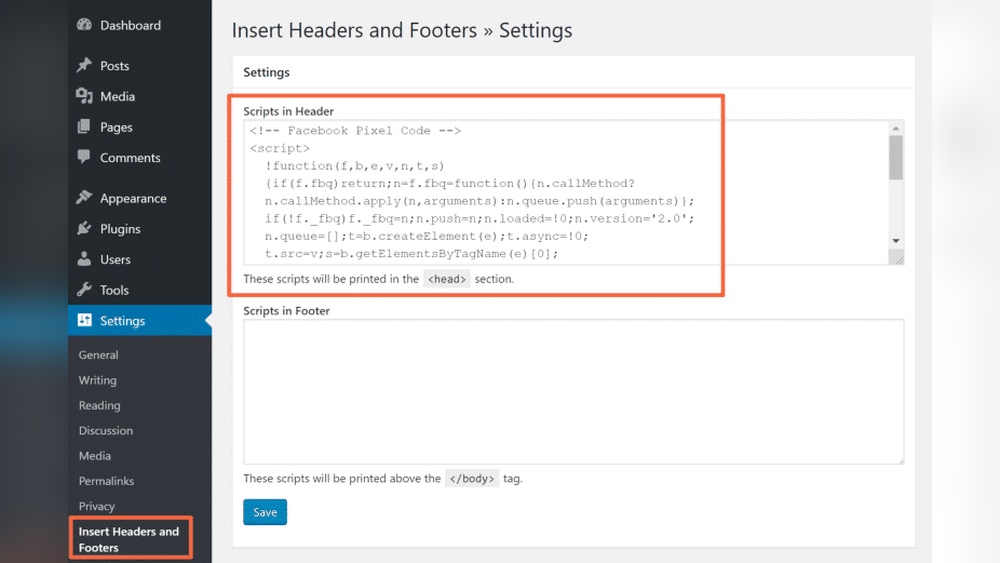
Are you looking to boost your website’s performance and track visitor actions more effectively? Adding Meta Pixel to your WordPress site is one of the smartest moves you can make.
With this simple tool, you can unlock powerful insights about your audience, improve your ad campaigns, and grow your business faster. In this guide, you’ll learn exactly how to add Meta Pixel to WordPress—step by step, without any confusing jargon.
Keep reading, and by the end, you’ll have a clear edge over your competitors. Let’s dive in!
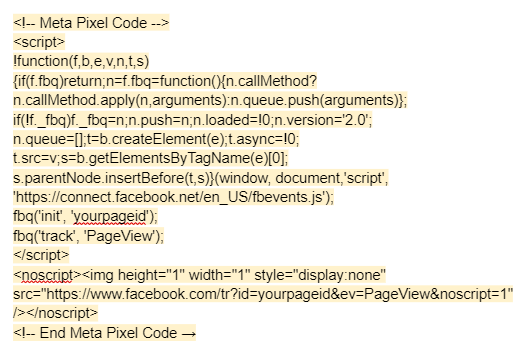
Credit: www.themediacaptain.com
Meta Pixel Basics
Meta Pixel is a simple tool that helps track visitors on your WordPress site. It collects data to show how users interact with your pages. This information can improve your marketing and website performance.
Adding Meta Pixel to WordPress lets you understand your audience better. It works behind the scenes to gather useful insights. These insights help you make smarter decisions for your site.
What Meta Pixel Does
Meta Pixel tracks user actions like clicks and page views. It sends this data to platforms like Facebook for analysis. This helps you see which ads or posts bring visitors to your site.
The Pixel also records conversions, such as purchases or sign-ups. It creates custom audiences based on user behavior. This allows you to target ads more accurately and save money.
Benefits For WordPress Sites
Meta Pixel improves ad targeting by showing who visits your site. It helps measure the success of your campaigns clearly. You can adjust your ads to reach the right people.
The Pixel also aids in retargeting visitors who left without buying. It increases chances of bringing them back to your site. This leads to better sales and engagement.
Using Meta Pixel on WordPress is easy and boosts your marketing efforts. It makes your site smarter without extra work.
Preparing Your WordPress Site
Preparing your WordPress site is the first step before adding the Meta Pixel. This helps the pixel work correctly and prevents errors. Taking a few simple steps now saves time and frustration later.
Check your theme and plugins to make sure they support code changes. Also, create a backup of your site to protect your data. These tasks create a safe environment for adding the Meta Pixel.
Checking Theme Compatibility
Your WordPress theme controls how your site looks and works. Some themes may block or change custom code. This can stop the Meta Pixel from working.
Look for themes that allow adding code in the header or footer. You can check this in the theme settings or documentation. If unsure, try asking the theme’s support team.
Using a popular and updated theme reduces compatibility problems. Also, avoid using themes that have not been updated for a long time.
Backing Up Your Site
Backing up your site means making a copy of all your files and database. This copy helps you restore your site if something goes wrong. It is very important before making changes.
You can use backup plugins like UpdraftPlus or BackupBuddy. These tools make it easy to save and restore your site.
After backing up, save the backup file in a safe place. Check that the backup includes your theme, plugins, and content. This ensures you can fully restore your site if needed.
Creating A Meta Pixel
Creating a Meta Pixel is the first step to track visitor actions on your WordPress site. This tool helps you understand what users do and measure your Facebook ad success. Setting up the pixel correctly ensures accurate data collection. Follow these simple steps to create your Meta Pixel.
Setting Up Facebook Business Manager
Start by going to the Facebook Business Manager website. Create an account if you do not have one. This platform manages your business assets like pages and ad accounts.
Next, add your business details carefully. Confirm your email and fill in all required information. This setup allows you to access the Meta Pixel features.
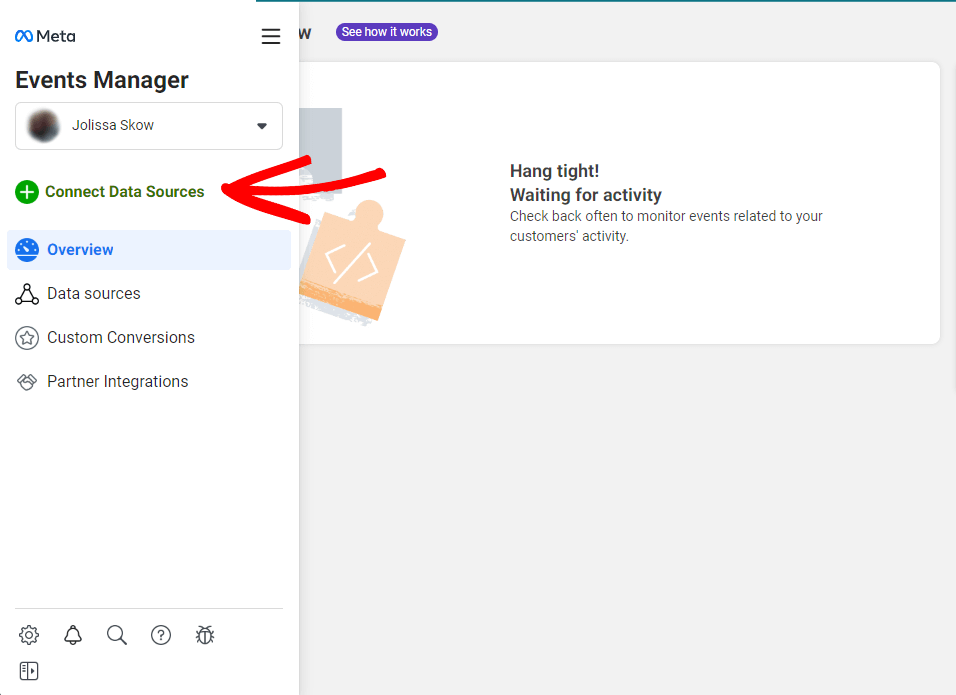
Inside Business Manager, find the “Events Manager” section. This is where you manage your pixels and other tracking tools. Click on “Connect Data Sources” to begin.
Generating Your Pixel Code
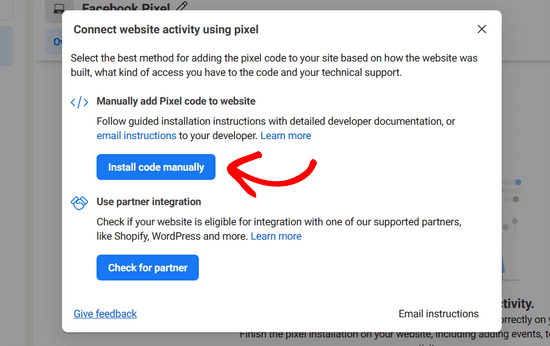
Choose “Web” as your data source type. Then select “Facebook Pixel” and click “Connect.”
Name your pixel clearly. Use a name related to your website or business. This helps you identify it later.
Enter your website URL to check for easy setup options. Facebook may suggest ways to add the pixel to your site.
After this, you will see your pixel code. Copy this code carefully. You will need it to add to your WordPress site.
Keep this code safe. It is the key to tracking your website traffic and conversions accurately.
Installing Meta Pixel On WordPress
Installing Meta Pixel on WordPress helps track user activity on your site. It improves your ad campaigns by collecting valuable data. The process is simple and can be done in two main ways. Use a plugin for ease or insert the code manually for control.
Using A Plugin
Plugins make installing Meta Pixel quick and easy. Search for a plugin like “Facebook Pixel” in your WordPress dashboard. Install and activate it. Then, enter your Meta Pixel ID in the plugin settings. The plugin adds the code to your site automatically. No coding skills needed. This method is perfect for beginners.
Manual Code Insertion
Manual insertion gives you full control over the pixel code. Copy the Meta Pixel code from your Meta Business account. Log in to WordPress and go to Appearance > Theme Editor. Open the header.php file. Paste the pixel code just before the tag. Save the changes. This method requires some basic coding knowledge. Always back up your site before editing files.
Verifying Pixel Installation
After adding the Meta Pixel to your WordPress site, verifying the installation is key. This step confirms the pixel works correctly. It helps ensure accurate tracking of visitor actions on your site. Verification also prevents data loss and tracking errors. Use simple tools and methods to check your pixel’s status quickly.
Using Facebook Pixel Helper
Facebook Pixel Helper is a free browser extension from Facebook. It shows if your pixel is active on a page. Install the extension on Google Chrome. Visit your WordPress site after installation. The tool will display pixel details in the browser toolbar. It highlights errors or warnings if any issues exist. Look for a green icon to confirm a working pixel. Click the icon to see event data and pixel ID. This helps verify correct pixel placement and firing.
Troubleshooting Common Issues
Sometimes, the pixel may not fire correctly. Check if the pixel code is in the right place in your WordPress theme. Avoid placing it in plugins that may block scripts. Clear your browser cache before testing again. Disable other plugins that may conflict with the pixel. Confirm your website URL matches the pixel settings in Facebook. Use Facebook Pixel Helper to spot errors like duplicate pixels or missing events. Fix these issues to ensure accurate tracking and data collection.
Credit: www.monsterinsights.com
Optimizing Pixel Performance
Optimizing your Meta Pixel performance helps you get better results from your ads. It tracks important actions on your WordPress site. This data improves your marketing strategy. Small changes can lead to better ad targeting and higher returns.
Tracking Key Events
Focus on key events that matter most to your business. Examples include purchases, sign-ups, and page views. Set up these events in your Meta Pixel settings. Track user actions clearly to understand visitor behavior. This helps you see what works and what doesn’t.
Analyzing Data For Improvements
Regularly check the data collected by your Meta Pixel. Look for trends in user activity and ad performance. Use this information to adjust your ads and website. Test different approaches based on the data insights. This process helps you improve your marketing step by step.
Credit: www.monsterinsights.com
Frequently Asked Questions
What Is Meta Pixel And Why Use It On WordPress?
Meta Pixel is a tracking code from Facebook. It helps monitor website visitor actions. Adding it to WordPress improves ad targeting and conversion tracking effectively.
How Do I Add Meta Pixel To WordPress Manually?
To add Meta Pixel manually, copy your Pixel code from Facebook. Paste it into the header.php file of your WordPress theme before the tag. Save changes to enable tracking.
Can I Use Plugins To Install Meta Pixel On WordPress?
Yes, plugins like “PixelYourSite” simplify Meta Pixel installation. They add the code automatically without editing theme files. This method is user-friendly and reduces errors.
How To Verify If Meta Pixel Works On WordPress?
Use Facebook’s Pixel Helper Chrome extension. It detects and reports Pixel activity on your site. This tool confirms successful installation and tracks event firing accurately.
Conclusion
Adding Meta Pixel to WordPress helps track website visitors easily. It gives valuable data about user actions on your site. This data helps improve your ads and website performance. The process is simple and does not take much time. Follow the steps carefully to add the Pixel correctly.
Keep checking your Pixel to ensure it works well. Start using Meta Pixel today to understand your visitors better. It makes managing your online presence much easier.


