

If you want your WordPress site to stand out in search results, adding meta keywords can be a helpful step. But how do you add meta keywords in WordPress without getting lost in complicated code?
This guide is designed just for you. Whether you prefer using an easy SEO plugin or want to try a hands-on approach by editing your theme files, you’ll find simple, clear steps to boost your site’s SEO. Keep reading to discover how you can quickly add meta keywords and improve your site’s visibility—no tech headaches required!
Why Meta Keywords Matter
Meta keywords play a role in organizing and describing your website’s content. They help search engines understand the main topics of your pages. While their impact has changed over time, meta keywords can still guide your content strategy. Knowing why meta keywords matter helps you use them wisely in WordPress.
Role In Seo
Meta keywords once helped search engines rank pages. They listed important words related to your content. This made it easier for search engines to find relevant pages for users. While their influence has declined, meta keywords can support other SEO elements. They serve as a quick reference for your page topics.
Current Relevance
Today, major search engines like Google do not use meta keywords for ranking. They focus more on content quality and user experience. Still, some smaller search engines and directories might check meta keywords. Adding them does no harm and can improve organization. Using meta keywords in WordPress is simple and can add value.
Credit: www.wpbeginner.com
Using Seo Plugins
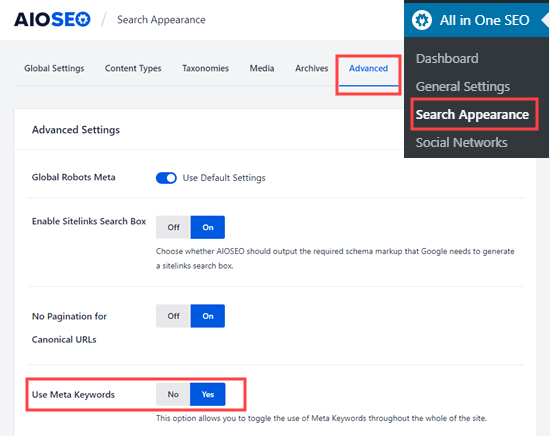
Using SEO plugins makes adding meta keywords in WordPress simple and effective. These tools offer user-friendly interfaces to manage keywords without coding. Plugins help optimize posts and pages for search engines automatically. They also provide options to control keywords across the entire website.
Choosing The Right Plugin
Pick a plugin that fits your needs and skill level. Yoast SEO and All in One SEO are popular choices. Both offer meta keyword support and easy keyword management. Check for regular updates and good user reviews. Ensure the plugin does not slow down your site.
Adding Keywords In Posts
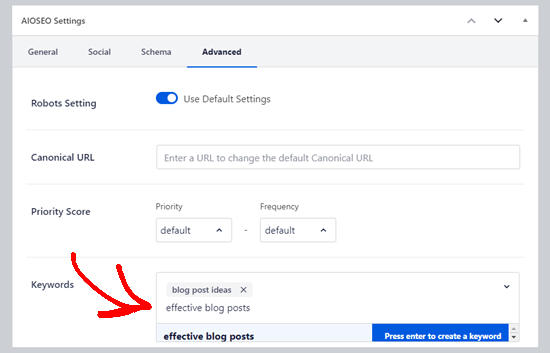
After installing the plugin, open the post editor. Scroll to the SEO meta box below the content area. Enter your meta keywords separated by commas in the designated field. Use relevant keywords that match your post topic. Save or update the post to apply the changes.
Managing Keywords Sitewide
SEO plugins often include settings to manage keywords across the whole site. Use these options to set default keywords or keyword templates. This helps maintain consistency on all pages and posts. Review and update sitewide keywords regularly to match your content strategy.
Manual Method With Header.php
Adding meta keywords manually in WordPress involves editing the header.php file of your theme. This file controls the head section of your website where meta tags reside. Manually inserting meta keywords gives you direct control over what keywords search engines see. It is a simple but sensitive task. Always back up your site before making changes. This method suits users comfortable with basic coding and WordPress theme files.
Accessing Theme Editor
Log in to your WordPress dashboard. Go to Appearance > Theme Editor. On the right, find the header.php file. Click to open it. This file contains the HTML head section. Scroll carefully to locate the tag. You will insert meta keywords code here. Take care not to change other code.
Inserting Meta Keywords Tag
Inside the tag, add the meta keywords line. Use this code:
Replace keyword1, keyword2, keyword3 with your actual keywords. Separate each keyword with a comma. Keep keywords relevant to your page content. Save the changes by clicking the Update File button. Visit your website and check the source code to confirm the tag is present.
Using Conditional Tags
WordPress offers conditional tags to show meta keywords on specific pages. This method customizes keywords per page or post. In header.php, wrap your meta tag inside PHP code like this:
php if (is_home()) { echo ''; } elseif (is_single()) { echo ''; } ?> Change the keywords inside the quotes for each condition. Use tags like is_home(), is_single(), and others to target pages. This method keeps keywords relevant and helps SEO. Save the file after adding the code. Check different pages to ensure the meta keywords appear correctly.
Credit: www.wpbeginner.com
Best Practices For Meta Keywords
Meta keywords still play a small role in organizing content for search engines. Using them correctly can help your WordPress site stay focused and clear. Following best practices ensures that your keywords support your SEO efforts without causing issues. Keep your meta keywords relevant, precise, and well-managed for better results.
Keyword Selection Tips
Choose keywords that closely match your page content. Use specific phrases rather than broad terms. Focus on words your audience might type in search engines. Avoid generic or overly competitive keywords. Research your niche to find terms with moderate search volume. Limit your list to 5-10 strong keywords to maintain quality.
Avoiding Overuse
Do not stuff your meta keywords with too many entries. Overusing keywords can look spammy to search engines. Keep keywords relevant and avoid repeating the same words. Use commas to separate keywords clearly. Remember, quality beats quantity in keyword use. Proper use helps search engines understand your page better.
Testing And Monitoring
Track your site’s performance after adding meta keywords. Use tools like Google Analytics and Search Console. See if your pages rank better for chosen keywords. Adjust keywords based on results and trends. Regularly update meta keywords to stay current. Testing helps keep your SEO strategy effective and fresh.
Troubleshooting Common Issues
Troubleshooting common issues helps keep your meta keywords working properly. Problems can stop meta tags from showing or cause other SEO troubles. Fixing these issues keeps your WordPress site healthy and optimized. Here are some frequent problems and their solutions.
Meta Tags Not Showing
Sometimes meta keywords do not appear in the website’s source code. This may happen if your SEO plugin is disabled or not set up correctly. Check if the plugin is active and updated. Also, clear your site cache and browser cache. This step ensures you see the latest changes.
Another cause is that some plugins or themes may remove meta keywords. Check your theme’s header.php file to see if the meta keywords tag is present. If missing, you might need to add it manually or switch to a plugin that supports meta keywords fully.
Plugin Conflicts
Multiple SEO plugins can cause conflicts and stop meta keywords from showing. Avoid using more than one SEO plugin at the same time. Deactivate other SEO tools and keep only one active. This reduces errors and improves site speed.
Conflicts may also happen with caching or security plugins. Temporarily disable them and check if meta keywords appear. If yes, adjust plugin settings or find alternatives that do not interfere with SEO functions.
Theme Limitations
Some WordPress themes do not support adding meta keywords by default. They might not include the necessary code in the header section. Check your theme documentation for SEO support details.
If your theme lacks meta keyword support, use an SEO plugin that can insert meta tags automatically. Alternatively, edit the theme’s header.php file and add the meta keywords tag yourself. Be careful to back up your site before making changes.

Credit: www.crazyegg.com
Frequently Asked Questions
How To Add Meta Keywords In WordPress Without Plugins?
Edit your theme’s header.php file via Appearance > Theme Editor. Insert inside the
section. Save changes. This adds meta keywords without plugins.How Do You Add Meta Data In WordPress?
Install and activate an SEO plugin like Yoast SEO. Edit your post or page, then add meta keywords in the plugin’s meta box. Save changes to update metadata easily.
How Do You Add Term Meta In WordPress?
Use the add_term_meta() function with term ID, meta key, and meta value to add term meta in WordPress.
Where To Put Meta Keywords?
Place meta keywords inside the
section of your HTML. Use SEO plugins like Yoast SEO in WordPress for easy keyword input. Avoid manual edits unless comfortable with code.Conclusion
Adding meta keywords in WordPress helps improve your site’s search relevance. Use an SEO plugin for easy keyword management. Plugins like Yoast SEO offer simple tools for adding keywords to posts. Manually editing code is possible but riskier and less common.
Keep your keywords clear and relevant to your content. Regularly update them to match your site’s focus. This small step supports better search engine understanding. Start adding meta keywords today to enhance your WordPress SEO efforts.


