
Are you looking to boost your website’s engagement and keep your audience informed? Adding a Mailchimp newsletter to your WordPress theme template is a game-changer.
Imagine effortlessly reaching your audience with updates, promotions, and exclusive content, all while maintaining a seamless look that fits your brand. In this guide, you’ll discover step-by-step instructions to integrate Mailchimp with your WordPress site, ensuring your visitors never miss a beat.
By the end of this article, not only will you have enhanced your site’s functionality, but you’ll also have a powerful tool to grow your email list and strengthen your connection with your audience. Ready to transform your website’s communication strategy? Let’s dive in!
Mailchimp And WordPress Integration
Connect Mailchimp with WordPress in a few easy steps. First, sign up for a Mailchimp account. Next, log in to your WordPress site. Use the Mailchimp plugin. It helps connect both platforms. Install it through the WordPress dashboard. Activate it once installed. Next, link your Mailchimp account to the plugin. Enter your API key from Mailchimp. This lets the plugin access your account.
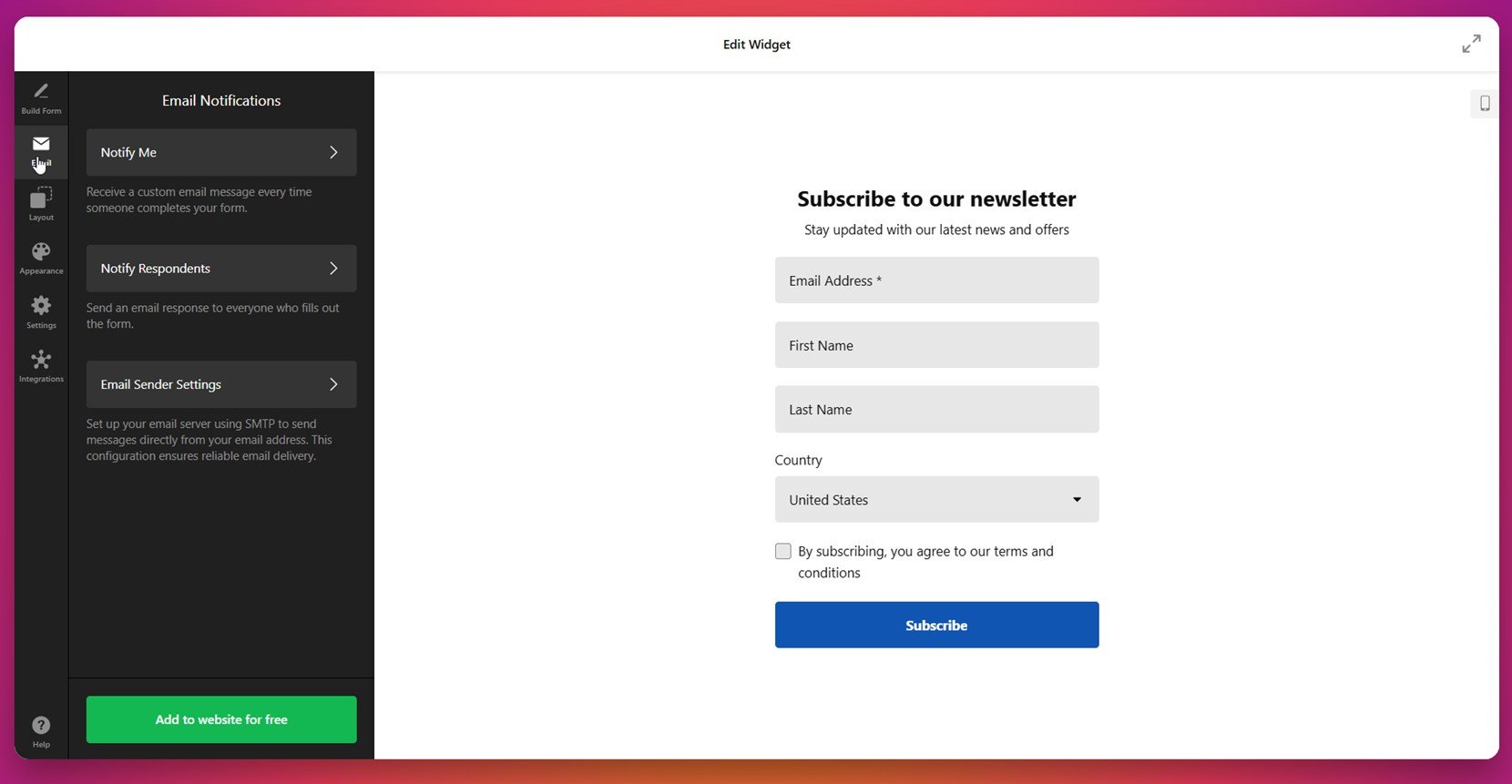
After connecting, create a newsletter form. Use Mailchimp to design it. Then, add the form to your WordPress site. Place it in a widget or page. Now, visitors can sign up easily. They join your email list. This boosts communication with your audience. A simple and effective way to stay in touch.
Credit: elfsight.com
Benefits Of Adding A Newsletter
Newsletters keep your audience engaged. They bring visitors back to your site. Regular updates help build trust. Users find value in helpful tips and latest news. Newsletters can improve your site’s traffic. They can boost your site’s visibility. Email lists are key for marketing. They allow direct communication with your audience.
Tailored content makes users feel special. It shows you care about their interests. Newsletters can lead to higher sales. They can increase your site’s growth. They help users stay informed and connected. Promotions and offers can be shared easily. Newsletters give your brand a voice. They create a community around your site.
Setting Up A Mailchimp Account
Mailchimp helps manage email lists. First, visit the Mailchimp website. Click on the “Sign Up” button. Enter your email, username, and password. Make sure the password is strong. Then, check your email for a confirmation link. Click the link to verify your account. Now, log in to your new Mailchimp account.
After logging in, set up your profile. Fill in your name and company details. Provide a valid address. This is important for email compliance. Next, create your first audience. An audience is your list of subscribers. You can import contacts from a file. Or, add them one by one.
Finally, explore the dashboard. The dashboard shows your account’s main features. Here, you can create campaigns and view reports. Mailchimp’s tools are easy to use. They help grow your subscriber list.
Creating A Mailchimp Audience
Start by opening your Mailchimp account. Create an audience to gather your subscribers. An audience is like a list of people. These are the people who want your emails. Click on the “Audience” tab. Then select “Create Audience”. Fill in the form with details. Add a name for your audience. Add a sender’s name and email. People will see this when they get your emails. Next, write a short reminder. This tells people why they joined your list. Finally, click on the “Save” button. Your audience is now ready. You can now add people to this list.
Designing A Mailchimp Signup Form
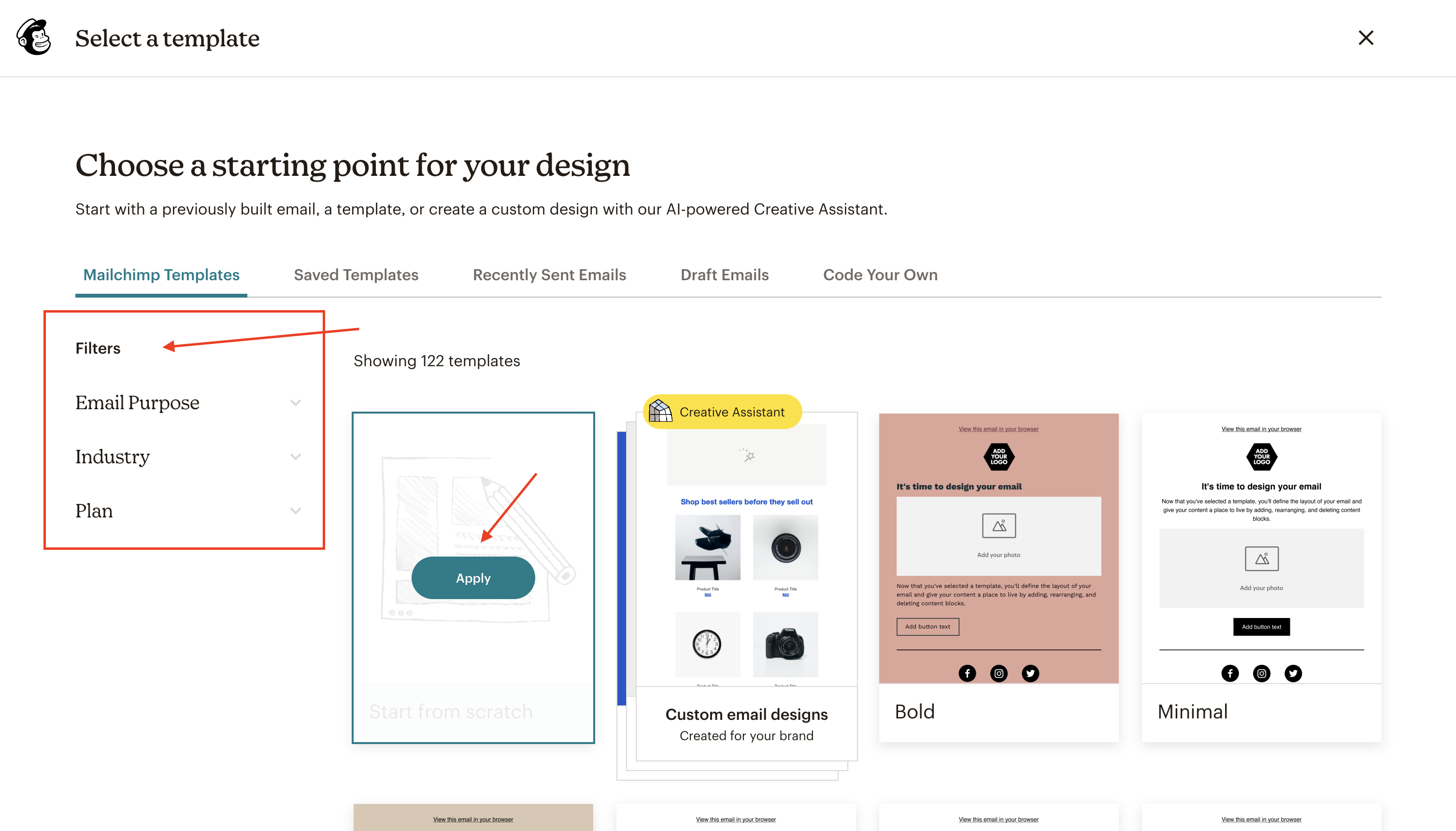
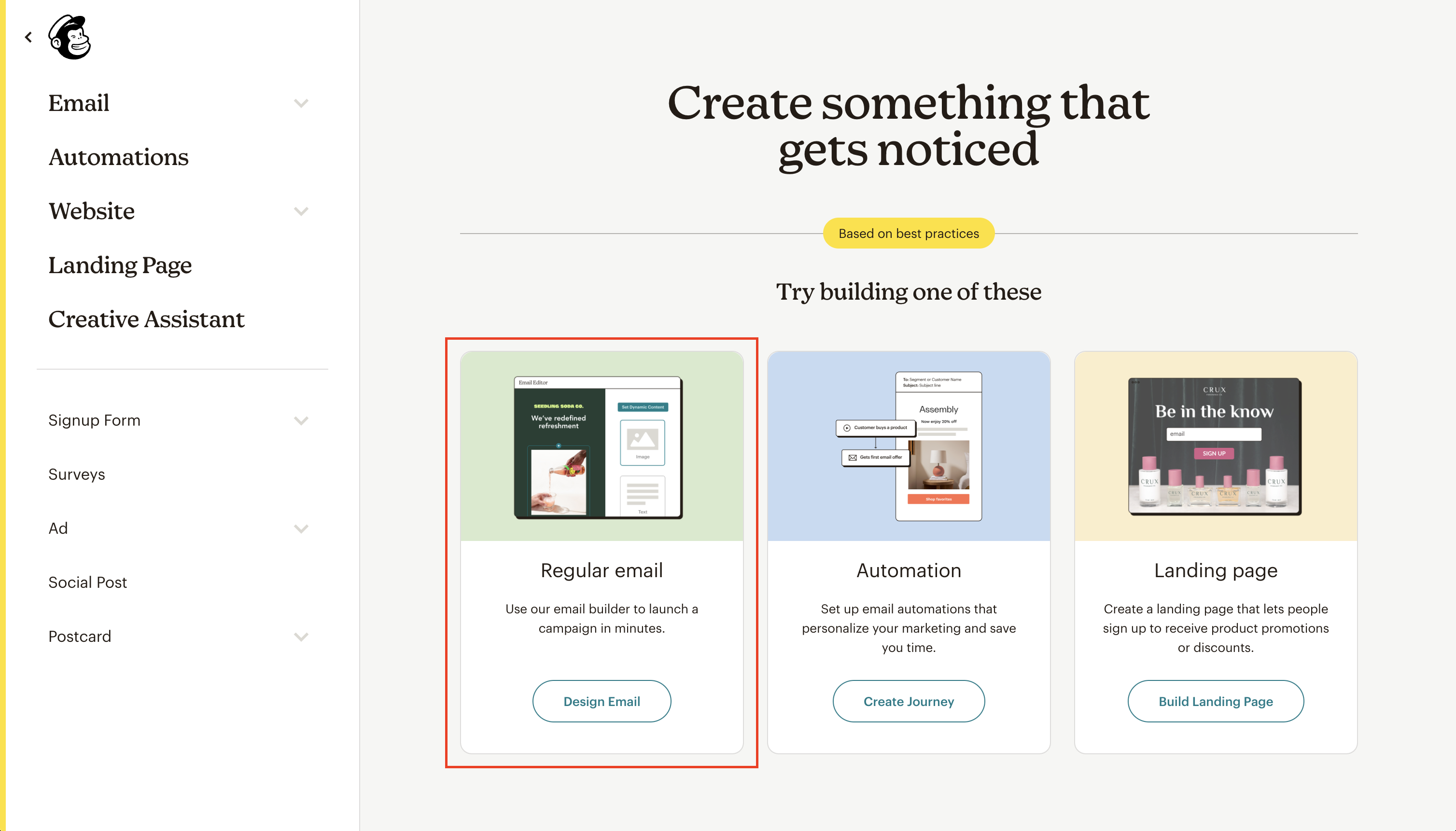
Start by opening the Mailchimp dashboard. Click on the Create button. Choose Signup Form from the list. This opens the form designer. Pick a style that matches your website. Use the drag and drop feature to add fields. Name, email, and phone number are common. Add more fields if needed. Customize the text. Make it friendly and clear. Use colors that match your site. This keeps it looking nice. Preview your form before saving. Click Save and Exit when done.
Next, copy the form code. This code goes into your WordPress theme. Find the right spot for the form. Go to the WordPress dashboard. Choose Appearance then Editor. Locate the theme’s HTML file. Paste the code where you want the form. Save changes. Check your site. Make sure the form looks good. Test it by signing up. Ensure emails are received. Adjust if needed.
Credit: www.iubenda.com
Installing Mailchimp Plugin On WordPress
First, log into your WordPress dashboard. Next, go to the Plugins section. Look for the Add New button and click it. A search bar will appear. Type “Mailchimp” and press enter. You will see a list of plugins. Find the one named Mailchimp for WordPress. Click on the Install Now button. Once installed, the button will change to Activate. Click it to activate the plugin.
After activation, a new menu item will appear on your dashboard. This is where you can set up your newsletter. Follow the steps to connect with your Mailchimp account. Now, you are ready to add forms to your site. It’s easy and quick!
Embedding Mailchimp Form In WordPress
WordPress widgets make adding a Mailchimp form easy. First, log into your WordPress dashboard. Go to the Appearance section and click Widgets. Find the Text widget and drag it to your preferred sidebar. In the widget settings, paste your Mailchimp form code. Now, save your changes. Check your site to see the form in action. The process is quick and simple.
Directly embed a Mailchimp form in theme templates for more control. Open your theme’s header.php or footer.php file. Insert the Mailchimp form code where you want it to appear. Save the file changes and refresh your site. The form should now be visible. This method requires care, so backup your site first. It’s a great way to customize the form placement.
Customizing The Signup Form
Creating a unique signup form is easy. Begin by accessing your Mailchimp account. Next, navigate to the Signup forms section. Here, you will find multiple options. Choose the Embedded forms option. This allows you to design forms that fit your theme. Modify colors, fonts, and fields in this section. Ensure that your form matches your website style. Customization makes the form engaging and attractive.
Once satisfied, copy the HTML code provided. Paste it into your WordPress theme template. Locate the part where you want the form. This may be in the sidebar or footer. Check if the form appears correctly. Testing is crucial for a seamless user experience. If errors occur, revisit the settings and adjust.
Testing The Newsletter Signup
Testing your newsletter signup ensures it works well. First, fill in the signup form with a test email. Check if the email goes to the right inbox. This helps to see if people get your emails. Next, make sure the confirmation message is clear. A clear message helps users know they signed up. Also, test on different devices. Try phones, tablets, and computers. This ensures everyone can sign up easily. Always double-check the links in your emails. Broken links can confuse people. Finally, ask a friend to test it too. Fresh eyes catch things you might miss. Testing makes sure your newsletter signup is smooth and easy.
Credit: www.iubenda.com
Troubleshooting Common Issues
Some users face problems adding Mailchimp to their WordPress. Error messages can appear sometimes. These messages often confuse users. Double-check your Mailchimp API key. Make sure it is correct. Always check plugin settings too. These settings can change things. Clear your cache if you face issues. Sometimes, old files cause trouble. Update plugins regularly. New updates fix bugs.
Internet speed might affect loading. Slow speed can be a problem. Check connections and try again. Compatibility issues happen sometimes. Themes and plugins might not match. Always use compatible versions. Seek help if you are stuck. Forums and guides are helpful. They provide answers quickly. Patience is key when solving problems. Keep trying until it works.
Best Practices For Newsletter Optimization
Enhancing a newsletter is key. Keep the design clean and simple. This helps readers focus. Short and clear messages work best. They grab attention quickly. Use images to make content appealing. Visuals catch the eye more than text. Call-to-action buttons are crucial. They guide readers on what to do next. Make them bold and visible.
Subject lines should be catchy. They encourage opening the email. Test different ones for best results. A/B testing helps in refining. Personalizing content makes readers feel special. Use their name or preferences. This builds a connection.
Ensure the newsletter is mobile-friendly. Many people check emails on phones. A responsive design adjusts to any screen. Finally, always respect privacy. Allow users to easily unsubscribe if they wish. This builds trust.
Frequently Asked Questions
How To Integrate Mailchimp With WordPress?
To integrate Mailchimp with WordPress, install the Mailchimp plugin and activate it. Configure the plugin settings with your Mailchimp API key. Add the Mailchimp signup form to your theme template using shortcodes or widgets. Customize the appearance to match your site’s design and ensure seamless functionality.
Can I Customize Mailchimp Signup Forms?
Yes, you can customize Mailchimp signup forms to match your site’s design. Use the Mailchimp plugin or embed code to add forms to your WordPress theme. Adjust colors, fonts, and fields to fit your branding. Mailchimp provides flexible options for styling and functionality to enhance user experience.
Is Mailchimp Free For WordPress Users?
Mailchimp offers a free plan suitable for WordPress users with up to 500 contacts. The free plan includes basic features like email marketing, templates, and signup forms. If you need more advanced tools or larger subscriber lists, consider Mailchimp’s paid plans for additional capabilities.
Do Mailchimp Plugins Work With All Themes?
Most Mailchimp plugins are compatible with a wide range of WordPress themes. However, it’s always good to check the plugin’s compatibility notes. Ensure your theme is updated and follows standard coding practices. Testing the plugin on a staging site can help identify any issues before full implementation.
Conclusion
Adding a Mailchimp newsletter to your WordPress theme is simple. Follow the steps and enhance your site’s engagement. A newsletter keeps your audience informed and connected. Mailchimp offers powerful tools for email marketing. Integrate it smoothly with WordPress. Boost your communication strategy today.
Remember, a good newsletter builds relationships. Your visitors will appreciate regular updates. Consistency is key in maintaining interest. Now, you can manage subscribers effortlessly. Explore more features and grow your audience. Making these changes enhances your site’s functionality. Happy emailing!


