

Are you looking to make your WordPress page more engaging and user-friendly? Adding links is one of the simplest yet most powerful ways to guide your visitors exactly where you want them to go.
Whether you want to connect to another page on your site, share a helpful resource, or boost your SEO, knowing how to add a link correctly is essential. You’ll discover easy, step-by-step instructions to add links to your WordPress pages quickly—no tech skills needed.
Keep reading, and you’ll be linking like a pro in no time!
Choosing The Right Link Type
Choosing the right link type improves your WordPress page’s user experience and SEO. Links guide visitors to related content or useful resources. Picking the correct link type helps keep readers engaged and boosts your site’s ranking on search engines.
Internal Vs External Links
Internal links connect one page to another on the same website. They help visitors find more information and spend more time on your site. Search engines use internal links to understand your site structure.
External links point to pages on other websites. These links provide additional information or credible sources. They can build trust and show your site’s relevance in your niche.
Using Anchor Links
Anchor links jump to a specific part of a page. They improve navigation on long pages or posts. Visitors can quickly find the section they want without scrolling.
Anchor links are helpful for FAQs, tutorials, or detailed guides. They create a smooth and fast browsing experience.
Accessing The WordPress Editor
Accessing the WordPress editor is the first step in adding a link to your page. WordPress offers two main editors to create and edit content. Each editor has its own way to add and manage links. Knowing how to open and use these editors helps you work faster and with less confusion.
Classic Editor Basics
The Classic Editor looks like a simple word processor. It has a toolbar with buttons for text formatting and inserting links. To open it, go to your WordPress dashboard. Click on “Pages” and select the page you want to edit. The Classic Editor loads automatically if it is your default editor.
In this editor, highlight the text you want to link. Then click the link icon in the toolbar. A small box appears where you type or paste the URL. Press “Apply” to create the link. You can also edit or remove links using the same toolbar.
Block Editor (gutenberg) Overview
The Block Editor, called Gutenberg, uses blocks to build content. Each piece of content, like paragraphs, images, or links, is a separate block. To open it, go to your WordPress dashboard. Click “Pages” and select the page. The Block Editor loads if it is your default editor.
In Gutenberg, select the text block where you want a link. Highlight the text and click the link icon in the block toolbar. Enter the URL in the field that appears. Press “Enter” or click the arrow to add the link. You can also change or remove links easily in this editor.
Adding Links In The Classic Editor
Adding links in the Classic Editor of WordPress is simple and quick. It helps connect your readers to other pages or websites. Links improve navigation and keep visitors engaged longer. This section shows how to add links step-by-step.
Highlighting Text
Start by opening the page or post in the Classic Editor. Use your mouse to select the text you want to turn into a link. Highlight only the words that describe the link clearly. This helps readers understand where the link leads.
Inserting The Url
Click the link button in the editor toolbar. A small box will appear. Enter the full URL of the page you want to link to. Double-check the web address to avoid broken links. Press the “Apply” button to insert the link into your text.
Setting Link Options
After inserting the link, you can set options for it. Choose if the link should open in a new tab or the same window. Opening links in new tabs keeps your page open for visitors. You can also add a title for the link to show on hover. This gives extra information to readers about the link.
Credit: kaydee.net
Adding Links In The Block Editor
Adding links in the WordPress Block Editor is simple and quick. Links help guide visitors to other pages or websites. This improves user experience and SEO. The Block Editor makes it easy to add and customize links. Follow these steps to add links smoothly.
Selecting A Text Block
First, find the block with the text you want to link. Click inside the block to activate it. Highlight the exact words or phrase to turn into a link. This selected text will be the clickable part visitors see. Make sure the text is clear and relevant to the link.
Using The Link Tool
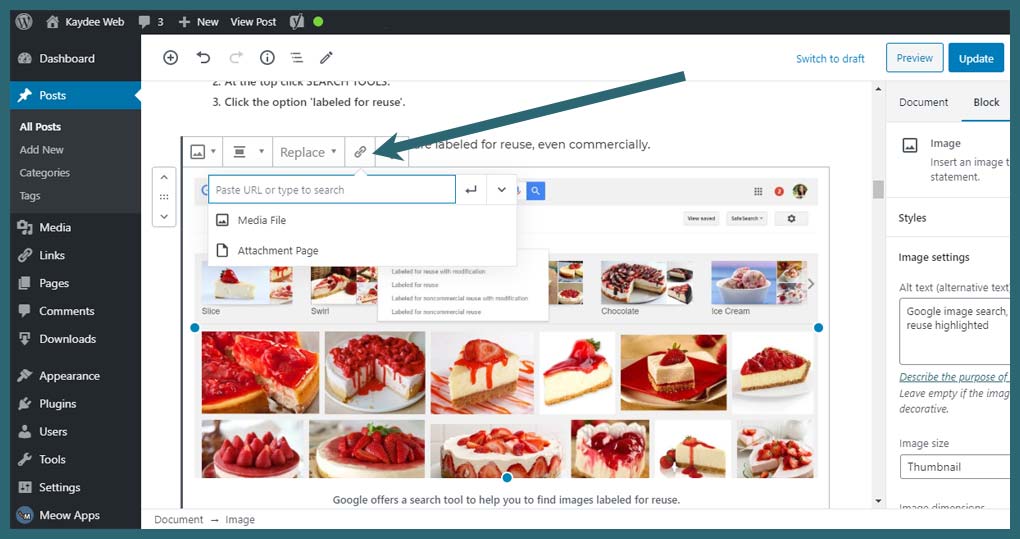
After selecting the text, look for the link icon in the toolbar. It looks like a chain link. Click this icon to open the link input box. Type or paste the URL you want to link to. Press Enter or click the Apply button to set the link. The text will now be linked to the chosen URL.
Customizing Link Settings
Click the linked text to see more options. You can open the link in a new tab by toggling the setting. This keeps visitors on your site longer. Add a title to describe the link for better accessibility. Remove the link if you want by clicking the unlink icon. These options help you control how links behave on your page.
Adding Links To Images And Buttons
Adding links to images and buttons makes your WordPress page more interactive. It helps visitors find more information quickly. Links on images and buttons guide users to other pages or websites. This is useful for promotions, navigation, and enhancing user experience.
Linking Images
To link an image, first select the image block in WordPress editor. Click the image to open the toolbar. Choose the link icon that looks like a chain. Enter the URL where you want to send visitors. Press Enter or click the Apply button to save the link.
You can link images to internal pages or external websites. Make sure the link is relevant to the image content. This improves page navigation and keeps users engaged longer.
Linking Buttons
Adding a link to a button is simple. Select the button block in the editor. Look for the Link field in the block settings or toolbar. Paste or type the URL you want the button to open. Confirm the link by pressing Enter or clicking the apply icon.
Buttons with clear links encourage users to take action. Use short, clear text on buttons to explain the link’s purpose. This helps visitors understand where the button will take them.
Best Practices For Linking
Linking is a key part of building a useful WordPress page. Good links help visitors find more information easily. They also improve your site’s SEO by connecting related content. Following best practices for linking makes your page clear and user-friendly.
Using Descriptive Anchor Text
Use clear words in your link text. Avoid vague phrases like “click here.” Describe what the visitor will see after clicking. For example, use “WordPress SEO tips” instead of “read more.” This helps search engines understand your content. It also guides visitors better.
Opening Links In New Tabs
Set external links to open in new tabs. This keeps visitors on your site longer. They can check the link and return easily. Avoid opening internal links in new tabs. It can confuse visitors and disrupt the flow.
Avoiding Broken Links
Check your links regularly to avoid broken ones. Broken links hurt user experience and SEO. Use tools or plugins to find dead links. Fix or remove broken links quickly. This keeps your site trustworthy and professional.
Troubleshooting Common Issues
Troubleshooting common issues can save time and reduce frustration when adding links to WordPress pages. Many users face simple problems that block links from working properly. Understanding the causes helps fix these issues quickly.
Some link problems come from incorrect URLs or settings. Others happen because of formatting errors inside the content editor. This section covers the most frequent link troubles and how to solve them.
Link Not Working
Check the URL carefully. A small typo can break the link.
Ensure the link starts with “http://” or “https://”. Missing this often causes errors.
Try opening the link in a new tab to test it. If it does not load, the URL might be wrong or the target site is down.
Clear your browser cache. Sometimes old data blocks new links from working.
Disable plugins one by one. Some plugins interfere with links on your site.
Formatting Problems
Links may appear broken or strange because of formatting issues.
Use the WordPress visual editor to add links. Avoid pasting raw HTML unless you know the code well.
Check for extra spaces or line breaks inside the link tag. These cause display problems.
Make sure the link text is clear and not empty. Blank link text confuses visitors.
Use the “Text” mode editor carefully. Mistakes here affect how links show up on the page.

Credit: www.greengeeks.com
Credit: www.34sp.com
Frequently Asked Questions
How Do I Add A Hyperlink To A WordPress Page?
To add a hyperlink, highlight the text or image, click the link icon in the editor, then paste the URL. Finally, click “Apply” to save the link.
Can I Link To External Websites From WordPress Pages?
Yes, you can link to external websites by entering the full URL in the link field. Ensure it opens in a new tab for better user experience.
How Do I Edit Or Remove A Link On WordPress?
Click on the linked text or image, then select the pencil icon to edit or the unlink icon to remove the link instantly.
Is It Possible To Add Links Using The WordPress Block Editor?
Yes, the block editor allows you to add links easily via the toolbar in text blocks or buttons, making linking straightforward and flexible.
Conclusion
Adding links to your WordPress page helps visitors find useful information. It also improves your site’s navigation and user experience. The process is simple and takes only a few steps. Practice adding different types of links to get comfortable. Keep your links clear and relevant for your readers.
Good links can boost your website’s traffic and engagement. Try adding links today and see the difference they make.


