Are you struggling to make your WordPress buttons do more? Adding a link to your button can boost your website’s engagement and guide visitors exactly where you want them to go.
Whether you want to connect to another page, a product, or an external site, learning this simple step can make a big difference. You’ll discover easy, clear instructions to add links to your WordPress buttons—no confusing jargon, just straightforward tips you can use right now.
Keep reading to unlock this powerful trick and take control of your website’s navigation.
Credit: www.hostinger.com
Choosing The Right Button
Choosing the right button for your WordPress site improves user experience. The correct button guides visitors clearly. It also fits your site’s style and goals. Understanding different types helps you pick the best one. Knowing when to use buttons makes your site easier to navigate.
Types Of WordPress Buttons
WordPress offers many button types. You can use simple text buttons or graphic buttons. Some buttons include icons for better clarity. There are also call-to-action buttons that stand out. Each type serves a different purpose on your site. Choose one that matches your content and design.
When To Use Buttons
Buttons work well for important actions. Use them for links to other pages or downloads. They are good for sign-up forms or purchases. Avoid using too many buttons on one page. Focus on key actions you want visitors to take. This keeps your site clean and easy to use.
Creating A Button In WordPress
Creating a button in WordPress is a simple task that anyone can do. Buttons help guide visitors to important pages or actions. Adding a button improves user experience and can boost engagement on your site.
WordPress offers multiple ways to create buttons. The most common methods are using the Block Editor or Page Builders. Each method has its own steps and benefits. Choose the one that fits your skill level and website needs.
Using The Block Editor
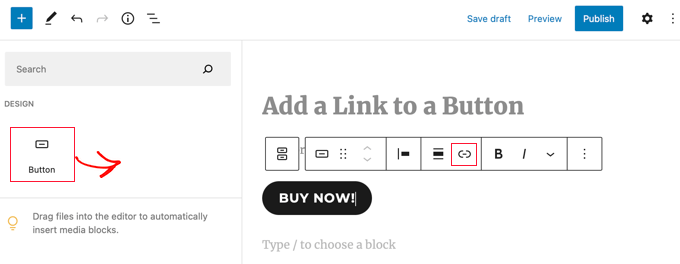
The Block Editor, also called Gutenberg, is built into WordPress. It lets you add buttons without extra plugins. To create a button, add a new block and select the “Button” option. You can then type your button text and choose its style.
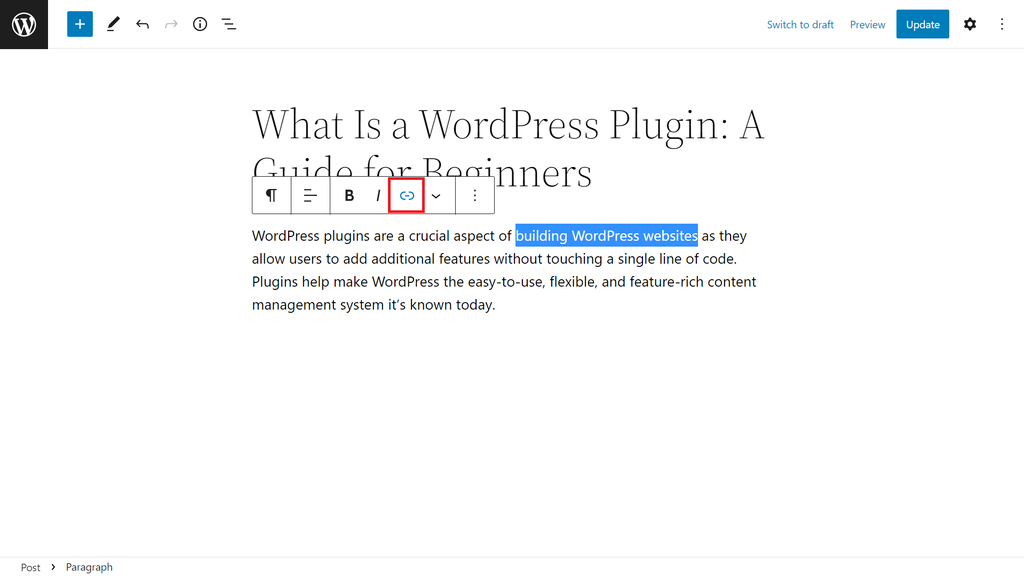
Linking the button is easy. Just click on the button block and enter the URL in the link field. You can make the link open in a new tab by toggling the option. The Block Editor also lets you change button colors and alignment.
Using Page Builders
Page Builders like Elementor or Beaver Builder offer more design freedom. They have drag-and-drop interfaces for creating buttons. You can pick from many styles and animations. Drag a button element onto your page and customize it.
To add a link, find the button’s link settings. Paste your URL there. Page Builders also allow linking to sections within the page or to email addresses. These tools are great for more complex designs without coding.
Adding A Link To Your Button
Adding a link to your WordPress button makes it interactive and useful. A button without a link does not direct visitors anywhere. Linking helps guide users to pages or sites that matter to your content. It improves navigation and user experience. Let’s explore how to link your button to different types of destinations.
Linking To Internal Pages
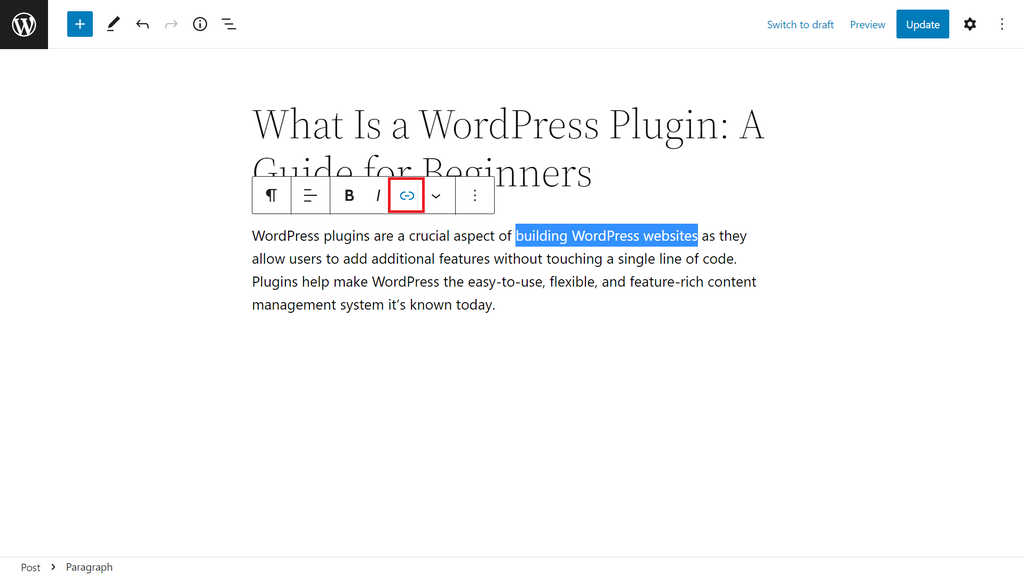
Internal links point to pages within your own website. They keep visitors exploring your content longer. To link a button internally, first select the button in the WordPress editor. Then enter the URL or select the page from the list. WordPress often shows page suggestions as you type. This makes it easy to find the right page.
Internal linking also helps search engines understand your site structure. Use clear and relevant page names for the best results. Test your button to ensure it leads to the correct page. This keeps your site user-friendly and organized.
Linking To External Urls
External links send visitors to other websites. Use them to share resources or related information. To link externally, select the button and paste the full URL starting with “http://” or “https://”.
Check the URL carefully to avoid broken links. You can also choose to open external links in a new tab. This keeps visitors on your site while they explore other pages. Make sure external links add value and relate to your content.
Customizing Button Appearance
Customizing the appearance of your WordPress button makes it fit your website style. A well-designed button attracts visitors and improves clicks. Simple changes like colors, fonts, size, and shape can create a strong visual impact. These tweaks help your button stand out and guide users to take action.
Changing Colors And Fonts
Colors influence how visitors see your button. Choose colors that match your website theme. Use contrasting colors for text and background to improve readability. Fonts affect the button’s tone. Pick clean and easy-to-read fonts. Avoid fancy fonts that confuse readers. Adjust font size for clarity, making text visible on all devices.
Adjusting Size And Shape
Size matters for button visibility. Bigger buttons catch attention quickly. Keep size balanced so it fits well with your page layout. Shape defines button style. Rounded corners give a soft look. Sharp edges create a bold feel. Experiment with shapes to match your website’s personality. Test different sizes and shapes to find the best fit.
Testing Button Links
Testing button links is a key step after adding them to your WordPress site. It ensures the button works correctly and leads users to the right place. This process helps avoid broken links or mistakes that can confuse visitors.
Careful testing improves user experience and keeps your site professional. Take the time to preview and check links before publishing.
Previewing Your Page
Preview your page to see how the button looks and works. Use the WordPress preview option to open the page in a new tab. This shows the button in its real environment, just like visitors see it.
Check the button’s position, style, and size. Make sure it stands out and is easy to click. Previewing helps spot any design or layout issues early.
Checking Link Functionality
Click the button to test its link. It should open the correct page or file immediately. If the link does not work, double-check the URL you entered.
Test the link in different browsers and devices. This confirms the button works for all users. Fix any broken or incorrect links before publishing your page.
Credit: www.wpbeginner.com
Troubleshooting Common Issues
Troubleshooting common issues helps fix problems fast. Many users face simple errors when adding links to WordPress buttons. These issues often stop buttons from working or showing up. This section covers quick tips to solve these problems.
Link Not Working
Check if the URL is correct and complete. A missing “http://” or “https://” breaks the link. Use full URLs to avoid errors. Sometimes, a typo in the address stops the link. Double-check spelling and format.
Clear your browser cache to see updates. Old data can show the wrong page. Test the button in different browsers. Some browsers block links for security reasons. Also, disable plugins that may block links. Security plugins or ad blockers can cause issues.
Button Not Showing Up
Make sure the button is added to the right place. Sometimes, it is outside the visible area. Check the page layout in the editor. The button might be hidden behind other elements. Adjust the layers or z-index to bring it forward.
Check your theme settings. Some themes hide buttons by default. Look for options related to buttons or call-to-actions. Also, disable conflicting plugins. Plugins that change page content can hide buttons. Refresh the page after changes to confirm.
Enhancing Buttons With Plugins
Plugins can improve the look and function of buttons on WordPress sites. They help add links easily and bring extra features. Using plugins saves time and effort compared to manual coding.
Plugins offer different styles and behaviors for buttons. They allow you to match buttons to your site design. Also, plugins make buttons more clickable and user-friendly.
Popular Button Plugins
Many plugins help create and link buttons in WordPress. Some popular options include MaxButtons, WPForms, and Forget About Shortcode Buttons. These tools offer simple ways to add links and customize button style.
MaxButtons provides many design templates and easy linking. WPForms lets you add buttons inside forms with links. Forget About Shortcode Buttons uses simple shortcodes for quick button creation.
Adding Advanced Features
Plugins allow more than just linking buttons. You can add hover effects, animations, and icons. These features make buttons stand out and catch visitors’ eyes.
Some plugins enable tracking clicks on buttons. This helps understand which links get more attention. Others let you set buttons to open links in new tabs or popups.
Credit: www.hostinger.com
Frequently Asked Questions
How Do I Add A Link To A WordPress Button?
To add a link, select the button block in the editor. Enter your desired URL in the link field. Save or update your page to apply changes. This makes the button clickable and directs users to the linked page.
Can I Link A WordPress Button To An External Website?
Yes, you can link a WordPress button to any external URL. Just paste the full web address in the button’s link field. Ensure the URL starts with http:// or https:// for proper redirection.
How To Make WordPress Button Links Open In A New Tab?
In the button settings, enable the “Open in new tab” option. This helps keep visitors on your site while opening the link separately. It improves user experience and reduces bounce rates.
Is It Possible To Add Nofollow Links To WordPress Buttons?
Yes, adding a nofollow attribute requires custom HTML or a plugin. This tells search engines not to pass SEO value to the linked page. It’s useful for affiliate or sponsored links.
Conclusion
Adding a link to a WordPress button is simple and fast. Just follow the steps carefully, and your button will work perfectly. This skill helps guide visitors to important pages or offers. Keep your links clear and relevant to improve user experience.
Practice a few times to get confident. Soon, adding links will feel natural and easy. Your website will look more professional and helpful. Try it today and see the difference it makes.