

Are you looking to make your WordPress images more powerful? Adding a link to an image can turn a simple picture into a clickable gateway that drives traffic, boosts engagement, and improves your site’s user experience.
But if you’re unsure how to do it, don’t worry—you’re in the right place. You’ll discover easy, step-by-step instructions to add links to your images quickly and effectively. By the end, you’ll have a simple skill that can help you connect your visitors to the content that matters most.
Ready to transform your images into clickable action points? Let’s get started!
Benefits Of Linking Images
Linking images in WordPress offers many benefits. It helps both search engines and visitors understand your content better. Adding links to images is a smart way to make your site more interactive and useful. Below are some key benefits of linking images.
Improving Seo Rankings
Search engines notice links on images. These links help spread page authority across your site. Linked images give extra signals about your content’s relevance. This can improve your website’s position in search results. Also, using relevant keywords in image links boosts SEO power.
Enhancing User Experience
Clickable images make navigation easier and faster. Visitors can access important pages by clicking pictures. This creates a smooth browsing experience. Users prefer sites where they can find information quickly. Linked images keep visitors engaged and reduce bounce rates.
Increasing Click-through Rates
Images catch attention more than plain text links. Adding links to images encourages more clicks. Visitors are curious to explore linked visuals. This increases traffic to important pages or offers. Using linked images can lead to higher conversions on your site.
Credit: www.wpbeginner.com
Preparing Images For Linking
Preparing images for linking improves user experience and site performance. Proper preparation ensures images load fast and look good on all devices. It also helps search engines understand your content better. Follow these steps to get your images ready for linking.
Choosing The Right Image
Select images that match your content’s message. Use clear, high-quality pictures that attract attention. Avoid blurry or pixelated images. Choose images that are relevant to the linked page. This keeps visitors interested and improves click rates.
Optimizing Image Size And Format
Large images slow down your website. Resize images to fit your page layout. Use formats like JPEG for photos and PNG for graphics. Compress images to reduce file size without losing quality. Fast-loading images help keep visitors on your site.
Adding Descriptive Alt Text
Alt text describes the image for search engines and users with disabilities. Write short, clear descriptions of what the image shows. Include keywords naturally but avoid keyword stuffing. Alt text improves SEO and accessibility for all users.
Linking Images In WordPress Editor
Linking images in the WordPress editor helps make your content more interactive. You can connect images to other pages, posts, or websites. This feature guides visitors to related information or products. Adding links to images is simple with WordPress. Both the Block Editor and Classic Editor have easy options for this.
Using The Block Editor
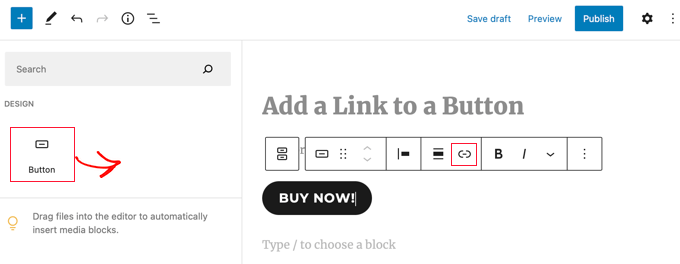
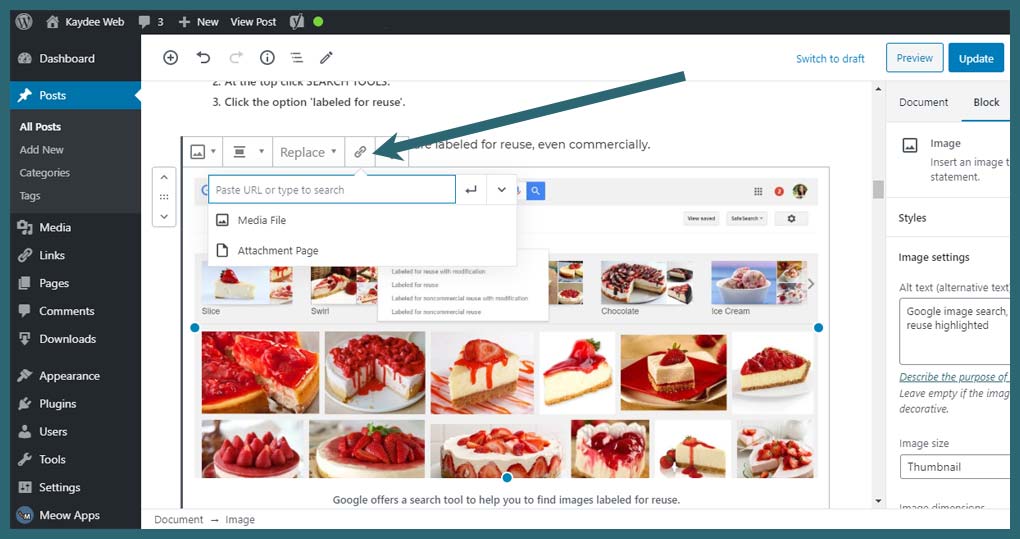
In the Block Editor, select the image you want to link. A toolbar appears above the image. Click the link icon, which looks like a chain. Enter the URL where you want to send visitors. Press the Enter key or click the Apply button. The image now acts as a clickable link.
Adding Links In Classic Editor
In the Classic Editor, click on the image inside the content area. Then, click the Edit button (pencil icon) that appears. A popup window opens with image details. Find the Link To dropdown menu. Choose “Custom URL” and enter the link address. Click Update to save the changes. Your image will link to the chosen URL.
Setting Link Destinations
Set the link destination carefully for the best user experience. Use internal links to related posts or pages on your site. Use external links to trusted websites for extra information. You can also link images to downloadable files. Check that the URL is correct and works well. This ensures visitors reach the right place smoothly.

Credit: www.greengeeks.com
Using Plugins For Image Linking
Using plugins to add links to images in WordPress makes the process simple and fast. Plugins provide extra tools that help you link images without coding. They are perfect for beginners and save time for all users. This method also offers more control over how links behave on your site.
Popular Plugins To Consider
Several plugins can help you link images easily. “Image Links” is a popular choice for simple linking. “WP Image Link” offers more design options for links. “Pretty Links” helps manage and track links connected to images. Each plugin has unique features to fit different needs.
Step-by-step Plugin Setup
First, go to your WordPress dashboard and click on “Plugins”. Search for your chosen image link plugin. Click “Install Now” and then “Activate”. Open the plugin settings to configure link options. Upload or select an image and set the URL link. Save your changes and check the image link on your site.
Managing Links With Plugins
Plugins allow you to edit or remove links from images easily. Some plugins offer link tracking to see clicks. You can set links to open in new tabs or the same window. Many plugins support bulk linking for many images at once. Regularly update plugins to ensure smooth performance and security.
Best Practices For Image Links
Adding links to images in WordPress makes your site more interactive. It helps visitors find related content easily. Using best practices ensures your image links work well and improve user experience. Follow these simple tips to keep your links effective and reliable.
Avoiding Broken Links
Broken links frustrate visitors and harm your site’s reputation. Always check URLs before adding them to images. Update links regularly to avoid errors. Use tools to scan your site for broken links. Fix or remove any broken links immediately.
Choosing Relevant Urls
Link images to pages that match the image content. Relevant URLs keep visitors interested and engaged. Avoid linking to unrelated or promotional pages. Use links that add value and guide users naturally. This improves site navigation and SEO.
Tracking Link Performance
Monitor how visitors interact with your image links. Use analytics tools to track clicks and user behavior. Understand which links bring the most traffic. Adjust your strategy based on these insights. Tracking helps improve your site’s effectiveness over time.
Credit: kaydee.net
Frequently Asked Questions
How Do I Add A Link To An Image In WordPress?
To add a link, select the image in the editor. Click the link icon and enter the URL. Save changes to link the image.
Can I Link Images To External Websites In WordPress?
Yes, you can link images to any external URL by entering the full web address in the link field.
How To Remove Or Edit A Link From A WordPress Image?
Select the linked image, click the link icon, then choose “Remove” or edit the URL. Save to update changes.
Is It Possible To Open Image Links In New Tabs?
Yes, enable the “Open link in new tab” option when adding or editing the image link in WordPress.
Conclusion
Adding links to images in WordPress is simple and useful. It helps guide visitors to important pages easily. Just follow the steps carefully, and you will do it right. This small change can improve your website’s navigation a lot. Keep practicing to become comfortable with these edits.
Your site will look more professional and user-friendly. Try adding links to different images to see what works best. This skill is helpful for any WordPress user. Keep your website clear and easy to use.


